
Skip to content

Account and support overview

Use this section when you need to sign in, protect your account, understand access, recover from a blocked action, or prepare a safe support request.

Account access, organization membership, project permissions, cloud authority, approval authority, and billing access are separate. Being able to sign in does not automatically grant every product action.

Start here when
Access or a workflow needs attention
You need
The page, action, scope, and visible status
Outcome
The correct self-service or support path

Sign in or recover access

Create and verify an account, sign in, complete two-factor verification, or reset a forgotten password.

Protect your account

Change your password, manage verification methods and passkeys, review active sessions, or sign out other browsers.

Manage team access

Invite project members, choose roles, manage reviewer groups, and remove access that is no longer needed. Open the access guide.

Troubleshoot a workflow

Follow a safe diagnostic sequence before retrying or escalating. Open the checklist.

Prepare a support request

Capture useful context without passwords, verification codes, credentials, private links, or customer data. Open Get help.

Understand a term

Use the A–Z reference for ScrinCloud product, status, governance, cost, and delivery language. Open the Glossary.

Layer What it controls What it does not prove
Account Your identity, password, verification methods, and sessions Membership in every organization
Organization Shared plan, policy, and organization-level membership Access to every project
Project Who can view, edit, review, or administer one initiative Cloud-provider permission
Workspace The environment and delivery boundary for architecture and Terraform work Permission to approve or apply
Cloud connection Approved read or delivery access to a provider scope Product role or billing entitlement
Reviewer or approval role Authority to review a defined change Broad project administration
Plan entitlement Whether a product capability or limit is available Runtime readiness or provider access

When an action is missing or disabled, identify which layer owns it before changing anything. Do not broaden a role or provider permission merely to test whether the control becomes available.

  1. Open Create account.
  2. Enter your name, email address, and a password that satisfies every visible requirement.
  3. Submit the form once.
  4. Complete the email-verification step using the newest valid message.
  5. Return to Sign in.

If you joined through an invitation, use the same email address that received the invitation. Verification proves control of the email address; it does not change your assigned project role.

  1. Enter the verified account email and password.
  2. If prompted, complete the preferred verification method.
  3. Confirm the organization, project, and workspace after the dashboard opens.
  4. If a previous session expired, sign in again and verify the restored page before continuing work.

Do not approve unexpected sign-in prompts. If you receive a security message for an action you did not start, change your password from a trusted browser, review active sessions, and follow your organization’s security-escalation process.

  1. Select Forgot password? from Sign in.
  2. Enter the account email address.
  3. Use the newest recovery message and complete the visible verification step.
  4. Choose a new password that you do not use elsewhere.
  5. Sign in again and review active sessions.

For privacy, the recovery flow may use the same confirmation wording whether or not an account is found. Wait for the expected message, check the correct inbox and filtered folders, then request a new message only after the visible wait period.

Open Settings → Security to manage account protection.

  • Prefer an authenticator app or passkey when your organization supports it.
  • Keep an allowed backup method before removing a primary method.
  • Store recovery codes outside the browser in a secure location.
  • A recovery code is normally single-use. Treat the remaining set as sensitive.
  • Organization administrators may require specific verification methods.

Use Change password when you know the current password and want to rotate it. Complete the requested fresh verification. A successful password change signs out active browsers, so be prepared to sign in again.

Use password recovery instead when the current password is unknown.

The Active sessions card shows browsers currently signed in to the account.
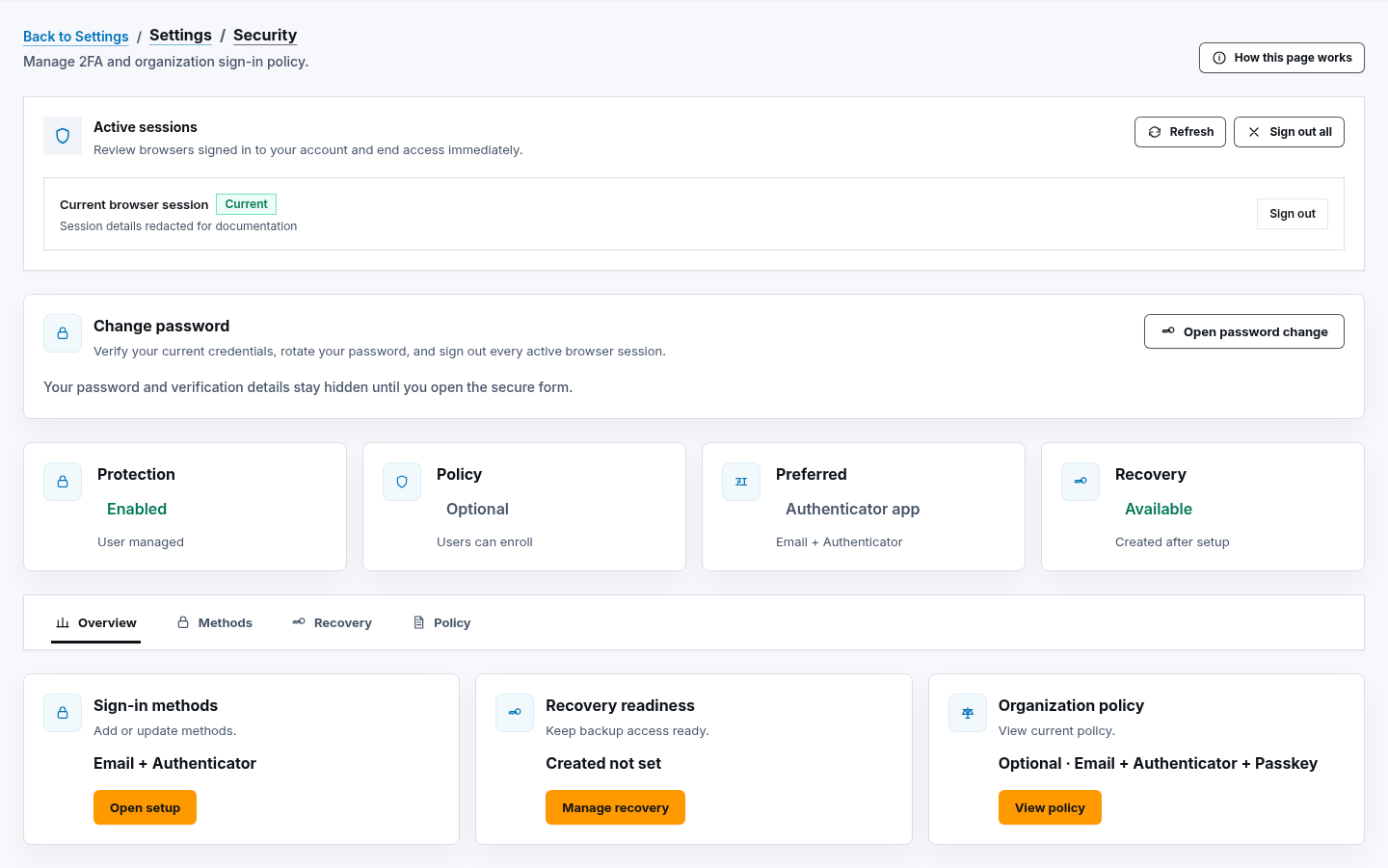
  • Select Refresh before reviewing unfamiliar activity.
  • Use Sign out for one browser.
  • Use Sign out all when access may be compromised or you want every browser to authenticate again.
  • Signing out the current session returns you to Sign in.

Account support 1 of 2 · Screenshot placeholder

Review Security and active sessions

Show the public Security settings with verification status, Change password, and Active sessions visible.

Future capture briefUse a fictional account. Hide email addresses, device details, verification material, organization names, and request references.

Project access should match a person’s current responsibility.

  1. Open Settings → Team & Access.
  2. Choose the intended project.
  3. Review members, pending invitations, roles, groups, and approval duties.
  4. Invite or update only the people who need access.
  5. Use the lowest role that supports the required work.
  6. Remove or revoke stale access promptly.

Project membership does not grant provider credentials, billing ownership, or approval authority unless those are assigned separately.

Check these questions in order:

  1. Are you signed into the intended account and organization?
  2. Is the correct project, workspace, environment, provider, and region selected?
  3. Does your role allow this action?
  4. Does the action require a reviewer or approval?
  5. Is the relevant cloud or Git connection healthy?
  6. Is the capability included in the organization plan?
  7. Is the current item in a status that permits the action?
  8. Did the visible message ask you to wait, refresh, or correct a prerequisite?

Use the troubleshooting checklist for the full sequence.

Contact support when:

  • the same safe error continues after its stated prerequisite is corrected;
  • account recovery or verification remains unavailable after normal waiting and resend steps;
  • a role or invitation appears inconsistent with the selected project;
  • a completed action does not appear after a bounded refresh;
  • billing or plan information differs from the organization’s confirmed plan;
  • a security message or session is unfamiliar; or
  • the product requests a browser-visible request identifier.

Prepare the page, action label, approximate time, selected non-sensitive scope, visible status, request identifier, and steps to reproduce. Follow Get help before sending screenshots or files.
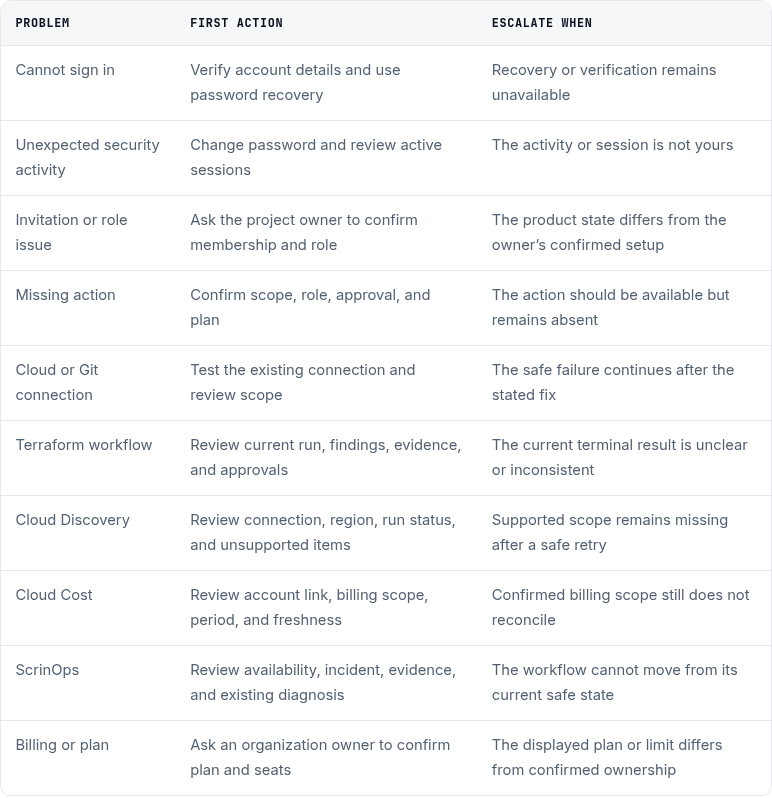
Account support 2 of 2 · Screenshot placeholder

Choose the right support path

Show a fictional decision path from account, access, security, billing, or workflow issue to the correct self-service or support action.

Future capture briefDo not include email addresses, customer names, provider identifiers, private links, security material, or detailed error dumps.

Security rules for every support conversation

Section titled “Security rules for every support conversation”

Never send:

  • passwords or password-reset material;
  • one-time verification or recovery codes;
  • passkey details;
  • browser cookies or sign-in material;
  • cloud or Git credentials;
  • Terraform state or private variable values;
  • private repository links or file content;
  • raw provider exports;
  • customer data; or
  • screenshots that reveal unrelated organizations, projects, resources, or people.

ScrinCloud support should not need those values to identify the correct next step.