
Manage Git connections
Manage Git connections from Git Integration. Connection administration is organization-scoped; repository creation additionally requires project-admin access.
- Typical time
- 5–10 minutes
- You need
- A connected Git provider
- Outcome
- Reviewed access and defaults
Step 1: Review the account row
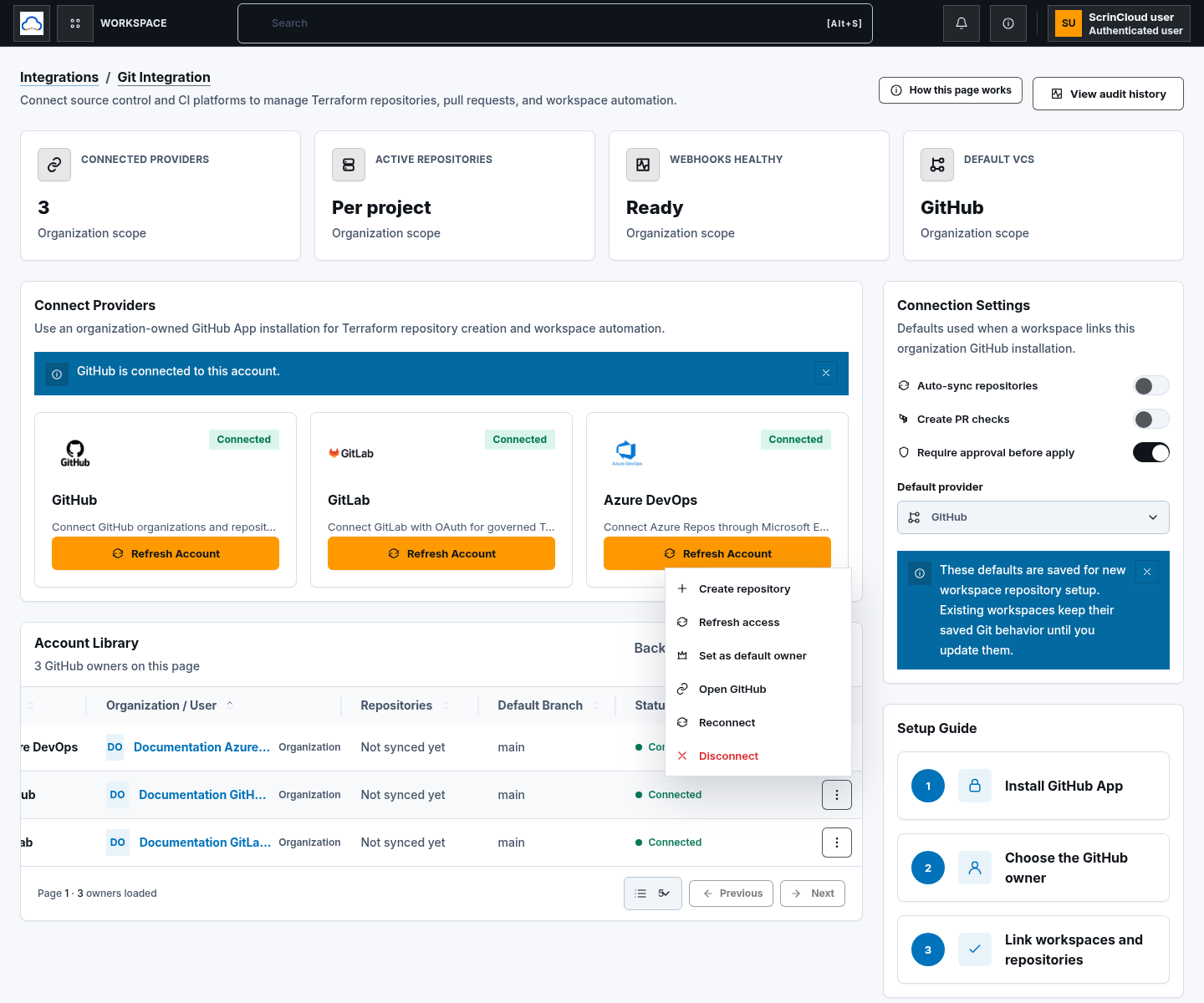
Section titled “Step 1: Review the account row”In Connected Accounts, confirm provider, owner, owner type, default marker, and Connected status. Use the row action menu instead of changing provider credentials outside the approved flow.
The current row actions are Create repository, Refresh access, Set as default owner, Open GitHub/GitLab/Azure DevOps, Reconnect, and Disconnect. Provider and project-role checks can disable actions that do not apply to the selected account.
Step 2: Refresh or reconnect
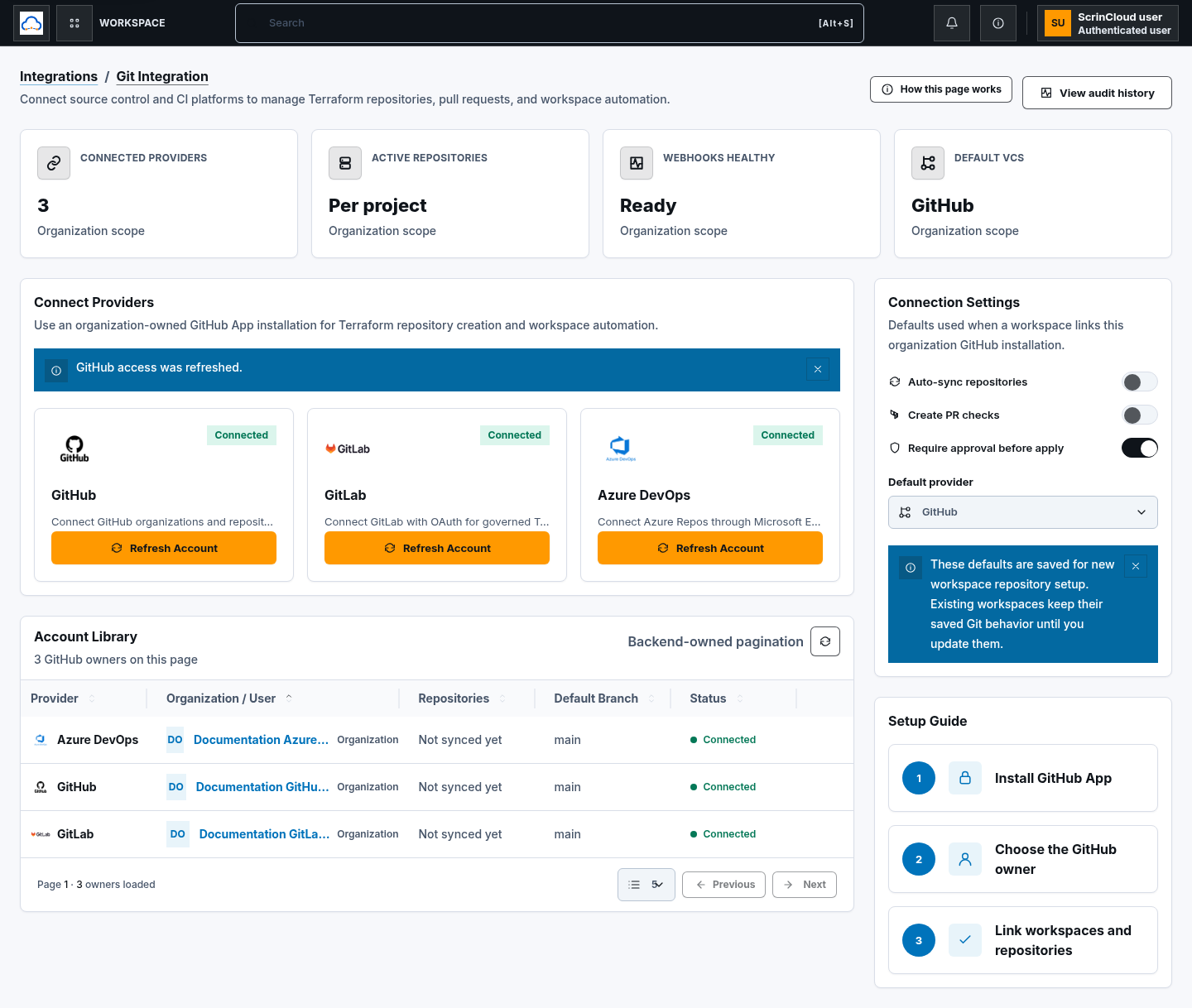
Section titled “Step 2: Refresh or reconnect”- Refresh connected Git accounts reloads the current backend-owned page.
- Refresh access re-reads the authorized provider accounts after membership or repository scope changes.
- Reconnect starts a new provider authorization flow when consent, installation, or credentials have expired or been revoked.
Do not reuse callback codes, state values, installation IDs, or tokens from a previous attempt.
Step 3: Review connection defaults
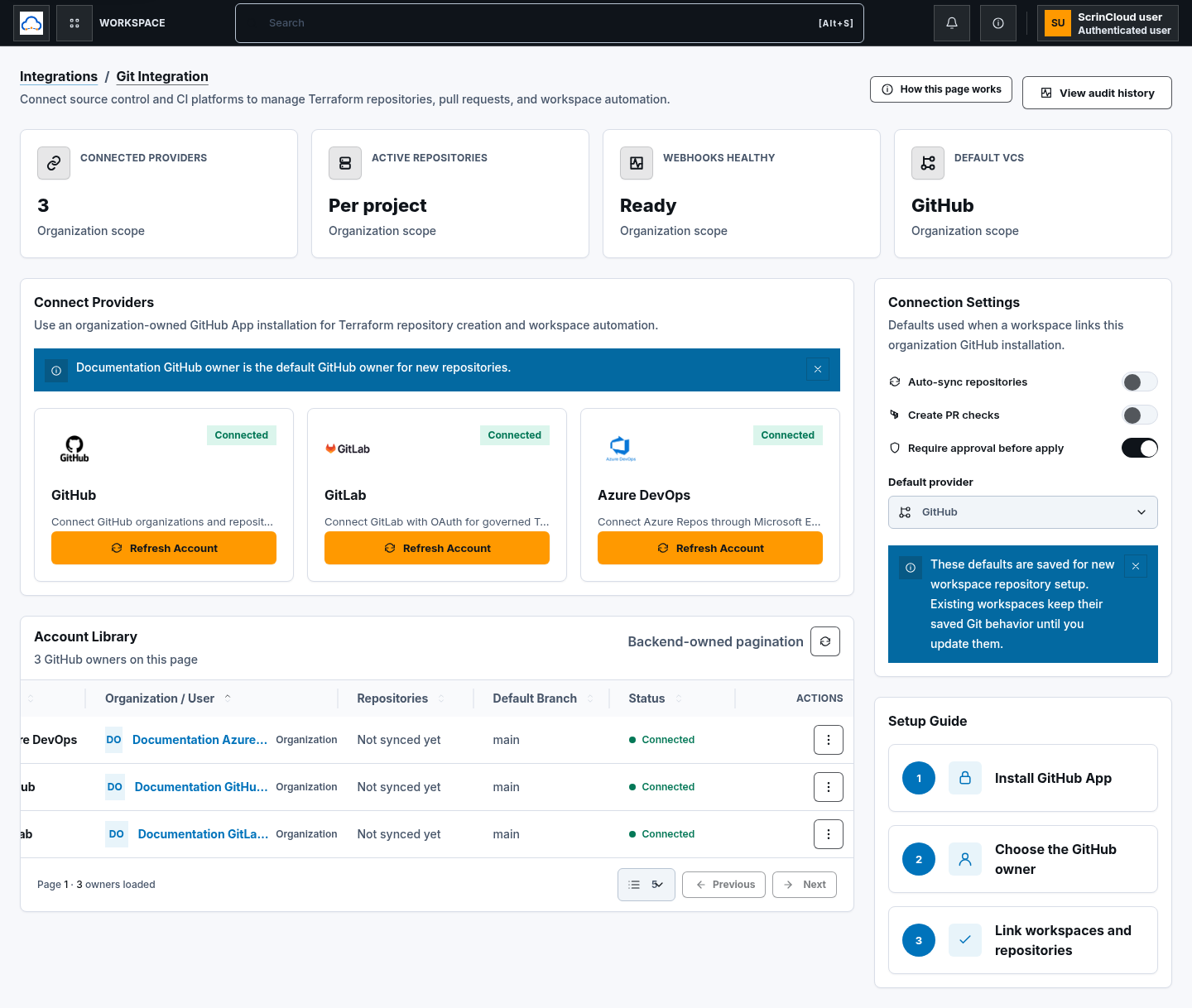
Section titled “Step 3: Review connection defaults”Use Connection Settings to review:
- Auto-sync repositories;
- Create PR checks;
- Require approval before apply; and
- Default provider.
Defaults affect new workspace repository setup. Existing workspaces keep their saved behavior until explicitly updated.
Step 4: Review audit history
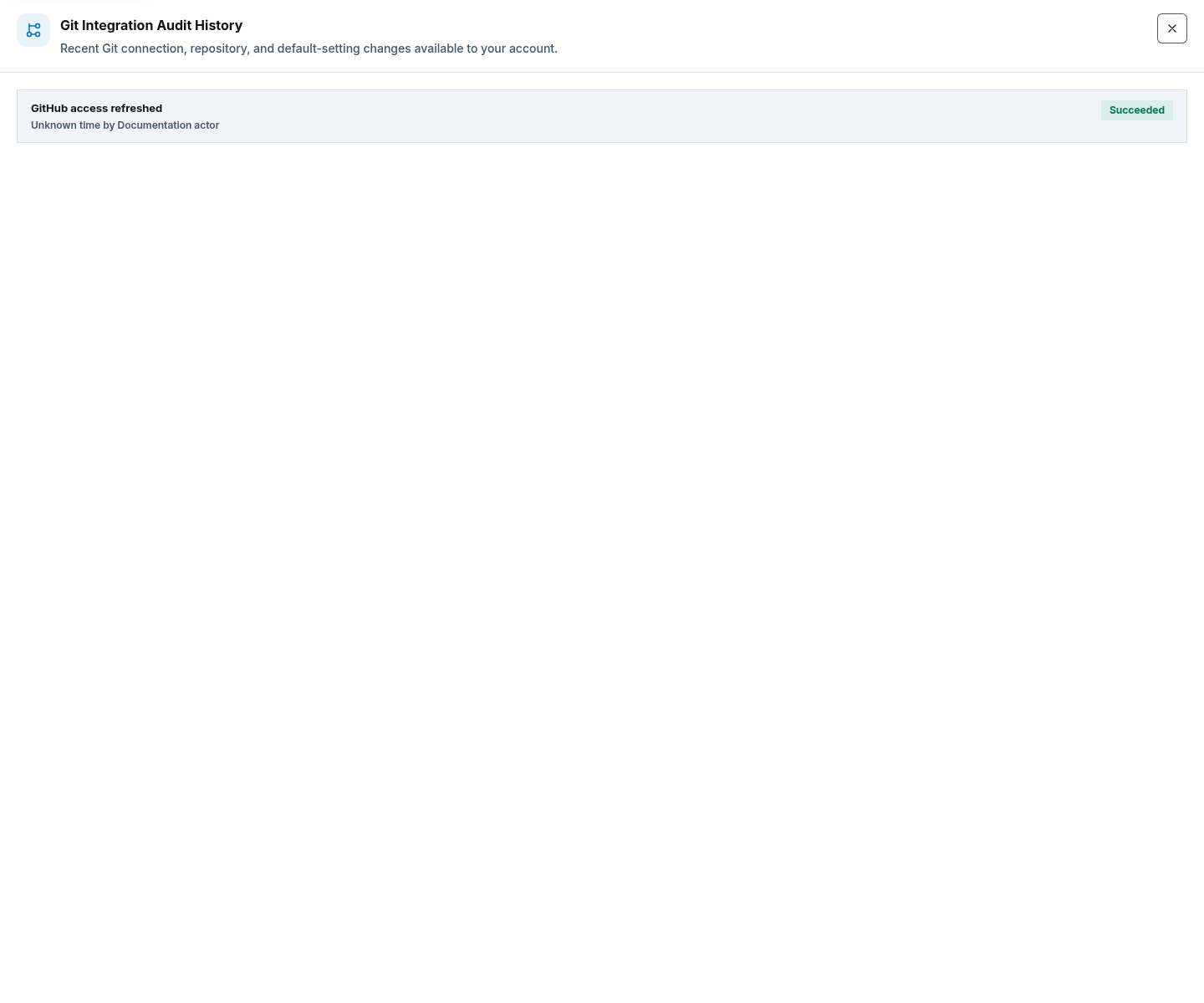
Section titled “Step 4: Review audit history”Choose View audit history. Review connection, refresh, settings, repository, and disconnect events using safe actor and organization context.
Audit evidence must not contain provider tokens, OAuth codes, passwords, repository credentials, prompt bodies, Terraform state, or unbounded customer payloads.
Step 5: Disconnect safely
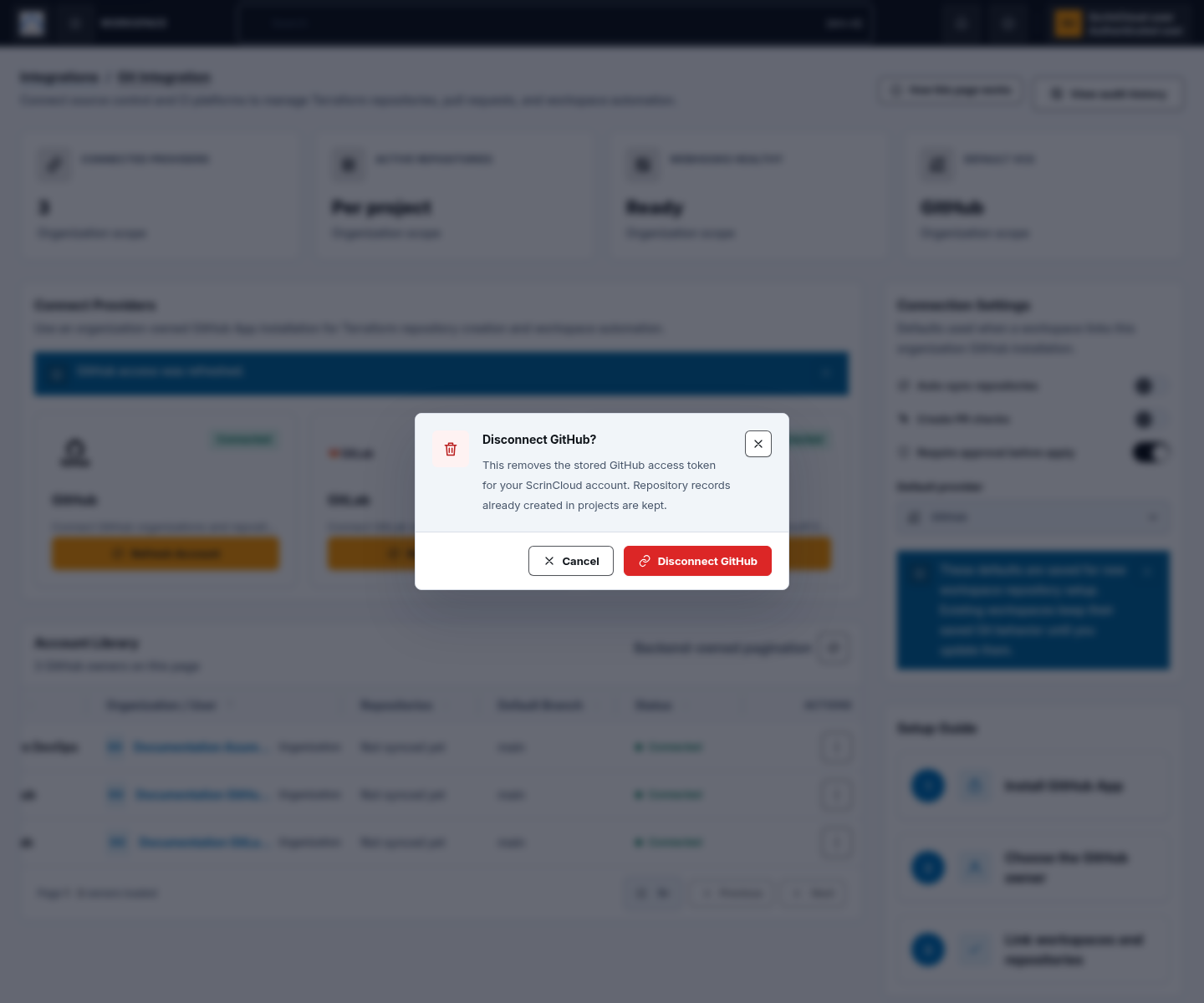
Section titled “Step 5: Disconnect safely”Choose Disconnect and review the confirmation. Disconnect removes the stored ScrinCloud provider credential and stops new automation. Repository records already created in projects are retained.
After disconnecting, also revoke the GitHub App installation or provider consent when organizational policy requires it. Disconnecting does not delete provider repositories or Terraform-managed cloud resources.
Governed repository workflow
Section titled “Governed repository workflow”When publishing Terraform:
- select an approved connected provider and project repository;
- generate and review the Terraform revision;
- use a governed branch;
- run safe-file and secret checks;
- open a pull or merge request; and
- require the normal review and approval process before apply.
ScrinCloud must not silently overwrite remote changes or force-push across branch protection. Publishing should stop on conflicts or unsafe files.
Files such as Terraform state and plans, secrets, environment files, keys, logs, archives, binaries, and unknown hidden files are always inappropriate for repository publishing.
Provider capability summary
Section titled “Provider capability summary”| Action | GitHub | GitLab | Azure DevOps |
|---|---|---|---|
| Connect, refresh, reconnect, disconnect | Yes | Yes | Yes |
| Set as default owner | Yes | No current row action | No current row action |
| Create repository from Git Integration | Yes, with project-admin access | No current row action | No current row action |
| Select as Default provider | Yes | Yes | Yes |
Check your result
Section titled “Check your result”Confirm the account status and owner, refresh access, review saved defaults and audit evidence, and verify that only approved workspaces and repositories can use the connection.
Common blockers
Section titled “Common blockers”Refresh does not pick up new repositories
Section titled “Refresh does not pick up new repositories”Review provider-side installation or OAuth scope, then reconnect if consent changed. Do not broaden access beyond the approved repositories.
Repository creation is disabled
Section titled “Repository creation is disabled”The current action is GitHub-only and requires project-admin access plus an eligible project.
Disconnect leaves a repository visible
Section titled “Disconnect leaves a repository visible”Disconnect retains project repository records and does not delete provider repositories. Remove provider-side consent separately when policy requires it.
A live workflow has not been proven
Section titled “A live workflow has not been proven”Source code and deployment wiring do not prove provider credentials, callbacks, webhooks, or repository permissions are healthy in a specific environment. Record live evidence only after an approved end-to-end runtime check.