
Use the overview dashboard
The Overview page is the signed-in starting point for projects, workspaces, cloud connections, discovery, Terraform activity, and items that need attention. It shows summaries; it does not deploy or change cloud resources.
- Typical time
- 3–5 minutes
- You need
- A ScrinCloud account
- Outcome
- A useful personal dashboard
Open and refresh Overview
Section titled “Open and refresh Overview”- Open Overview from the product navigation.
- Review Infrastructure delivery for delivery health, recent run success, drift, and active workspace totals.
- Choose Overview options.
- Choose Refresh overview to request the latest summary.
- If the page could not load, choose Retry after checking your connection.
Opening a destination is a navigation action. Refresh overview performs a read-only backend request. Neither action starts Terraform, discovery, or a deployment.
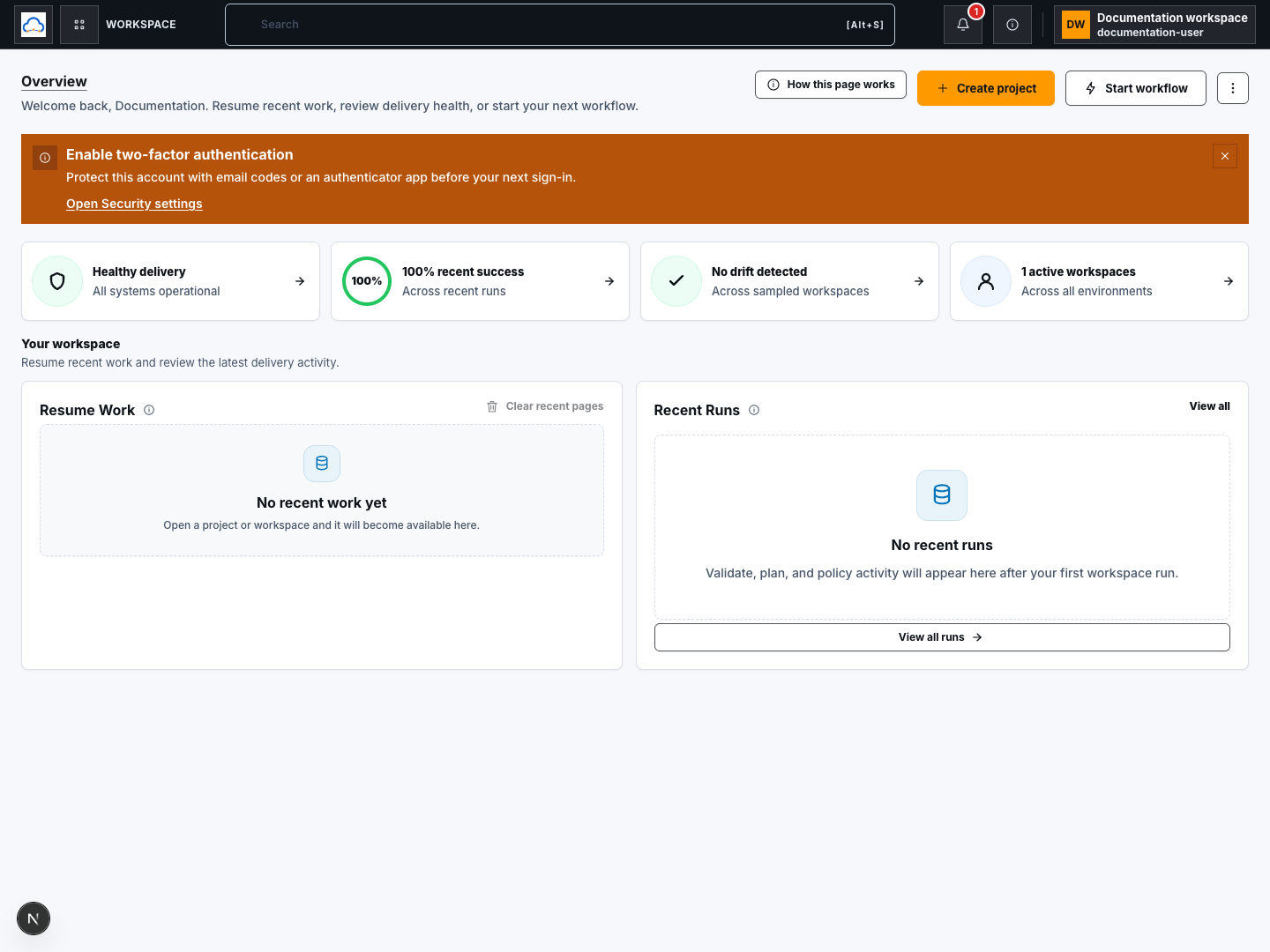
Check your result
Section titled “Check your result”The refreshed cards show a completed loading state without an error banner.
Continue work and use quick actions
Section titled “Continue work and use quick actions”- In Resume Work, choose Continue to open the recommended destination.
- Use Create project or Start workflow at the top of Overview when you want to begin a new task.
- Review the destination before starting any action there.
These actions navigate to another product page. They do not complete the named workflow automatically.
Use recently visited and pinned pages
Section titled “Use recently visited and pinned pages”- In Recently Visited, choose a page name to reopen it.
- Open the row action menu and choose Pin to keep it in Favorites.
- Choose Unpin to remove it from Favorites without deleting the page.
- Choose Remove to remove only that history entry.
- Choose Clear recent pages to clear the recent-page list.
Pins and recent history personalize your dashboard. They do not change projects, workspaces, access, or cloud resources.
Check your result
Section titled “Check your result”A pinned page appears under Favorites in product navigation. Removed or cleared recent entries disappear without changing the underlying page.
Customize dashboard cards
Section titled “Customize dashboard cards”- Choose Overview options, then Customize dashboard.
- Drag a card to reorder it, or use its move-up and move-down controls.
- Hide a card you do not need.
- Restore a hidden card from the customization controls.
- Choose Reset layout to restore the default order and visibility.
- Choose Done and wait while the preference is saved.
Reordering and hiding update your dashboard preferences through the application settings service. They do not change the data represented by the cards.
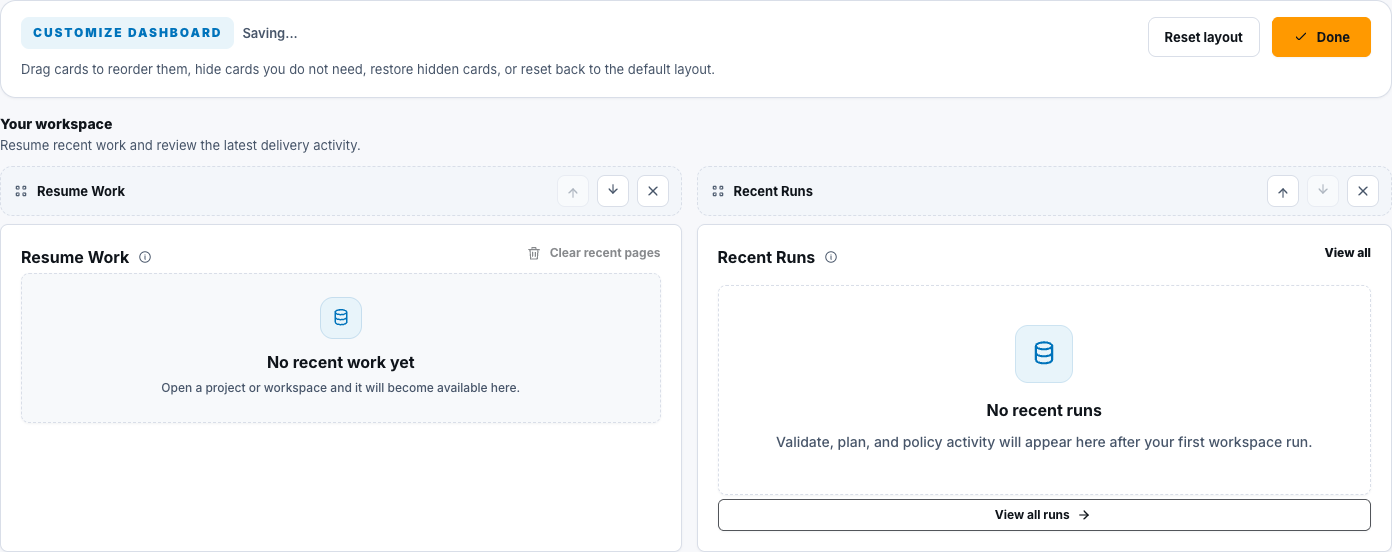
Check your result
Section titled “Check your result”Exit and reopen Overview. The chosen card order and visibility should remain.
Understand the proof boundary
Section titled “Understand the proof boundary”The Overview page can prove that its summary request returned and that a saved dashboard preference reloaded. It cannot prove that Terraform ran, cloud resources changed, discovery completed, or a deployment reached a live environment. Verify those outcomes in their dedicated workflows.
Common blockers
Section titled “Common blockers”Overview does not load
Section titled “Overview does not load”Choose Retry or Refresh overview once. If the error remains, check your session and network connection. Do not treat stale cards as current evidence.
A quick action is unavailable
Section titled “A quick action is unavailable”Your role, plan, feature availability, or missing project context may prevent the destination action. Open the destination and read its permission message.
A card order does not persist
Section titled “A card order does not persist”Choose Done and wait for saving to finish. Refresh only after the control returns to its normal state.