
Operate Cloud Discovery
Discovery Operations is the backend-owned history and control surface for read-only discovery, managed-resource observations, drift, reconciliation, unsupported resources, and safe activity evidence.
- Typical time
- 15–30 minutes
- You need
- A project and tested cloud account
- Outcome
- A scoped, evidence-backed next action
Step 1: Select the exact scope
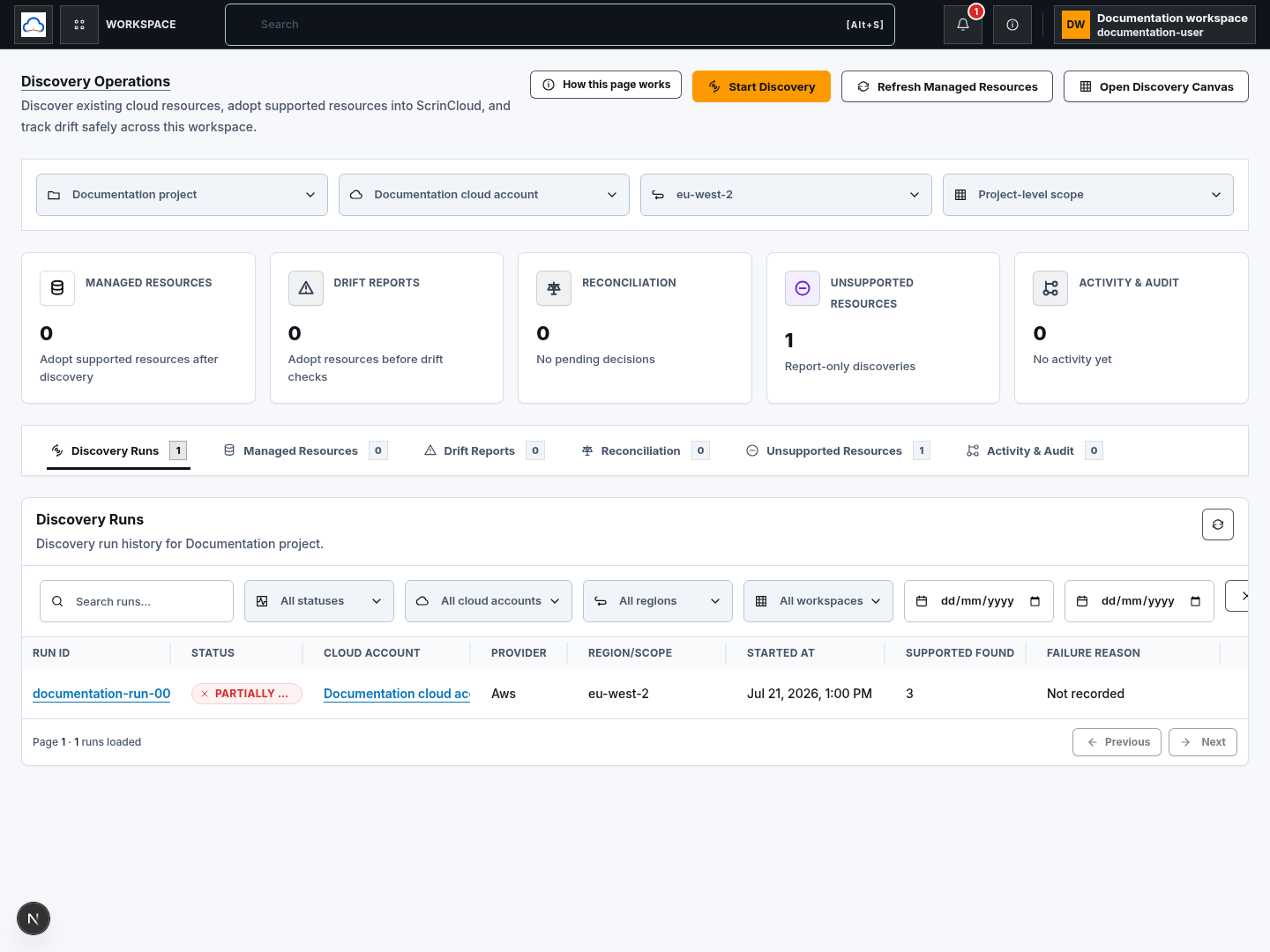
Section titled “Step 1: Select the exact scope”Choose the Project, Cloud account, Region, and optional Workspace. Project-level scope is distinct from a workspace-bound run.
The header actions are:
- Start Discovery, which queues a read-only scan for the selected account and region; and
- Refresh Managed Resources, which reloads current backend-owned operational records.
Refresh does not start a new provider scan. Start Discovery does not create, update, or delete cloud resources.
Step 2: Use metric cards and tabs
Section titled “Step 2: Use metric cards and tabs”Metric cards open bounded details for Managed Resources, Drift Reports, Reconciliation, Unsupported Resources, and Activity & Audit.
The tables use six tabs:
- Discovery Runs
- Managed Resources
- Drift Reports
- Reconciliation
- Unsupported Resources
- Activity & Audit
Select a metric or tab to change the current read view. Use the table-level Refresh Discovery Operations action when you need the latest backend records.
Step 3: Filter and page Discovery Runs
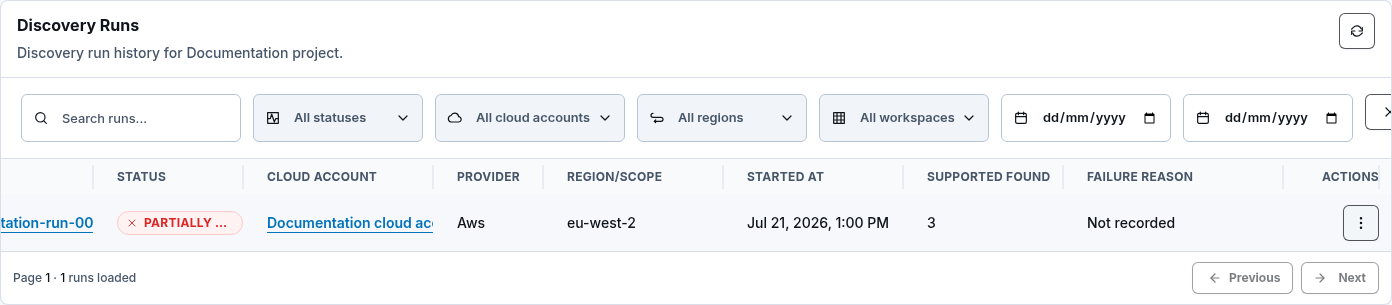
Section titled “Step 3: Filter and page Discovery Runs”Filter by search text, status, account, region, workspace, and date range. Results use backend-owned pagination; Previous and Next request another bounded page rather than filtering a complete history in the browser.
Open the run ID or choose View run details to review status, scope, safe logs, failures, unsupported results, and audit context.
The row menu also shows Download safe summary. In the current interface that action opens the run details; it does not download a file. Do not claim that a summary was exported unless a future interface returns an actual download.
Step 4: Choose the correct run action
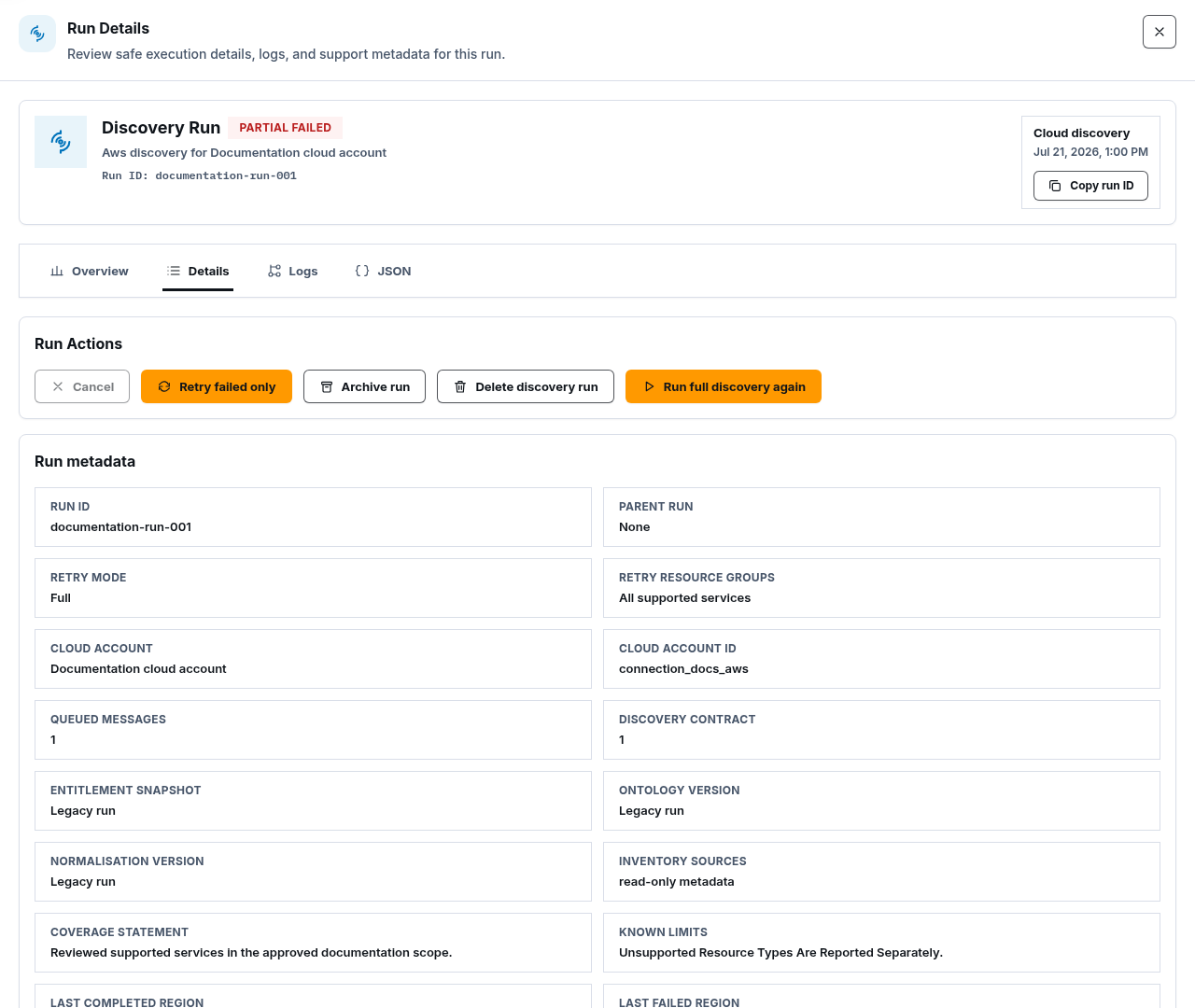
Section titled “Step 4: Choose the correct run action”The run drawer can expose:
- Cancel for active work; completed discovery remains visible;
- Retry failed only, which creates a linked run for eligible failed scope;
- Archive run, which removes the run from the default list but preserves safe history and audit evidence;
- Delete discovery run, which removes the history/results record after confirmation but never deletes cloud resources; and
- Run full discovery again, which starts a separate full run.
The row menu uses Rerun discovery and Cancel running discovery for the same governed lifecycle. Wait for the action to finish before taking another action. A queued or accepted request is not proof that the provider scan completed.
Step 5: Inspect and refresh a managed resource
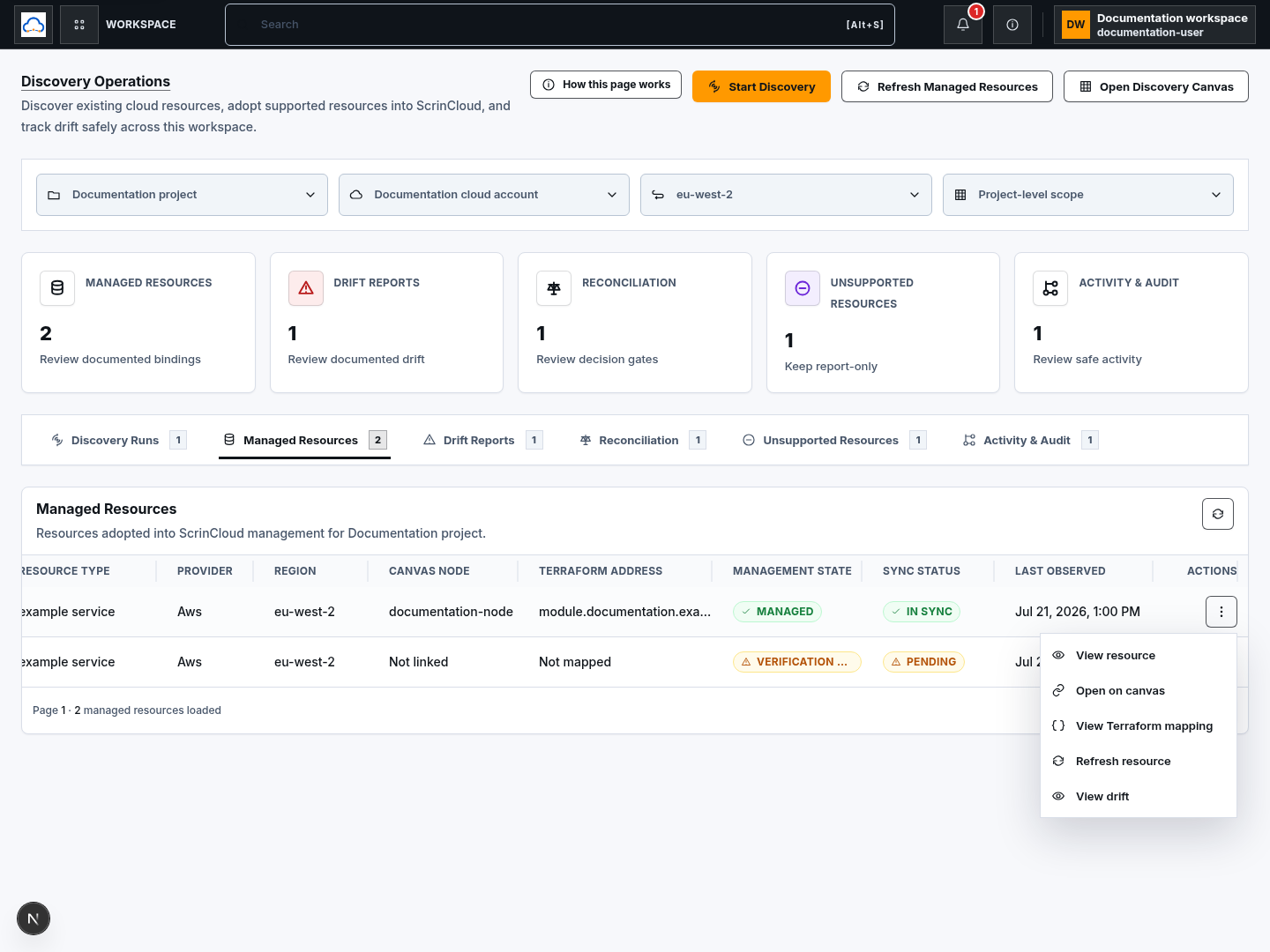
Section titled “Step 5: Inspect and refresh a managed resource”The Managed Resources row menu provides:
- View resource;
- Open on canvas;
- View Terraform mapping;
- Refresh resource; and
- View drift.
Refresh queues or performs a sanitized provider observation for that binding. Review the updated sync state and timestamp. It does not import a resource into Terraform, change the canvas, or repair drift automatically.
When Governed detach is available, provide a reason and confirm Create detach request. Detach prepares a governed Terraform handoff; it does not silently delete the provider resource.
Step 6: Decide how to handle drift
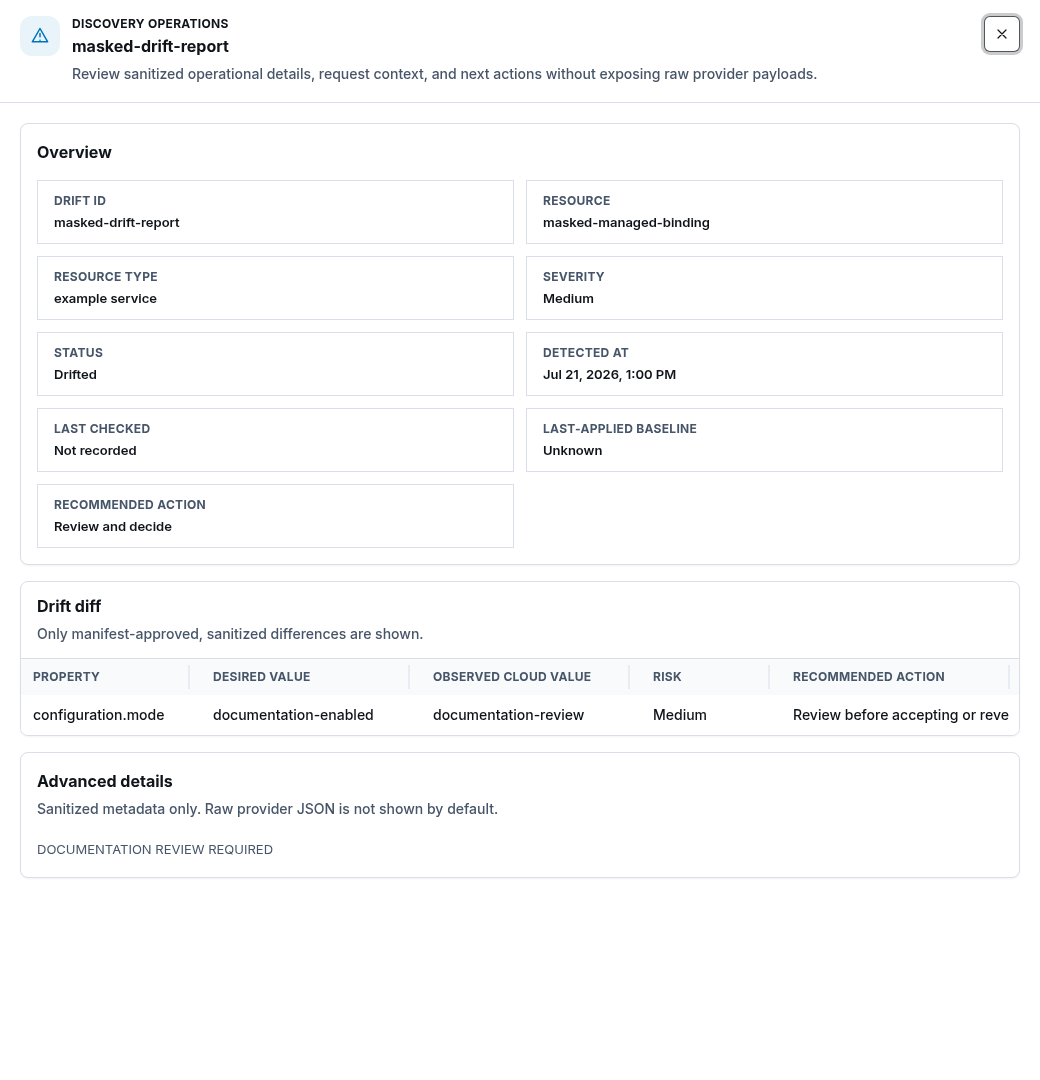
Section titled “Step 6: Decide how to handle drift”Open Drift Reports and choose:
- Review drift to compare sanitized desired and observed values;
- Accept cloud change to prepare a reconciliation proposal;
- Ignore with reason to record an explicit bounded decision; or
- Open on canvas to inspect design context.
Accepting drift is not an apply. It prepares reviewable reconciliation evidence. Ignoring drift does not erase the observation or its audit history.
Step 7: Review reconciliation readiness
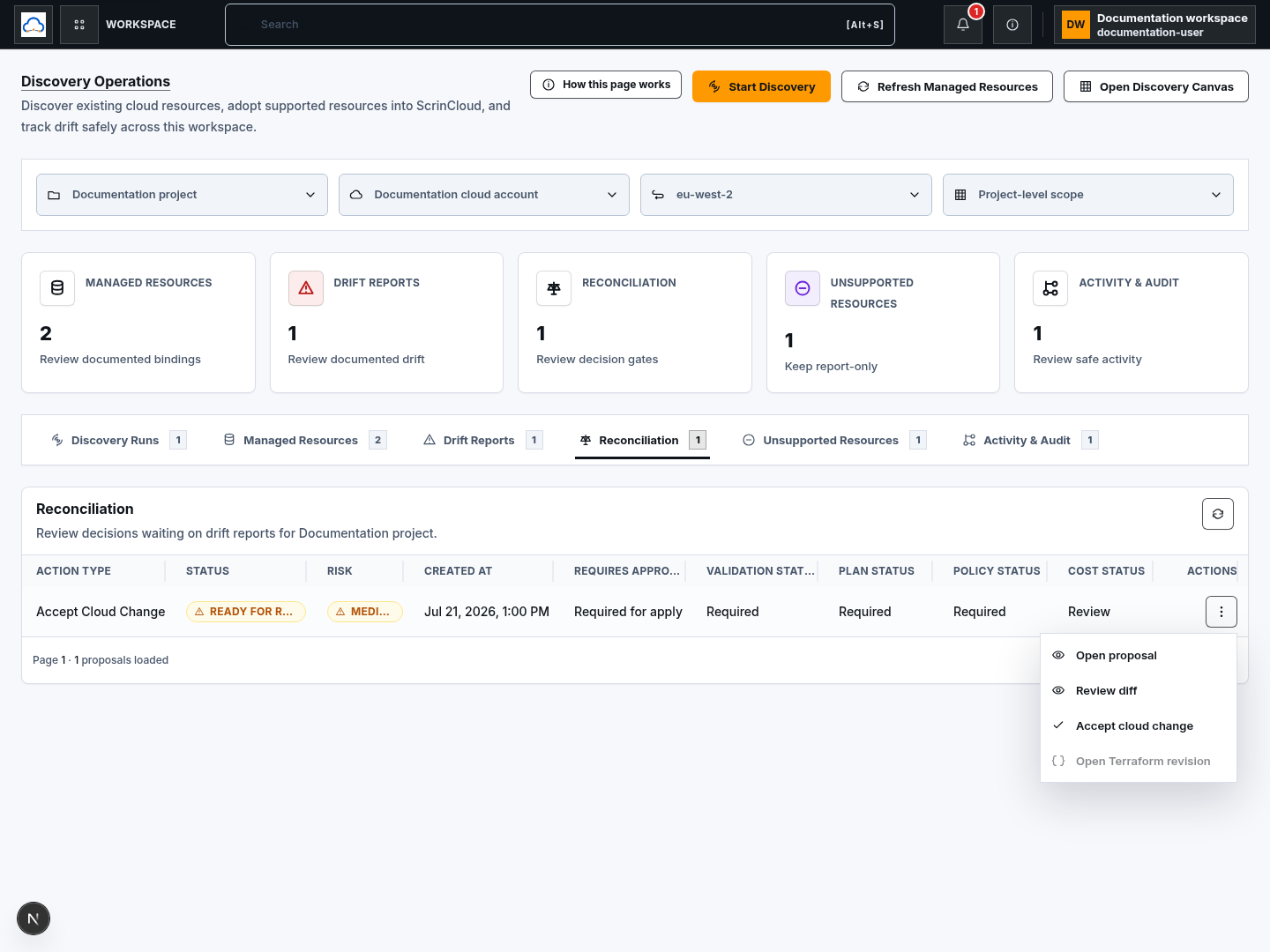
Section titled “Step 7: Review reconciliation readiness”The Reconciliation row menu exposes Open proposal, Review diff, and Accept cloud change. A proposal also shows that validation, plan, policy, cost review, and approval are required before apply.
Open Terraform revision is currently disabled in this table. Do not describe it as available or use reconciliation status as cloud-change proof.
Step 8: Review unsupported resources honestly
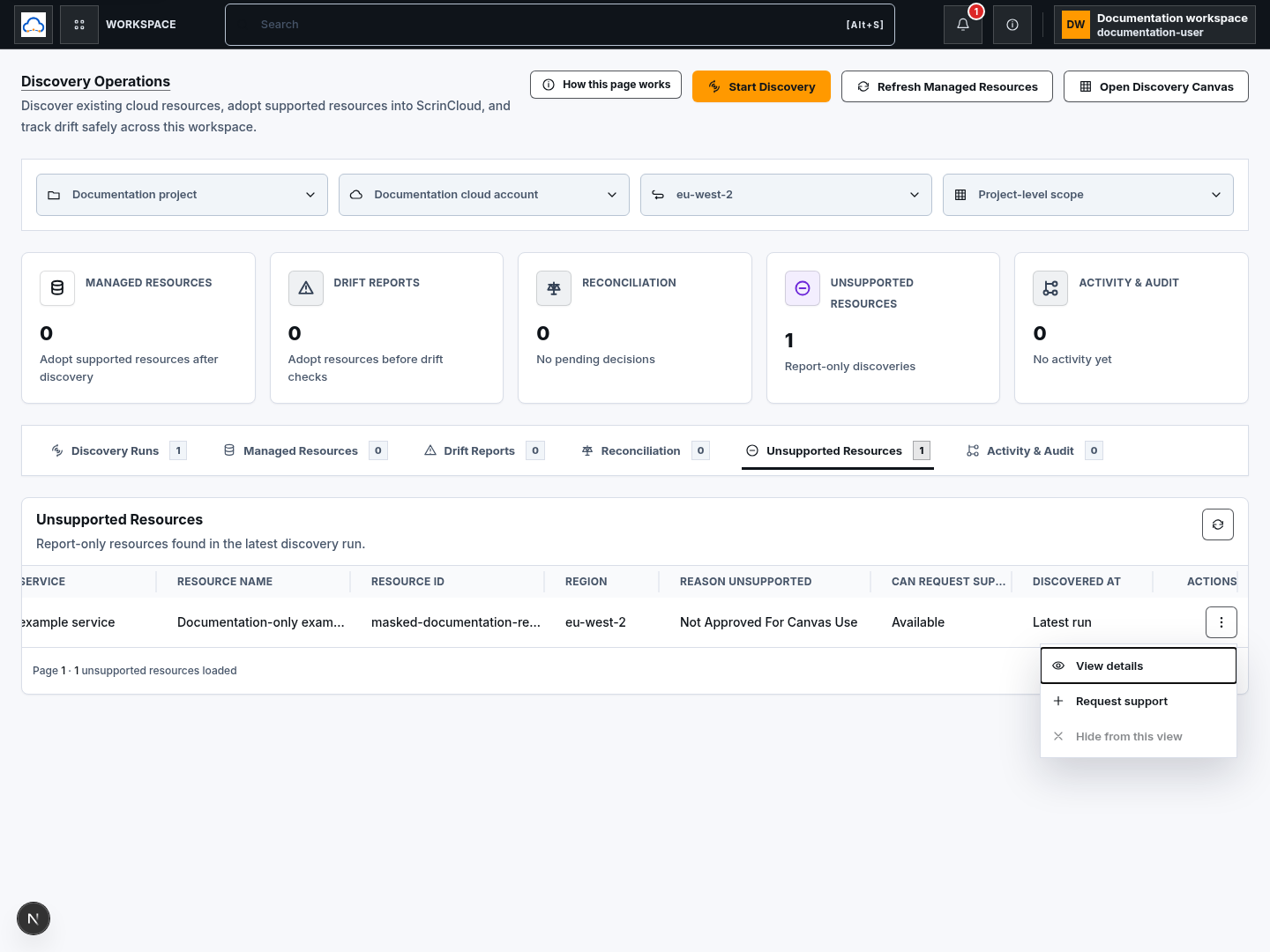
Section titled “Step 8: Review unsupported resources honestly”Unsupported resources remain report-only. Use View details to understand the current support reason. Request support currently opens the same bounded detail rather than submitting an external request, and Hide from this view is disabled.
Do not represent an unsupported resource as managed, mapped, validated, or covered by generated Terraform.
Step 9: Read safe activity evidence
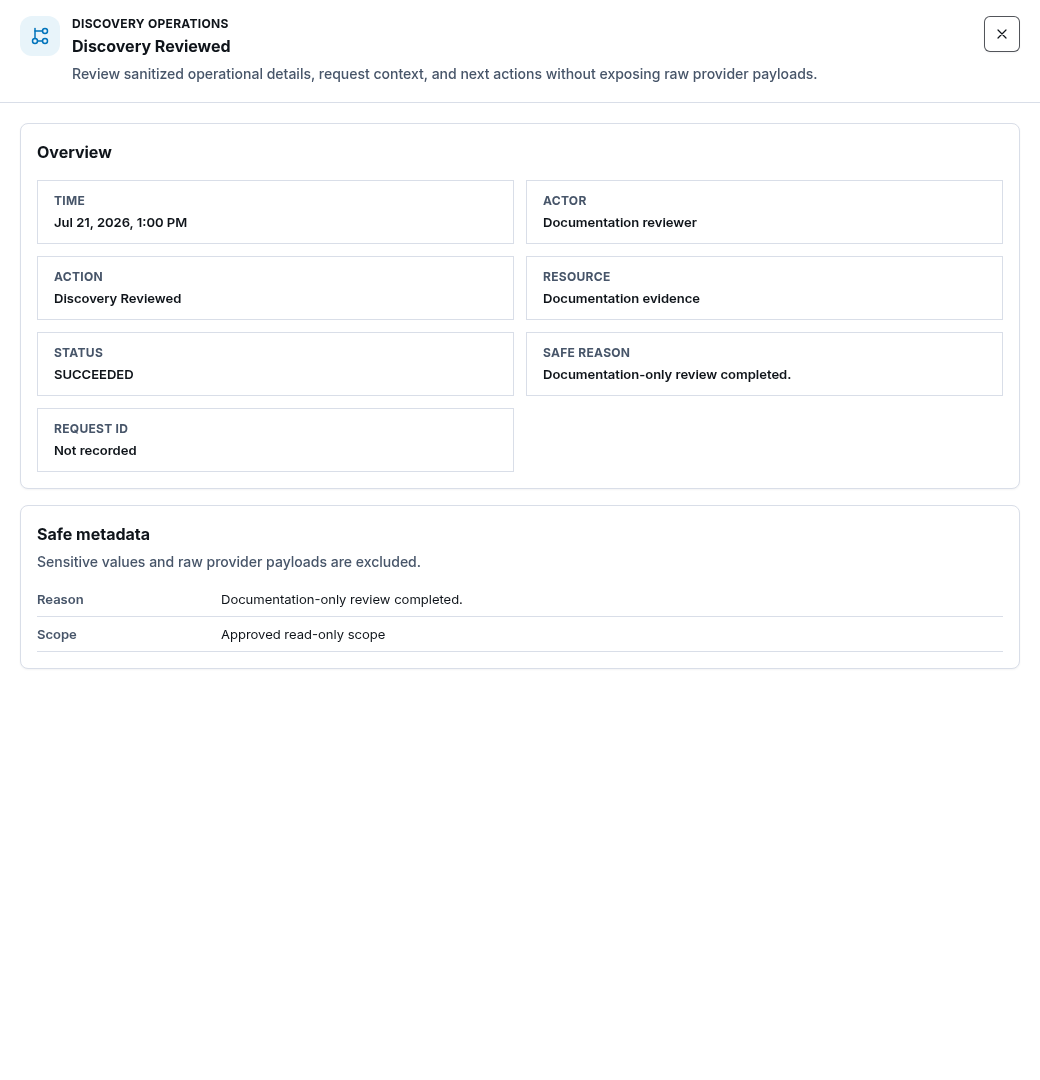
Section titled “Step 9: Read safe activity evidence”Activity & Audit lists safe action, resource, result, time, actor, and request context. Choose View safe details for bounded metadata.
Use audit evidence to explain who requested an action and what the backend recorded. It does not replace provider evidence or prove a queued operation completed successfully.
Check your result
Section titled “Check your result”Confirm the project/account/region/workspace scope, latest backend status, requested action, resulting linked run or proposal, and safe audit record. Keep queued, completed, reconciled, approved, and applied states distinct.
Common blockers
Section titled “Common blockers”Retry failed only is disabled
Section titled “Retry failed only is disabled”The run must contain retryable failed scope. Open failures and confirm that the account, region, and permissions are still approved before retrying.
Delete discovery run is disabled
Section titled “Delete discovery run is disabled”Active runs must be cancelled and reach a terminal state first. Deleting history never deletes cloud resources or managed-resource bindings.
Refresh resource fails
Section titled “Refresh resource fails”Review connection health, allowed region/service scope, resource binding, and the safe error. Do not broaden provider access without a reviewed need.
A table action is present but disabled
Section titled “A table action is present but disabled”Treat the disabled state as the current product boundary. Review its reason and do not document or report the action as successfully available.
Continue
Section titled “Continue”Use Manage resources and drift for the full reconciliation decision path, then use Review plans safely before any apply.