
Create a Terraform run
The Runs page is project-scoped and backend-paginated. It gives every Terraform action a workspace, revision, actor, status, and audit trail.
- Typical time
- 5–20 minutes
- You need
- A latest saved workspace revision
- Next step
- Review run details
Step 1: Open Runs and select the project
Section titled “Step 1: Open Runs and select the project”Open Runs. Confirm the project-scoped notice, then use the project, workspace, environment, run type, status, date, and search filters to establish the intended context.

Step 2: Open New Terraform Run
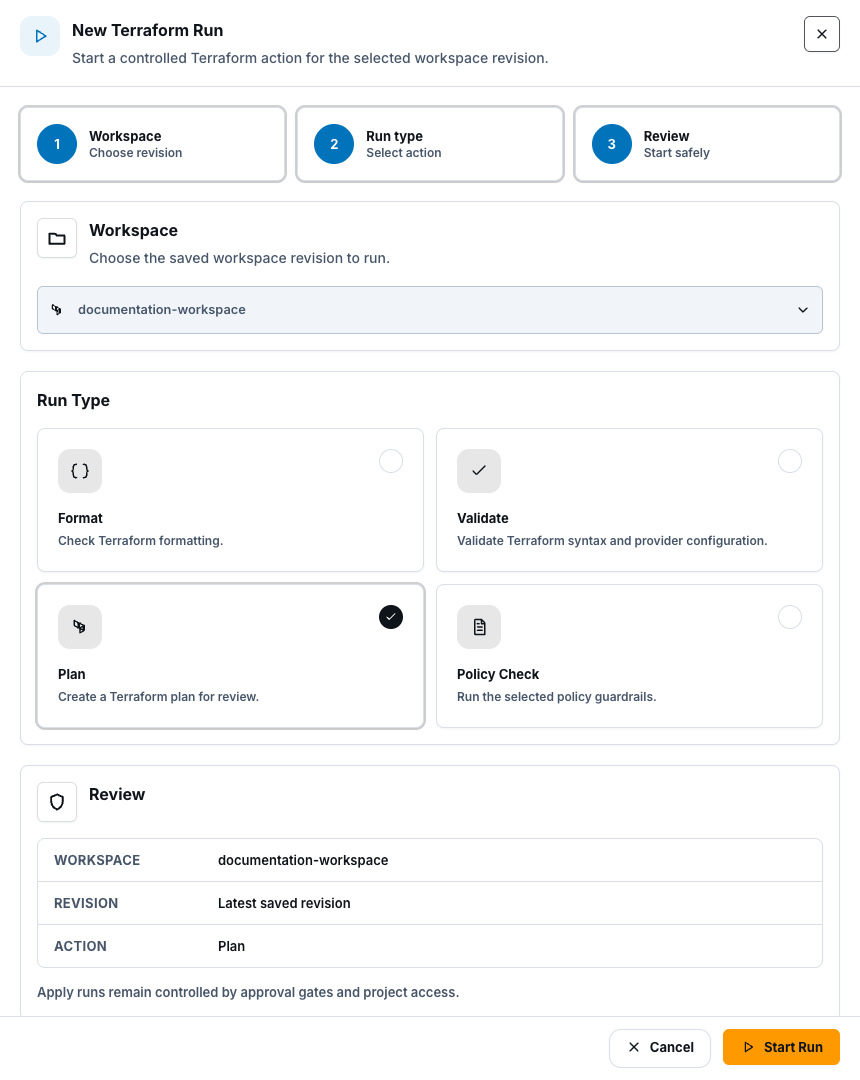
Section titled “Step 2: Open New Terraform Run”Choose New run. The three stages are:
- Workspace — choose a workspace with a saved revision;
- Run type — select the action; and
- Review — confirm workspace, latest saved revision, and action.
Step 3: Choose the correct action
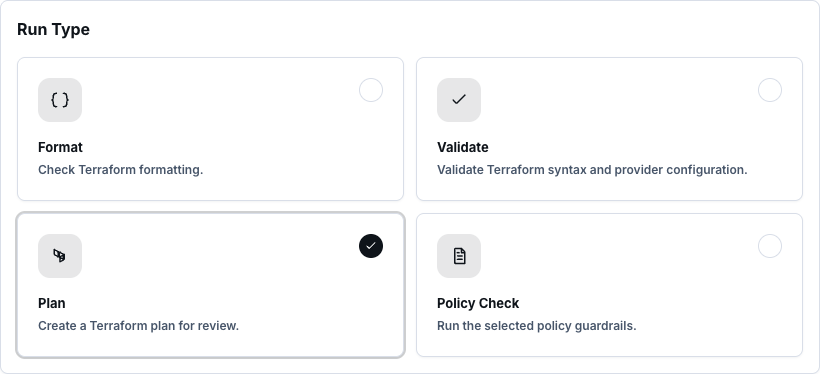
Section titled “Step 3: Choose the correct action”- Format: check or normalize Terraform formatting.
- Validate: validate Terraform configuration in the controlled runner.
- Plan: create change evidence for the saved revision.
- Policy check: evaluate configured policy scanners and guardrails.
The create drawer does not offer Apply. Apply begins only from a successful, currently approved plan.
Step 4: Start and monitor
Section titled “Step 4: Start and monitor”Choose Start Run once. The page opens the new run details and automatically refreshes active QUEUED, STARTING, RUNNING, or CANCEL_REQUESTED runs.
Review queue position, capacity delay, runner state, and latest known status. Do not repeatedly submit the same action while it waits.

Step 5: Open the result
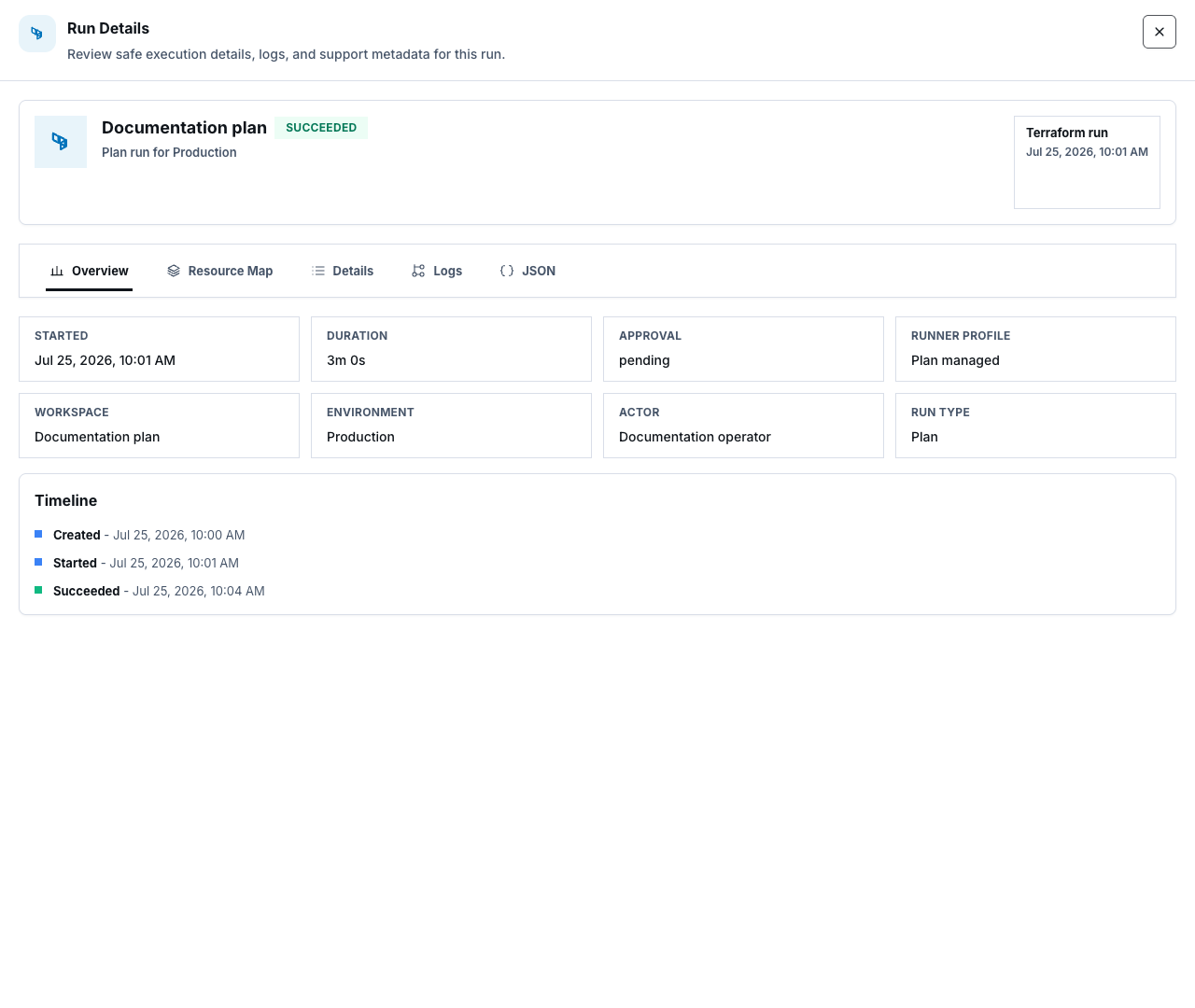
Section titled “Step 5: Open the result”Choose View details from the row menu. Depending on run type and status, review:
- overview and timeline;
- plan summary;
- resource map;
- policy scan;
- guardrails review;
- cost evidence;
- safe logs and user summary; and
- allowed actions such as Re-run, Cancel run, Archive run, or Delete run.
Check your result
Section titled “Check your result”Confirm the run uses the intended project, workspace, revision, environment, action, actor, and provider context, and has reached the expected terminal status before using its evidence.
Common blockers
Section titled “Common blockers”No saved revision
Section titled “No saved revision”Return to the Terraform editor and choose Save All after review.
Run is delayed
Section titled “Run is delayed”Read the queue health and estimated start information. Capacity delay is not a failed plan and does not justify duplicate submissions.
Run failed or timed out
Section titled “Run failed or timed out”Open details, read the safe user summary and step logs, correct the underlying workspace or source issue, save a new revision if code changed, then Re-run or create the appropriate new action.
Cancel is disabled
Section titled “Cancel is disabled”Only cancellable active states expose cancellation. A terminal run cannot be cancelled.