
Git connections overview
Git Integration connects ScrinCloud to organization-owned source control. The page supports GitHub, GitLab, and Azure DevOps connections, while keeping provider credentials out of browser-readable storage.
- Typical time
- 10–20 minutes
- You need
- Organization admin and provider approval
- Outcome
- A connected Git account
Choose a provider
Section titled “Choose a provider”| Provider | Authorization | Current provider-specific behavior |
|---|---|---|
| GitHub | ScrinCloud GitHub App installation | Default owner and repository creation are available for connected GitHub accounts |
| GitLab | Authorization-code OAuth | Connect, refresh, reconnect, disconnect, and governed workspace use |
| Azure DevOps | Microsoft Entra authorization-code OAuth | Connect, refresh, reconnect, disconnect, and governed workspace use |
GitHub-only actions must not be assumed for GitLab or Azure DevOps. The Create repository and Set as default owner row actions are enabled only for GitHub accounts in the current product.
Step 1: Open Git Integration
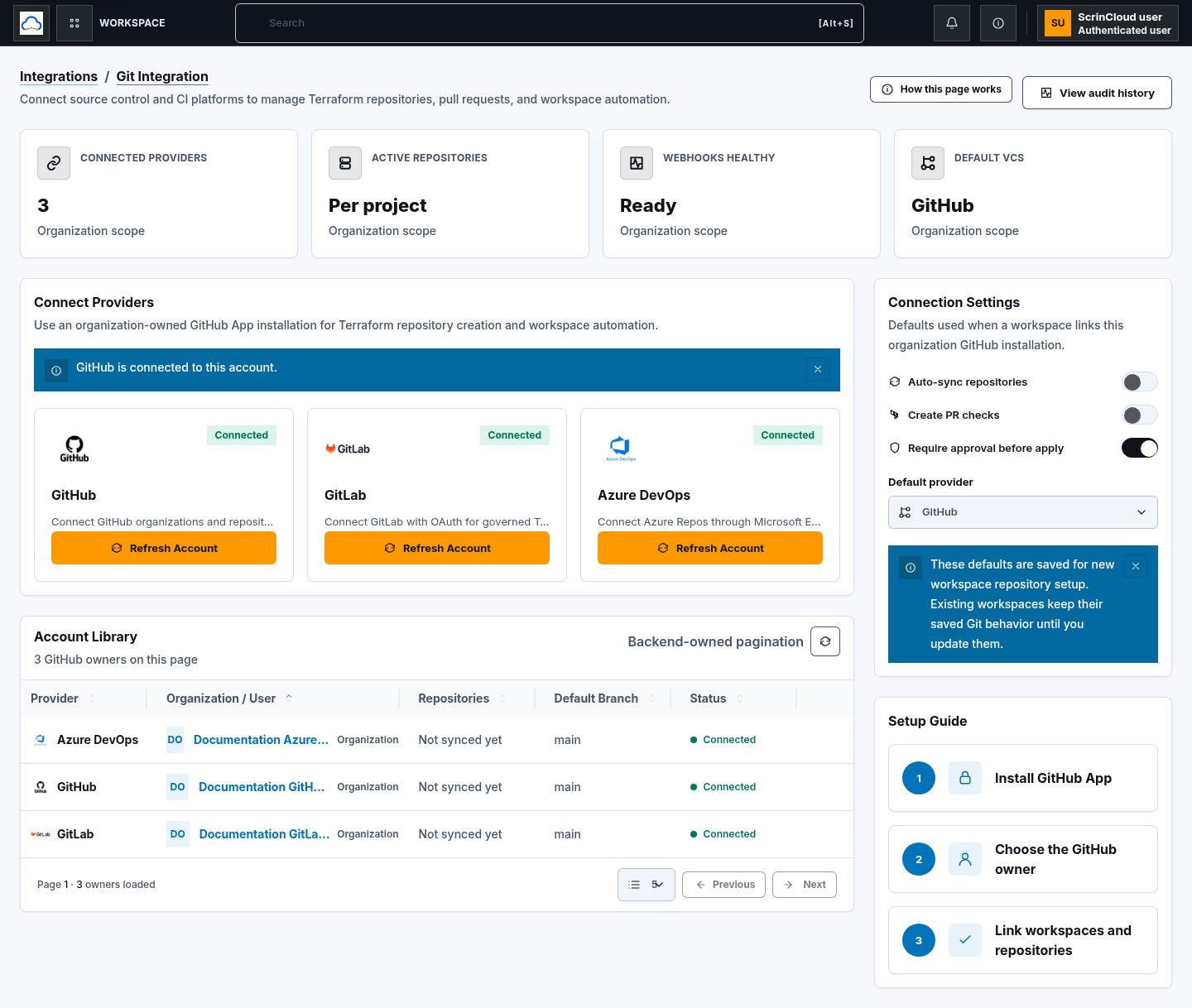
Section titled “Step 1: Open Git Integration”Open Git Integration from the dashboard integrations area. The page shows Connected Providers, Active Repositories, Webhooks Healthy, and Default VCS summaries, followed by Connect Providers.
Only organization admins can manage connections. Project-admin access is also required for repository creation.
Step 2: Authorize the provider
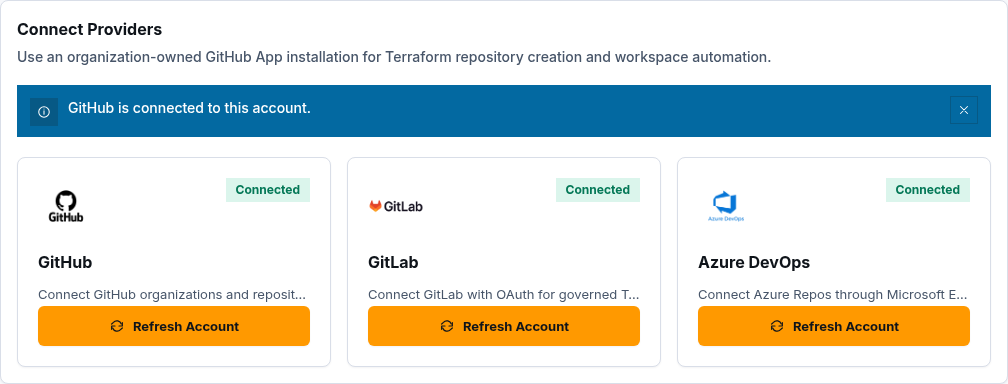
Section titled “Step 2: Authorize the provider”Choose Connect GitHub, Connect GitLab, or Connect Azure DevOps. ScrinCloud opens the provider authorization flow. Review the requested access, select only approved organizations, groups, projects, and repositories, then return to ScrinCloud.
The return flow validates provider and state before storing the organization connection. Do not copy callback URLs, OAuth codes, state values, installation IDs, or tokens into tickets or screenshots.
Step 3: Review connected accounts
Section titled “Step 3: Review connected accounts”In Connected Accounts, confirm the provider, organization or user owner, connection status, and default marker. Use the row menu to:
- Refresh access;
- Open the provider;
- Reconnect;
- Disconnect; or
- for GitHub, Create repository and Set as default owner.

Step 4: Set organization defaults
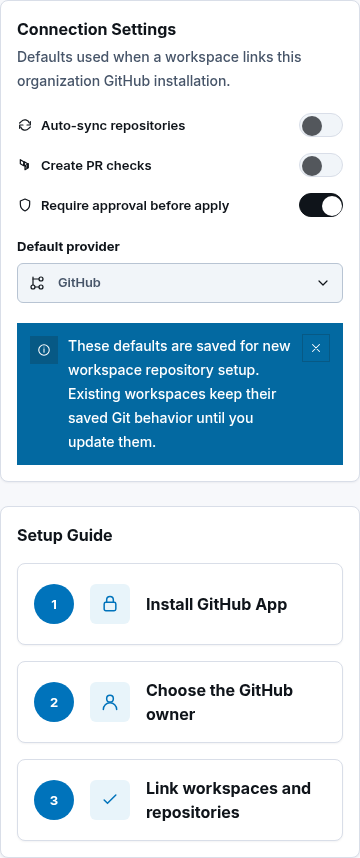
Section titled “Step 4: Set organization defaults”Connection Settings can configure:
- Auto-sync repositories;
- Create PR checks;
- Require approval before apply; and
- Default provider.
These defaults apply to new workspace repository setup. Existing workspaces keep their saved behavior until an administrator updates them.
Security boundary
Section titled “Security boundary”ScrinCloud never asks for your provider password. Provider credentials are handled by backend services, encrypted and organization-scoped, and removed from ScrinCloud when the approved disconnect flow completes.
Repository publishing must remain governed: use reviewed branches and pull or merge requests, respect branch protection, and block Terraform state, plan files, secrets, environment files, keys, logs, archives, binaries, and unknown hidden files.
Check your result
Section titled “Check your result”The provider card should show Connected, the expected owner should appear in Connected Accounts, and Refresh access should complete without a permission error.
Common blockers
Section titled “Common blockers”Organization admin access is required
Section titled “Organization admin access is required”Ask an organization owner or admin to complete the connection. Do not authorize a personal provider account as a workaround.
Application credentials are not configured
Section titled “Application credentials are not configured”The environment’s provider application is not ready. An operator must configure the approved GitHub App, GitLab OAuth application, or Microsoft Entra application before connection can complete.
Is every provider live?
Section titled “Is every provider live?”The current frontend, backend routes, Terraform route wiring, and Lambda deployment matrices include all three providers. That proves source and deployment wiring, not live provider credentials or runtime health in a specific environment. Confirm each provider through an approved runtime test.
Next: Manage Git connections.