
Manage resources and drift
A discovered resource is something ScrinCloud can see in an approved read-only scope. A managed resource has a deliberate ScrinCloud management binding that can connect cloud identity, canvas context, Terraform address, observed state, and audit history.
Management should always be intentional. Discovery alone does not adopt a resource, and drift alone does not authorize changing it.
- Typical time
- 20–35 minutes
- You need
- Reviewed discovery evidence
- Outcome
- A governed next decision
Understand the key terms
Section titled “Understand the key terms”- Discovered resource: provider metadata found during an approved run.
- Managed resource: a resource deliberately linked to ScrinCloud management context.
- Desired state: the approved configuration your design or Terraform revision intends.
- Observed state: sanitized configuration read from the provider.
- Drift: a meaningful difference between desired and observed state.
- Reconciliation: the governed decision to accept, restore, or otherwise resolve that difference.
Drift can come from an approved emergency change, a manual console update, automation outside ScrinCloud, or desired configuration that is no longer current.
Before you begin
Section titled “Before you begin”Confirm:
- the correct project and workspace;
- a completed, reviewed discovery run;
- the resource owner and environment;
- the provider resource identity;
- whether Terraform already owns the resource;
- whether an active incident or approved change explains the difference; and
- who must review a reconciliation or apply.
Do not adopt a resource merely because it appeared in discovery.
Step 1: Open Discovery Operations in the correct scope
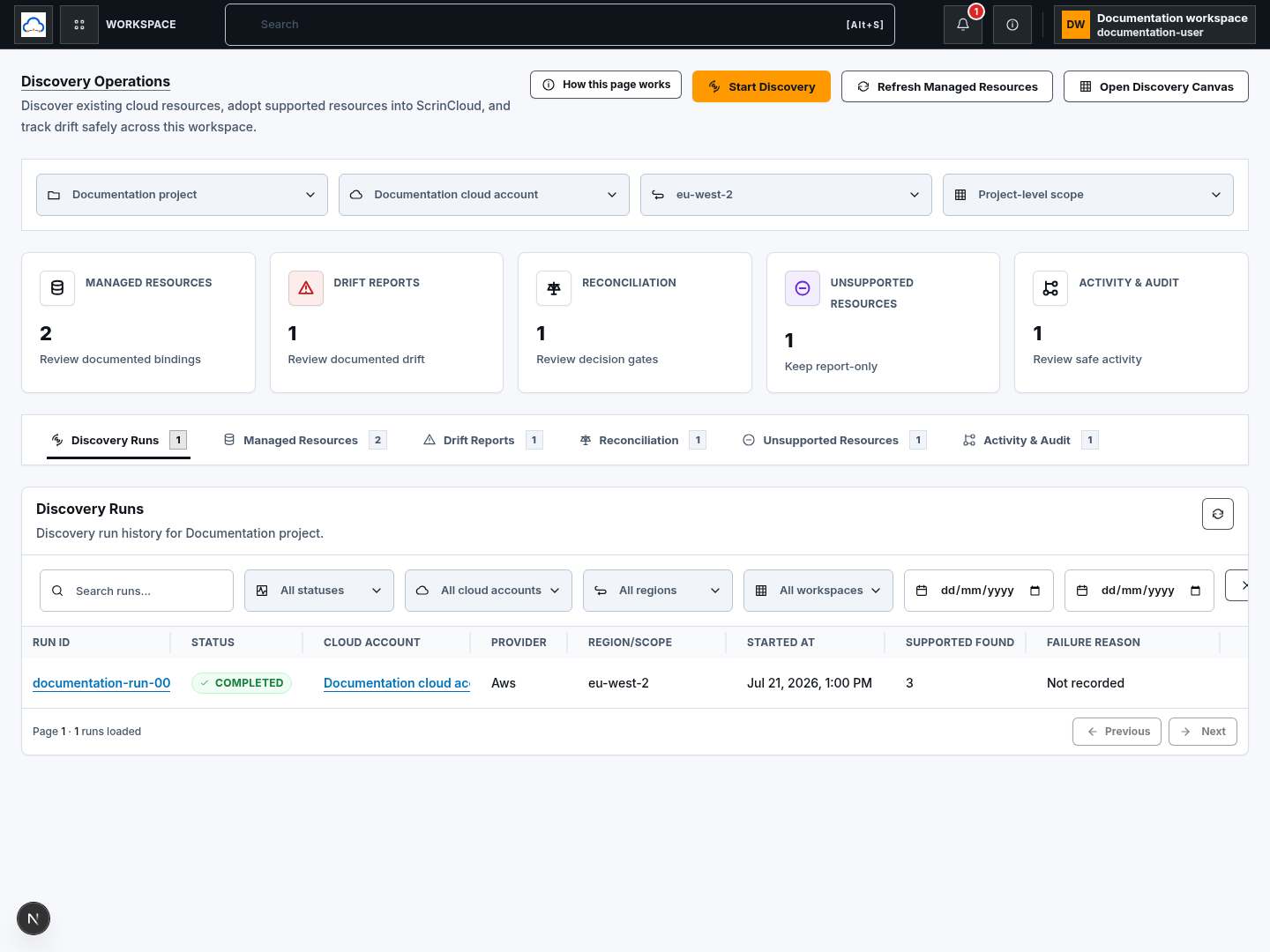
Section titled “Step 1: Open Discovery Operations in the correct scope”- Open Discovery Operations.
- Select the project.
- Select the cloud account.
- Select the region.
- Choose the intended workspace or Project-level scope.
- Review the summary cards:
- Managed Resources;
- Drift Reports;
- Reconciliation;
- Unsupported Resources; and
- Activity & Audit.
- Confirm the counts and recommended next actions belong to the intended scope.
Step 2: Review the Managed Resources list
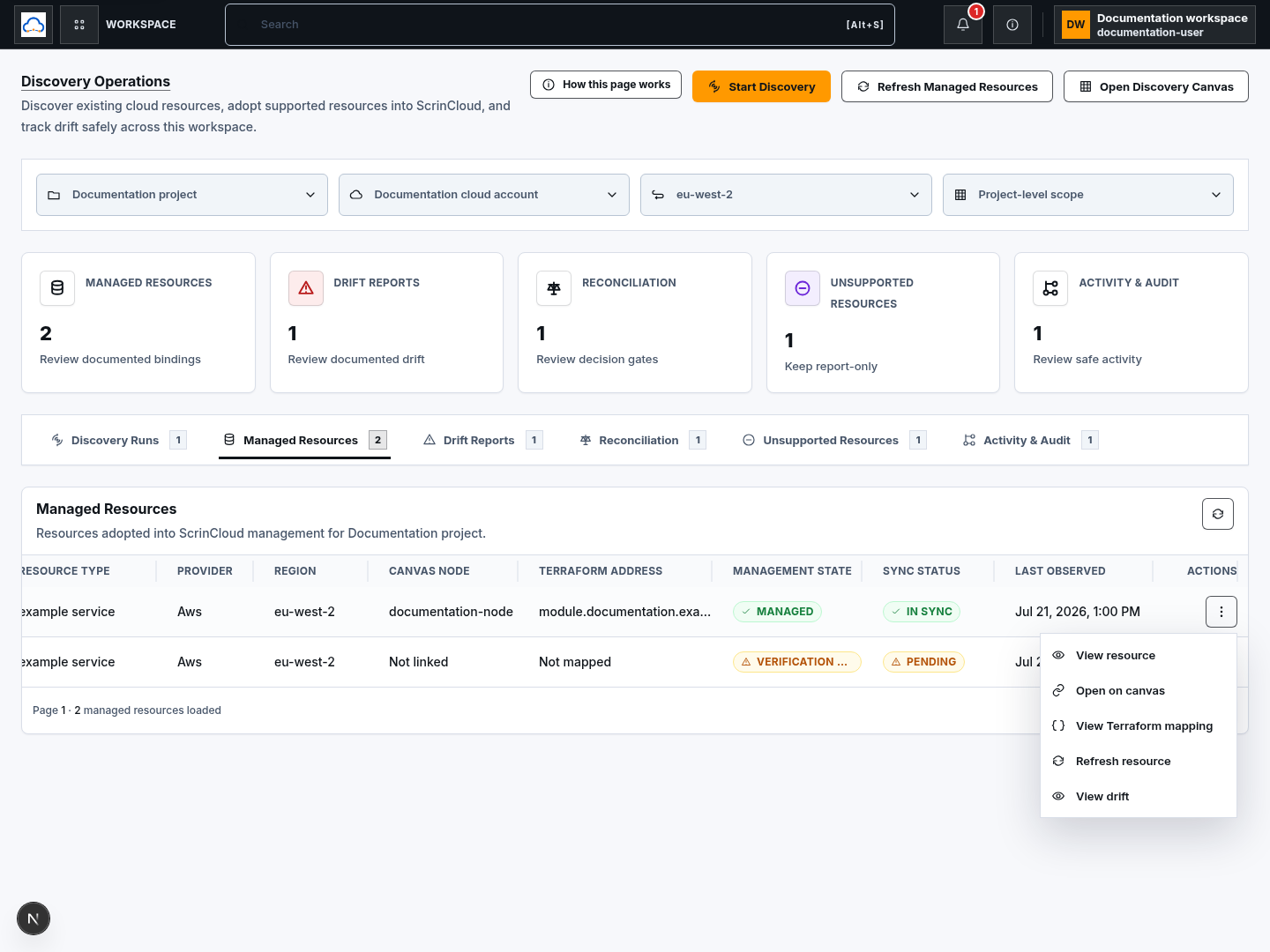
Section titled “Step 2: Review the Managed Resources list”Open Managed Resources and read each row:
- Resource name and Resource type;
- provider and region;
- linked canvas node, or Not linked;
- Terraform address, or Not mapped;
- management state;
- sync status; and
- last observed time.
Use the row actions to:
- View resource;
- Open on canvas;
- View Terraform mapping;
- Refresh resource; or
- View drift.
A missing canvas node or Terraform mapping is important context. Do not assume that a row is fully governed only because its management state says managed.
Step 3: Open a managed-resource detail
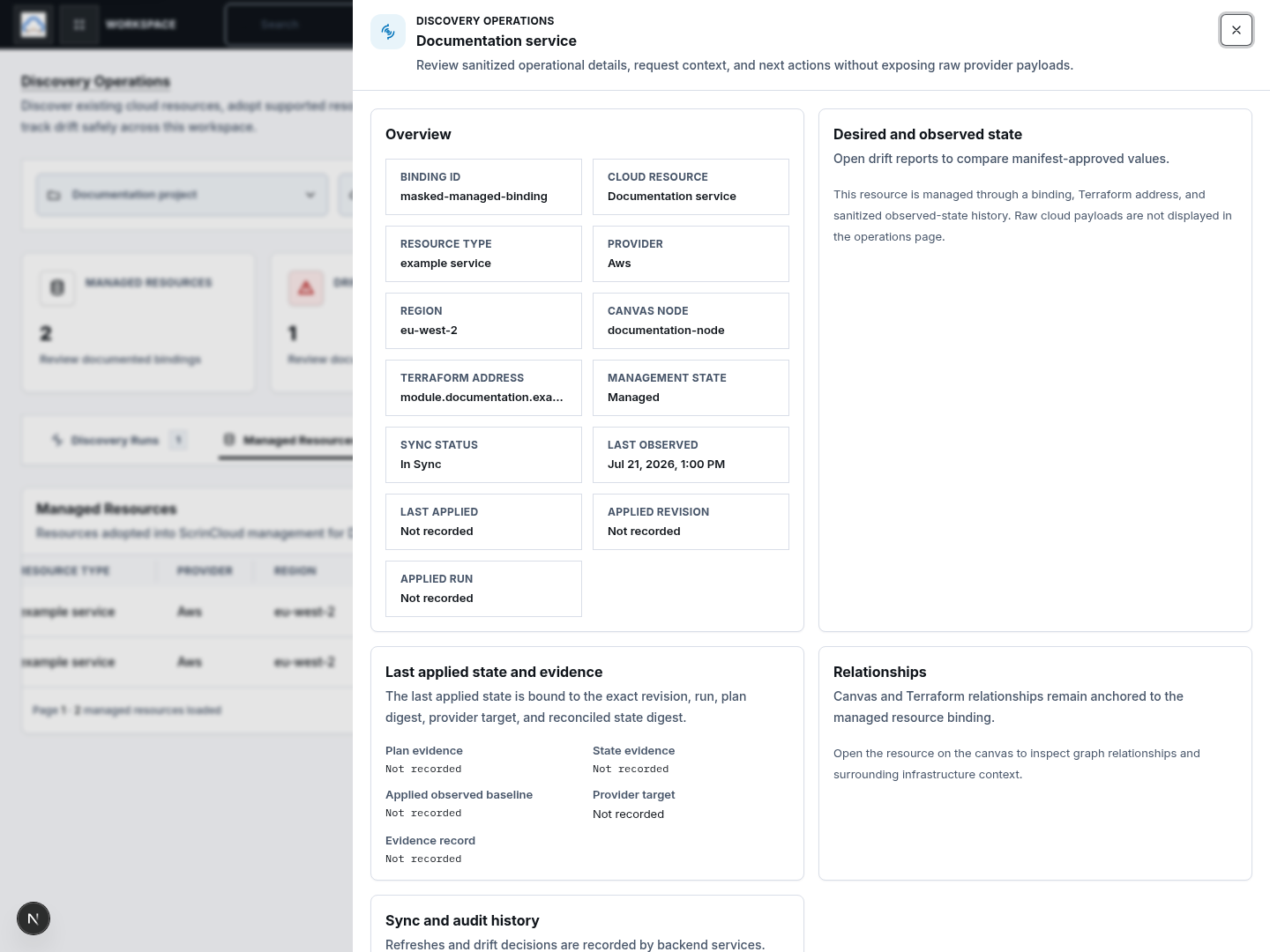
Section titled “Step 3: Open a managed-resource detail”Choose View resource and confirm:
- the binding ID and provider resource identity;
- provider, region, and resource type;
- canvas node link;
- Terraform address;
- management and sync state;
- last observed or synchronized time;
- Desired and observed state guidance;
- relationships; and
- sync and audit history.
The operations page shows sanitized operational facts. Raw provider payloads are intentionally not displayed.
If ownership, Terraform address, or canvas context is wrong, stop before refreshing or preparing any reconciliation.
Step 4: Refresh observed state carefully
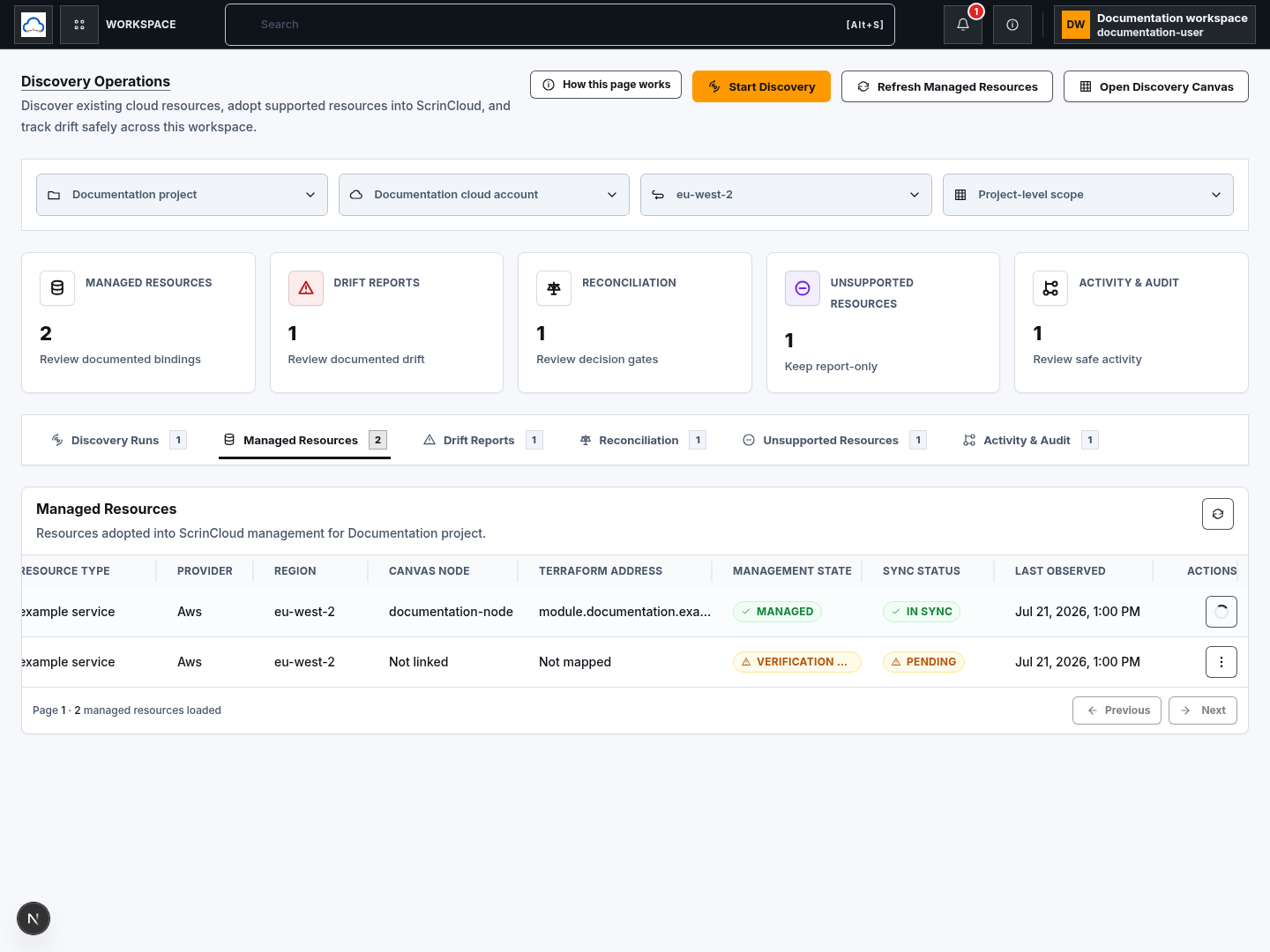
Section titled “Step 4: Refresh observed state carefully”Use Refresh resource when you need a current provider observation:
- Confirm no incident or maintenance window makes the current state temporarily misleading.
- Confirm the selected resource and provider scope.
- Choose Refresh resource.
- Wait for the refresh action to finish.
- Review the new sync status and last observed time.
- Open View drift if a difference is reported.
Refreshing reads provider state and updates ScrinCloud evidence. It is not a Terraform apply and should not be described as one.
Step 5: Read a Drift Report
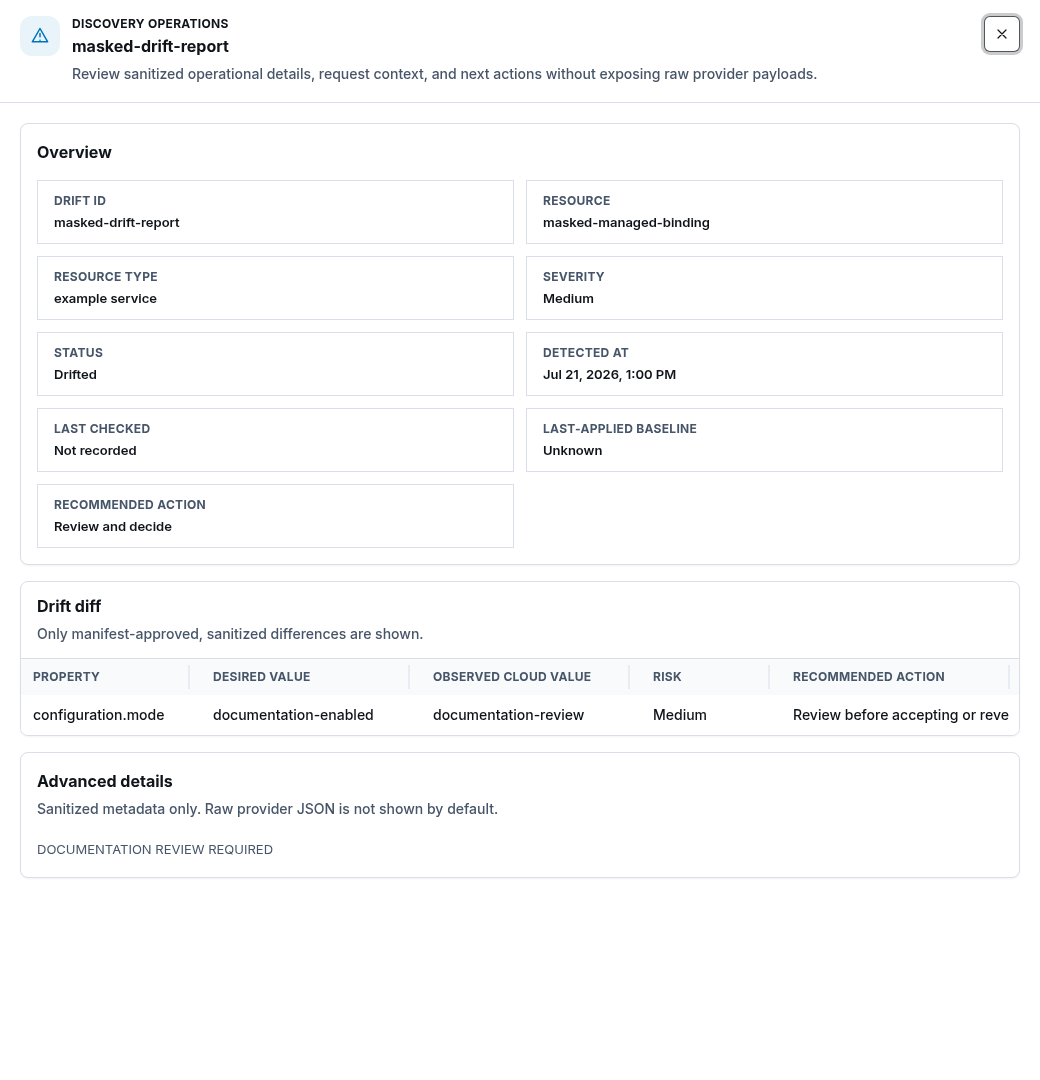
Section titled “Step 5: Read a Drift Report”Open Drift Reports. For each active report, review:
- drift ID and managed-resource binding;
- resource type;
- severity;
- drift status;
- number of changed fields;
- detection time; and
- the recommendation Review and decide.
Choose Review drift to compare sanitized differences:
- field or property name;
- desired value;
- observed cloud value; and
- safe context about the difference.
Check for an approved change or incident before deciding what the desired state should become.
Step 6: Choose the correct drift response
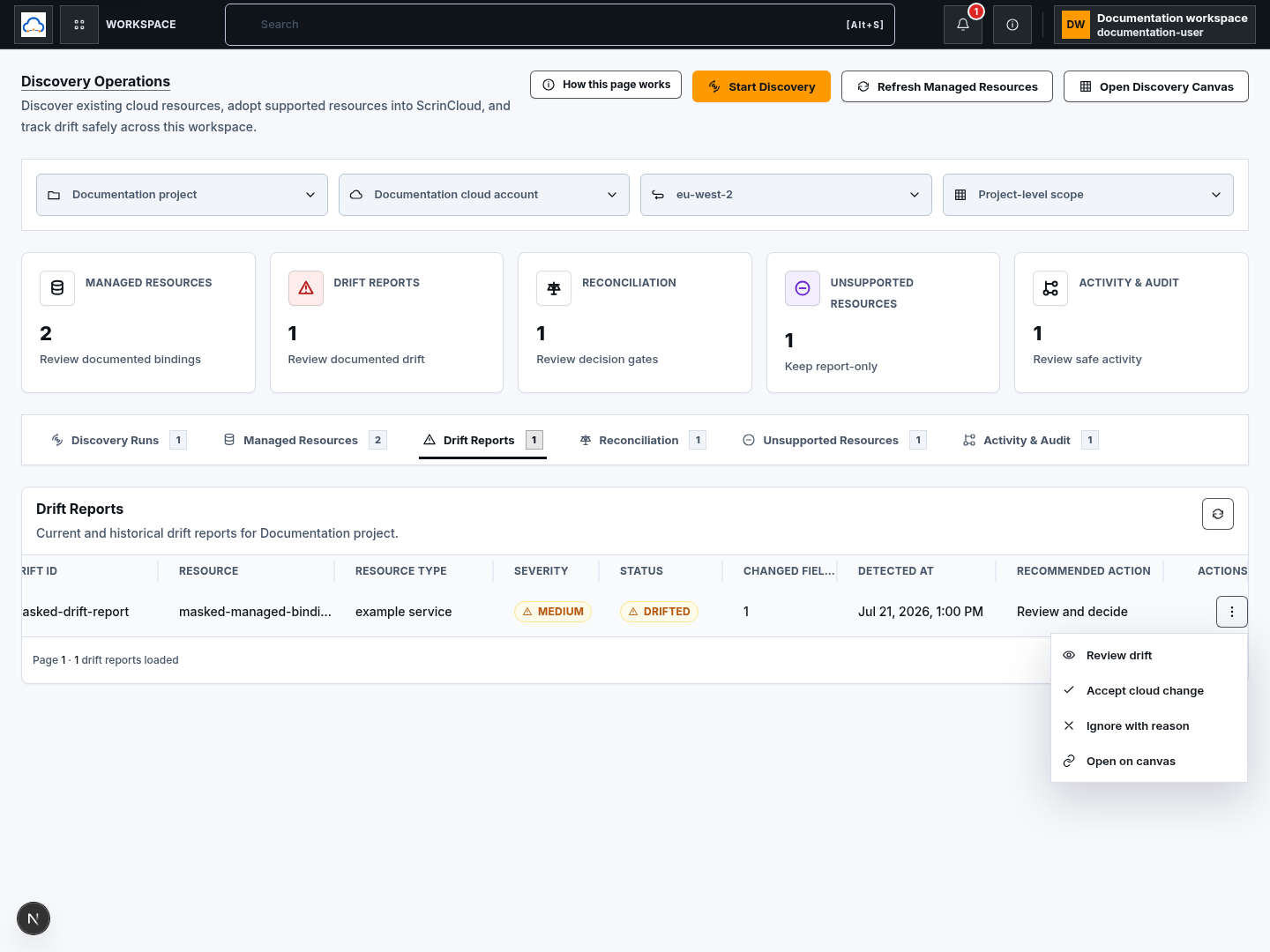
Section titled “Step 6: Choose the correct drift response”The available actions can include:
- Accept cloud change: prepare a reconciliation preview that proposes updating governed desired context to match the reviewed cloud change.
- Ignore with reason: record why no current change should be made.
- Open on canvas: locate the resource in its design context.
Before choosing:
- confirm who made the cloud change;
- confirm whether it was approved;
- assess service, security, cost, and policy impact;
- compare desired and observed values;
- decide whether desired state should change or the live resource should eventually be restored; and
- record a clear business reason.
Accept cloud change creates a proposal for review. It does not immediately change Terraform or apply to the provider.
Step 7: Review the reconciliation proposal
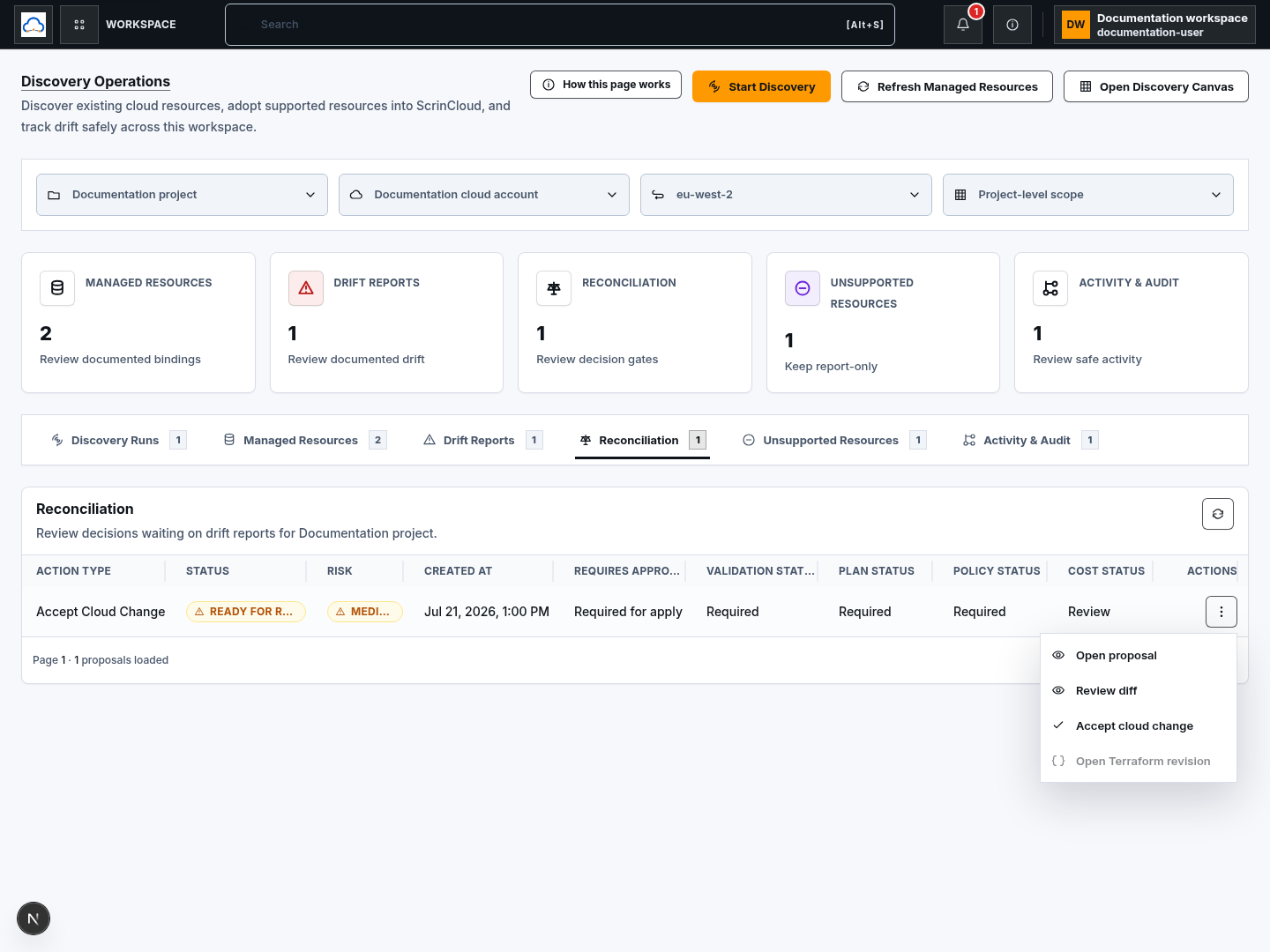
Section titled “Step 7: Review the reconciliation proposal”Open Reconciliation after preparing an accepted-cloud-change preview.
- Locate the proposal.
- Review the resource and proposed action.
- Confirm the status is Ready for review.
- Review the risk level.
- Confirm the required gates:
- approval required for apply;
- validation required;
- plan required;
- policy review required; and
- cost review where relevant.
- Open the proposal or diff.
- Do not continue to an apply until the normal Terraform review and approval path is complete.
The proposal is evidence and intent, not a live infrastructure mutation.
Check your result
Section titled “Check your result”The workflow has a safe outcome when:
- project, account, region, and workspace scope are correct;
- the managed-resource binding, canvas link, and Terraform mapping are understood;
- observed state was refreshed only when appropriate;
- every active drift field has been reviewed;
- an approved change or incident has been checked;
- the decision and reason are recorded; and
- any reconciliation remains behind validation, plan, policy, cost, approval, and apply controls.
Common blockers
Section titled “Common blockers”No managed resources appear
Section titled “No managed resources appear”Confirm you selected the correct project, account, region, and workspace. Discovery alone does not create a management binding; review the supported results and approved adoption workflow.
The resource says Not linked or Not mapped
Section titled “The resource says Not linked or Not mapped”The canvas node or Terraform address is missing. Resolve ownership and mapping before treating the resource as fully governed.
Refresh resource fails
Section titled “Refresh resource fails”Test the provider connection, check its allowed region and read permissions, then retry. Do not broaden access until the required read capability is identified and approved.
A drift report has no field-level differences
Section titled “A drift report has no field-level differences”The report may still contain a safe status, severity, or reason. Record the limited evidence and do not guess which field changed.
Accept cloud change is unavailable
Section titled “Accept cloud change is unavailable”The report may no longer be active, your role may not permit the action, or the resource may lack required management context. Open the detail and follow the displayed reason.
A difference was caused by an emergency change
Section titled “A difference was caused by an emergency change”Confirm the incident and approved owner. Decide through normal review whether to preserve the cloud change in desired state or restore the approved configuration later.
Someone asks to “clear” drift immediately
Section titled “Someone asks to “clear” drift immediately”Do not overwrite live infrastructure or accept a cloud change only to remove the indicator. Review business, security, cost, and operational impact first.
Where to go next
Section titled “Where to go next”Use the normal governed path for any resulting Terraform work:
- review or update the architecture;
- validate the saved design;
- prepare a Terraform revision;
- run policy and plan checks;
- obtain required approval; and
- apply only through the approved delivery workflow.
Continue with Review plans safely.