
Validate a design
Validation answers one focused question: does this saved architecture follow the currently supported product and provider rules?
The Check Design workflow produces review evidence for a saved revision. It does not create, update, or delete cloud resources, generate an approval, or authorize a Terraform apply.
- Typical time
- 10–15 minutes
- You need
- A saved architecture
- Next step
- Set up discovery
Before you begin
Section titled “Before you begin”Confirm that:
- the correct project, workspace, and diagram are open;
- the design contains the resources and connections you intend to review;
- the header shows Saved; and
- you have permission to run validation for the project.
Validation may save the diagram before checking it. The displayed evidence must reference the revision you intended to review.
Step 1: Open Validation in the Inspector
Section titled “Step 1: Open Validation in the Inspector”- Open the saved diagram in Architecture Studio.
- Find the horizontally scrollable tabs at the top of the Inspector.
- Choose Validation.
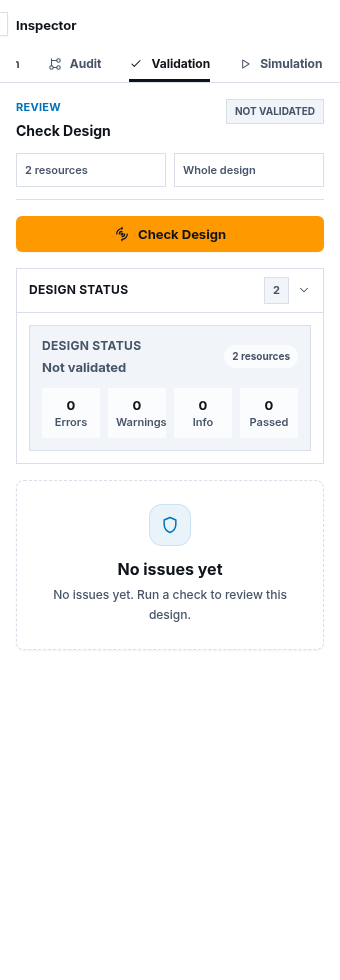
- Confirm the Check Design heading.
- Review the resource count.
- Leave all resources unselected to check the whole design.
- Select one or more resources only when you intentionally want a focused check.
The action label changes with your selection:
- Check Design checks the whole design.
- Check Selected Resource checks one selected resource.
- Check Selected Resources checks the selected group.
Step 2: Run Check Design
Section titled “Step 2: Run Check Design”- Choose Check Design.
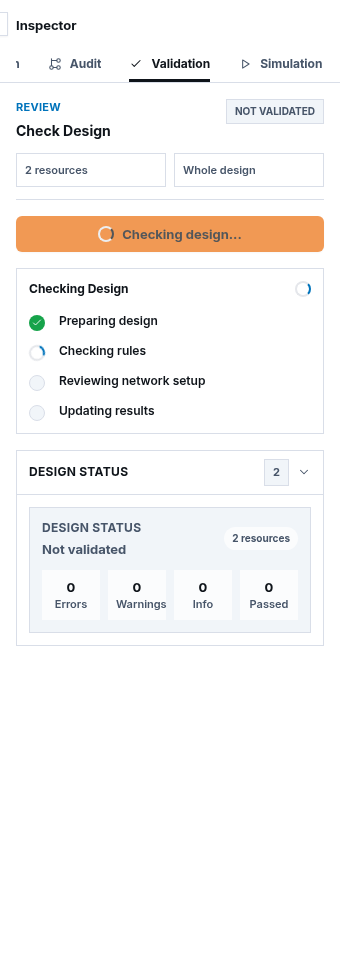
- If ScrinCloud saves first, wait for Saving diagram… to finish.
- Wait while Checking Design shows the workflow steps.
- Do not navigate away while the saved revision is being checked.
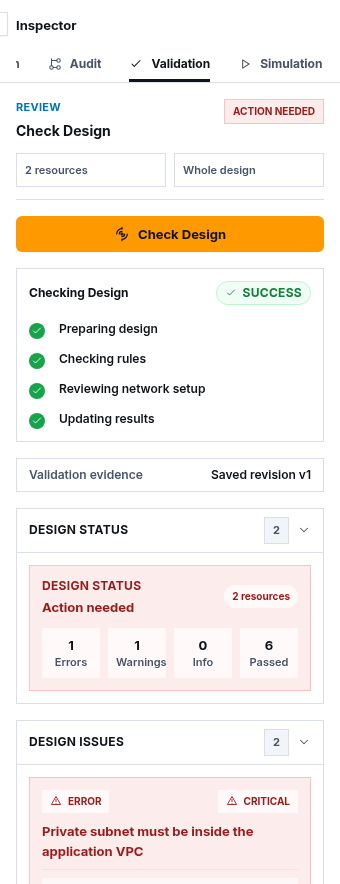
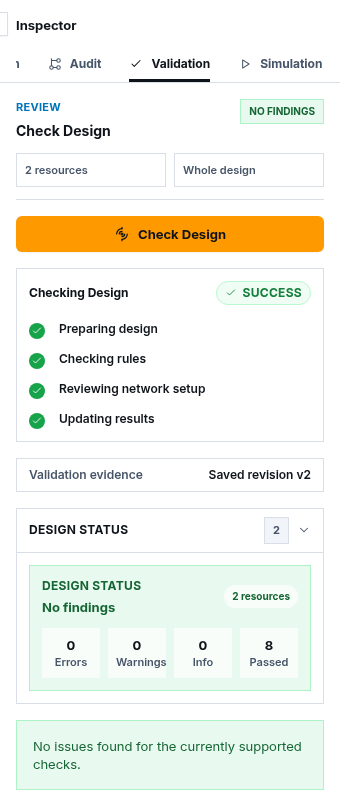
- When the run finishes, confirm the Validation evidence revision number.
If you change the canvas after validation, save and run the check again. Older evidence does not describe the new design.
Step 3: Read Design Status
Section titled “Step 3: Read Design Status”The Design Status card summarizes the current result:
- Action needed: one or more errors require correction.
- Review warnings: the design has warnings that need a decision.
- Review notes: informational findings are available.
- No findings: no issues were found by the currently supported checks.
- Not validated: no current validation evidence exists.
The metrics separate Errors, Warnings, Info, and Passed checks. A clean result means the supported checks passed. It is not a guarantee that every possible provider configuration or operational risk was tested.
Step 4: Understand each finding
Section titled “Step 4: Understand each finding”Open Design Issues and read each card:
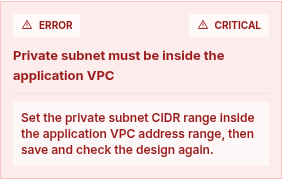
- Read the status and severity.
- Read the rule title.
- Identify the affected resource.
- Read the recommended fix.
- Select the finding or affected resource when you need to locate it on the canvas.
- Decide whether the correction belongs in a property, connection, region, address range, or another modeled relationship.
Supported deterministic checks can cover address containment, placement, connectivity, supported relationships, and required provider configuration.
Fix errors before lower-priority notes. A warning still requires a deliberate review; do not ignore it merely because it is not labeled as an error.
Step 5: Fix, save, and validate again
Section titled “Step 5: Fix, save, and validate again”- Select the affected resource on the canvas.
- Change only the property or relationship named by the finding.
- Review connected resources for unintended effects.
- Save the diagram.
- Wait for Saved.
- Return to Validation.
- Run Check Design again.
- Confirm the new evidence version and updated metrics.
Repeat until every remaining finding is understood and documented. Do not disable a policy or remove a required resource simply to make the summary look clean.
Check your result
Section titled “Check your result”You have completed design validation when:
- validation evidence references the intended saved revision;
- errors are corrected or explicitly block delivery;
- warnings and notes are understood;
- the result came from the currently available Validation workflow; and
- no finding has been mistaken for a live cloud test, approval, plan, or apply.
Common blockers
Section titled “Common blockers”Validation is not visible
Section titled “Validation is not visible”The Inspector tabs scroll horizontally. Scroll the tab row until Validation appears. If the tab is absent from your deployed environment, stop and report the environment and visible tab labels; do not follow instructions for a feature that is not present.
Check Design uses the wrong scope
Section titled “Check Design uses the wrong scope”Clear the canvas selection to check the whole design, or deliberately select the resources you want to focus on. Confirm the selection count before running.
Validation remains Not validated
Section titled “Validation remains Not validated”Wait for saving and workflow progress to finish. If an error appears, keep the diagram open, resolve the named access or save problem, and run the check again.
A finding does not point to a resource
Section titled “A finding does not point to a resource”Some findings describe a design-wide relationship or configuration. Read the rule title and recommended fix, then inspect the related resources and connections.
The evidence version is older than the diagram
Section titled “The evidence version is older than the diagram”Save the current diagram and run Check Design again. Do not cite evidence from an older revision as proof for the current design.
Continue
Section titled “Continue”After checking intended architecture, use read-only discovery to understand what already exists in an approved cloud scope.
Continue with Set up Cloud Discovery.