
Use canvas actions safely
Architecture Studio separates local canvas editing from saved diagram revisions, generated files, and cloud-changing Terraform work. Use this guide to understand what each current control changes before you select it.
- Typical time
- 15–25 minutes
- You need
- A project diagram and the right project role
- Outcome
- A deliberate, saved diagram revision
Step 1: Confirm context and save state
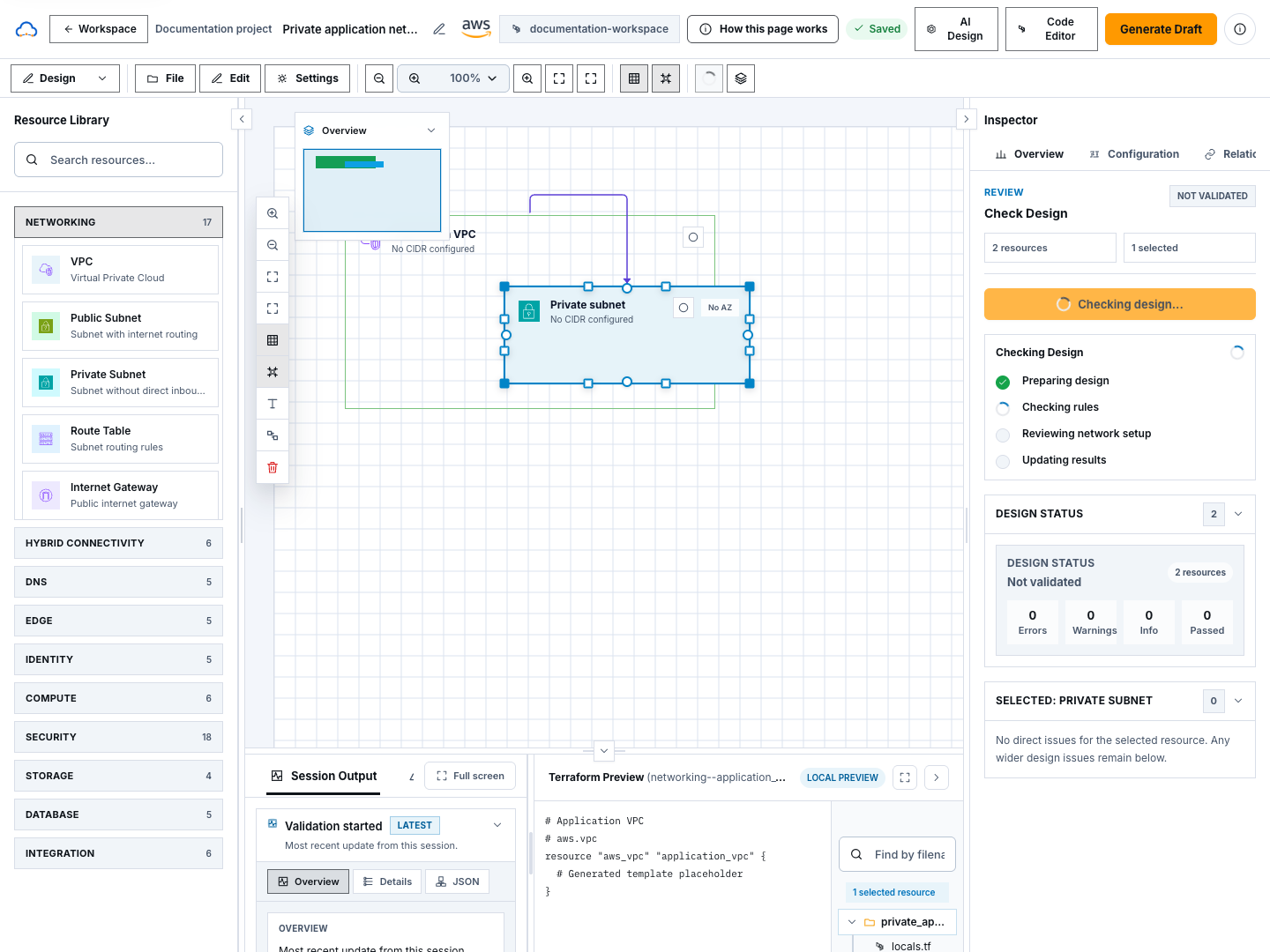
Section titled “Step 1: Confirm context and save state”Before editing, confirm the architecture name, provider, project, environment, region, and workspace in the header.
- Switch workspace changes the delivery context. Resolve or save pending changes before switching.
- Edit architecture name changes the saved diagram name and requires edit access.
- Saved means the current diagram state has reached the backend.
- A changed, saving, or failed state is not a revision that later validation or Terraform evidence can safely reference.
- Read only allows inspection and portable download, but disables mutations.
Step 2: Choose the correct File action
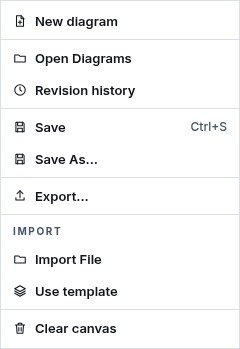
Section titled “Step 2: Choose the correct File action”Open File and use the exact action that matches your intent:
| Action | What it does | Persistence boundary |
|---|---|---|
| New diagram | Creates a separate blank diagram in the project | Backend create, then navigation |
| Open Diagrams | Selects another project diagram | Read and navigation |
| Revision history | Lists, compares, and can restore saved revisions | Read until a restore is confirmed |
| Save | Stores the current diagram | Backend mutation |
| Save As… | Creates a separate copy with a new name | Backend create |
| Export… | Prepares an approved portable format | Browser download; no cloud change |
| Import File | Previews a portable diagram and lets you import or skip rows | Backend preview, then confirmed mutation |
| Use template | Opens the provider-aware template library | Navigation |
| Clear canvas | Removes current resources and connections after confirmation | Local until you choose Save |
Unsaved-change protection appears before actions that would replace the current canvas. Do not dismiss it until you intentionally save, discard, or remain on the current design.
Step 3: Import or download a portable diagram
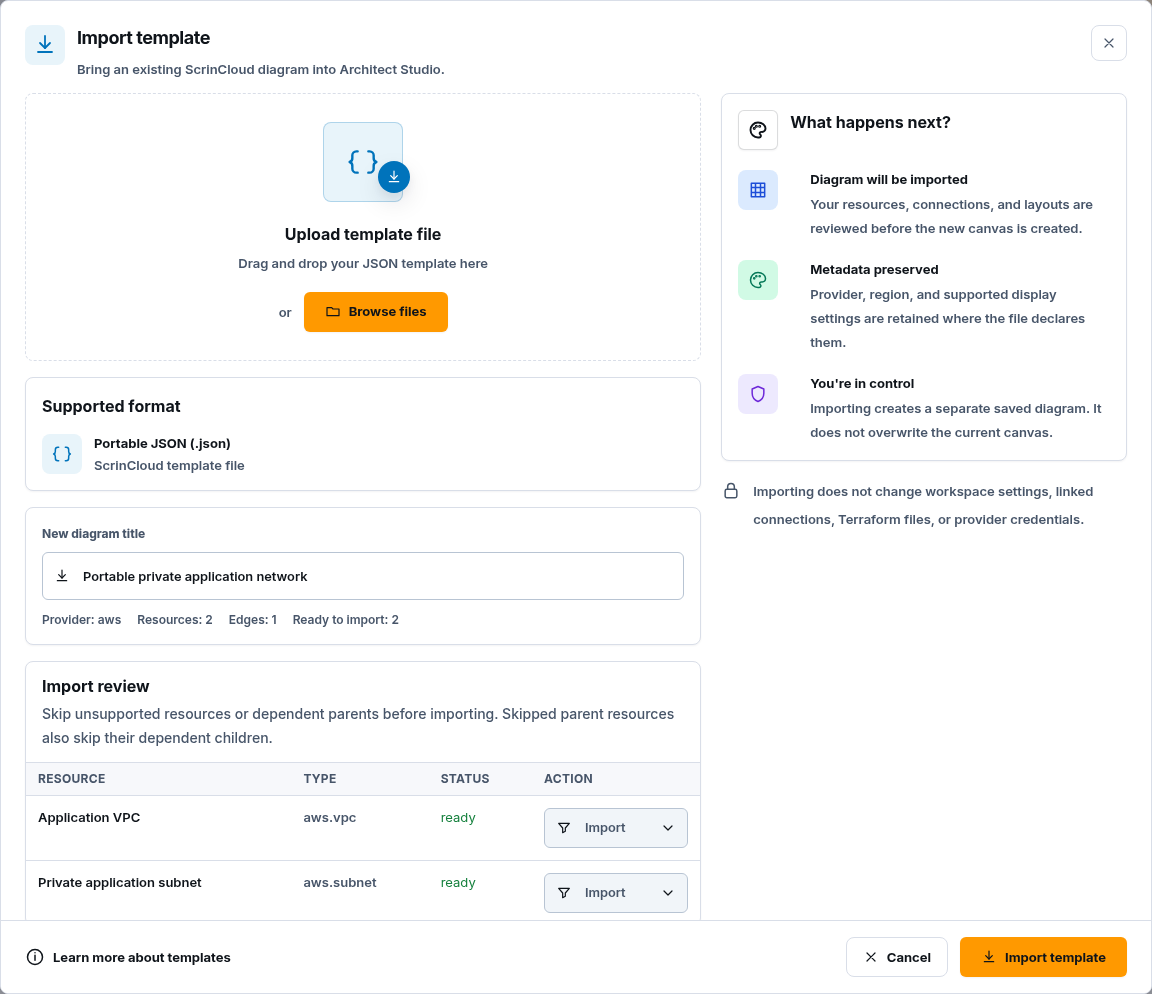
Section titled “Step 3: Import or download a portable diagram”For Import File:
- choose a supported portable file;
- wait for the backend preview;
- review provider compatibility and every proposed row;
- choose Import or Skip for unsupported or unwanted rows;
- enter the new diagram title; and
- confirm the import.
An import creates diagram content. It does not connect accounts, create cloud resources, or approve Terraform work.
For Export…, choose only the format approved for your sharing workflow. Review the preview, wait for canvas preparation to complete, and keep the resulting file inside the intended access boundary.
Step 4: Use selection and Edit actions
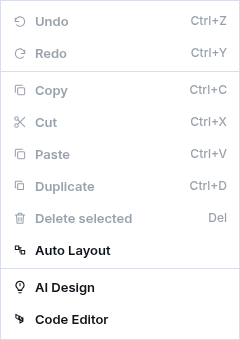
Section titled “Step 4: Use selection and Edit actions”The Edit menu exposes:
- Undo and Redo for the current canvas history;
- Copy, Cut, Paste, and Duplicate for selected canvas elements;
- Delete selected for the current selection;
- Auto Layout for local positioning;
- Code Editor when a Terraform workspace is linked.
Copy, layout, delete, and other canvas edits are local until Save succeeds. Deleting a canvas node does not delete a provider resource. A later governed Terraform plan may propose a cloud deletion, which must be reviewed separately.
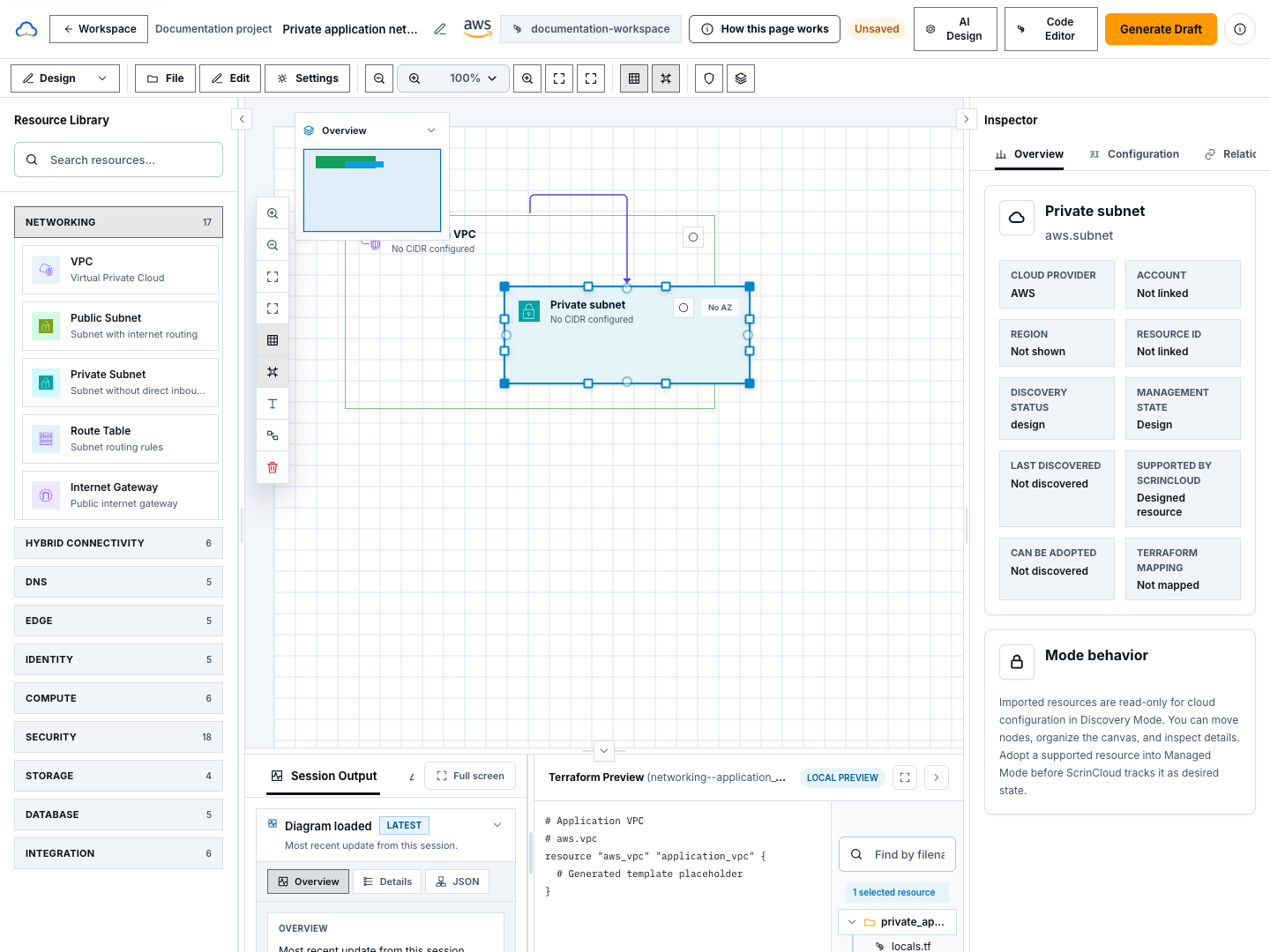
Step 5: Edit resources, connections, and annotations
Section titled “Step 5: Edit resources, connections, and annotations”Select an item before changing its properties:
- a resource exposes provider-aware name, region, networking, sizing, tags, and other supported fields;
- a connection exposes only the supported relationship and direction;
- a text annotation stores review notes, not infrastructure; and
- selection actions can move, duplicate, or delete the intended item.
Review the Inspector before saving. Secret values, credentials, tokens, and Terraform backend configuration do not belong in resource properties, annotations, or labels.
Step 6: Navigate without changing architecture
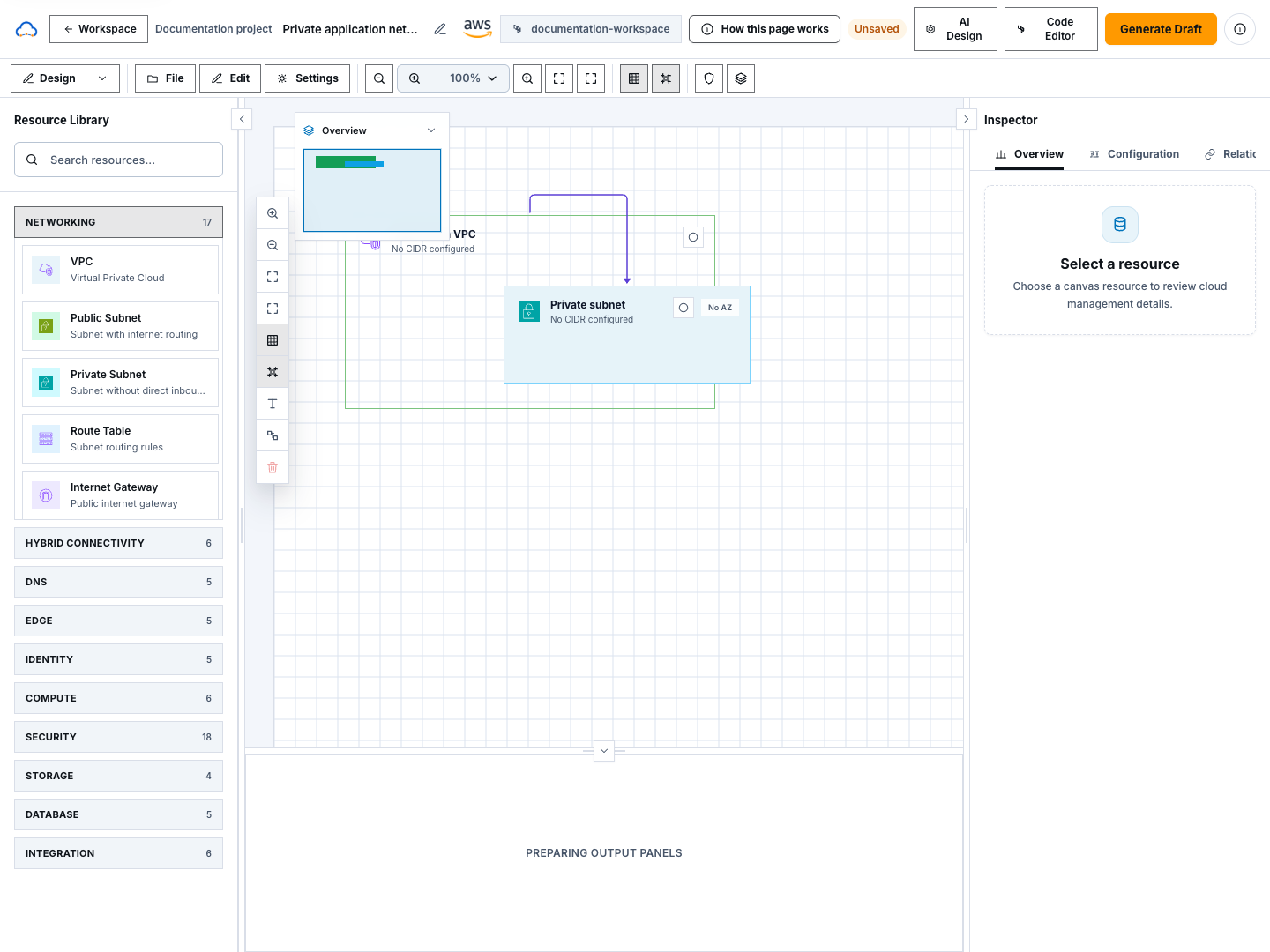
Section titled “Step 6: Navigate without changing architecture”Zoom, pan, Fit Content, overview/minimap, selection mode, and panel collapse controls change only the browser view. Auto Layout changes node positions and therefore becomes part of the diagram when saved.
Use these controls to make every relationship readable before review. Do not mistake a hidden, collapsed, or off-screen node for a deleted resource.
Step 7: Compare or restore a revision
Section titled “Step 7: Compare or restore a revision”Open Revision history to inspect confirmed lineage:
- choose From and To revisions;
- select Compare revisions;
- review resources added, removed, or changed and connection changes;
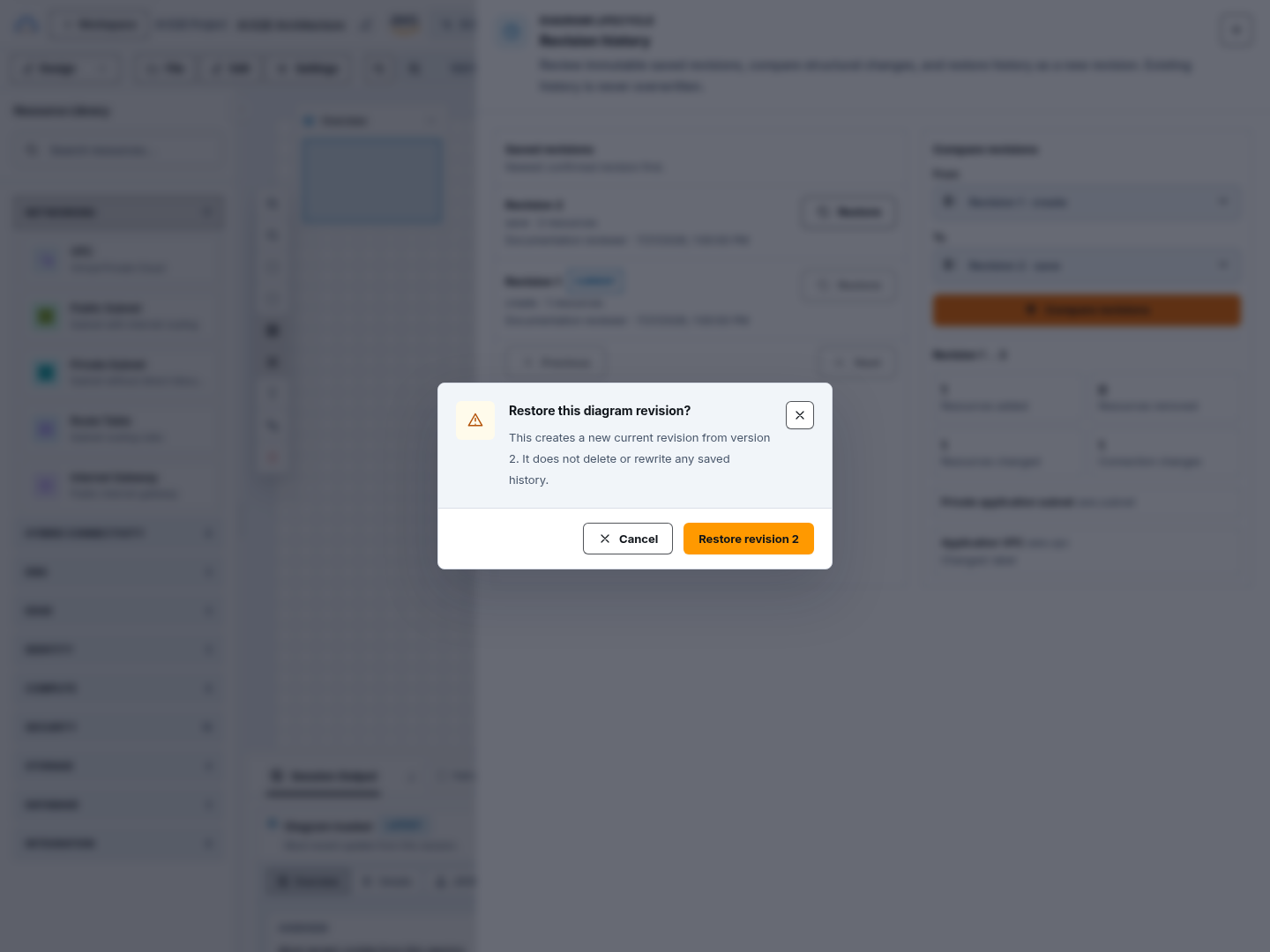
- select Restore only when the older source is the intended current design; and
- confirm Restore revision.
Restore is a backend mutation and refreshes the canvas. It does not roll back cloud infrastructure, Terraform state, or an already completed apply.
Check your result
Section titled “Check your result”Confirm the intended diagram is open, the header says Saved, revision history contains the expected lineage, and no import or local edit remains unreviewed.
Common blockers
Section titled “Common blockers”An action is disabled
Section titled “An action is disabled”Check read-only state, selection, linked-workspace availability, active saves, and your project role. Disabled actions should not be bypassed.
Clear canvas removed everything
Section titled “Clear canvas removed everything”If the cleared state was not saved, leave or reload using the unsaved-change guard. If it was saved, review Revision history and restore only after confirming the correct revision.
Code Editor is unavailable
Section titled “Code Editor is unavailable”Link an eligible Terraform workspace to the diagram. The editor is not opened against an unbound or ambiguous workspace.
A portable file does not import
Section titled “A portable file does not import”Review the provider mismatch and unsupported-row preview. Do not modify the file to bypass validation or import secret-bearing Terraform artifacts.
Continue
Section titled “Continue”Run Validate a design against the exact saved revision, or open Use the Terraform editor for source-level work.