
Manage workspaces
A workspace connects one project environment to Terraform source, provider context, revisions, governance controls, and runs.
- Typical time
- 5–15 minutes
- You need
- Project and workspace access
- Outcome
- A reviewed workspace or queued check
Choose scope and find a workspace
Section titled “Choose scope and find a workspace”- Open Workspaces.
- Select an exact project to enable create and mutation actions.
- Choose the all-projects view only for read-only cross-project review.
- Enter a name in Search.
- Narrow results with Environment, Provider, and Status.
- Choose Clear workspace filters to remove the filters.
- Use the page-size selector and Previous or Next.
- Choose Refresh workspaces to request current data.
Exact-project pages use backend cursor pagination. The all-projects view aggregates permitted project results for read-only browsing; mutation controls stay unavailable until you select one project.

Check your result
Section titled “Check your result”The scope banner and each visible workspace row belong to the project context you intended.
Create and open a workspace
Section titled “Create and open a workspace”- Select an exact project.
- Choose Create Workspace.
- Complete and review the guided workspace form.
- After creation, choose Open on the workspace row.
- ScrinCloud opens its saved destination, such as Architecture Studio or the Terraform code editor.
Creation is a backend mutation that saves workspace state and a revision. It does not run Terraform or deploy infrastructure. Follow Set up a workspace for every creation field.
Review workspace details
Section titled “Review workspace details”- Open the row action menu and choose View details.
- Review Workspace Summary, Terraform Setup, Latest Run, Governance & Controls, and Metadata.
- Choose View Runs to inspect run history.
- Choose Open Project to return to the parent project.
- If no provider account is selected, Go to Cloud Accounts opens the connection surface; it does not create a connection automatically.
These are read or navigation actions. The detail drawer intentionally does not offer a state download. State summary and download requests belong to the governed Terraform settings workflow.

Check your result
Section titled “Check your result”The workspace, project, provider, environment, region, and latest revision are consistent with the row you selected.
Edit a workspace
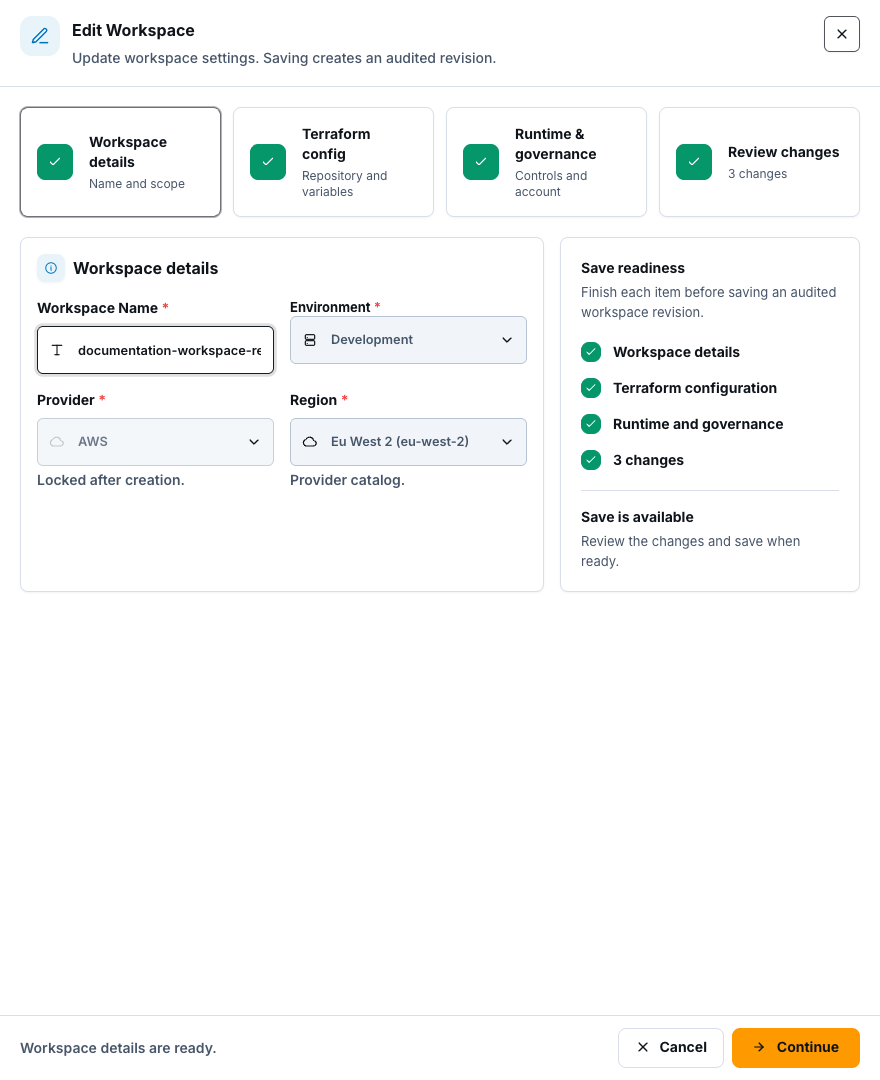
Section titled “Edit a workspace”- Choose Edit.
- Wait for ScrinCloud to acquire the edit lock and load the latest revision.
- Review Workspace details, Terraform config, Runtime & governance, and Review changes.
- Update only the intended fields.
- Use Add Variable and remove-variable controls only for non-secret values.
- Add or remove tags as needed.
- Review Auto Plan, Apply Approval, Approval Gate, and Custom Terraform with your project policy.
- Choose Save Workspace and wait for the new immutable revision.
Editing is a backend mutation. Never place credentials, tokens, private keys, passwords, or connection strings in workspace variables.
Check your result
Section titled “Check your result”Reopen View details and confirm the new values and latest revision. The edit lock should no longer block another authorized editor.
Run a validation
Section titled “Run a validation”- Select an exact project and locate the workspace.
- Choose the row’s Validate button or Run validate in its action menu.
- Wait for Validating… to return to its normal label.
- Choose View runs to inspect the queued validation and its terminal result.
Validation creates a governed run request against the saved revision. It checks the configuration; it does not apply Terraform or change cloud resources.
Queue a plan
Section titled “Queue a plan”- Confirm the workspace has a latest revision and you have write permission.
- Choose Queue plan from the row menu or Queue Plan in details.
- Wait for Queuing… to complete.
- Choose View runs and inspect the plan run, logs, policy results, and plan artifact before any later approval.
Queueing a plan is a backend side effect and uses an idempotent request. A plan is a proposal, not proof of an apply or deployment.
Check your result
Section titled “Check your result”Run history shows one request for the intended workspace revision. Use its terminal status—not the button notification—as the result.
Delete a workspace
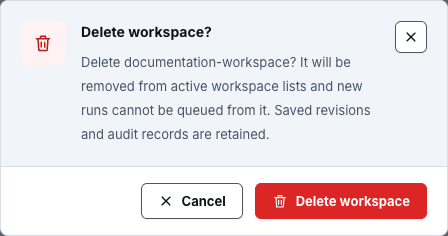
Section titled “Delete a workspace”- Choose Delete workspace from the row menu or Delete in details.
- Read Delete workspace? and confirm the project and workspace.
- Verify retention, state, run-history, and external-resource cleanup policy.
- Choose Delete workspace and wait for completion.
Deletion is destructive and requires write access. Removing application workspace metadata does not prove that external cloud resources or Terraform state were destroyed.
Check your result
Section titled “Check your result”The action completes and the workspace no longer appears after Refresh workspaces.
Understand the proof boundary
Section titled “Understand the proof boundary”Workspace pages can prove saved metadata, revision creation, and that a run was queued. Only the run’s terminal evidence can prove validation or plan outcome. Only an authorized apply and provider-side verification can prove a cloud change.
Common blockers
Section titled “Common blockers”Create or run actions are disabled
Section titled “Create or run actions are disabled”Select an exact project, confirm write access, and ensure the workspace has a latest revision.
Edit lock is unavailable
Section titled “Edit lock is unavailable”Another editor may hold the lock. Do not bypass it. Wait, coordinate with the editor, or retry after the lock is safely released.
Provider account is missing
Section titled “Provider account is missing”Use Go to Cloud Accounts and follow the connection guide. Visual review may work without a connection; provider-backed runs may not.
Validation or plan is queued but has no result
Section titled “Validation or plan is queued but has no result”Open View runs and wait for a terminal state. A queue acknowledgement is not a successful validation or plan.
State download is not in Workspace Details
Section titled “State download is not in Workspace Details”That is intentional. Use the governed Terraform settings and audit workflow; do not look for or document a hidden workspace shortcut.