
Share Cloud Cost reports
A Cloud Cost share link grants access to a bounded public report without opening the authenticated console or its configuration controls. The complete URL is an access-bearing secret.
- Typical time
- 10–20 minutes
- You need
- An enabled workspace snapshot and permission to manage Cloud Cost shares
- Outcome
- A verified read-only report with a defined scope and expiry
Step 1: Open the share manager
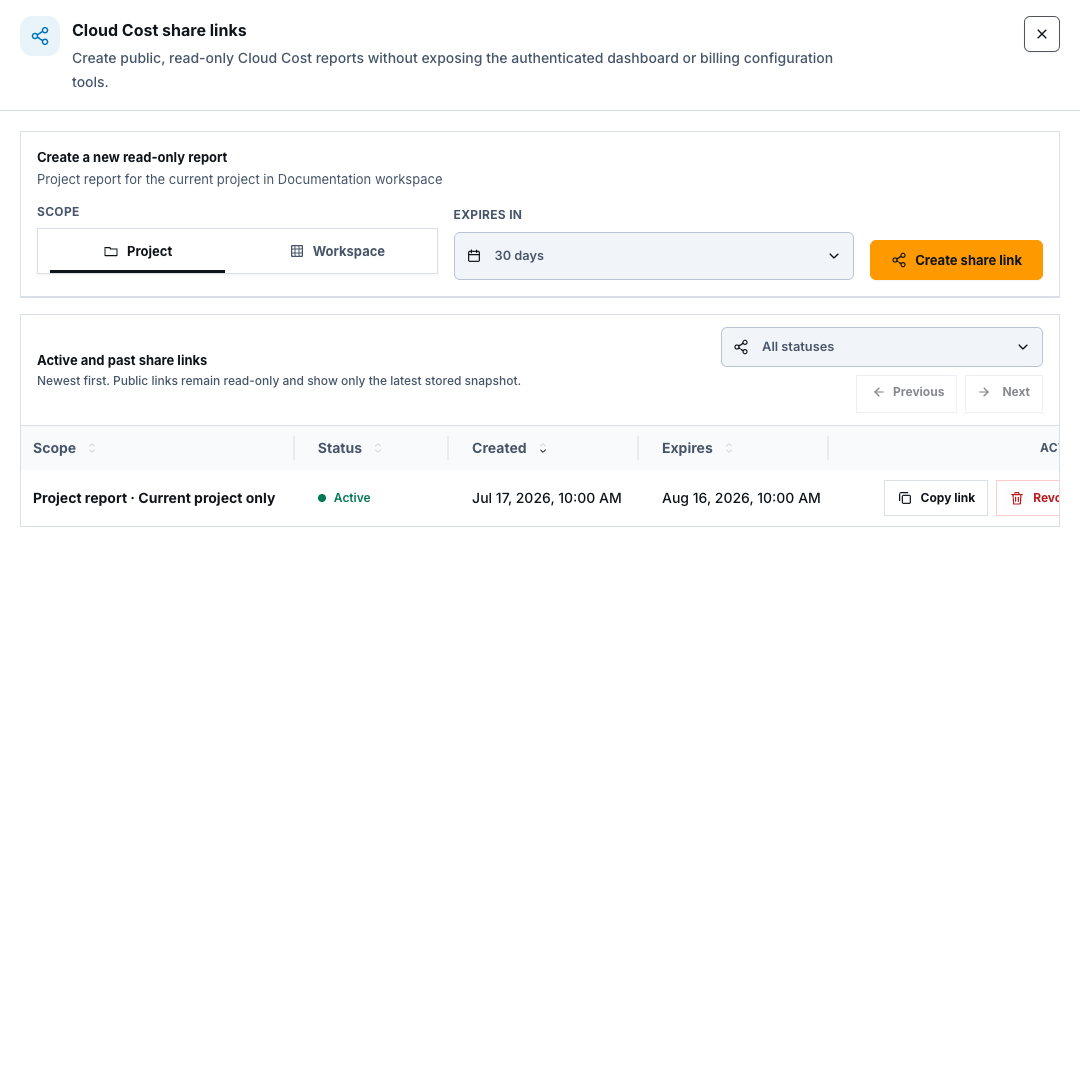
Section titled “Step 1: Open the share manager”On the authenticated Cloud Cost board, select Share. If it is disabled, confirm that a workspace is selected, sharing is available for the workspace, and the backend returned a usable share-link status.
Step 2: Choose the smallest scope and expiry
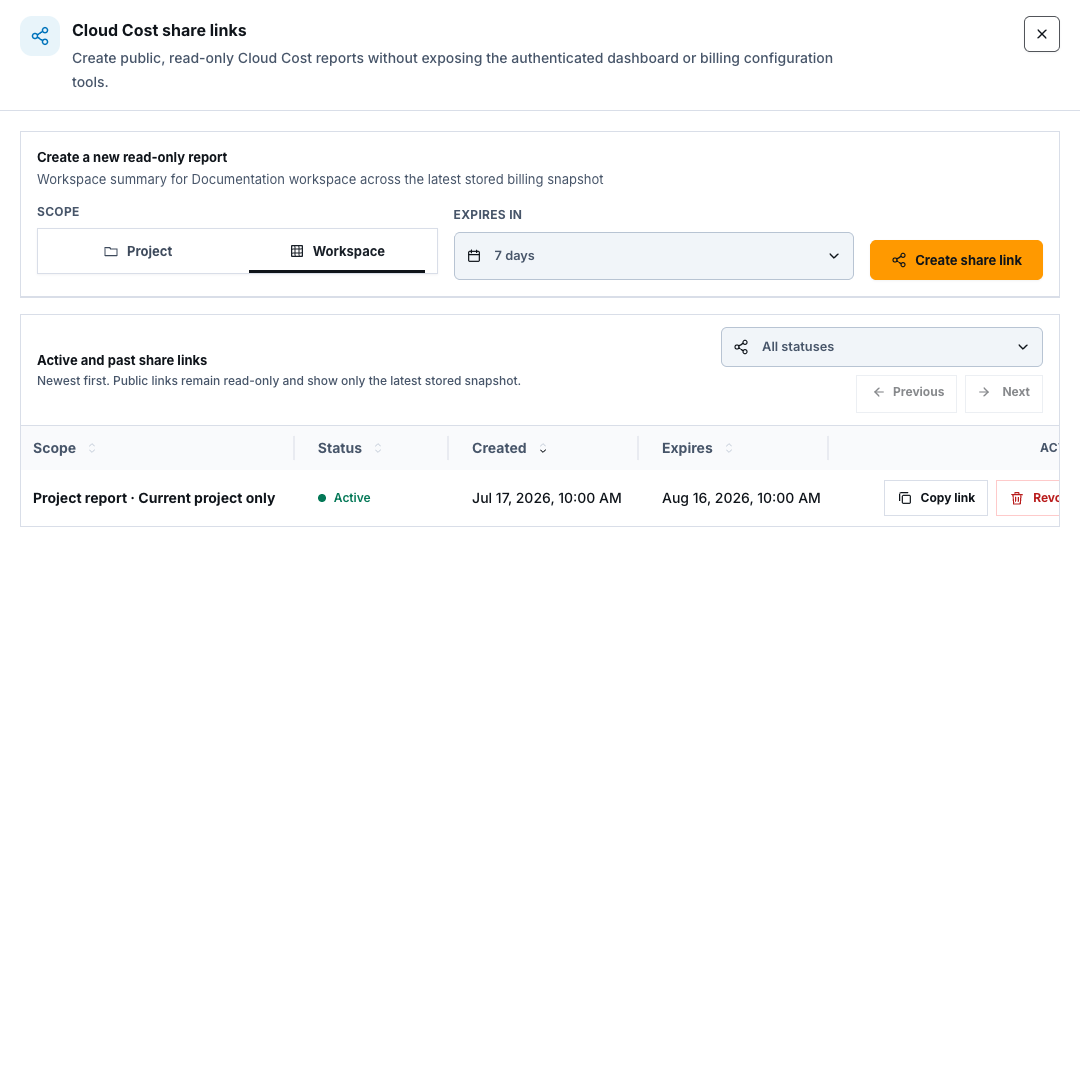
Section titled “Step 2: Choose the smallest scope and expiry”Under Create a new read-only report, choose:
- Project for the current project in the selected workspace;
- Workspace for the workspace aggregate;
- Expires in 7, 30, or 90 days.
Use the smallest scope and shortest useful expiry. Review workspace, project, provider account label, and region for sensitive names before sharing.
Step 3: Create and protect the link
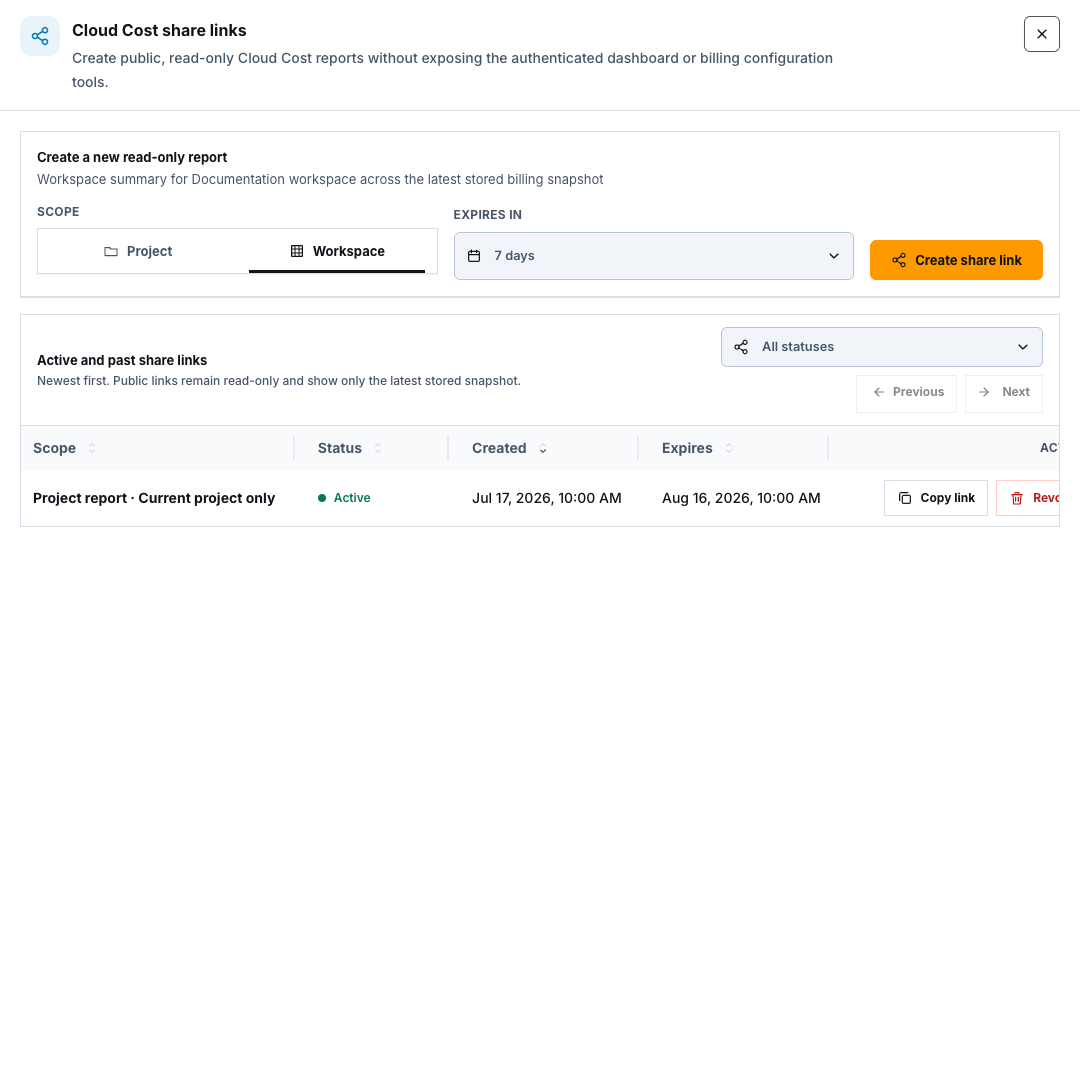
Section titled “Step 3: Create and protect the link”Select Create share link. The new link is copied automatically when browser clipboard access succeeds. A successful creation means the access record exists; it does not prove the public report renders.
Send the complete URL only through an approved private channel. Do not put it in tickets, screenshots, chat transcripts, analytics, commit history, or documentation.
Step 4: List, filter, and copy existing links
Section titled “Step 4: List, filter, and copy existing links”In Active and past share links, filter by All statuses, Active, Expired, or Revoked. Use sortable columns and backend Previous / Next pages. Select Copy link for an active item.
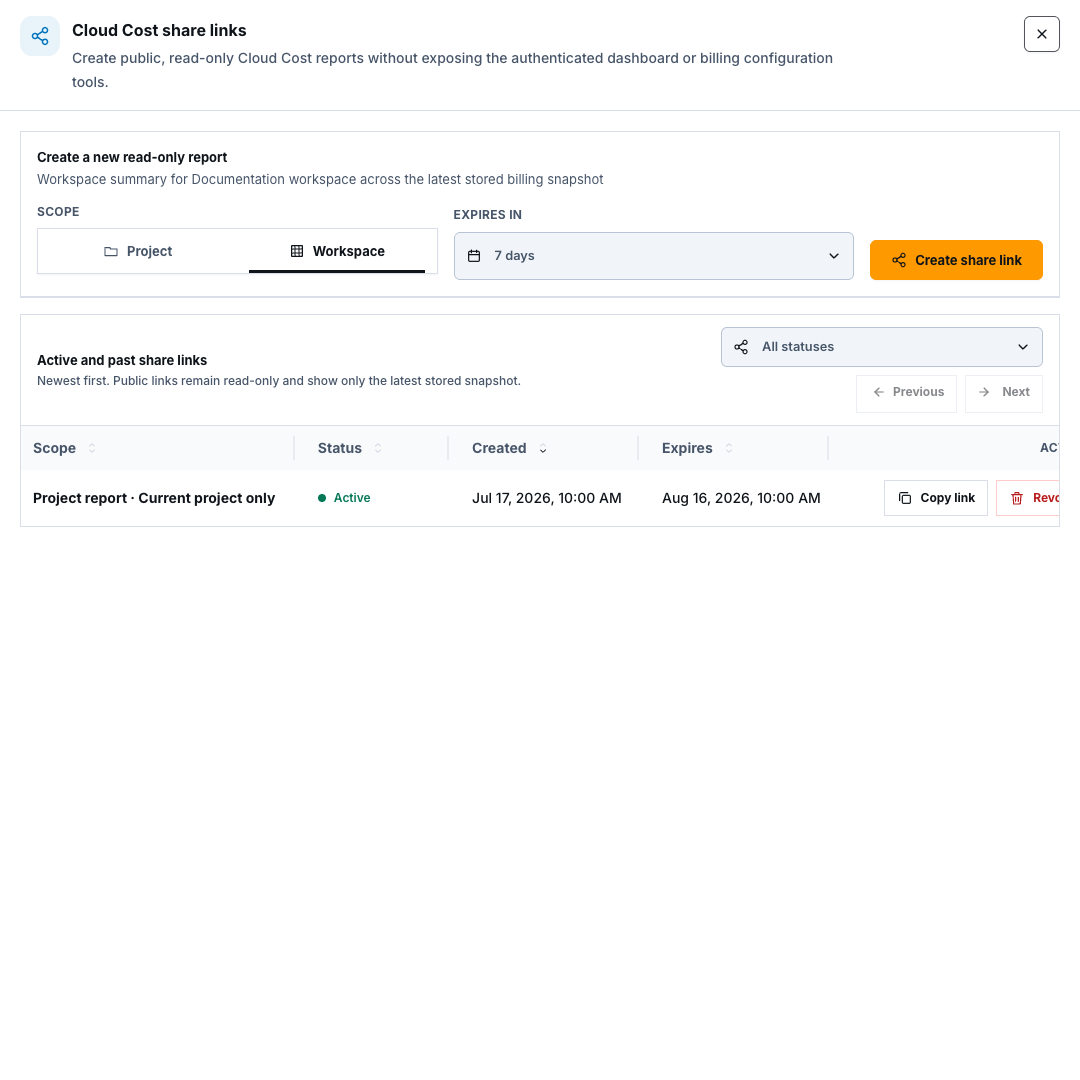
A copyable URL may be unavailable for an older record. The current manager has no Open button. To verify a report, copy its full URL and open it in an approved private browser session outside the authenticated console.
Step 5: Verify the public read-only report
Section titled “Step 5: Verify the public read-only report”Open the copied URL in a separate private session. Confirm the Read-only report header, scope, expiry, provider, account label, region, and latest stored billing snapshot.
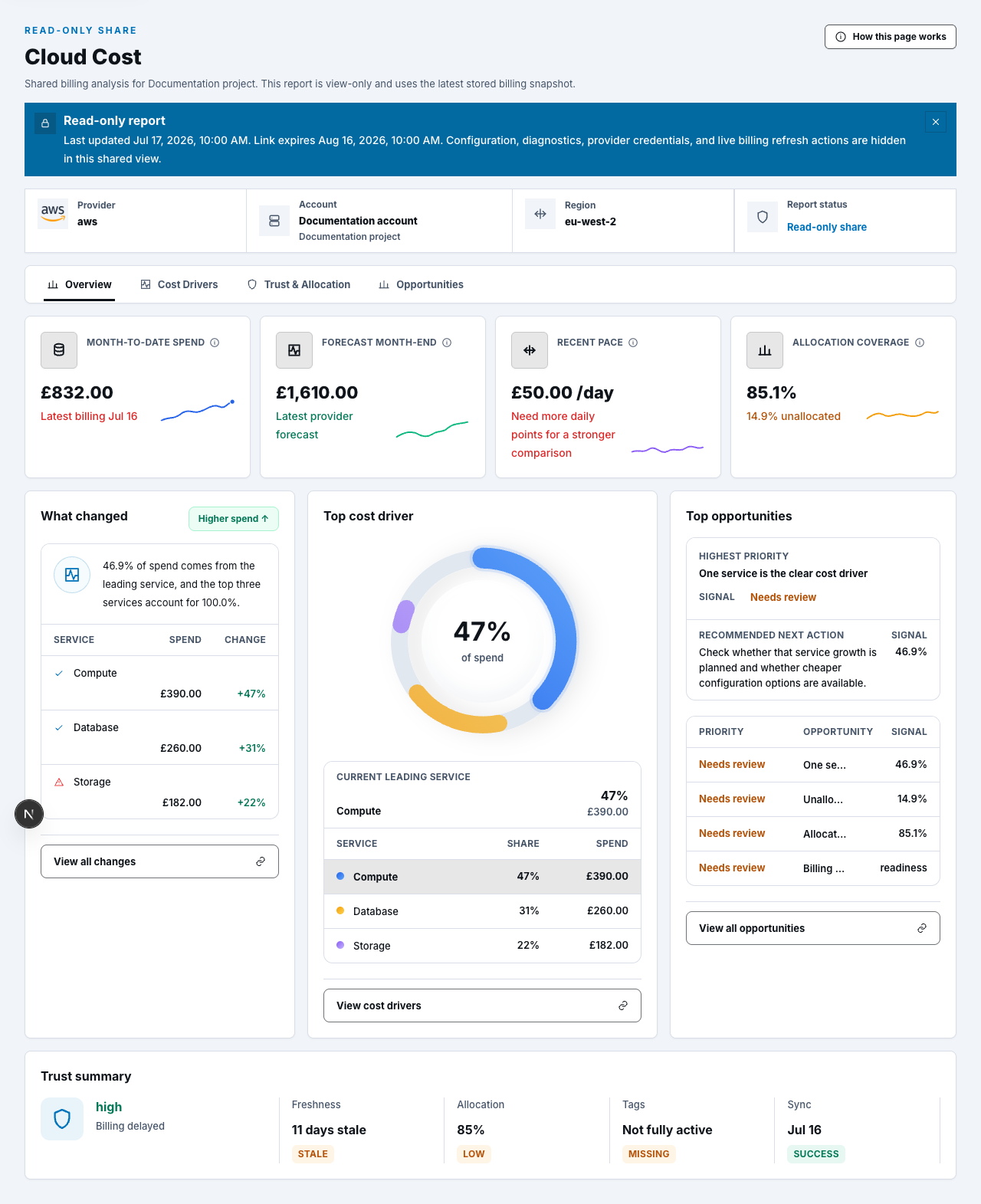
If no stored snapshot exists, the page shows No shared billing snapshot yet. Revoked, expired, incomplete, invalid, and unavailable links show bounded error messages instead of authenticated controls.
Step 6: Review only permitted analysis
Section titled “Step 6: Review only permitted analysis”The public report exposes Overview, Cost Drivers, Trust & Allocation, and Opportunities. Local chart ranges and safe detail drawers remain read-only. It does not expose Configuration, recipients, watched resources, manual refresh, account tests, sharing controls, or authenticated navigation.
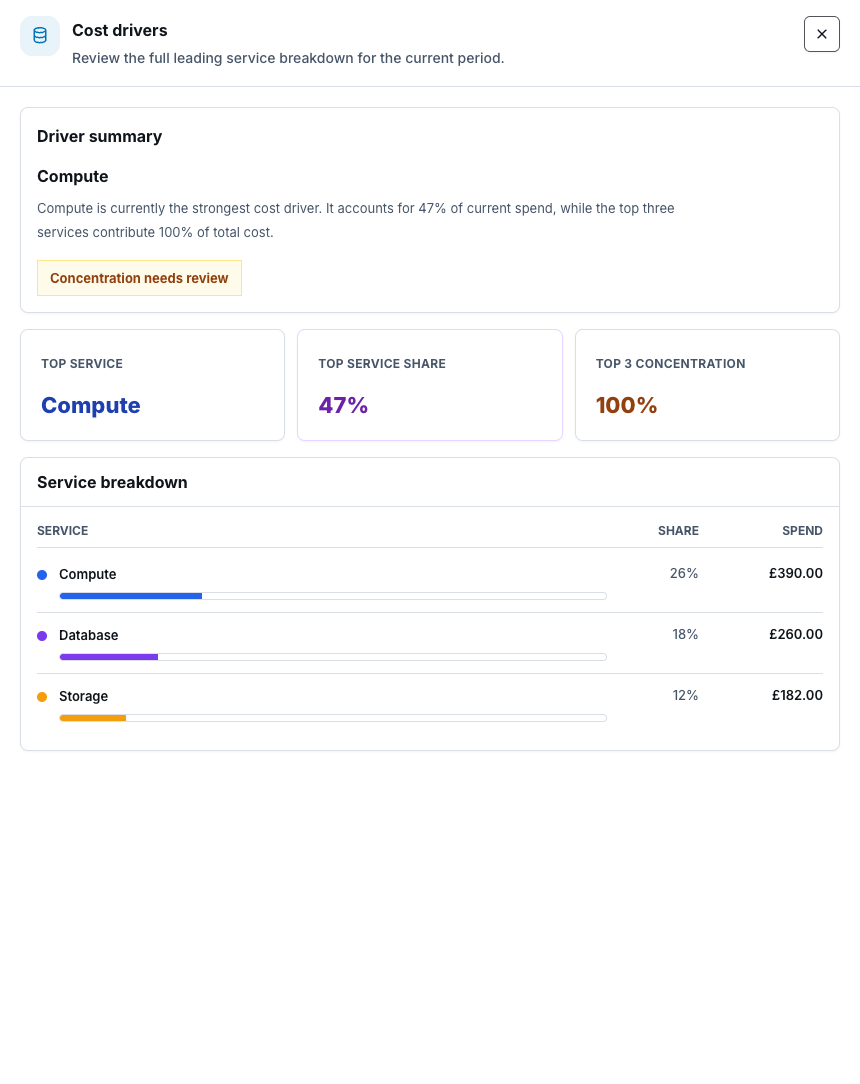
The report uses the latest stored snapshot available when viewed. It does not provide live provider billing data or permission to act on recommendations.
Step 7: Revoke access
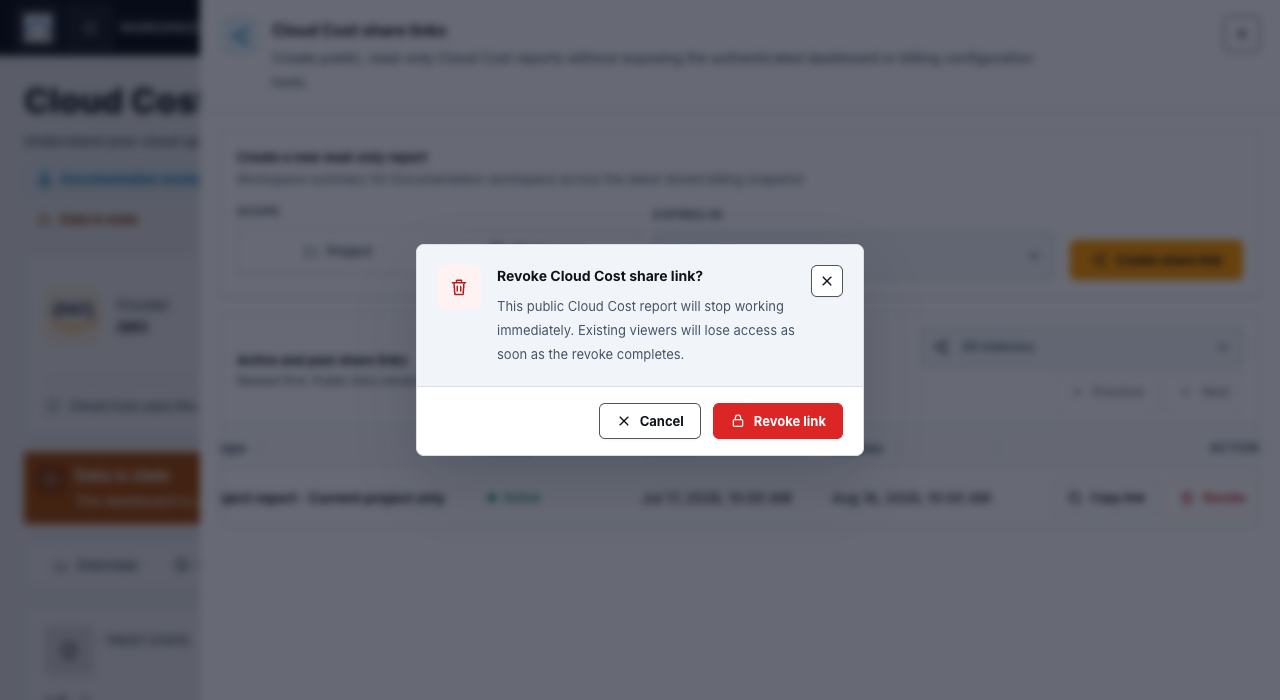
Section titled “Step 7: Revoke access”Back in the authenticated manager, select Revoke on an active link. Read the confirmation and select Revoke link. Revocation is immediate; existing viewers lose access and the row moves to revoked status.
Check your result
Section titled “Check your result”The link has the intended scope and expiry, the private verification session shows only read-only analysis, and a revoked link returns the bounded revoked state.
Common blockers
Section titled “Common blockers”- Share disabled: confirm workspace selection, snapshot readiness, permission, and backend share availability.
- Copy failed: grant clipboard access or retry in an approved session; never expose the URL while troubleshooting.
- Report unavailable: use the full original URL and check active/expired/ revoked state.
- No shared snapshot: wait for a successful Cloud Cost sync.
- Revocation unverified: open the old URL privately and confirm access is denied.
Source and deployment wiring do not prove link creation, public rendering, or revocation in a live environment. Verify each behavior without exposing the access-bearing URL.