
Policies and approvals
Policy guardrails define the organization baseline. Deterministic checks produce findings; authorized people make approval decisions. A policy result never replaces a reviewer.
- Typical time
- 20–35 minutes
- You need
- Policy-management access, a current password, and an active second factor
- Outcome
- A reviewed baseline and traceable policy-definition lifecycle
Step 1: Review the organization baseline
Section titled “Step 1: Review the organization baseline”Open Governance → Policy Guardrails. On Overview, switch between AWS and Azure when applicable and verify:
- whether the baseline is enabled;
- whether its mode is Advisory or Enforcing;
- the scanner and policy totals;
- whether shared controls apply to both providers.
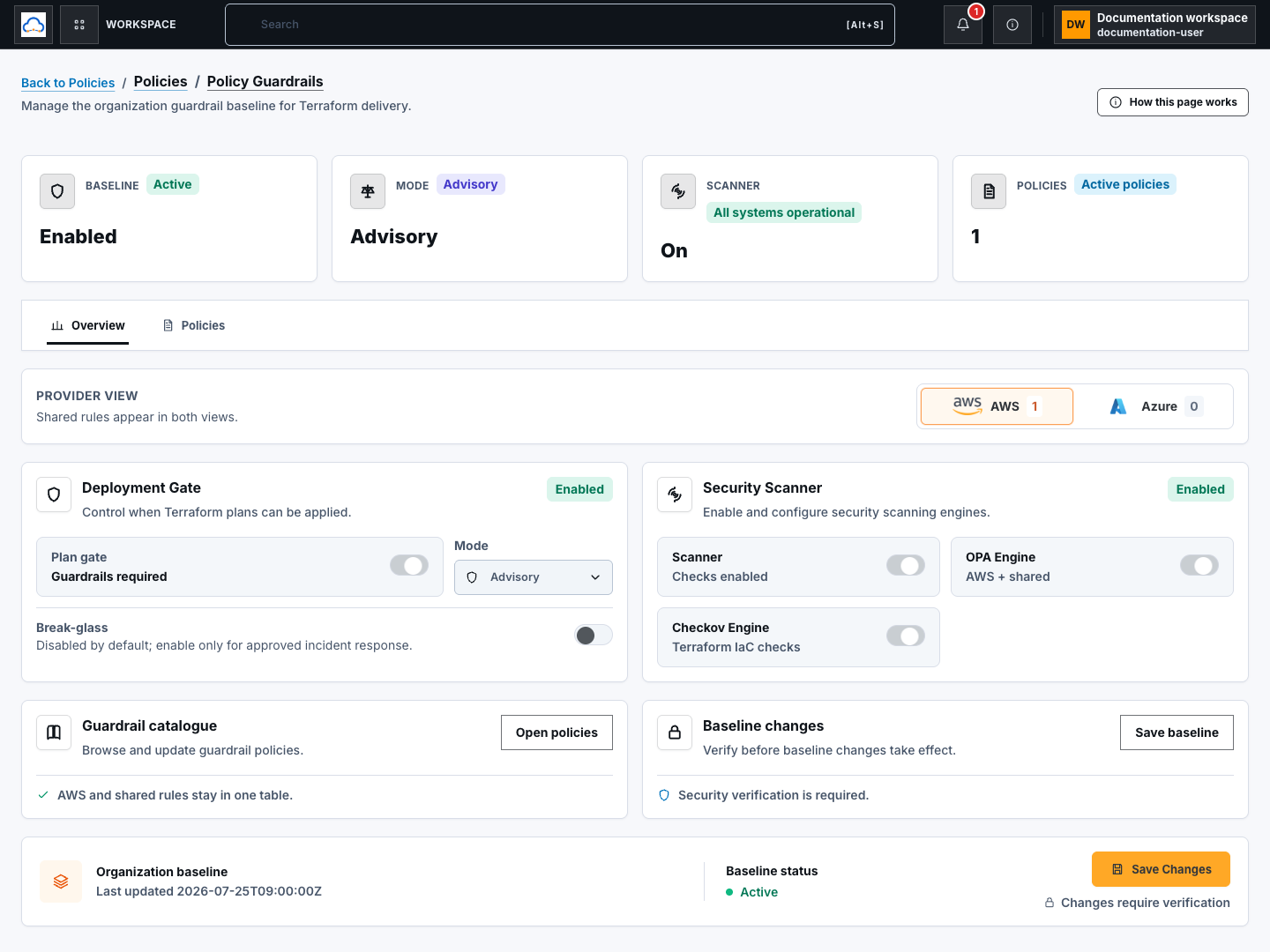
Use Advisory while teams learn a new control. Choose Enforcing only after remediation ownership, reviewer availability, and exception handling are ready.
Step 2: Configure the gate and scanners
Section titled “Step 2: Configure the gate and scanners”In Deployment Gate, enable the gate and choose Advisory or Enforcing. Enable Break-glass only for a reviewed emergency process. In Security Scanner, configure OPA Engine and Checkov Engine. Disabling a scanner does not turn an unknown result into a pass.

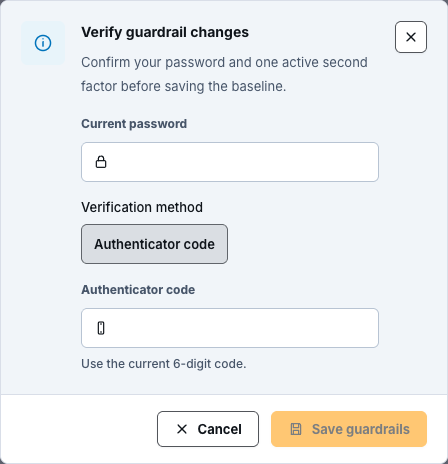
Select Discard Changes to restore the loaded values, or Save Changes to persist the reviewed baseline. Saving is a high-impact action and requires fresh security verification.
Step 3: Browse and operate individual policies
Section titled “Step 3: Browse and operate individual policies”Select Open policies or the Policies tab. Search by name or ID and filter by Category, Severity, Status, Provider, Mode, or Exception. Use Refresh, Previous, and Next for the bounded server-backed list.
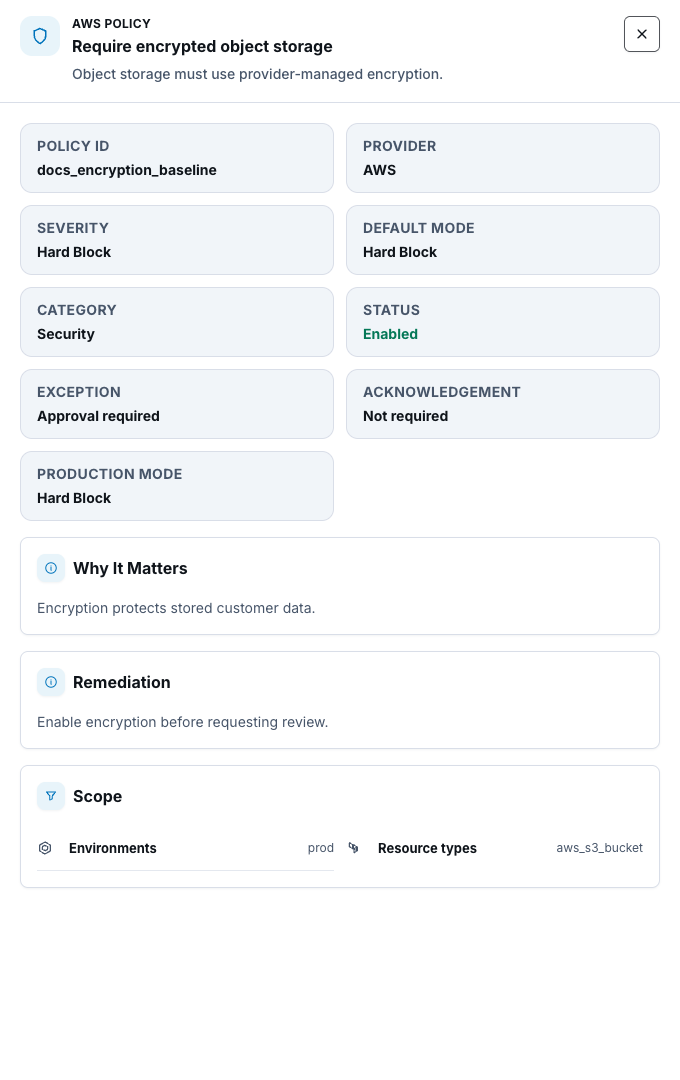
Open a policy to review its safe metadata, rationale, remediation, and scope. Use the row action to enable or disable a policy, then save and verify the baseline change.
Step 4: Create a policy-definition draft
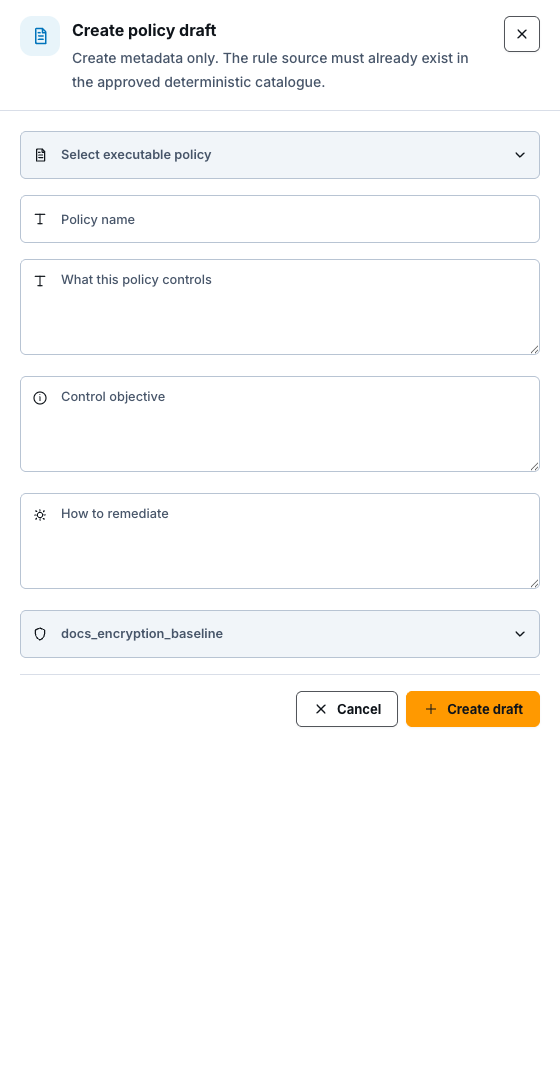
Section titled “Step 4: Create a policy-definition draft”In Policy definitions, select New draft. Choose an approved executable rule source, then enter a clear name, description, control objective, and remediation. Select Create draft.
The current public definition panel has no Edit action. If draft content is wrong, follow your organization’s reviewed replacement process instead of assuming an unseen update occurred.
Step 5: Advance the lifecycle in order
Section titled “Step 5: Advance the lifecycle in order”Use the next lifecycle action shown on the row. The supported sequence is:
draft → testing → review_required → approved → published → active → deprecated → retired
Published, active, and retired transitions require fresh security verification. Check the version and content digest before every transition. A transition changes lifecycle state; it does not prove that a live Terraform run evaluated the definition.

Step 6: Roll back by creating a new version
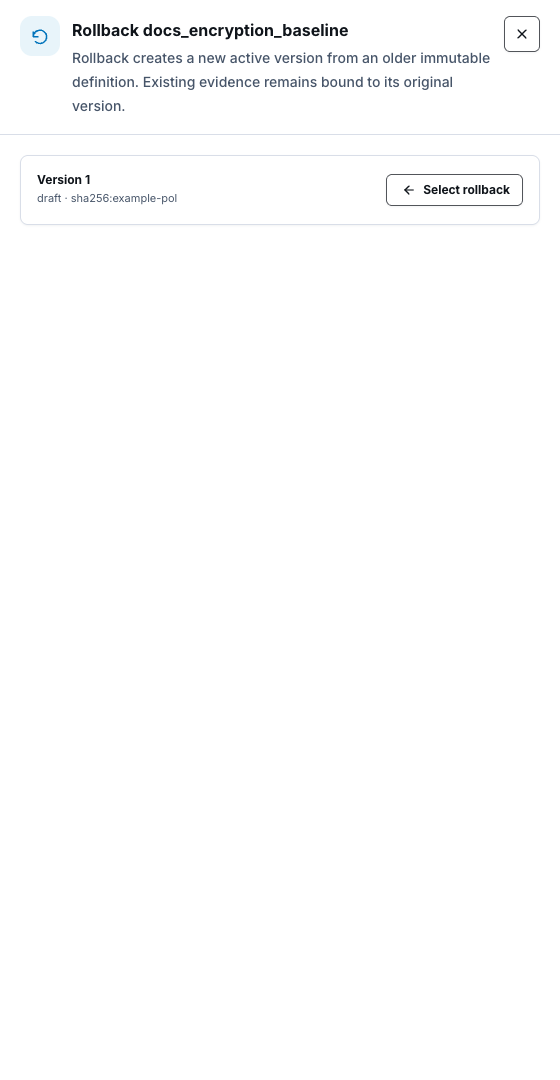
Section titled “Step 6: Roll back by creating a new version”For version 2 or later, select Rollback version, choose an older immutable version, and select Select rollback. Review the target, complete fresh security verification, then select Verify and rollback.
Rollback creates a new active version from the selected immutable content. It does not rewrite version history or change evidence already bound to an older version. Retired definitions do not offer rollback.
Step 7: Confirm evidence on a fresh plan
Section titled “Step 7: Confirm evidence on a fresh plan”Create a fresh plan and select Run guardrails review in run details. Confirm the organization baseline, project and workspace contract, scanner readiness, findings, gate status, and reviewer availability for the exact approved plan and revision.

Check your result
Section titled “Check your result”The saved baseline shows the intended gate and scanner state, policy-definition history is intact, and a fresh plan reports evidence for the exact approved plan and revision.
Common blockers
Section titled “Common blockers”- Save or transition unavailable: confirm policy-management permission and enroll or restore the required second factor.
- Scanner not ready: treat the evaluation as incomplete, not passed.
- Lifecycle action missing: complete the preceding state first; retired definitions cannot roll back.
- Plan changed: create a new plan because earlier evidence cannot authorize a changed revision.
Source configuration, CI, and deployment wiring alone do not prove live policy evaluation. Record that proof only after an authorized runtime test.