
Change appearance
Settings → Appearance controls your personal ScrinCloud theme. Changing a theme card previews it immediately in the browser; Save Changes persists the preference to your signed-in account.
- Typical time
- 2 minutes
- You need
- A signed-in ScrinCloud account
- Outcome
- A saved personal theme preference
Step 1: Review the saved theme
Section titled “Step 1: Review the saved theme”Open Settings → Appearance. Wait for the saved preference to load, then review the selected card and Current resolved theme in the preview.
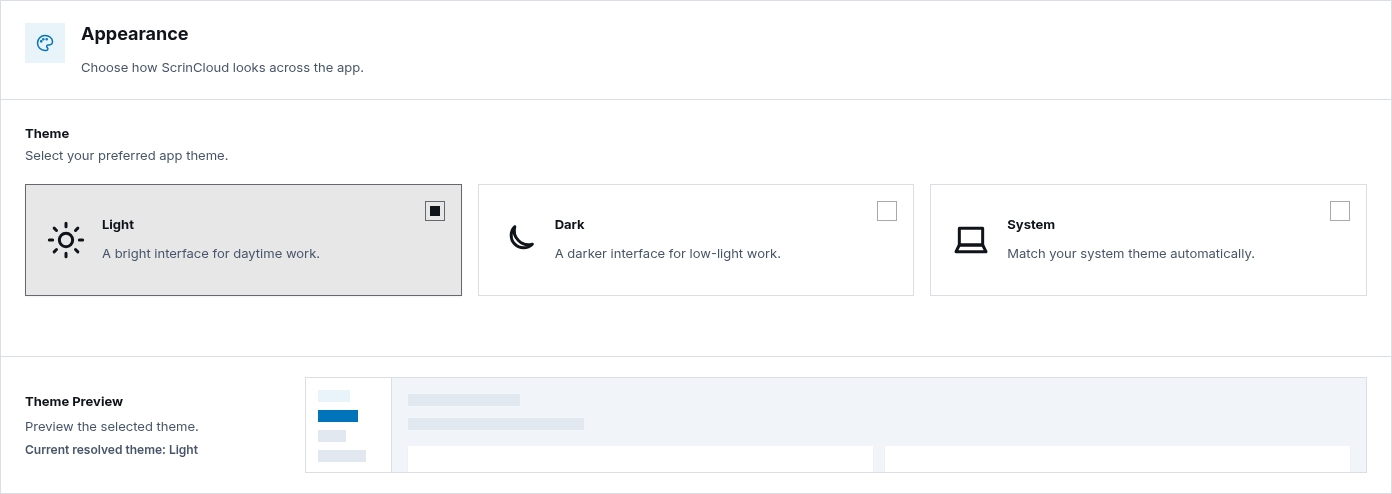
Step 2: Choose Light, Dark, or System
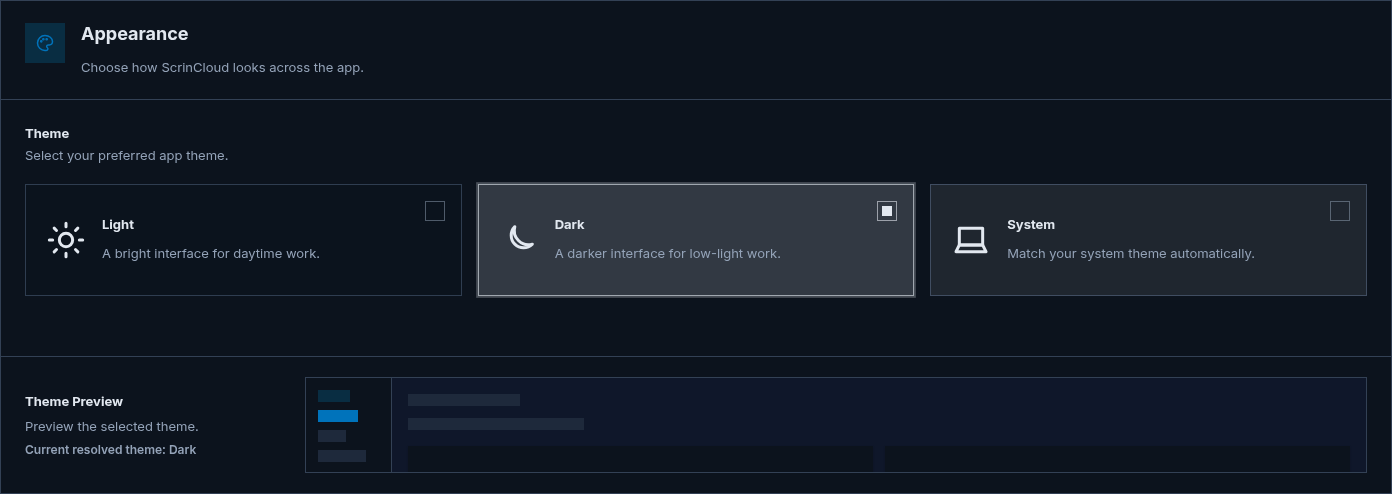
Section titled “Step 2: Choose Light, Dark, or System”Select:
- Light for a bright interface;
- Dark for a darker interface; or
- System to follow the operating system preference automatically.
The page previews the choice immediately. With System, the resolved theme can change when the device preference changes.
Step 3: Save the preference
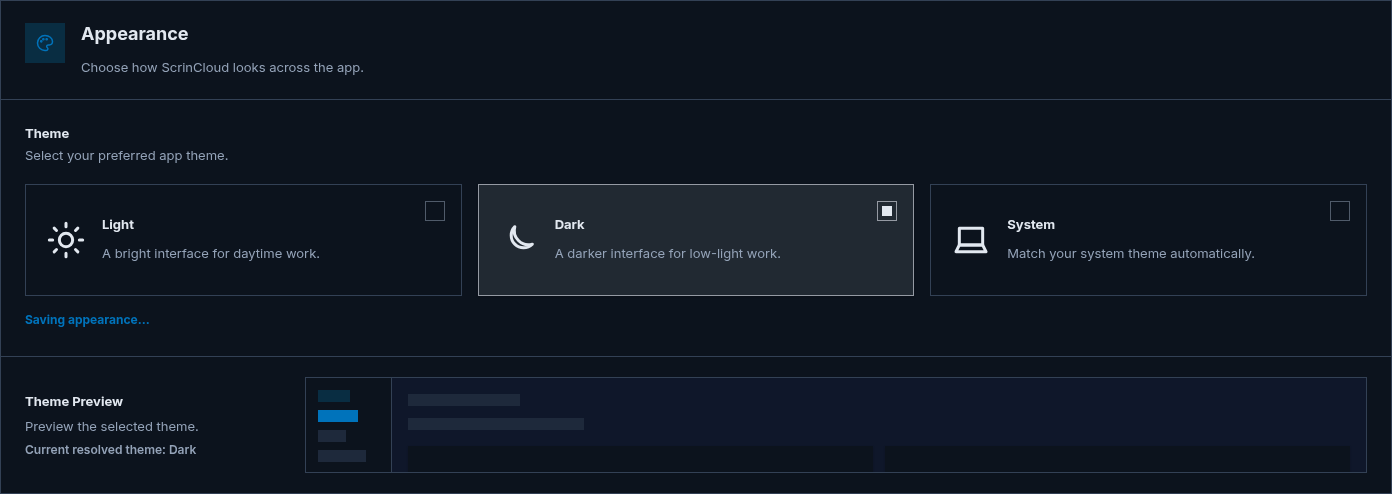
Section titled “Step 3: Save the preference”Choose Save Changes in the page header and wait for Saving appearance… to finish. The backend stores the preference for your account.
If the save fails, the page reports the error and keeps the local preference active for the current browser view. That local appearance is not proof that the account preference persisted.
Check your result
Section titled “Check your result”Reload ScrinCloud or sign in on another authorized browser and confirm the saved theme preference is restored. For System, compare the resolved theme with the device setting.
Common blockers
Section titled “Common blockers”The page keeps Loading appearance
Section titled “The page keeps Loading appearance”Check the connection and reload. Do not choose or save repeatedly while the stored preference is still loading.
The theme changed but did not persist
Section titled “The theme changed but did not persist”The card selection is only a local preview until Save Changes completes. Retry after the error is resolved.
System looks different on another device
Section titled “System looks different on another device”That is expected when the devices use different operating-system appearance preferences.