
Connect GitHub
GitHub uses the repository-scoped ScrinCloud GitHub App and short-lived installation access. Use an organization-owned installation and select only the repositories approved for ScrinCloud.
- Typical time
- 10–15 minutes
- You need
- ScrinCloud admin and GitHub App approval
- Optional
- Project-admin access for repository creation
Step 1: Start GitHub authorization
Section titled “Step 1: Start GitHub authorization”- open Git Integration;
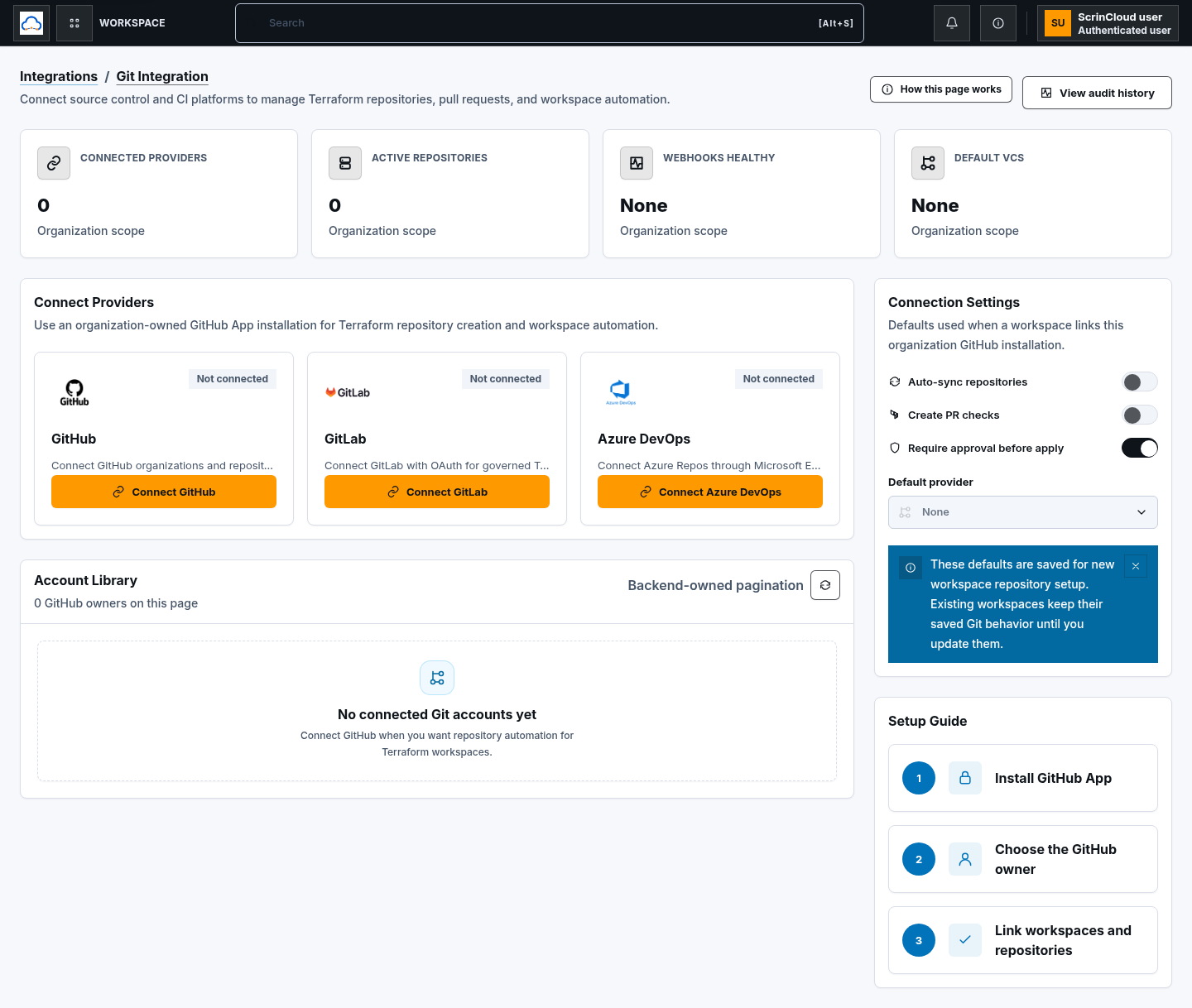
- find the GitHub provider card; and
- choose Connect GitHub.
ScrinCloud opens GitHub authorization. If the app is not configured for the environment, the page reports that application credentials are unavailable.
Step 2: Install and scope the GitHub App
Section titled “Step 2: Install and scope the GitHub App”In GitHub:
- choose the approved personal account or organization;
- install the ScrinCloud GitHub App;
- prefer Only select repositories unless policy explicitly permits all repositories; and
- approve the installation.
Do not grant broader organization or repository access than the intended Terraform workflow requires.
Step 3: Return and verify the owner
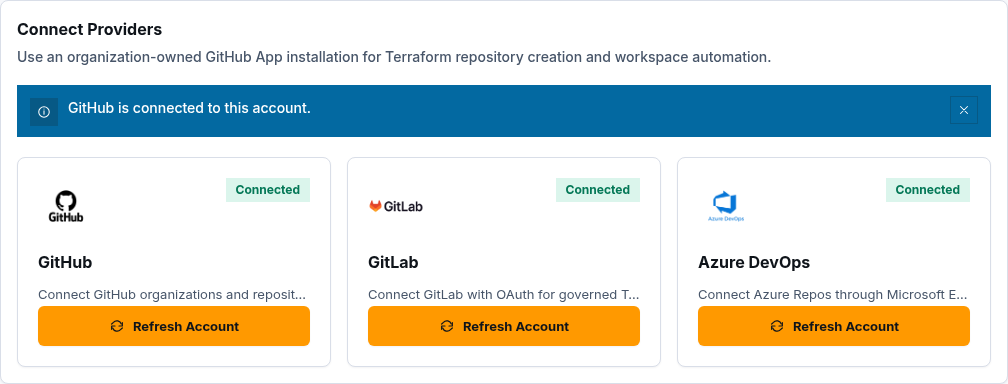
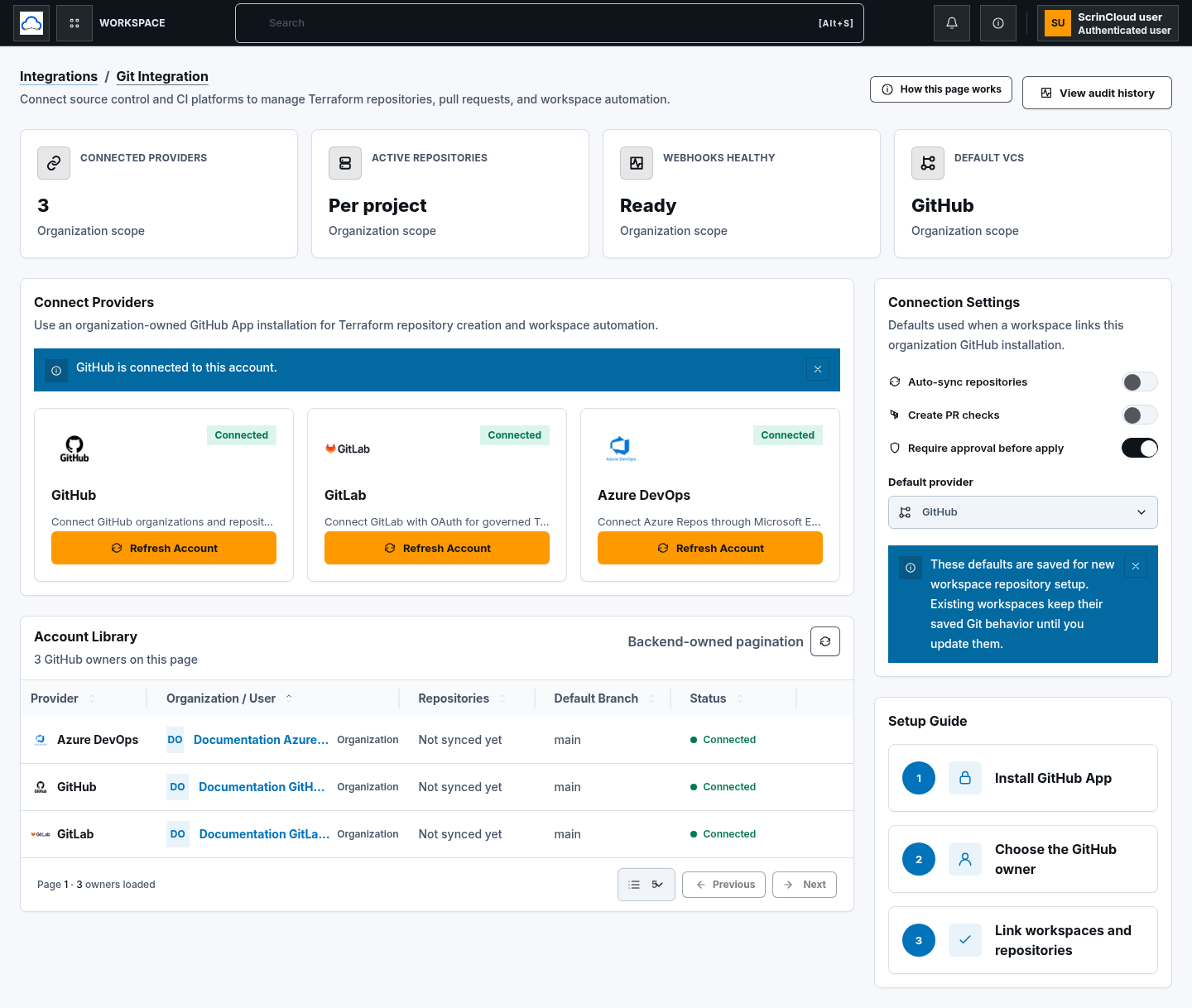
Section titled “Step 3: Return and verify the owner”GitHub returns to Git Integration. ScrinCloud validates the installation and connection state, then shows the connected GitHub accounts.
Confirm:
- the success notice says GitHub is connected for the organization;
- the intended owner appears in Connected Accounts; and
- the owner type is Organization or User as expected.
Choose Refresh access if GitHub permissions or repository selection changed.
Step 4: Set the default GitHub owner
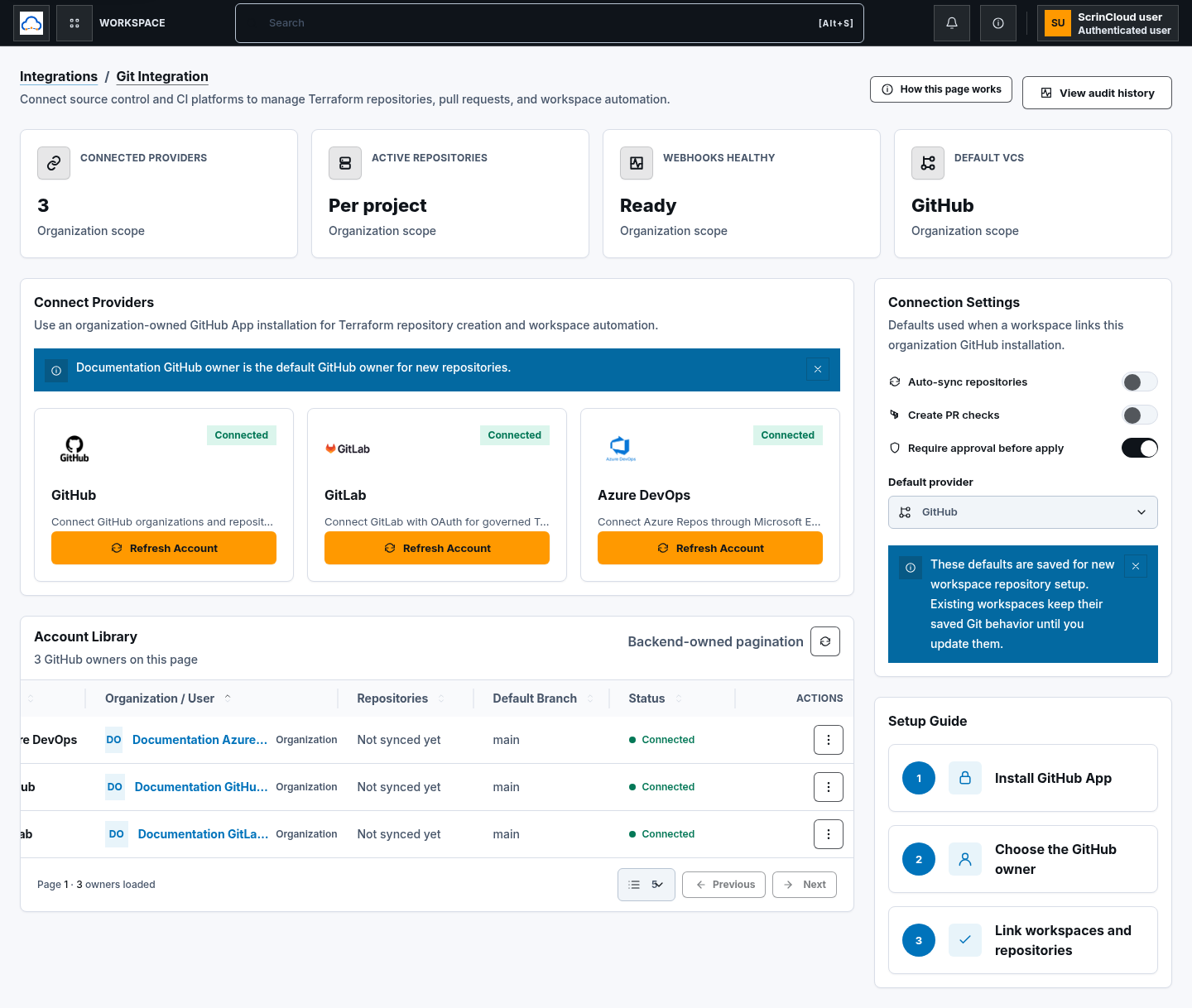
Section titled “Step 4: Set the default GitHub owner”Open the GitHub account row menu and choose Set as default owner. The default marker is used when new GitHub repository workflows need an owner.
This action is GitHub-only. GitLab and Azure DevOps accounts do not expose it in the current product.
Step 5: Create a project repository
Section titled “Step 5: Create a project repository”Repository creation requires project-admin access:
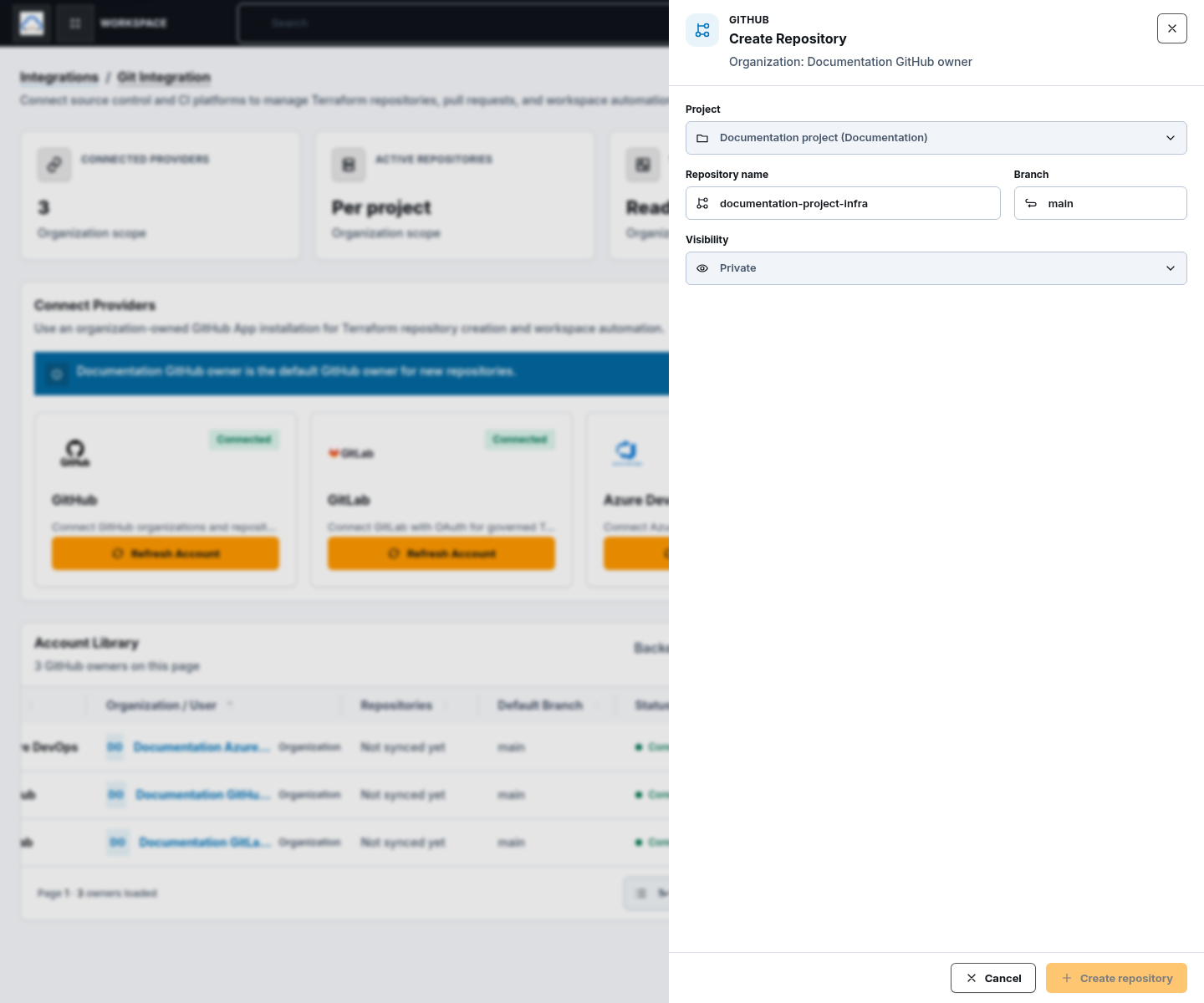
- choose Create repository on the connected GitHub owner;
- choose an eligible project;
- review the generated repository name;
- keep the default branch as
mainunless your policy requires another branch; - keep visibility Private unless the organization has approved Internal or Public; and
- choose Create repository.
The product initializes the repository and records it against the project. Repository creation does not authorize Terraform apply.
Check your result
Section titled “Check your result”Confirm the expected GitHub owner is connected, refresh succeeds, the optional default marker is correct, and any new repository exists under the intended owner with the reviewed visibility and default branch.
Common blockers
Section titled “Common blockers”Installation was cancelled or rejected
Section titled “Installation was cancelled or rejected”Start Connect GitHub again and have an authorized GitHub owner approve the app and repository scope.
No eligible project appears
Section titled “No eligible project appears”Repository creation needs project-admin access. Ask a project admin to create the repository or grant the correct project role.
A repository is missing from access
Section titled “A repository is missing from access”Update the GitHub App installation repository selection, then choose Refresh access in ScrinCloud.
Existing project repository setup
Section titled “Existing project repository setup”A project can also link an approved existing GitHub repository URL through its repository controls. Confirm the connected owner has access before saving.