
Review a Terraform plan
A Terraform plan is a change proposal for one saved revision. Review its technical impact and all attached governance evidence before requesting approval.
- Typical time
- 10–30 minutes
- You need
- A successful Plan run
- Next step
- Run guardrails review
Step 1: Confirm identity and freshness
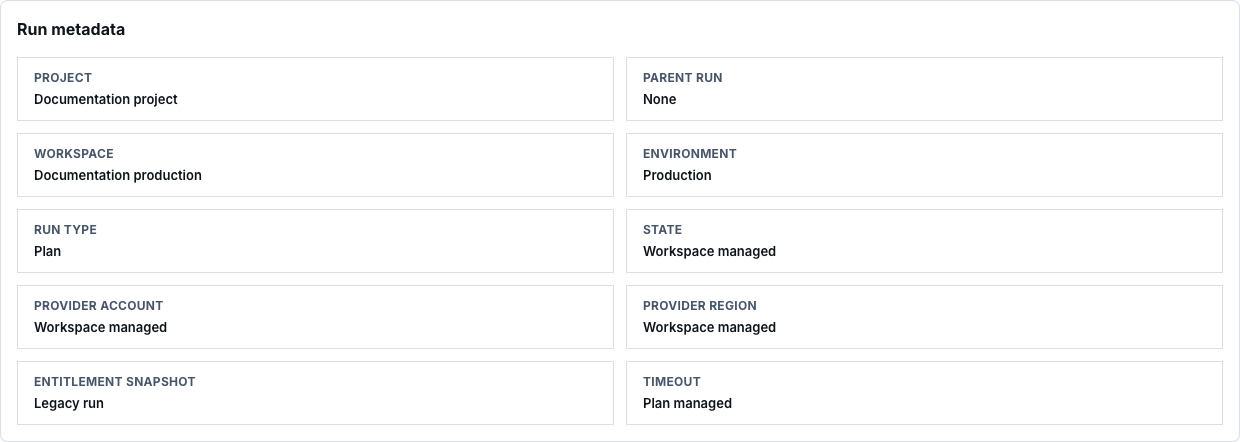
Section titled “Step 1: Confirm identity and freshness”Open the plan from Run Library and confirm:
- project, workspace, environment, actor, and run type;
- latest saved revision;
- cloud account and provider region;
- plan creation time and Terraform version; and
- plan availability.
An Out of date, Expired, Failed, or Unavailable plan cannot be treated as ready for apply.
Step 2: Review change counts
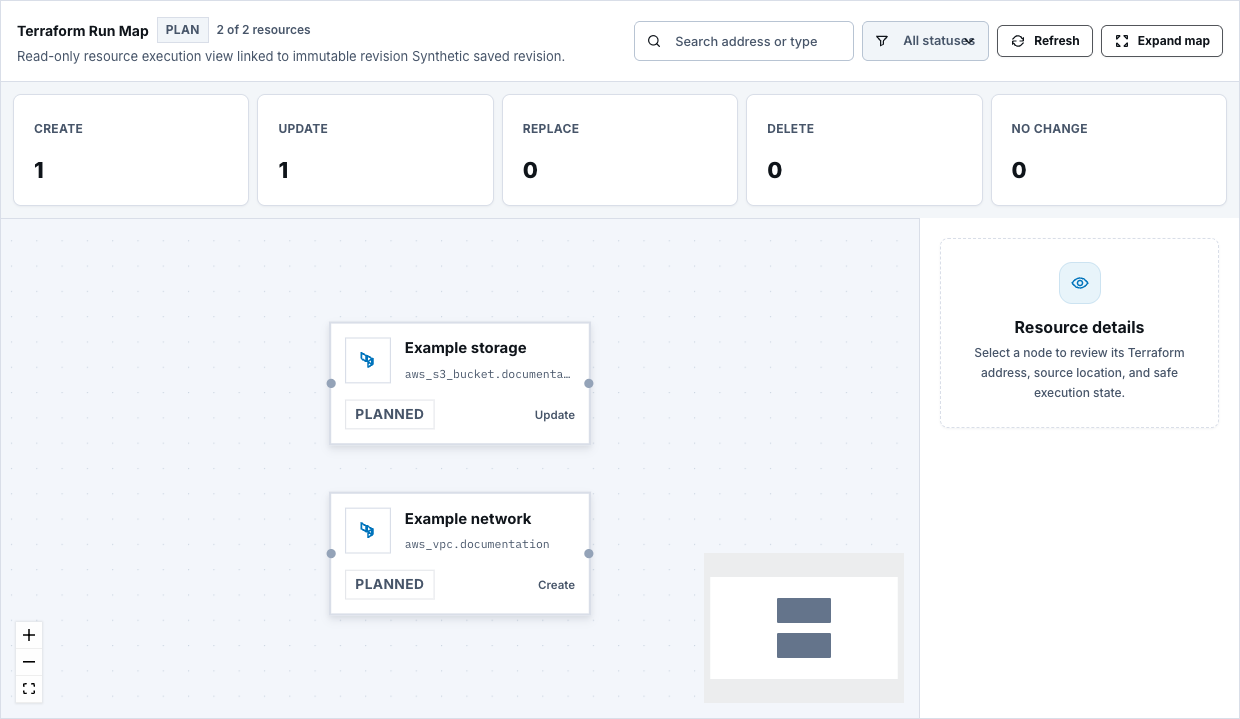
Section titled “Step 2: Review change counts”Read Total, Create, Update, Replace, and Delete. Replacement and deletion deserve explicit review even when the total count is small.

Step 3: Inspect every planned resource
Section titled “Step 3: Inspect every planned resource”Use Search resources, All actions, and All resources filters. Open each material entry and confirm:
- Terraform address and source file;
- create, update, replace, delete, read, or no-op action;
- canvas mapping and dependencies;
- security, IAM, network, public-access, encryption, and data impact; and
- whether the resource belongs in this workspace.
Unmapped does not automatically mean invalid, but it must be understood.
Step 4: Review policy evidence
Section titled “Step 4: Review policy evidence”Open Policy Scan Result and review:
- scanner status;
- whether OPA is required and whether it ran;
- blocking and warning counts; and
- each finding and remediation.
OPA Skipped is not displayed as a passed scan. Resolve blocking findings or use the bounded exception workflow only when the finding is eligible.

Step 5: Review cost evidence
Section titled “Step 5: Review cost evidence”Open the cost review and check:
- Current monthly, After apply, Monthly change, and Annualized after;
- usage profile and assumptions;
- pricing catalogue, effective date, and validity;
- trust level and trust reasons;
- unsupported or unknown cost impact; and
- cost policy findings or acknowledgements.
Known totals exclude unknown impact. A fallback or low-confidence estimate is not equivalent to a complete price.

Step 6: Request the guardrails review
Section titled “Step 6: Request the guardrails review”Choose Run guardrails review only when the plan is ready. Page load does not create a review or notify reviewers. After creation, review risk, policy contract, approval gates, reviewer availability, cost acknowledgements, comments, and expiry.

Check your result
Section titled “Check your result”The plan is ready for approval only when it is current and successful, all material changes are understood, required policy and cost evidence is present, blocking findings are resolved or validly excepted, and the review can identify eligible independent reviewers.
Common blockers
Section titled “Common blockers”Plan is out of date
Section titled “Plan is out of date”Save the intended revision and run Plan again. Do not approve or apply an older plan.
OPA did not run
Section titled “OPA did not run”Treat Skipped, failed, or unavailable scanner evidence as unresolved when OPA is required.
Known total is incomplete
Section titled “Known total is incomplete”Review every unknown or unsupported cost resource. Follow the configured cost governance effect; do not replace unknown values with zero.
No eligible reviewers
Section titled “No eligible reviewers”Add active members to the assigned reviewer groups or project reviewer role, then refresh the review.