
Manage billing
Settings → Billing shows the organization subscription and the plan catalog. Billing actions are permission-aware: some users see a read-only view, self-serve plans can open secure checkout, and an active subscription can open the billing portal when that capability is available.
- Typical time
- 5–10 minutes
- You need
- Billing-management permission for changes
- Outcome
- A reviewed plan or authorized billing session
Step 1: Review the current subscription
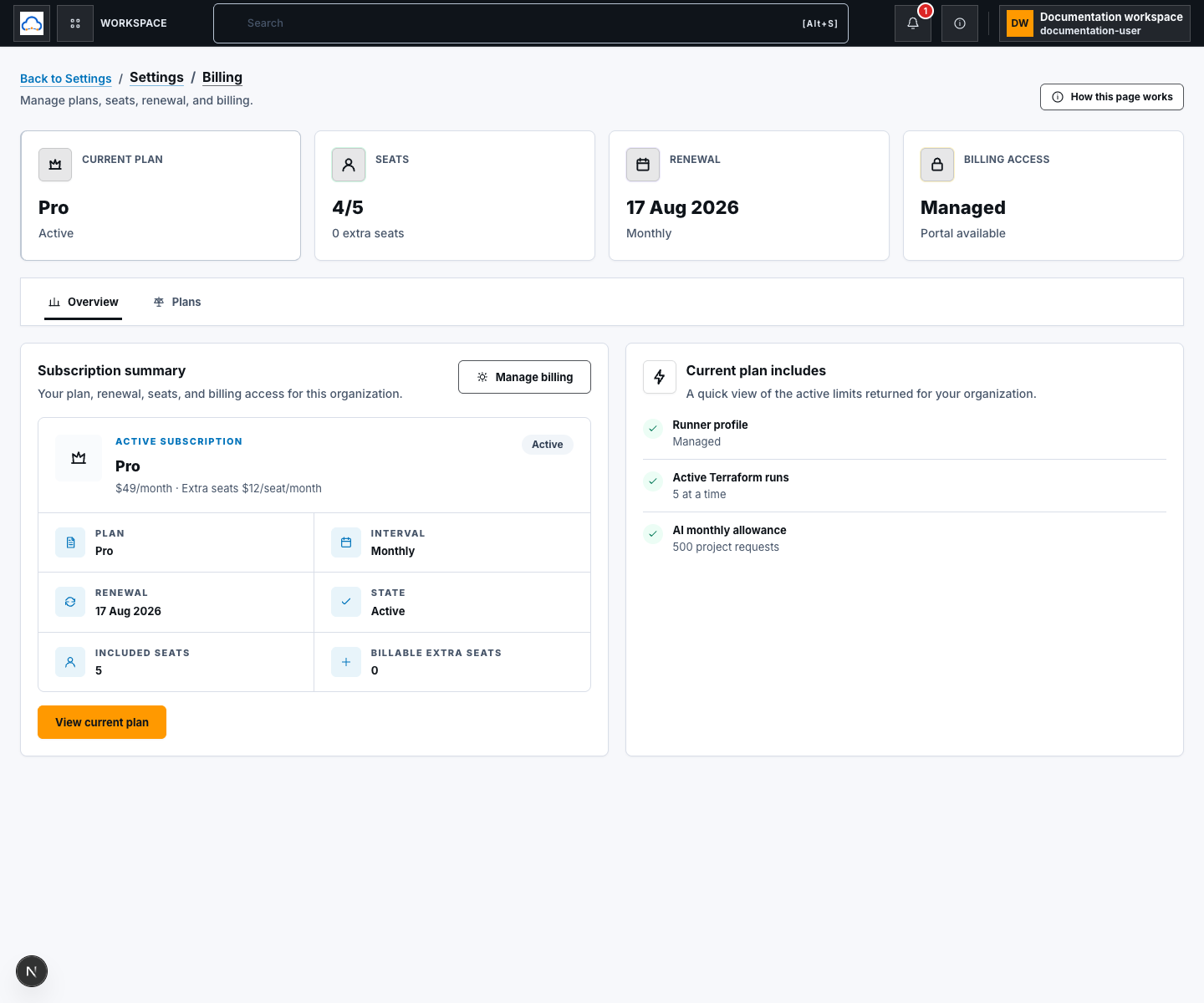
Section titled “Step 1: Review the current subscription”Open Settings → Billing and review:
- current plan and subscription state;
- monthly or yearly interval;
- renewal date;
- included seats and billable extra seats; and
- whether billing is managed or read only.
Choose View current plan to open its details. The drawer separates the plan overview, capabilities, limits, commercial model, and subscription behavior.
Step 2: Compare plans and intervals
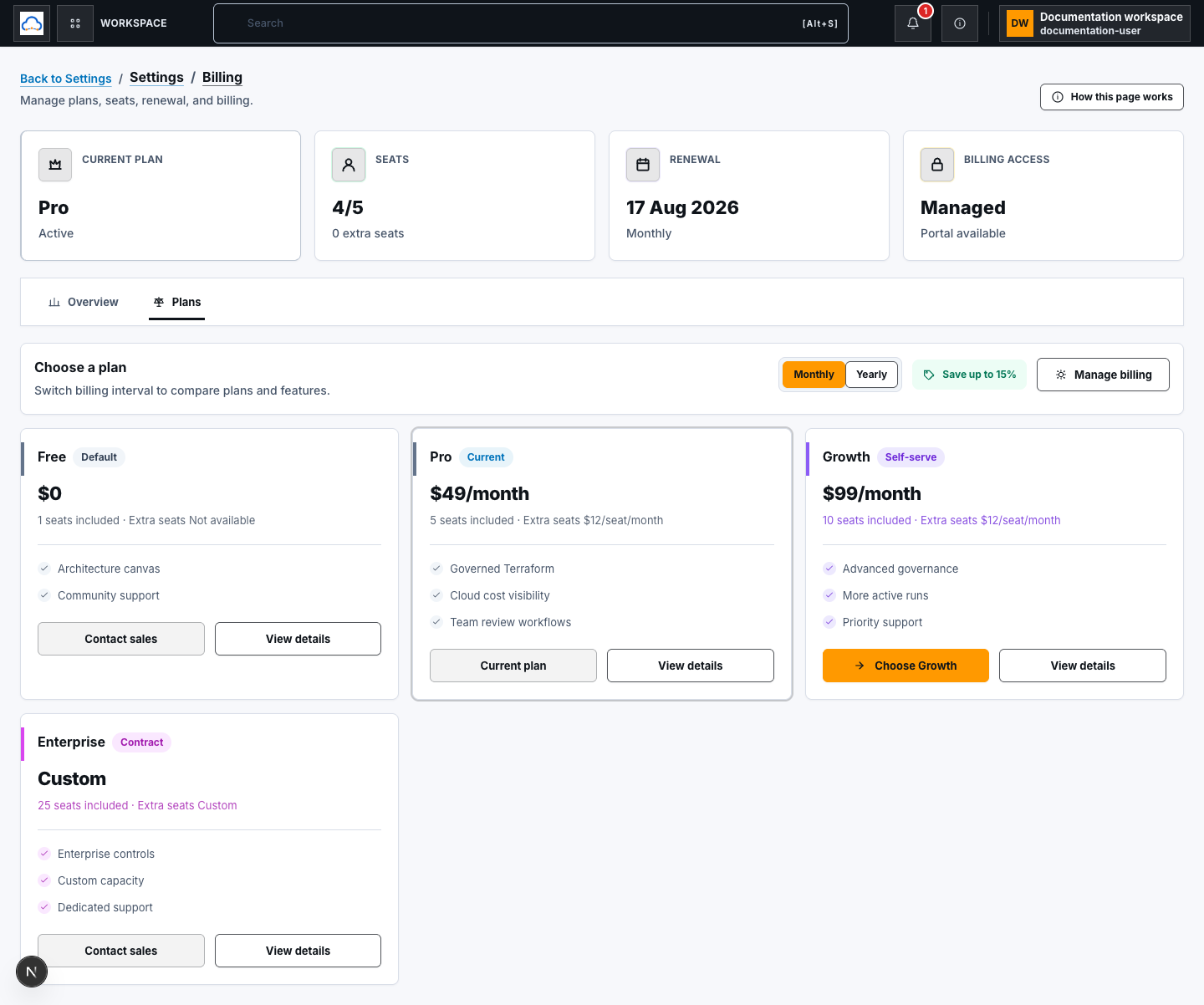
Section titled “Step 2: Compare plans and intervals”Use Monthly or Yearly to change the comparison interval. This changes the displayed catalog price; it does not change the active subscription by itself.
For each plan, review:
- included capabilities and plan limits;
- included and extra-seat pricing;
- whether it is the Current plan;
- whether it supports self-serve checkout; and
- whether the path is Contact sales or unavailable.
Choose View plan for the full entitlement and commercial detail before selecting a plan.
Step 3: Start self-serve checkout
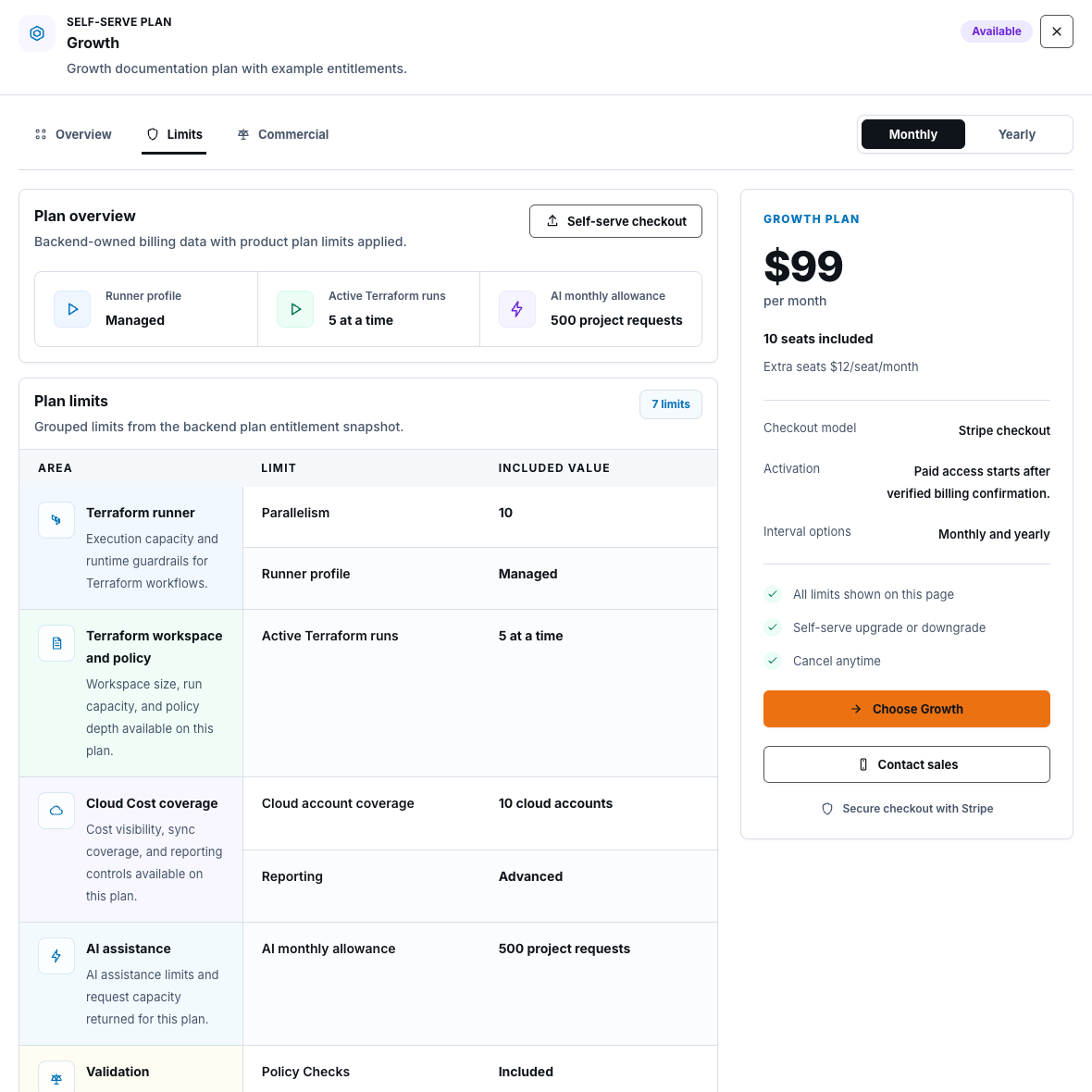
Section titled “Step 3: Start self-serve checkout”If you can manage billing and a non-current plan supports self-serve purchase:
- choose the intended interval;
- select the plan card or open View plan;
- review what changes;
- choose the plan action or Self-serve checkout; and
- complete the secure checkout flow.
Paid access starts only after verified billing confirmation. Opening checkout is not proof that the subscription or entitlements changed.
Step 4: Manage an active subscription
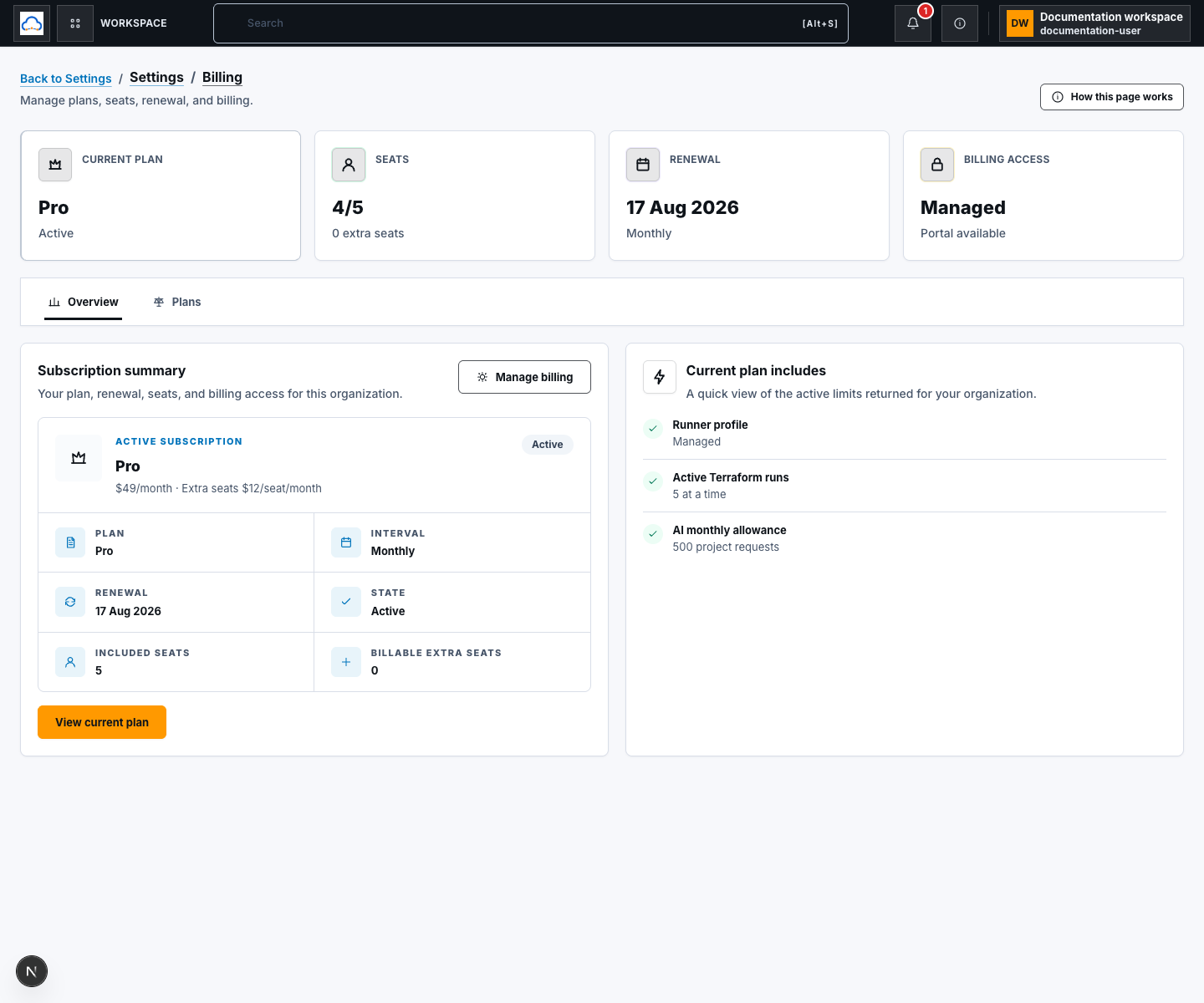
Section titled “Step 4: Manage an active subscription”Choose Manage billing when the organization allows billing management and the billing portal is available. Use the provider-hosted portal for supported subscription, invoice, and payment-method actions.
If the action is absent, the page is read only, the portal is unavailable, or the plan uses a sales-managed commercial path. Contact the organization billing owner or sales contact instead of trying to construct a portal URL.
Check your result
Section titled “Check your result”Return to Billing and confirm the subscription state, interval, renewal, current-plan badge, seat counts, and entitlement summary match the verified billing result. A checkout redirect or source/deployment wiring alone does not prove the subscription changed.
Common blockers
Section titled “Common blockers”Plan selection says Not available
Section titled “Plan selection says Not available”The account may be read only, the plan may be current, or self-serve checkout may be disabled. Review the plan’s commercial model.
Manage billing is missing
Section titled “Manage billing is missing”You need billing-management permission and an available billing portal for the organization subscription.
Checkout opened but the plan did not change
Section titled “Checkout opened but the plan did not change”Return only after completing the provider flow, wait for verified billing confirmation, then reload Billing. Never share a checkout or portal session identifier with support.