
Use the Terraform editor
The Terraform editor is a governed workspace for reviewing and revising source. File edits are not cloud changes. Runner actions, approvals, and apply use separate backend-owned workflows.
- Typical time
- 20–40 minutes
- You need
- A linked, saved Terraform workspace
- Outcome
- A reviewed source revision and bounded evidence
Step 1: Verify the editor context
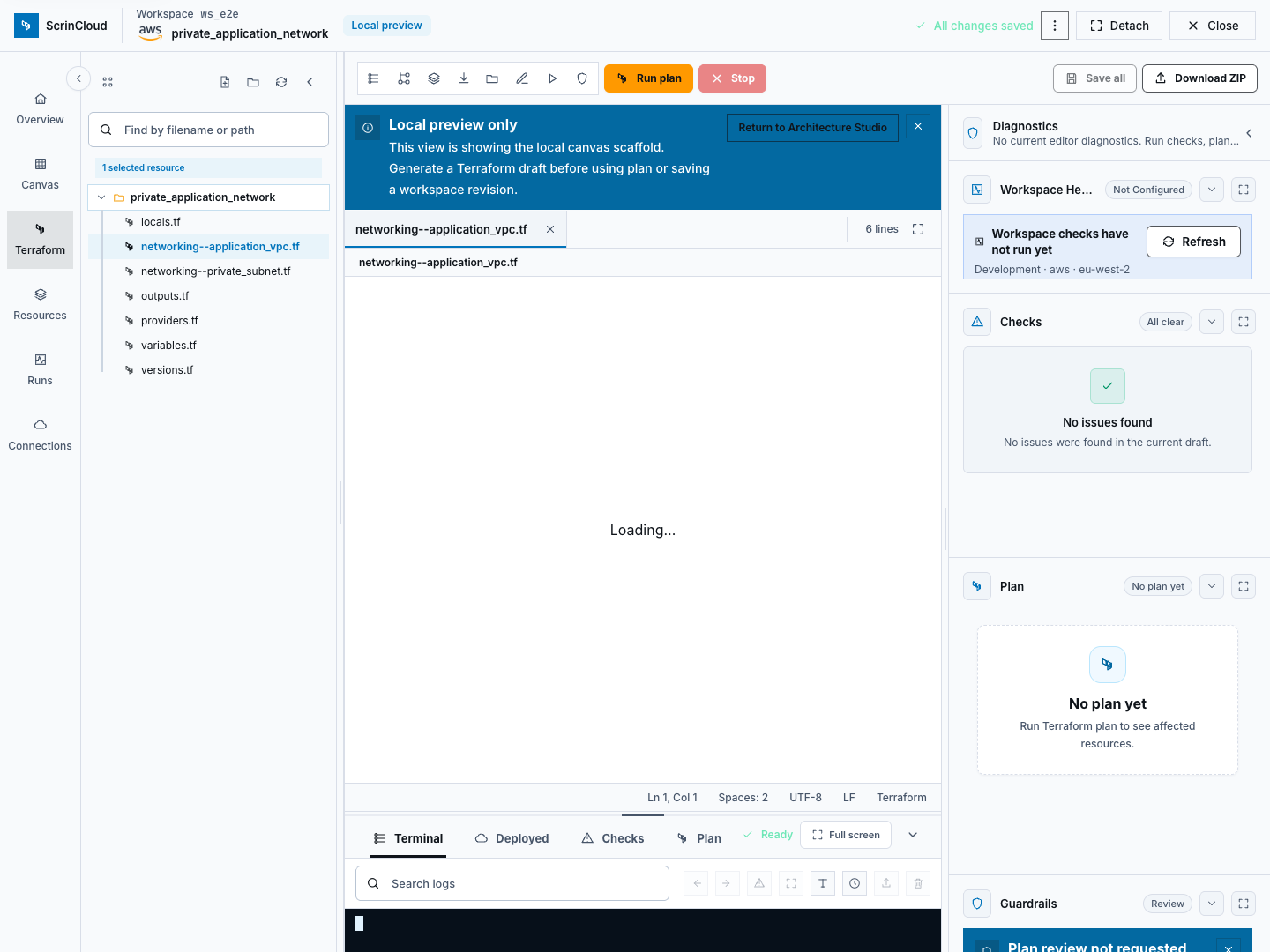
Section titled “Step 1: Verify the editor context”Confirm Project, Environment, Region, Revision, Connection, and current Run in the expanded header.
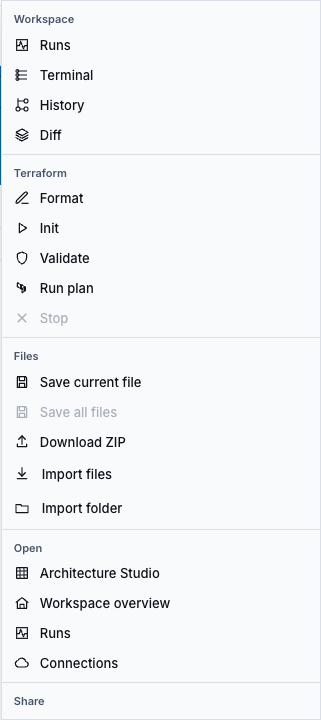
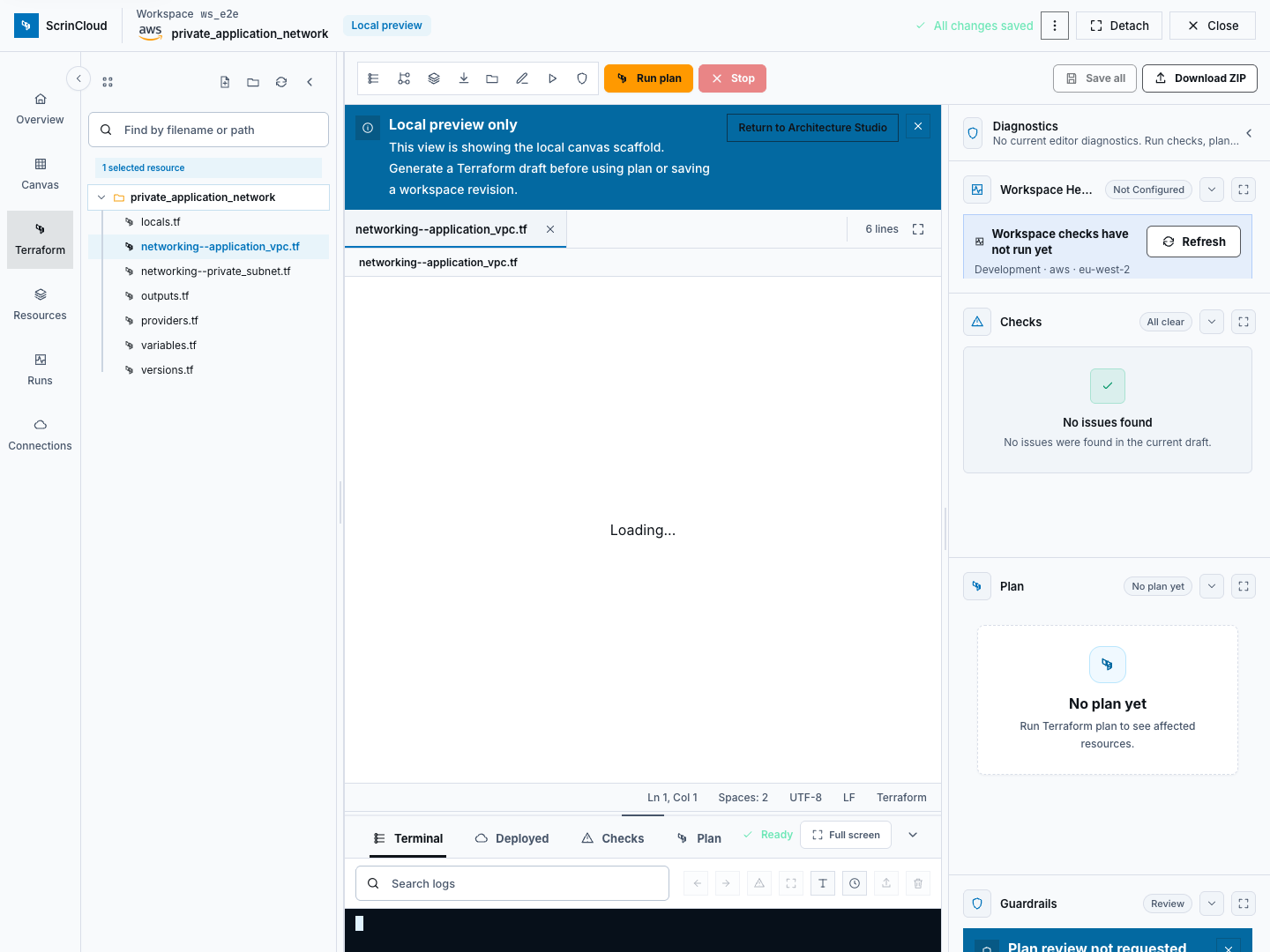
Use More editor options to navigate to Runs, Terminal, History, Diff, Architecture Studio, Workspace overview, or Connections. Copy workspace link and Copy workspace ID place context in the browser clipboard; treat identifiers and access context according to your organization’s sharing policy.
Detach editor, Dock editor, theme, and panel controls change only the browser layout.
Step 2: Create and organize files
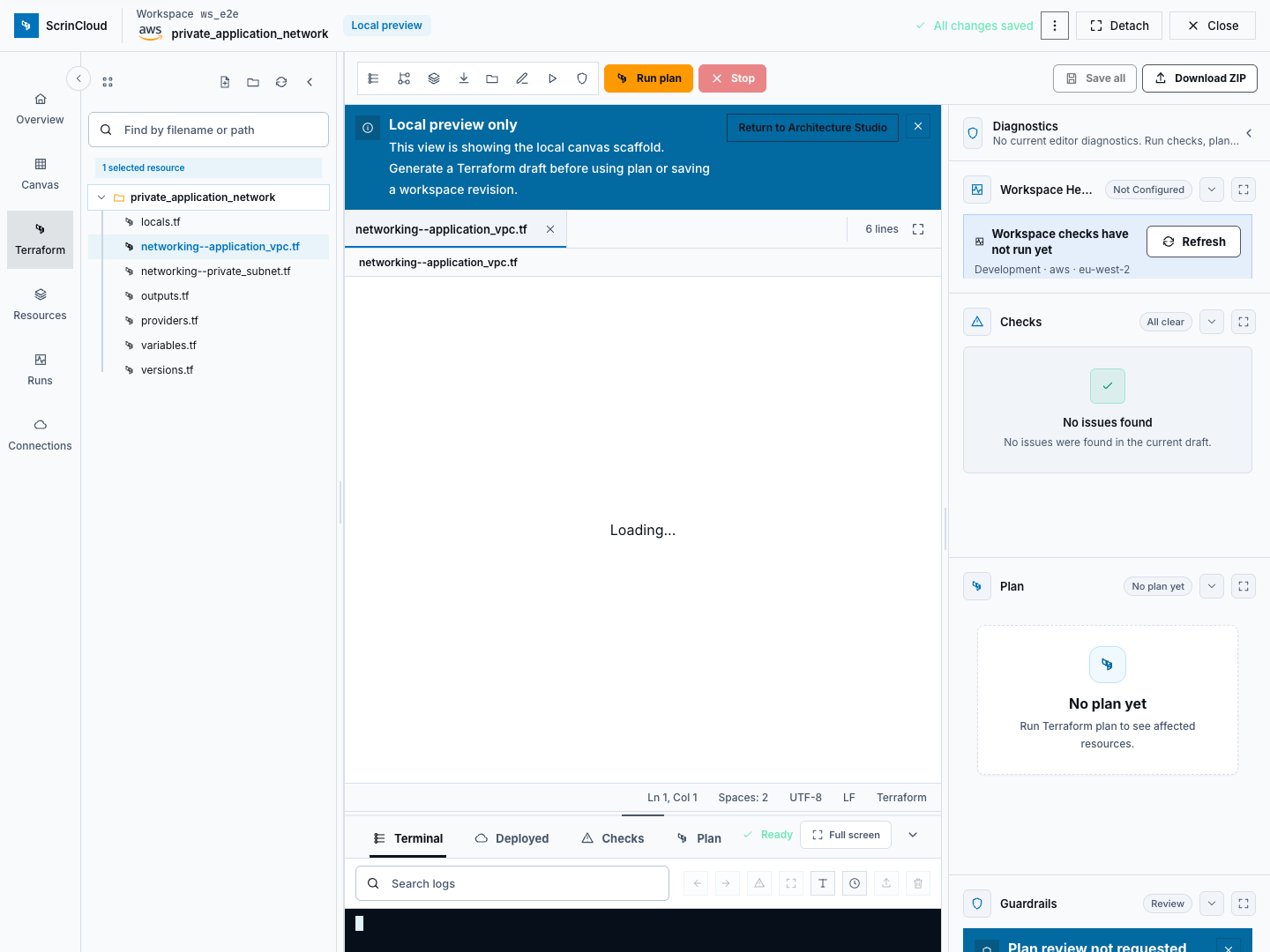
Section titled “Step 2: Create and organize files”The file browser supports:
- Create file and Create folder;
- search and clear search;
- Reload workspace files;
- Rename, Cut, Copy, Paste, and Delete from the context menu; and
- protected-file restrictions where an item must not be renamed or deleted.
The File menu also provides New File, New Folder, Save, Save All, Rename File, Duplicate File, Download Current File, Download Workspace ZIP, and Close File.
Most text and tree edits remain in the browser’s dirty-file state until a save succeeds. Reloading or leaving with dirty files can invoke unsaved-change protection.
Step 3: Import or download source
Section titled “Step 3: Import or download source”Use Import Terraform files, Import files, or Import folder only for reviewed source. Confirm the proposed file set, conflicts, rejected paths, and unsafe-file checks before applying the import.
Use Download Current File or Download ZIP only after checking the package boundary. Never include state, saved plans, credentials, environment files, keys, logs, hidden secrets, or unreviewed binaries.
Import and download do not prove source validity and do not run Terraform.
Step 4: Edit and save the intended revision
Section titled “Step 4: Edit and save the intended revision”The Edit, Selection, View, Go, and Help menus operate on the current editor or local view. Monaco shortcuts, autocomplete, hover, find, replace, symbol navigation, word wrap, and minimap do not contact a cloud provider.
Choose Save current file, Save, Save all files, or Save All only after reviewing every dirty file. A successful save creates or updates the workspace revision used by later runs.
Editing after a plan makes that plan stale for delivery. Create a new plan and repeat governance review.
Step 5: Run bounded preparation actions
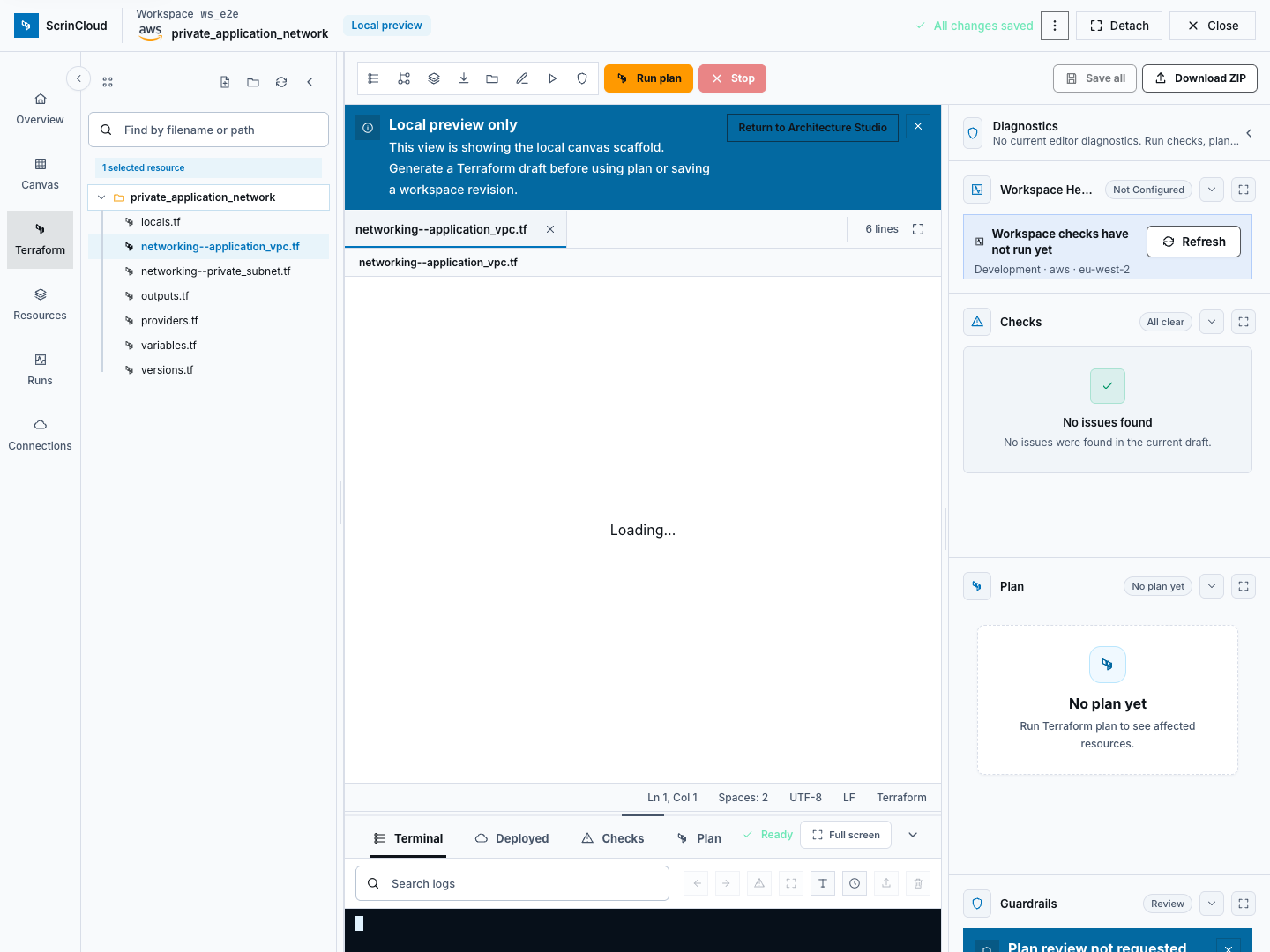
Section titled “Step 5: Run bounded preparation actions”The toolbar exposes:
- Format for canonical source formatting;
- Init to prepare the approved runner context;
- Validate for Terraform configuration validation;
- Run plan for a real runner-backed plan;
- Stop while the current editor-started command is active; and
- Save all separately from runner actions.
Format, init, validate, and plan are backend or runner work, not local editor proof. Wait for the terminal result and the persisted run record. Stop requests cancellation; it does not prove the runner stopped until a terminal status is returned.
Apply is not an editor toolbar action. Use the governed approval/apply flow.
Step 6: Use terminal evidence safely
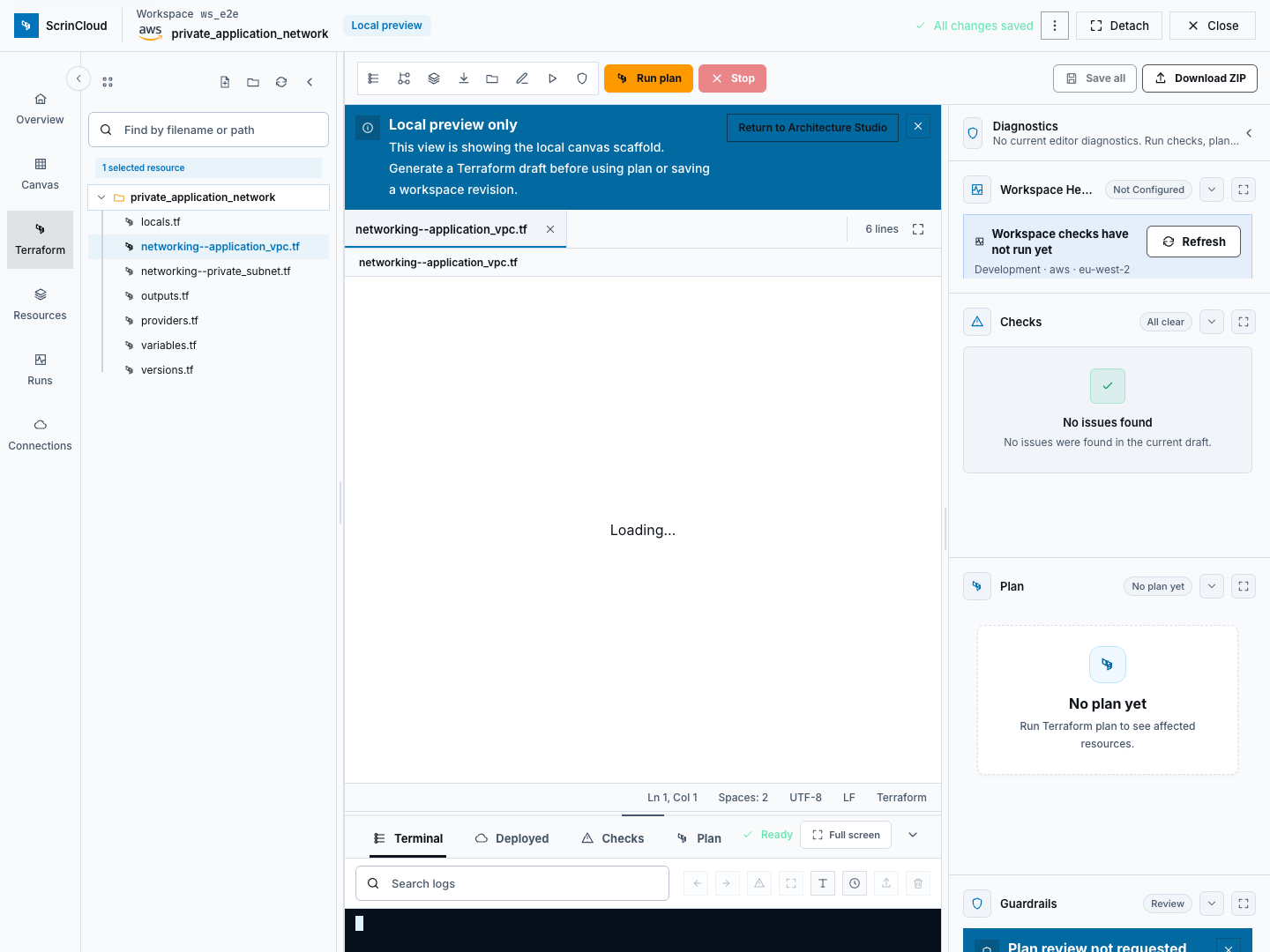
Section titled “Step 6: Use terminal evidence safely”The terminal panel renders sanitized runner events rather than unrestricted browser shell access. Controls include:
- search, Previous match, and Next match;
- First error and Final result navigation;
- Wrap lines and timestamp visibility;
- Download safe logs; and
- Clear local view.
Clear local view removes only the displayed browser output. It does not delete backend logs, run history, audit evidence, or cloud resources. Review every safe-log download before sharing it.
Step 7: Compare History and Diff
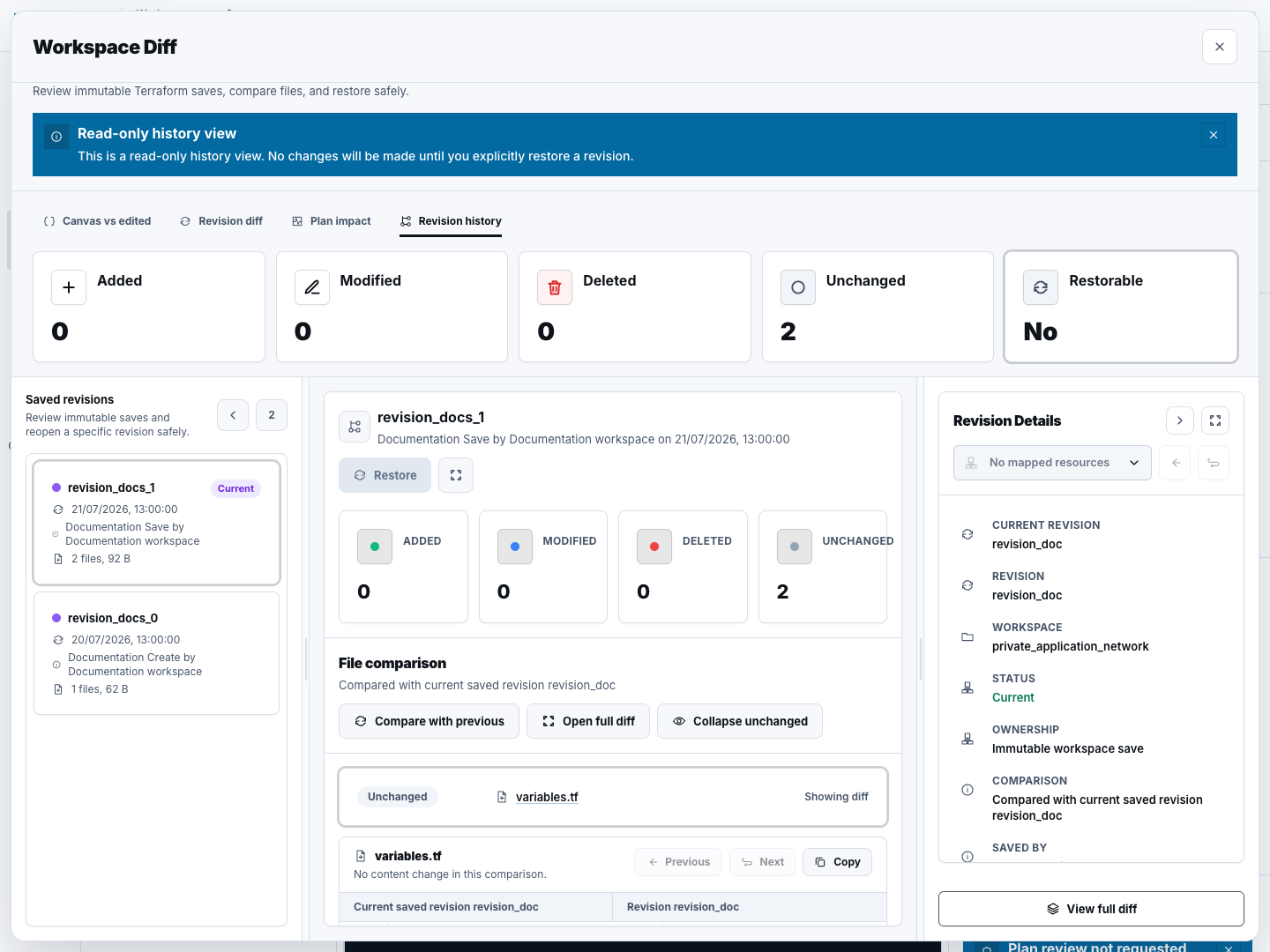
Section titled “Step 7: Compare History and Diff”Open History to select a saved revision and Diff to inspect changed files and source differences. Review the read-only warning, revision identity, changed-file filter, and summary before using evidence in a plan decision.
History and diff are read actions. They do not restore source or change the canvas automatically. If a revision is edited or restored through another workflow, rerun validation and plan against the new revision.
Step 8: Review Code Sync Preview
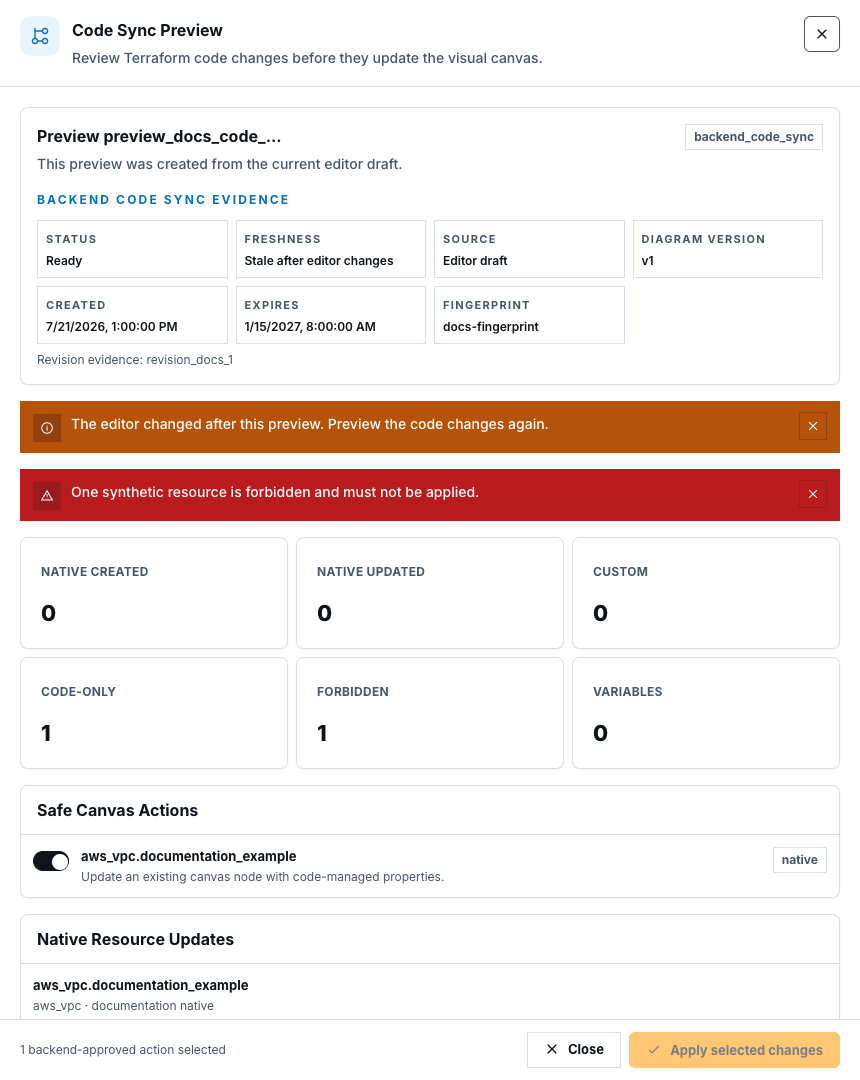
Section titled “Step 8: Review Code Sync Preview”When code-to-canvas sync is offered, open Code Sync Preview and review:
- Native Resource Updates;
- Custom Terraform Resources;
- Code-Managed Resources;
- Unsupported Resources;
- Forbidden Resources;
- safe canvas actions; and
- variables.
Choose Apply only after forbidden and unsupported scope is understood. Applying the preview changes the design/source relationship; it does not apply Terraform to a provider. Save the resulting diagram and source deliberately, then revalidate.
Step 9: Check health and deployment inventory
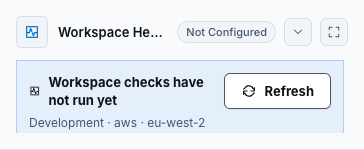
Section titled “Step 9: Check health and deployment inventory”Workspace health summarizes backend-owned readiness categories and exposes Refresh. A refreshed health report is not a Terraform plan or provider apply.
Deployed infrastructure shows captured Resources and Outputs from the latest eligible apply evidence. Use Refresh, Load more, search, copy-safe values, and stale-evidence notices carefully.
Sensitive outputs remain hidden. Inventory is a recorded snapshot and can be stale; provider reality and current drift require separate verification.
Check your result
Section titled “Check your result”Confirm no unexpected dirty files remain, the intended revision is saved, runner actions reached an authoritative terminal state, downloaded material is safe, and any code-sync or inventory evidence is tied to the correct workspace.
Common blockers
Section titled “Common blockers”Save All is disabled
Section titled “Save All is disabled”The workspace may be read-only, no file may be dirty, a save may already be in progress, or an active terminal action may block the operation.
Init, Validate, or Run plan fails
Section titled “Init, Validate, or Run plan fails”Review the sanitized final result, workspace health, connection, variables, module access, and saved revision. Do not expose raw logs or broaden provider permissions without a reviewed requirement.
Deployment inventory is empty or stale
Section titled “Deployment inventory is empty or stale”Inventory requires eligible captured apply evidence. Refresh can update backend readback, but it does not run apply or drift remediation.
Code Sync Preview contains forbidden resources
Section titled “Code Sync Preview contains forbidden resources”Do not apply the preview. Remove or redesign forbidden source and repeat the preview against the reviewed revision.
Continue
Section titled “Continue”Create a bounded action with Create a Terraform run, then Review plans safely before approval or apply.