
Change password and sessions
Open Settings, then Security. Password and session actions affect the current account only and require authenticated backend authorization.
- Typical time
- 5–10 minutes
- You need
- Current password and enrolled factor
- Outcome
- Rotated credentials or revoked sessions
Review active sessions
Section titled “Review active sessions”- In Active sessions, review each device label, last-active time, expiry, and the Current marker.
- Choose Refresh to request the latest bounded inventory.
- Treat unfamiliar sessions as a security event.
The list is read-only until you choose a sign-out action. Never capture session identifiers or use device labels as proof of a person’s identity.

Check your result
Section titled “Check your result”Every expected browser appears once and the current session is clearly marked.
Sign out one session
Section titled “Sign out one session”- Choose Sign out beside the exact session.
- Review Sign out this session?.
- Choose Sign out session.
- If you revoked the current session, sign in again.
- Otherwise wait for refresh and confirm the selected session disappeared.
Revocation is immediate and destructive to that browser’s access. It does not delete the account or revoke other sessions.
Sign out everywhere
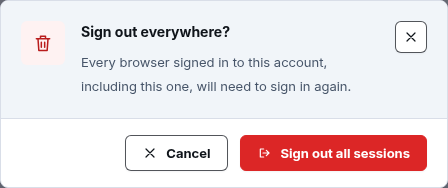
Section titled “Sign out everywhere”- Choose Sign out all.
- Review Sign out everywhere?.
- Choose Sign out all sessions.
- Expect every browser, including the current one, to require sign-in.
Check your result
Section titled “Check your result”The affected browser can no longer use its previous session. A UI notification alone is not enough; the revoked browser must be challenged on its next request.
Open password change
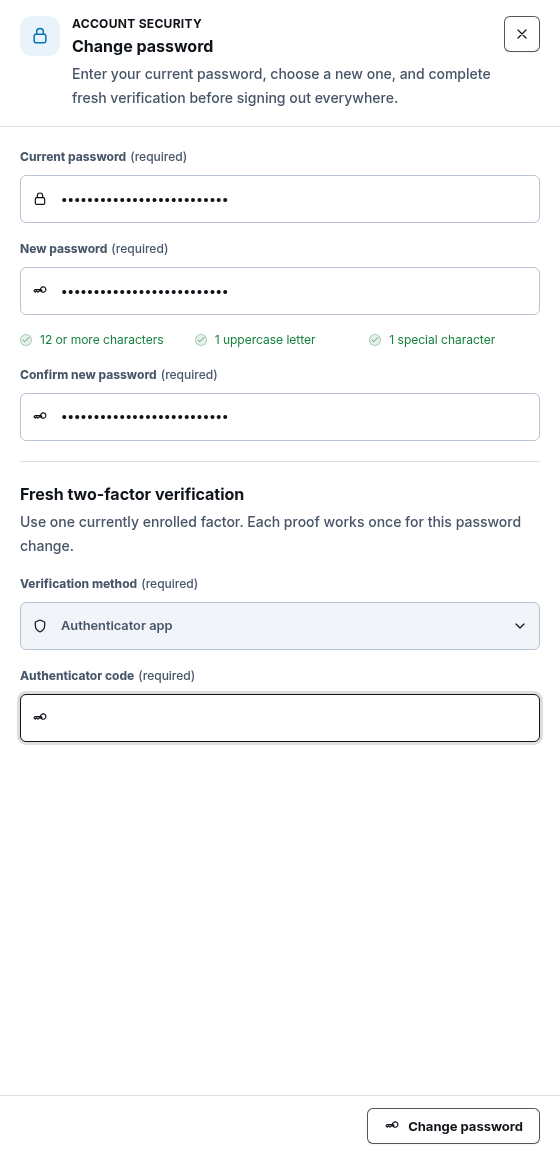
Section titled “Open password change”- In Change password, choose Open password change.
- Enter Current password.
- Enter New password and satisfy every displayed requirement.
- Enter Confirm new password exactly.
- If two-factor is enabled, choose Verification method: Authenticator app, Email code, or Recovery code.
Complete fresh two-factor verification
Section titled “Complete fresh two-factor verification”- For Authenticator app, enter the current Authenticator code.
- For Email code, choose Send verification code, enter the Email verification code, then choose Confirm code.
- For Recovery code, enter one unused Recovery code.
Each proof is scoped to this password change. Do not reuse or share it.
Confirm password rotation
Section titled “Confirm password rotation”- Choose Change password.
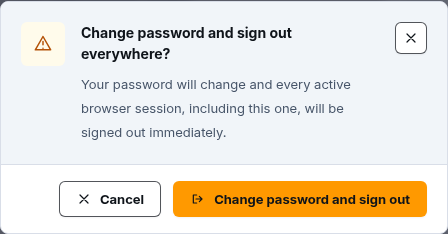
- Review Change password and sign out everywhere?.
- Choose Change password and sign out.
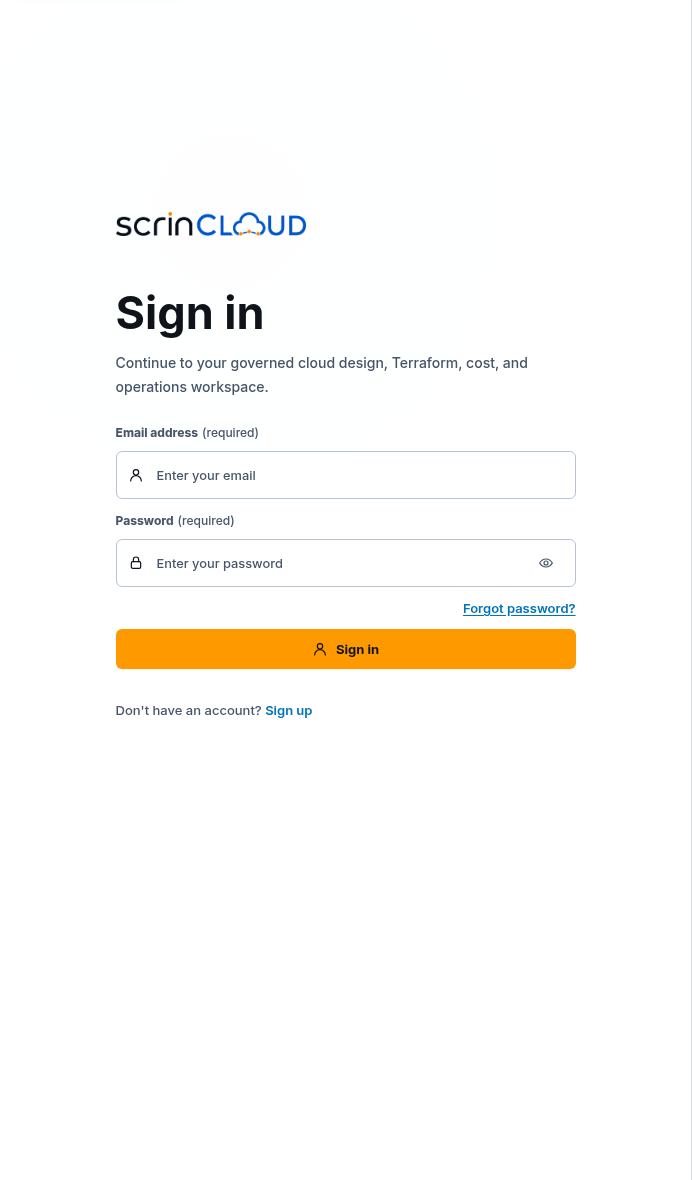
- Wait for the sign-in page.
- Sign in with the new password and an available second factor.
Changing the password also invalidates every active browser session.
Check your result
Section titled “Check your result”The old password and old sessions no longer authenticate. The new password works only with the account’s current sign-in policy.
Sign out from the profile menu
Section titled “Sign out from the profile menu”Open your profile menu and choose Sign out. ScrinCloud saves an allowed session-state snapshot, sends a backend logout request, clears in-memory authentication, and returns to sign-in. This affects the current browser only; use Sign out all for every session.
Common blockers
Section titled “Common blockers”Session inventory does not load
Section titled “Session inventory does not load”Choose Refresh once. If it still fails, preserve the visible error and use verified support. Do not infer that sessions are absent.
A session returns after revocation
Section titled “A session returns after revocation”Confirm you selected the correct device and that the browser made a new request. Escalate unexpected continued access as a security incident.
Change password is disabled
Section titled “Change password is disabled”Complete current password, password policy, exact confirmation, and any required fresh factor proof.
All sessions are signed out unexpectedly
Section titled “All sessions are signed out unexpectedly”That is the intended outcome of password change and Sign out all. Start a fresh sign-in; never try to restore an old cookie or token.