
Connect Azure
ScrinCloud supports Azure connections with Workload identity federation or an approved Service principal. The form also displays Managed identity for administrator review, but that method is not currently an execution-ready ScrinCloud runner path.
- Typical time
- 20–30 minutes
- You need
- Entra, Azure RBAC, and ScrinCloud admin access
- Next step
- Test and activate
Step 1: Start the Azure connection
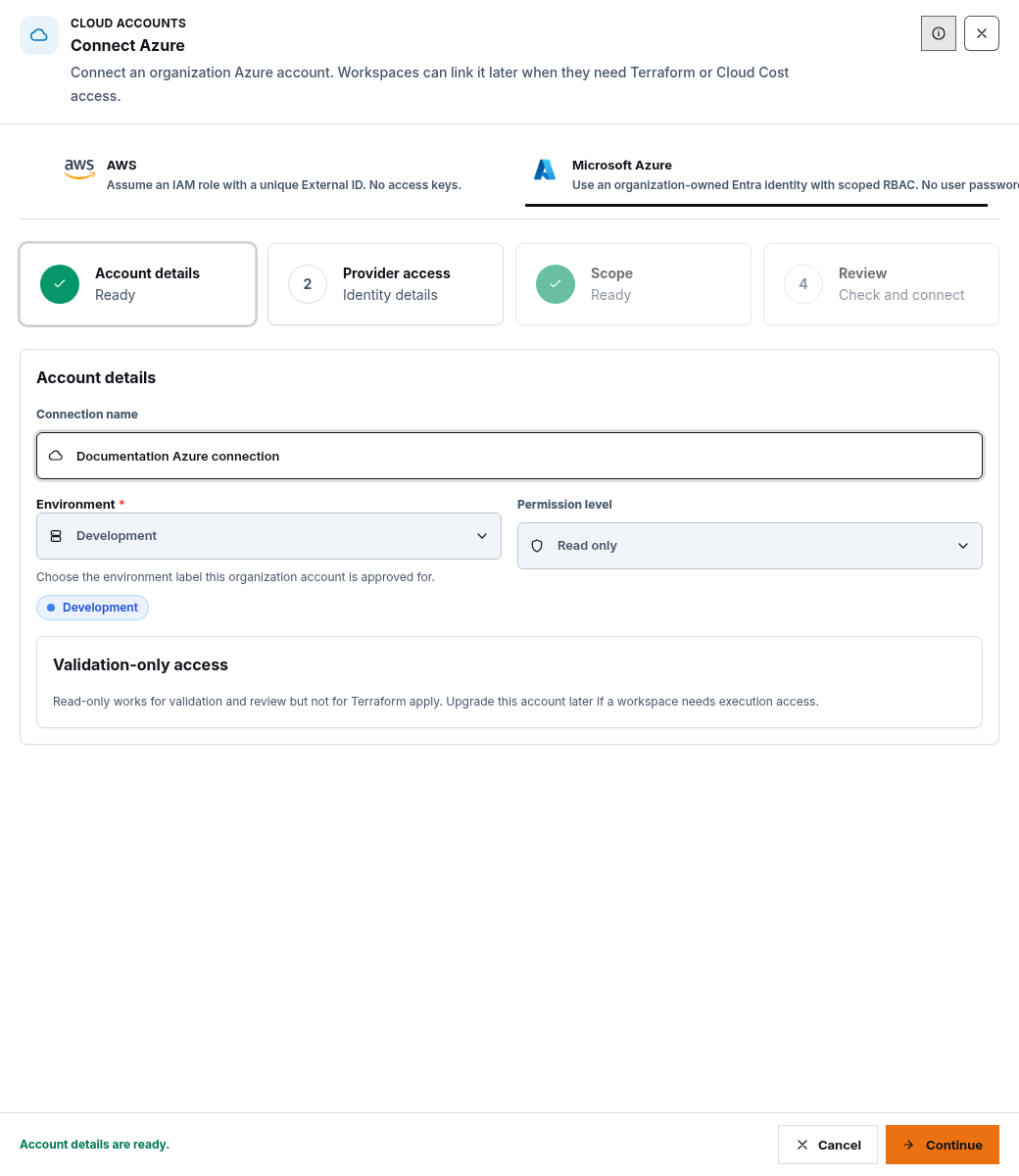
Section titled “Step 1: Start the Azure connection”- Open Cloud Accounts and choose Connect Azure.
- Set Connection name, Environment, and the minimum Permission level.
- Choose Next: Provider access.
Step 2: Choose an Azure identity method
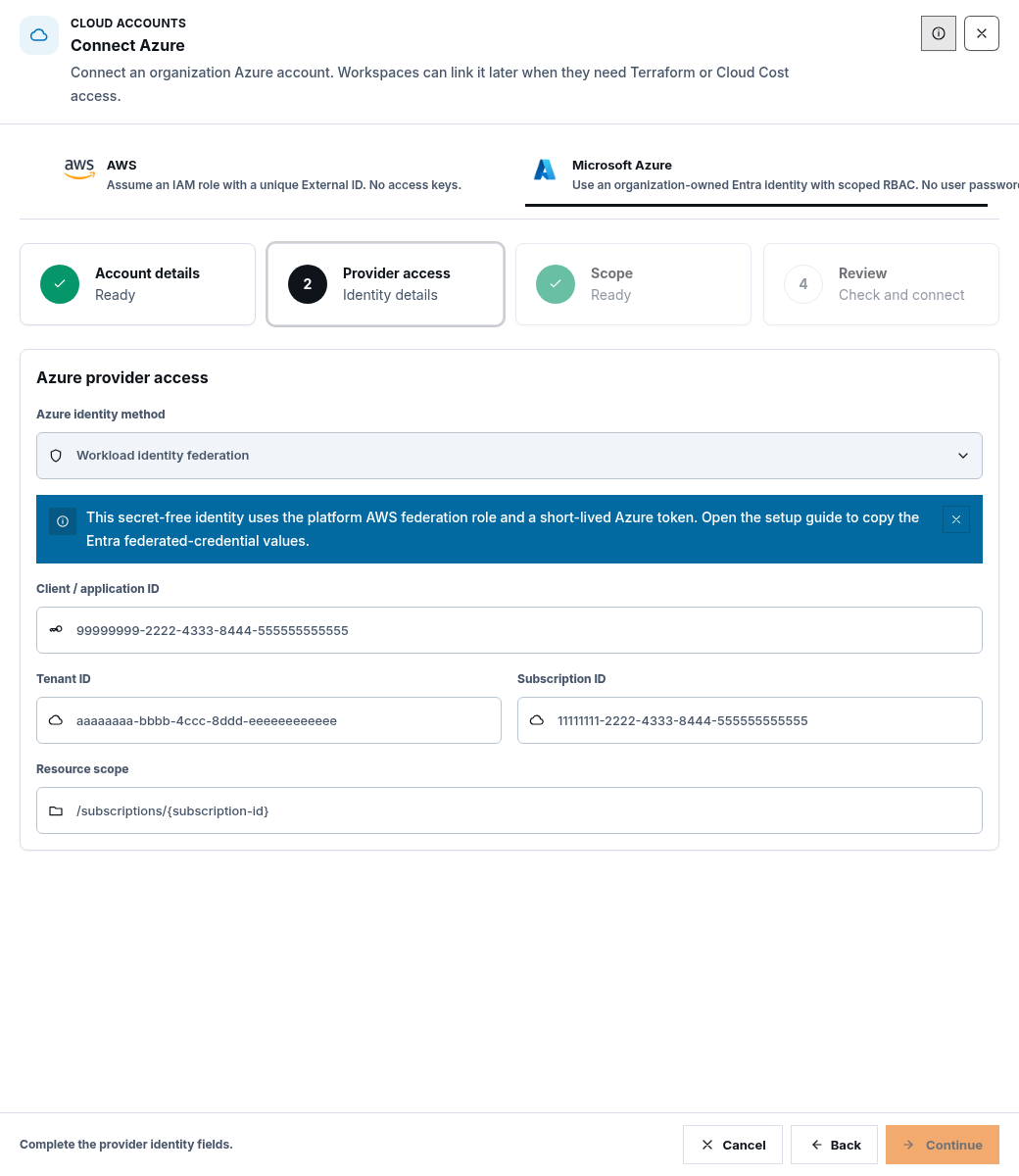
Section titled “Step 2: Choose an Azure identity method”- Workload identity federation: preferred secret-free method. ScrinCloud exchanges its platform identity for a short-lived Azure token.
- Service principal: uses an Entra application ID and client secret. The secret is submitted securely, never displayed again, and must have a future expiry.
- Managed identity: visible for administrator review, but not an execution-ready ScrinCloud runner path. Do not select it for a workflow that needs live execution.
Step 3: Configure workload federation
Section titled “Step 3: Configure workload federation”For Workload identity federation:
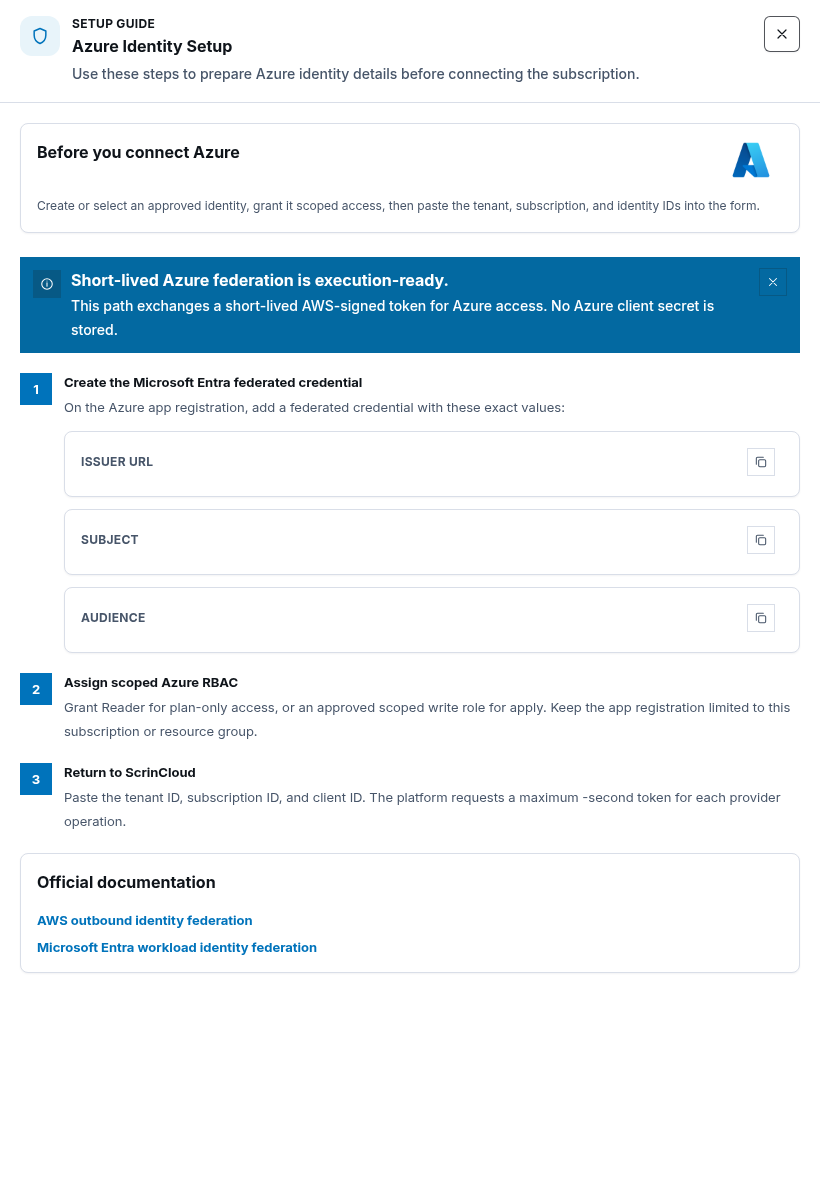
- open the Azure setup guide;
- in Microsoft Entra, add a federated credential to the approved application;
- copy the exact Issuer URL, Subject, and Audience shown by the current ScrinCloud setup;
- assign scoped Azure RBAC at the approved subscription, resource group, or resource scope; and
- return to ScrinCloud.
Federation avoids storing an Azure client secret. Do not reuse the setup values for another application or organization.
Step 4: Configure the Azure identity fields
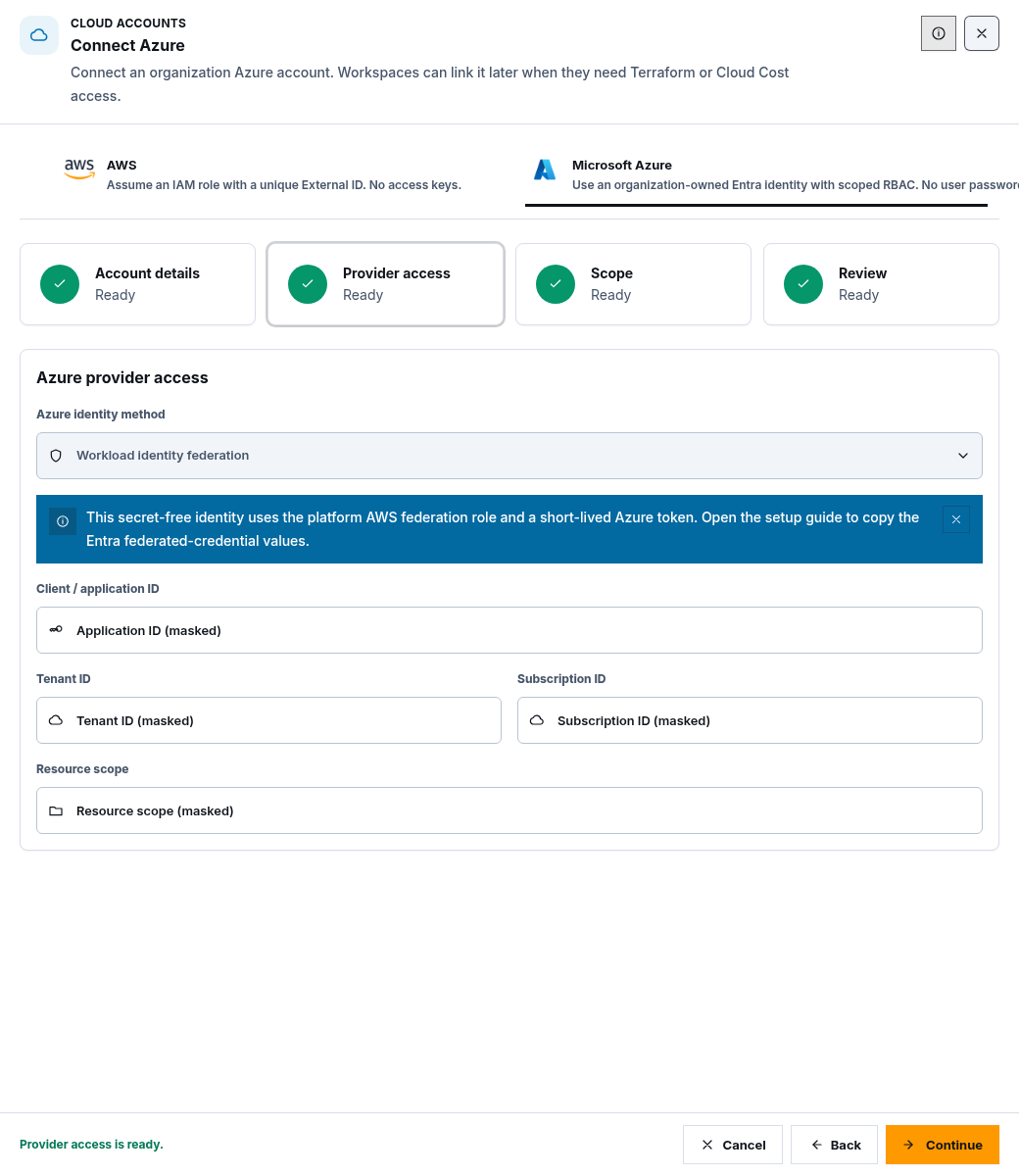
Section titled “Step 4: Configure the Azure identity fields”Enter the approved Client / application ID, Tenant ID, Subscription ID, and Resource scope.
For Service principal, also enter:
- Client secret; and
- Client secret expiry, using the exact future expiry from Entra.
The secret is cleared from the form after submission and is never shown again. Store and rotate it through your approved credential process.
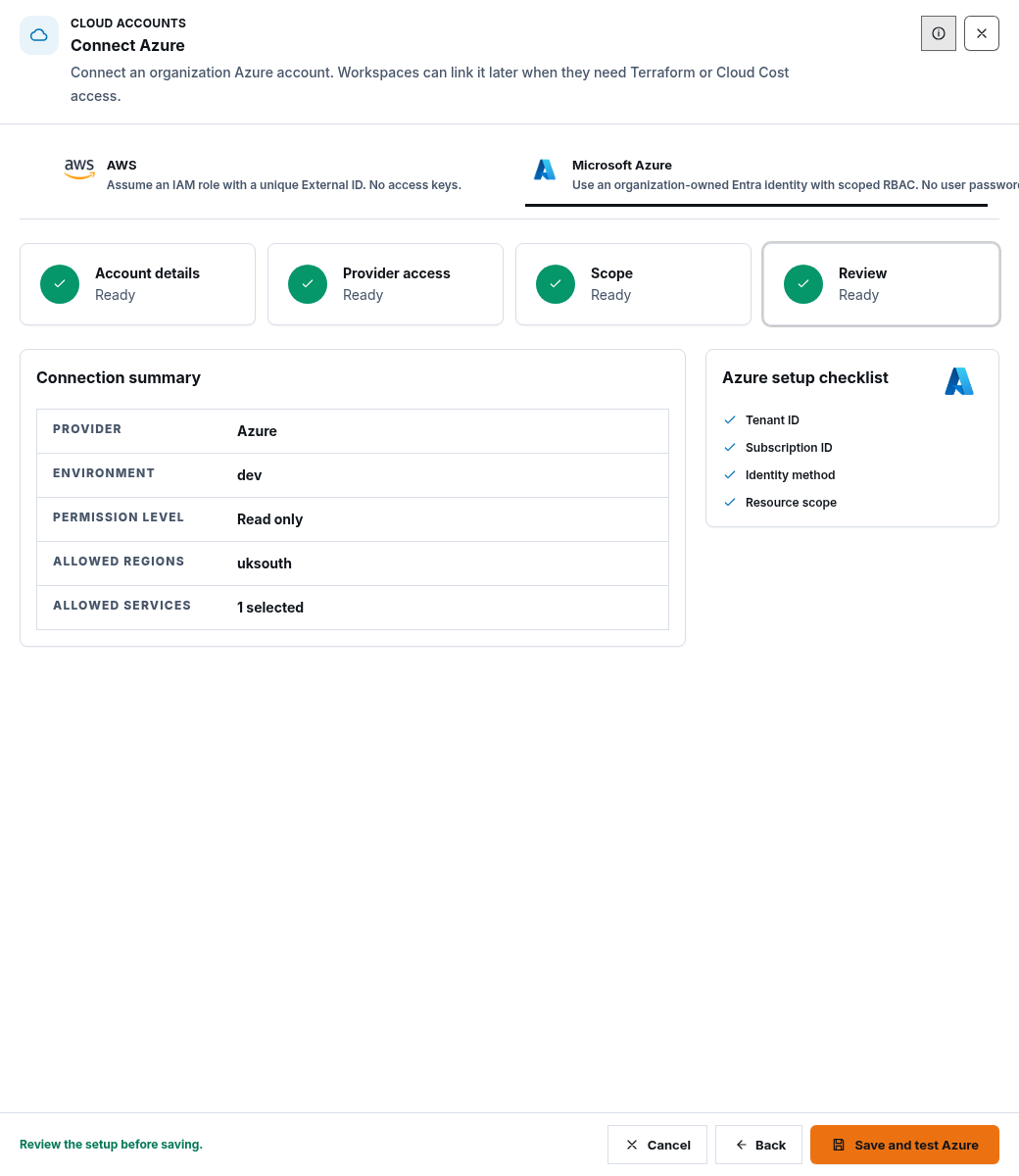
Step 5: Limit scope and review
Section titled “Step 5: Limit scope and review”- add only approved Allowed regions;
- choose all supported services only when policy permits it, or select the required services;
- review the authentication method and resource scope; and
- choose Connect Azure.
Saving does not activate the connection.
Step 6: Test, verify, and activate
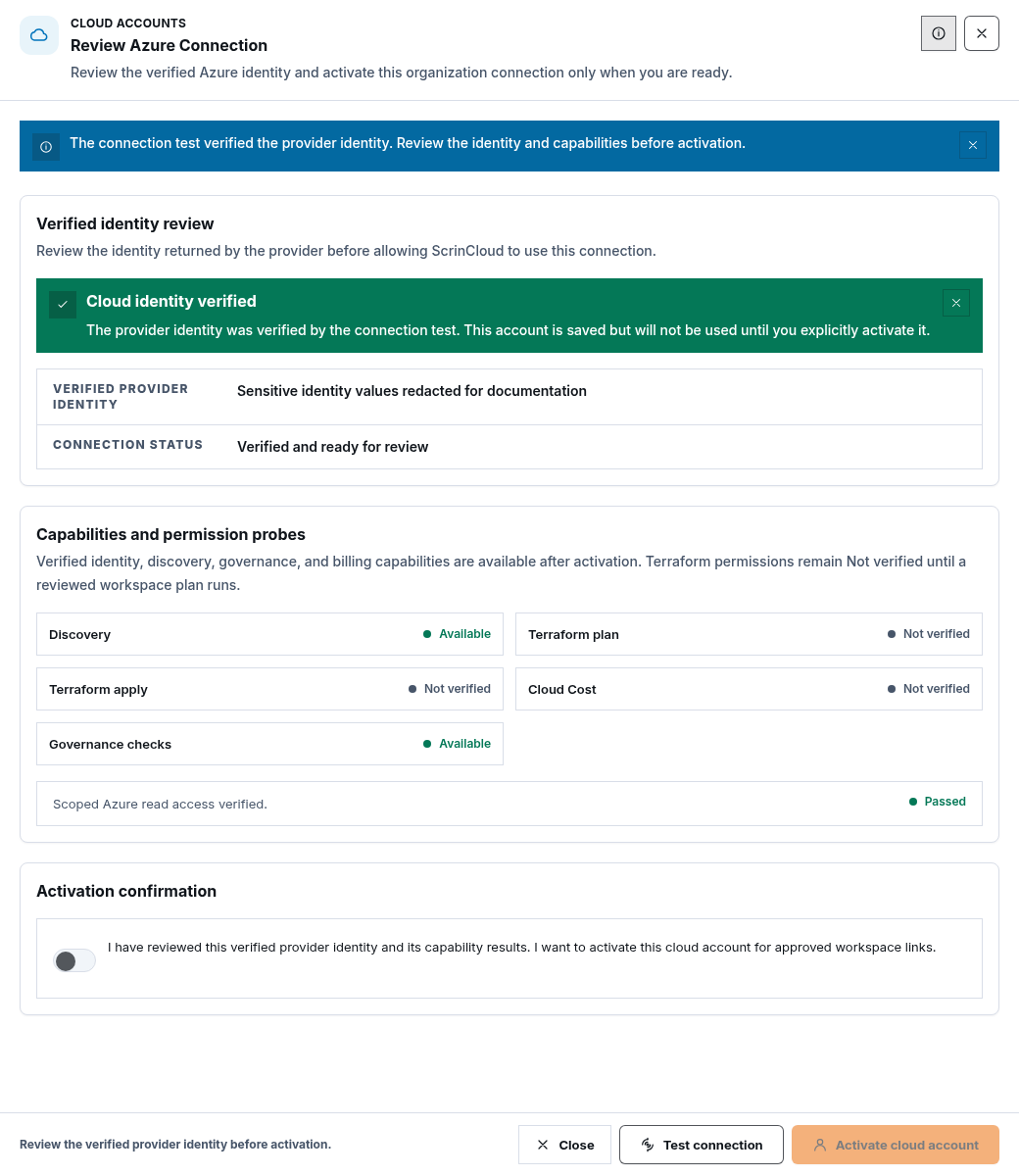
Section titled “Step 6: Test, verify, and activate”Choose Test connection, then confirm:
- the returned tenant, subscription, and application identity are expected;
- required capability probes pass;
- credential health is acceptable; and
- the permission level matches the reviewed role.
Acknowledge the verified identity and choose Activate connection. For a service principal, use Rotate credential before the stored secret expires.
Check your result
Section titled “Check your result”The connection should show the intended authentication method and resource scope, Verified identity, healthy required probes, and Active status.
Common blockers
Section titled “Common blockers”Federation issuer, subject, or audience mismatch
Section titled “Federation issuer, subject, or audience mismatch”Compare the Entra federated credential with the values in the current setup guide. All three values must match exactly.
Authorization fails after identity succeeds
Section titled “Authorization fails after identity succeeds”Review the exact Azure RBAC scope and failed action. Identity verification does not mean every requested capability is authorized.
The service-principal secret is rejected
Section titled “The service-principal secret is rejected”Enter the current secret value and its future expiry. A secret value cannot be recovered from ScrinCloud; rotate it in Entra and ScrinCloud if necessary.
Managed identity does not execute
Section titled “Managed identity does not execute”This method is not an execution-ready ScrinCloud runner path. Use an approved federated identity or service principal.