
Connect GitLab
GitLab uses authorization-code OAuth for organization-scoped Git connection management. Self-managed GitLab hosts require approved environment configuration before users can connect.
- Typical time
- 10–15 minutes
- You need
- ScrinCloud admin and GitLab authorization
- Outcome
- A connected GitLab owner
Step 1: Start GitLab authorization
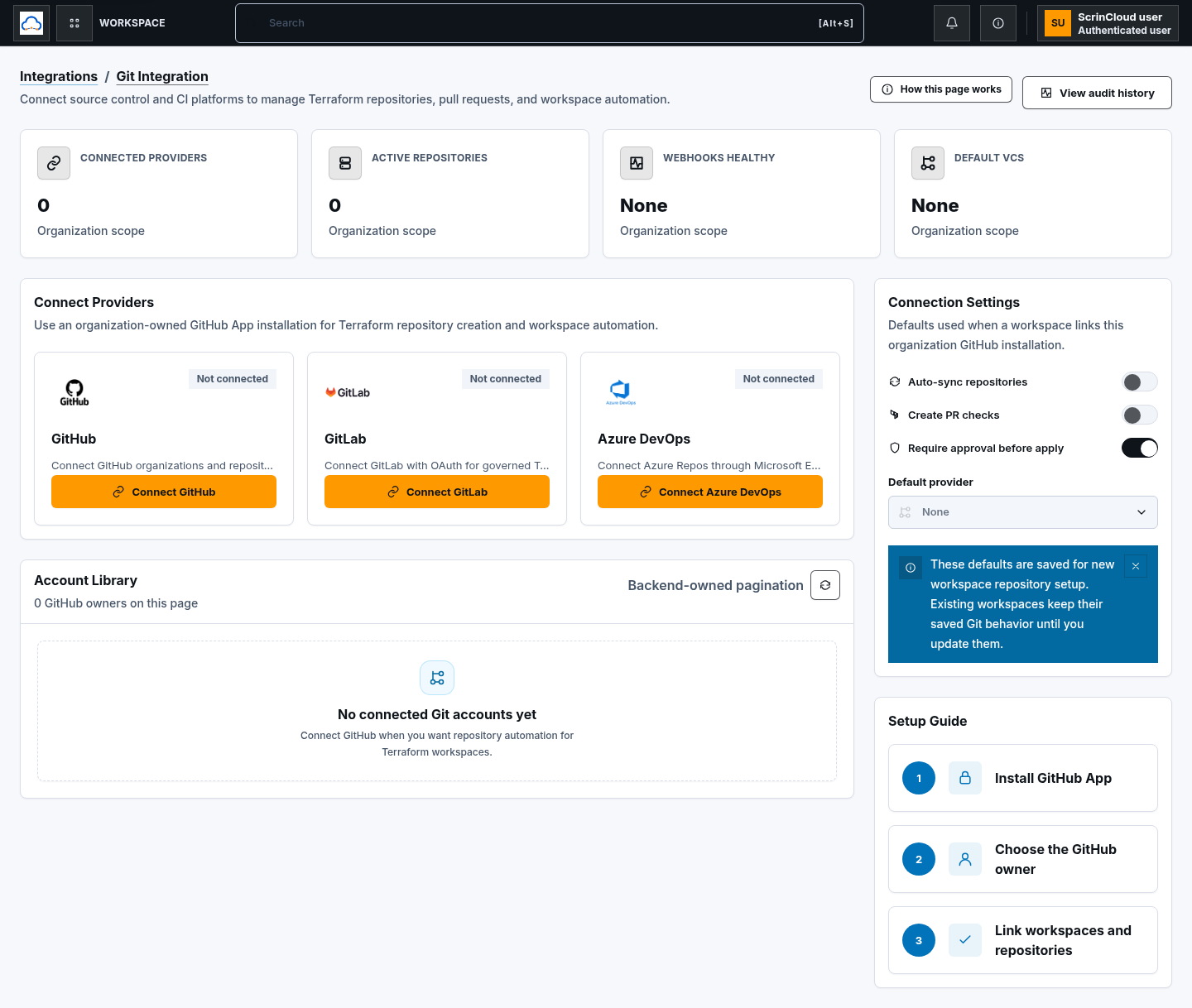
Section titled “Step 1: Start GitLab authorization”Open Git Integration and choose Connect GitLab. ScrinCloud creates a short-lived connection state and opens the configured HTTPS GitLab authorization page.
Step 2: Review and approve access
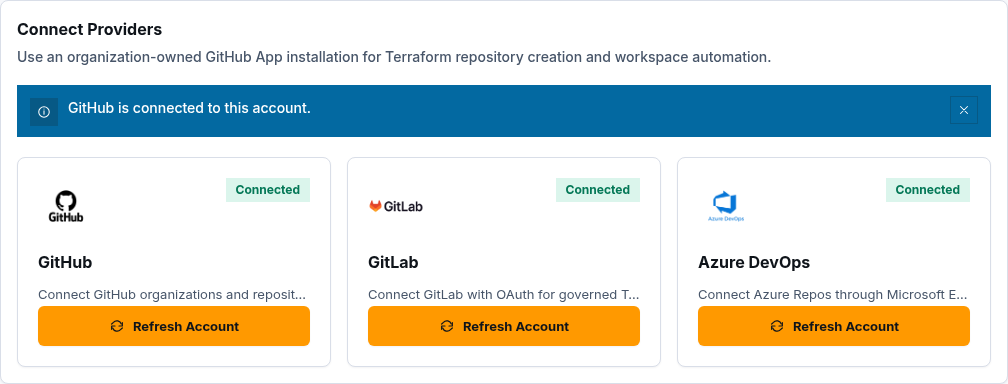
Section titled “Step 2: Review and approve access”Sign in to the approved GitLab host, review the requested OAuth access, and approve ScrinCloud. Use the organization-owned group or namespace intended for governed Terraform work.
ScrinCloud does not ask for your GitLab password. Never share the OAuth code, state value, callback URL, or access token.
Step 3: Return and verify
Section titled “Step 3: Return and verify”After GitLab returns to ScrinCloud:
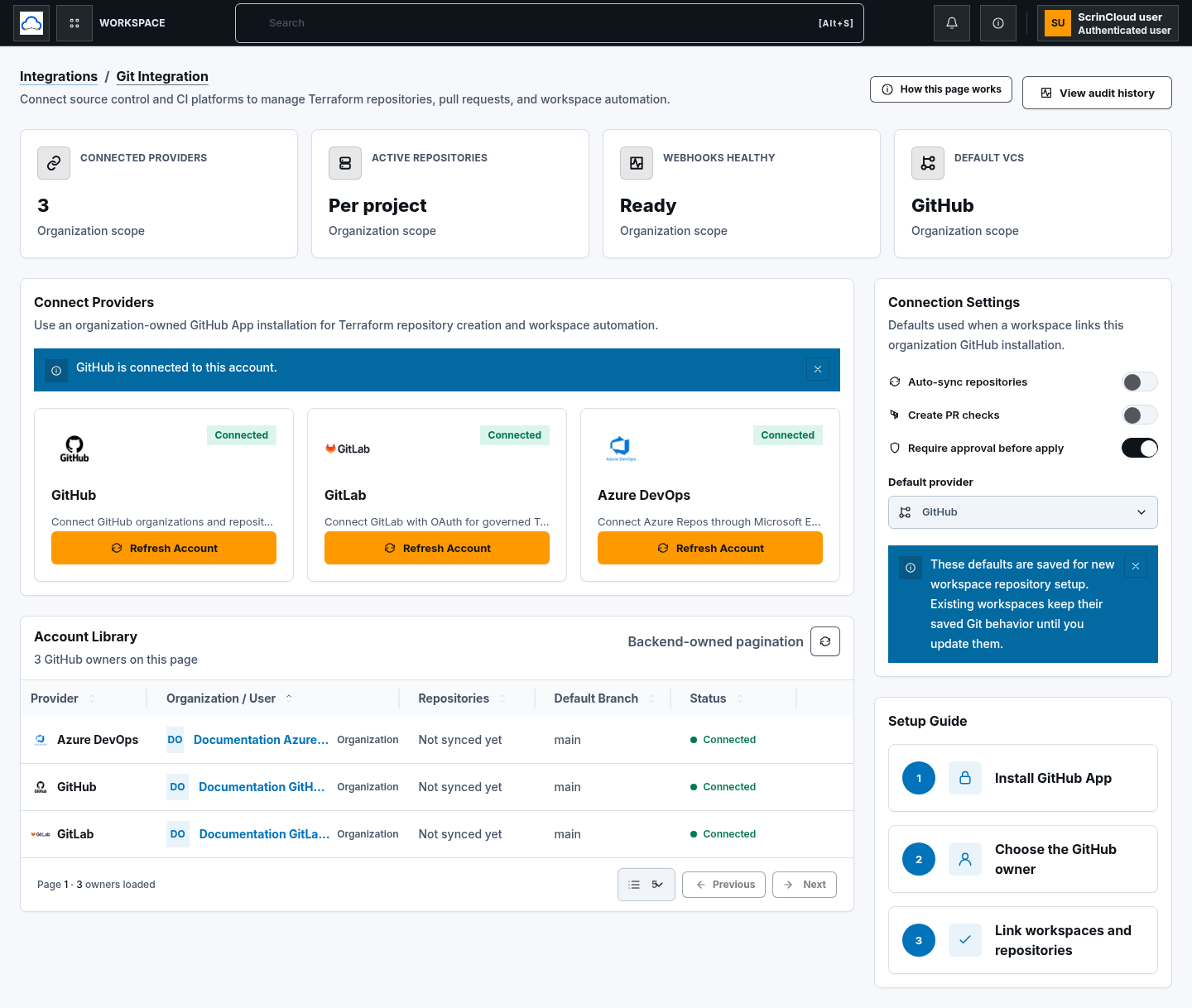
- confirm the GitLab success notice;
- find the expected owner in Connected Accounts;
- verify the owner type and Connected status; and
- choose Refresh access.
Step 4: Link governed workspace use
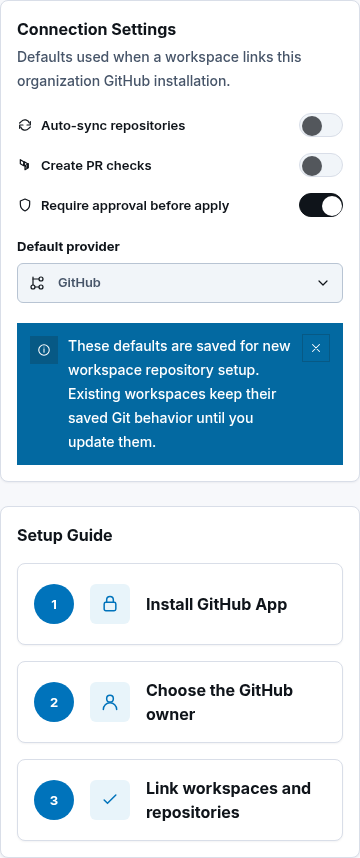
Section titled “Step 4: Link governed workspace use”Set Default provider to GitLab only if new workspace repository setup should prefer it. Keep Require approval before apply enabled where required by policy.
GitLab connection management supports refresh, reconnect, and disconnect. The current Create repository and Set as default owner table actions are GitHub-only; do not expect those actions on a GitLab row.
Check your result
Section titled “Check your result”The GitLab card and account row should show Connected, refresh should complete successfully, and the expected namespace should remain within the approved organization boundary.
Common blockers
Section titled “Common blockers”GitLab application is not configured
Section titled “GitLab application is not configured”An operator must configure the approved OAuth application and callback for this environment. Self-managed hosts require explicit approved configuration.
Authorization returns an error
Section titled “Authorization returns an error”Start the connection again. Do not reuse an OAuth code or state value; they are short-lived and bound to one connection attempt.
Repository actions are unavailable
Section titled “Repository actions are unavailable”The current Git Integration page does not offer GitLab repository creation or default-owner actions. Use the approved provider-side or workspace workflow available to your organization.