
Settings overview
Use Settings to manage organization billing, account security, project access, environment values, Terraform defaults, and your personal appearance. Each destination has a different ownership boundary, so select the scope before making a change.
- Typical time
- 2–5 minutes
- You need
- A signed-in ScrinCloud account
- Outcome
- The correct settings workflow and scope
Step 1: Open Settings
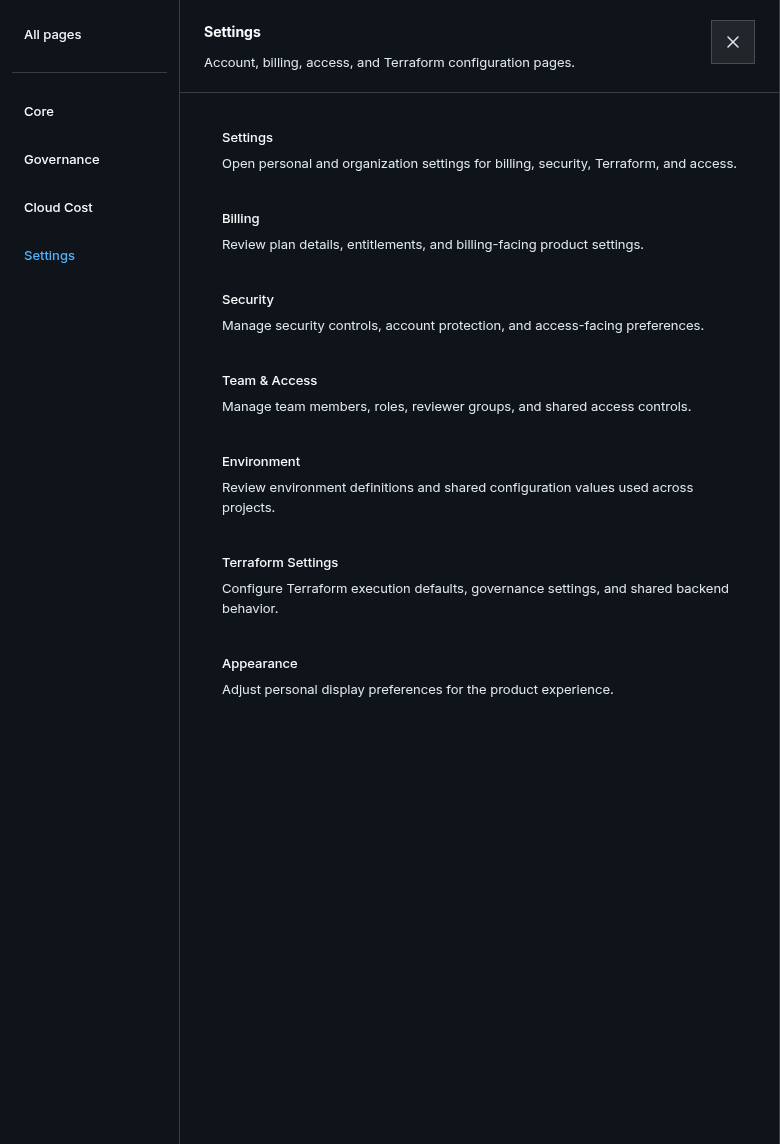
Section titled “Step 1: Open Settings”Open the workspace navigation and choose Settings. The public Settings menu contains:
- Billing
- Security
- Team & Access
- Environment
- Terraform Settings
- Appearance
The parent Settings link opens General.
Step 2: Choose the ownership boundary
Section titled “Step 2: Choose the ownership boundary”Use this map before changing anything:
| Destination | Applies to | Who can change it |
|---|---|---|
| Billing | Organization subscription and entitlements | A user with billing-management permission |
| Security | Your account and authorized organization sign-in policy | The signed-in user; policy actions also require the appropriate organization authority |
| Team & Access | One selected project | A project administrator |
| Environment | Organization, project, or workspace scope | A user with environment-management permission for that scope |
| Terraform Settings | Organization defaults or one project override | A user with the matching settings permission |
| Appearance | Your signed-in account | The signed-in user |
Seeing a control is not proof that a backend change succeeded. Wait for the success message and reload the selected scope when the result matters.
Step 3: Understand General availability
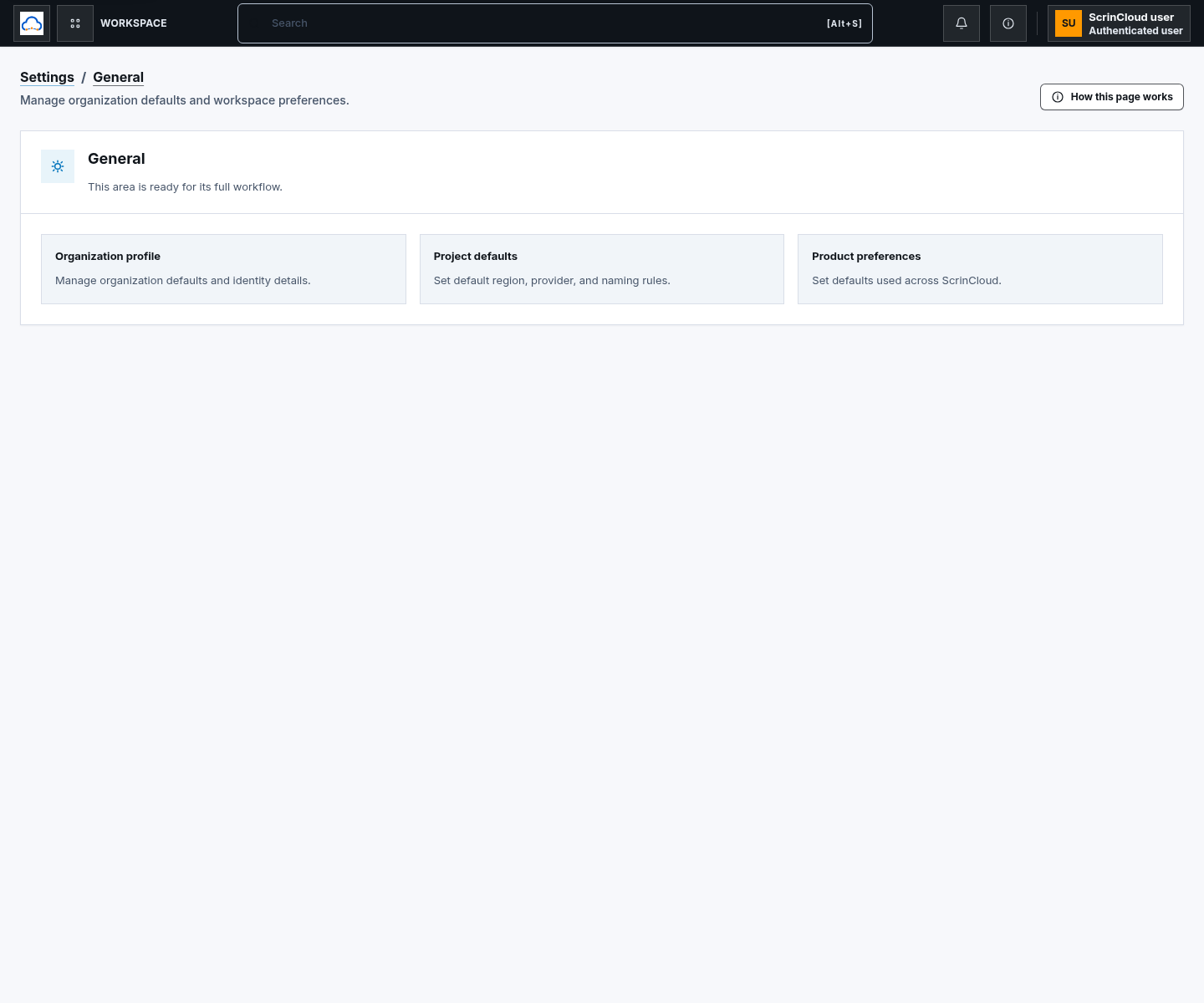
Section titled “Step 3: Understand General availability”The current General page shows three informational areas:
- Organization profile
- Project defaults
- Product preferences
These are placeholders for a future workflow. There are currently no editable fields and no Save Changes action on General. Do not use browser tools or a different settings form to simulate a General save.
Check your result
Section titled “Check your result”Confirm the page title matches the destination you intended to open. For project and workspace workflows, also confirm the selected project, workspace, or scope before changing anything. On General, the correct result is an informational page with no save control.
Common blockers
Section titled “Common blockers”A Settings destination is missing
Section titled “A Settings destination is missing”Your permissions or current product context can limit what you can operate. Use the public workspace Settings navigation available to your account.
General has no Save Changes button
Section titled “General has no Save Changes button”That is the current product behavior. Use the destination that owns the actual workflow rather than assuming the General cards are editable.
A change looks saved but the page did not confirm it
Section titled “A change looks saved but the page did not confirm it”Treat the mutation as unconfirmed. Keep the page open, review the notification, reload the same scope, and retry only after checking for a version or permission conflict.