
Use starter templates
Templates are provider-specific starter diagrams. Importing creates a separate saved diagram in a selected project; it does not merge into or overwrite the currently open canvas.
- Typical time
- 5–10 minutes
- You need
- A matching project
- Outcome
- A new governed starter diagram
Find a template
Section titled “Find a template”- Open Templates.
- Enter keywords in Search templates.
- Open filters and choose Provider, Difficulty, Cost profile, or Archetype.
- Clear filters to restore the available template catalogue.
- Choose Previous or Next to move through bounded result pages.
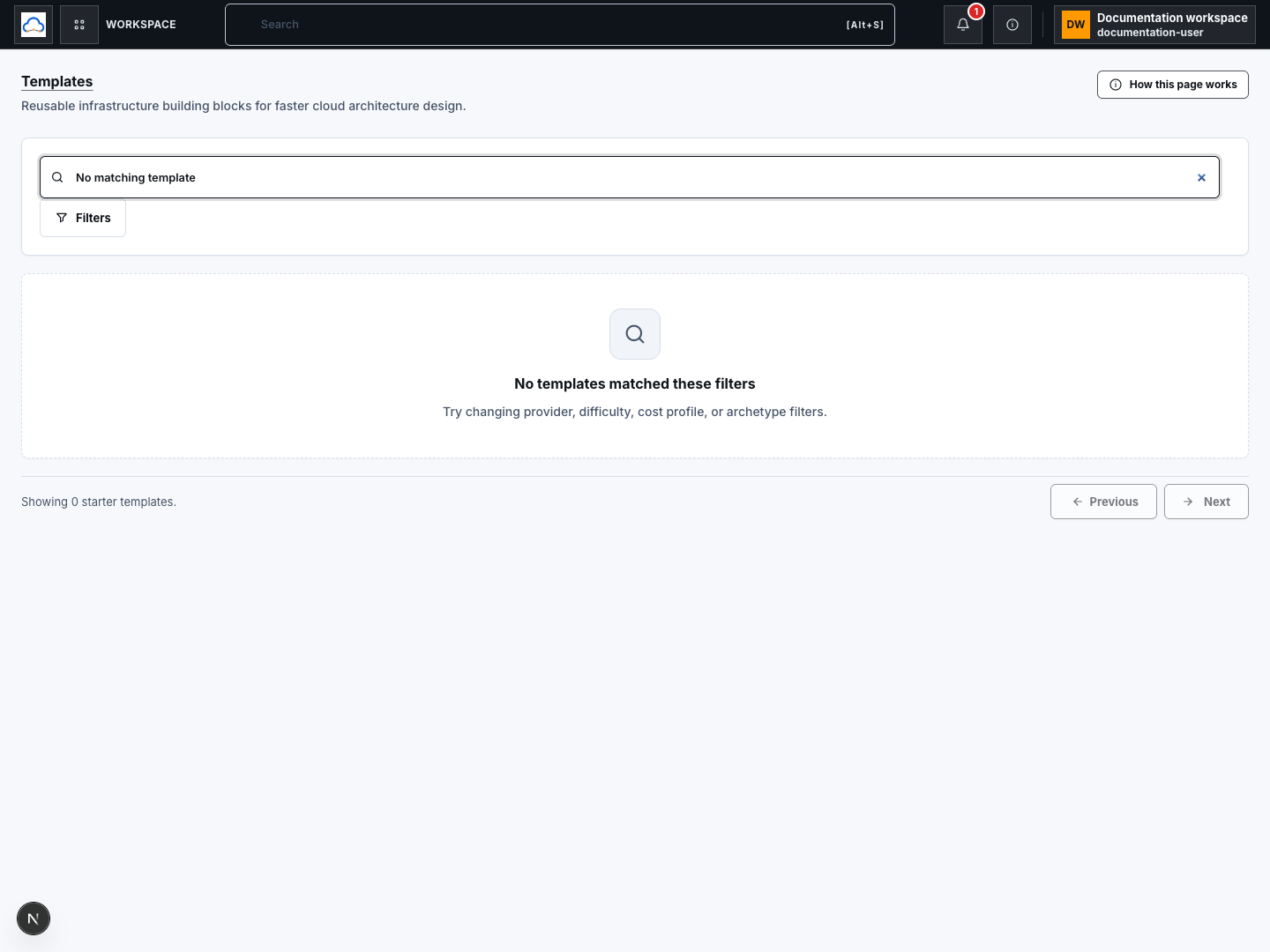
Search and filters are sent to the template list service. Results use cursor pagination. There is no separate user-controlled sort action on this page.
Check your result
Section titled “Check your result”Every visible card matches the selected provider and filters, and the page reports how many starter templates are shown.
Preview template readiness
Section titled “Preview template readiness”- Choose Preview on a template card.
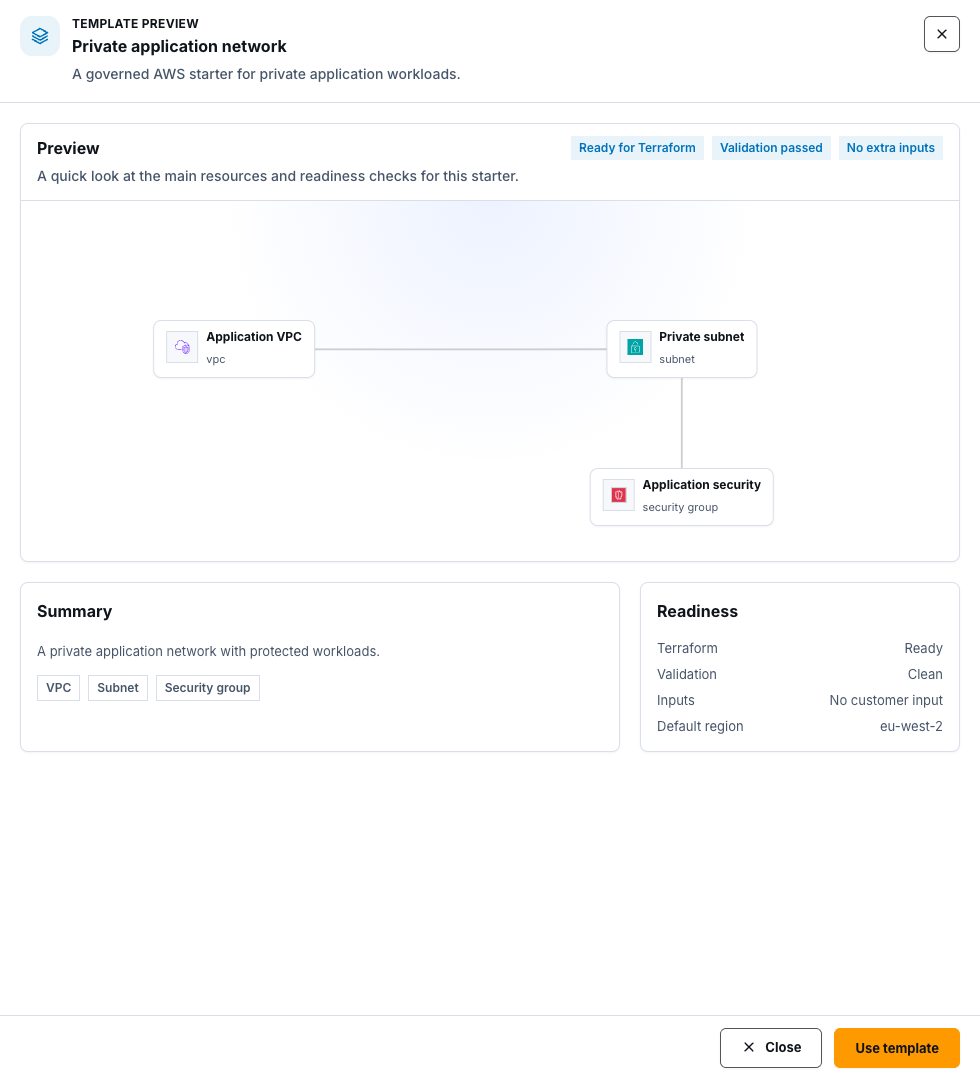
- Review the resource layout, relationships, summary, and service tags.
- Check Readiness for Terraform, Validation, Inputs, and Default region.
- Choose Close if the starter is unsuitable.
- Choose Use template to continue with the previewed starter.
Preview is read-only. Readiness labels describe the starter catalogue entry; they do not prove that the diagram will validate after you edit it.
Check your result
Section titled “Check your result”The drawer title, provider, default region, resource counts, and readiness belong to the template card you selected.
Choose a title and matching project
Section titled “Choose a title and matching project”- Choose Use on a card or Use template in the preview.
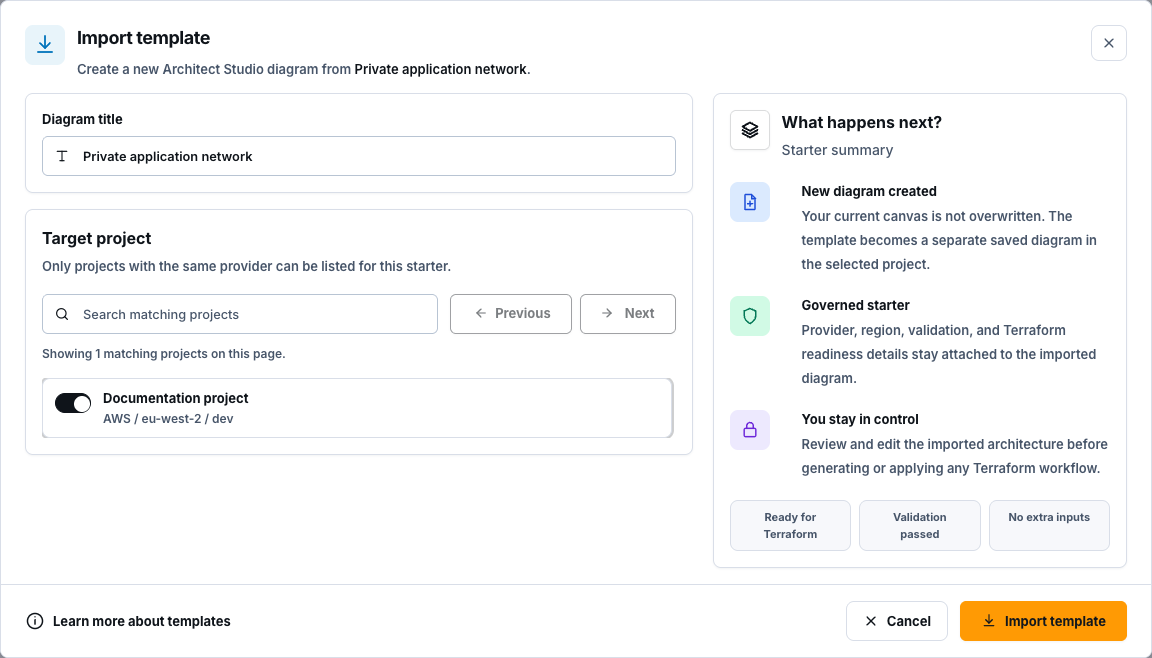
- Review or edit Diagram title.
- In Target project, use Search matching projects.
- Use Previous or Next to move through matching project pages.
- Select one project with the same provider as the template.
- Choose Learn more about templates if you need the detailed import behavior.
- Choose Cancel if the provider, project, or title is wrong.
Only matching-provider projects are listed. A provider mismatch prevents import; do not change project boundaries merely to bypass the guard.
Check your result
Section titled “Check your result”Exactly one matching project is selected and Import template is available.
Import the template
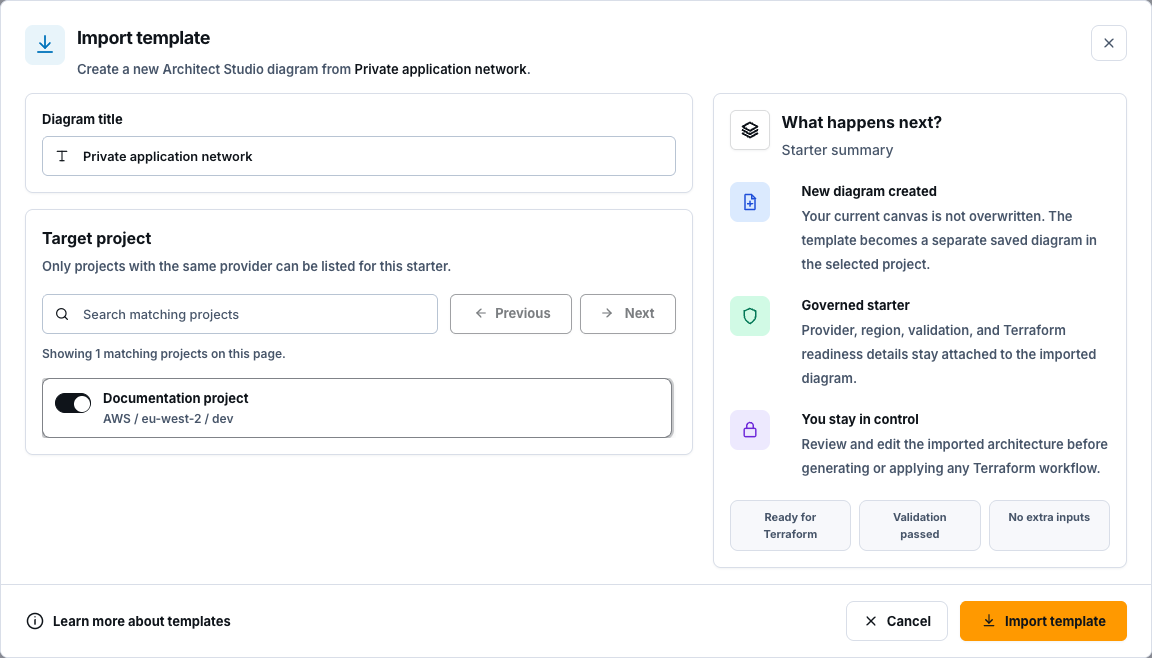
Section titled “Import the template”- Recheck the title, provider, target project, and import summary.
- Confirm New diagram created states that the current canvas is not overwritten.
- Choose Import template once.
- Wait for Importing… to finish.
- ScrinCloud opens the created diagram, or reopens the original result when the same idempotent request is replayed.
Import is a backend mutation protected by an idempotency key. It creates a diagram record and navigation result. It does not generate, plan, apply, or deploy Terraform.
Check your result
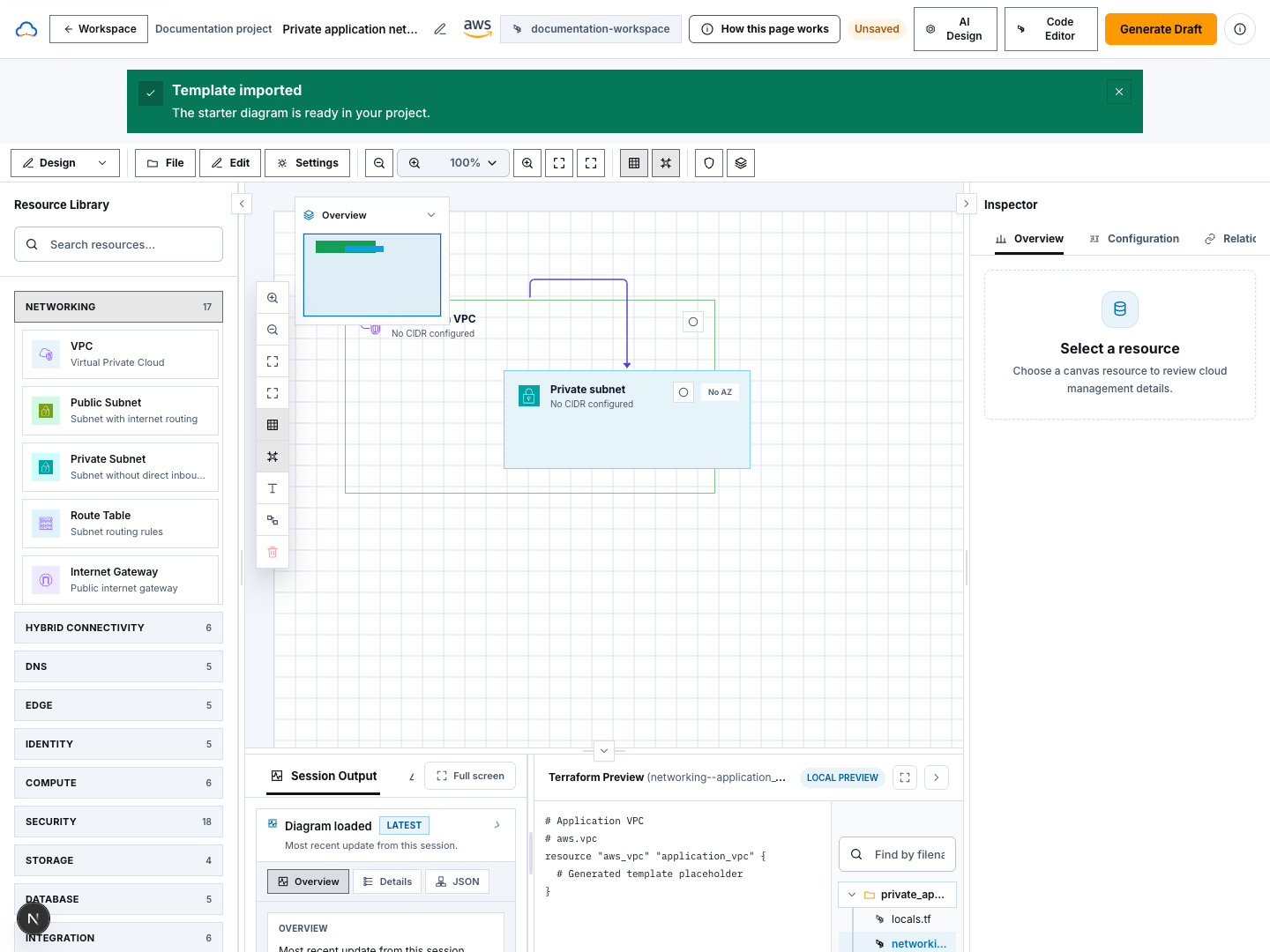
Section titled “Check your result”The imported diagram opens under the selected project with the chosen title. Review its resources and relationships before making changes.
Common blockers
Section titled “Common blockers”No template matches
Section titled “No template matches”Clear one filter at a time, check the provider, and try a broader search. The catalogue may not contain every provider and archetype combination.
Use is disabled
Section titled “Use is disabled”The current workspace context may require a different provider. Choose a matching starter or return from a neutral Templates entry point.
No target project appears
Section titled “No target project appears”Clear the project search and confirm a permitted project exists for the template’s provider. Create or request access to a matching project if needed.
Import reports unsaved canvas changes
Section titled “Import reports unsaved canvas changes”Resolve the unsaved-changes guard first. Import never silently overwrites the open canvas.
Import outcome is unclear
Section titled “Import outcome is unclear”Do not click repeatedly. Check the notification and destination. An idempotent replay should reopen the original imported diagram rather than create duplicates.