
Get help
Use this guide after following the troubleshooting checklist or when an account, security, billing, or access problem prevents normal self-service.
The goal is a short, reproducible support summary. More data is not always better: include the context needed to identify the workflow and exclude security material, private infrastructure content, and unrelated customer information.
- Typical time
- 5–15 minutes
- You need
- Page, action, time, status, and request reference
- Outcome
- A safe, actionable support request
Step 1: Choose the right help path
Section titled “Step 1: Choose the right help path”| Problem | First action | Escalate when |
|---|---|---|
| Cannot sign in | Verify account details and use password recovery | Recovery or verification remains unavailable |
| Unexpected security activity | Change password and review active sessions | The activity or session is not yours |
| Invitation or role issue | Ask the project owner to confirm membership and role | The product state differs from the owner’s confirmed setup |
| Missing action | Confirm scope, role, approval, and plan | The action should be available but remains absent |
| Cloud or Git connection | Test the existing connection and review scope | The safe failure continues after the stated fix |
| Terraform workflow | Review current run, findings, evidence, and approvals | The current terminal result is unclear or inconsistent |
| Cloud Discovery | Review connection, region, run status, and unsupported items | Supported scope remains missing after a safe retry |
| Cloud Cost | Review account link, billing scope, period, and freshness | Confirmed billing scope still does not reconcile |
| Operations review | Review availability, incident, evidence, and existing diagnosis | The workflow cannot move from its current safe state |
| Billing or plan | Ask an organization owner to confirm plan and seats | The displayed plan or limit differs from confirmed ownership |
Use the Help control in the product or the support contact provided through your organization’s approved ScrinCloud communication. Do not send the same request through multiple channels unless asked.
Step 2: Capture the minimum useful context
Section titled “Step 2: Capture the minimum useful context”Record:
- Product area: for example, Security, Cloud Accounts, Architecture Studio, Cloud Discovery, Terraform Runs, Cloud Cost, or operations review.
- Page and action: use the exact visible labels.
- Expected result: one sentence.
- Actual result: visible status or message in one sentence.
- Time: approximate date, time, and time zone.
- Scope: safe organization, project, workspace, environment, provider, and region labels.
- Request identifier: copy only the browser-visible reference associated with the problem.
- Current state: pending, running, succeeded, partial, failed, cancelled, timed out, expired, unsupported, or unknown.
- Attempts: whether the action was submitted once or retried after a documented change.
- Cleanup: whether a temporary item, invitation, share link, or test notification remains.
Do not invent identifiers or attach details from a different attempt.
Step 3: Open the Help Center and prepare a support summary
Section titled “Step 3: Open the Help Center and prepare a support summary”Select the Help control in the workspace header to open the public ScrinCloud Help Center in a new tab. The current product does not provide an in-product support-request form, case number, or conversation timeline. Use your organization’s approved support contact when self-service guidance is not enough.
Copy this template and replace the bracketed examples:
Product area: [Cloud Discovery]Page: [Discovery Operations]Action: [Run discovery]Expected: [The selected non-production region should be reviewed.]Actual: [The run shows Failed with a safe access message.]Time and zone: [17 July 2026, about 14:20 BST]Safe scope: [Example organization / Demo project / Test workspace / AWS / eu-west-2]Request identifier: [browser-visible reference, if shown]Current state: [Failed]Attempts: [Submitted once; connection health checked afterward]Troubleshooting completed: [Scope, role, connection, region, and plan checked]Cleanup: [No temporary item remains]Use fictional or non-sensitive display names in examples. If a display name itself contains customer, account, or confidential information, replace it with a neutral description and explain that it was redacted.

Step 4: Prepare screenshots safely
Section titled “Step 4: Prepare screenshots safely”Before capturing:
- close unrelated tabs and drawers;
- select a fictional or safe test scope when possible;
- crop to the relevant product panel;
- hide browser address details when they contain identifiers;
- hide names, email addresses, account and subscription identifiers;
- hide repository names and private file content;
- hide resource values that reveal customer infrastructure;
- hide notification recipients and share links; and
- verify that no security material is visible.
Capture the visible page, action, status, and short message. Do not capture developer tools, detailed response bodies, browser storage, cookies, sign-in material, raw logs, Terraform state, or provider exports.
Step 5: Never include sensitive information
Section titled “Step 5: Never include sensitive information”Do not send:
- passwords or password-reset material;
- one-time verification or recovery codes;
- passkey information;
- browser cookies or sign-in material;
- cloud credentials or private connection values;
- Git credentials;
- Terraform state, private variables, or plan files containing sensitive values;
- private repository content;
- public-share links that grant access;
- raw billing exports;
- customer names or workloads not required to reproduce the problem; or
- detailed error dumps.
If support needs additional evidence, ask what specific user-visible field is required and why. Provide the narrowest safe value.
Step 6: Describe the impact
Section titled “Step 6: Describe the impact”Choose the most accurate description:
- Blocked: no safe path can continue.
- Degraded: the workflow continues with reduced capability or incomplete information.
- Incorrect result: a completed result conflicts with confirmed source information.
- Intermittent: the same supported action sometimes succeeds and sometimes fails.
- Security concern: activity, access, or a session may not be authorized.
- Billing concern: plan, seat, renewal, or cost information appears inconsistent.
Do not label an issue as a security incident or outage unless your organization has confirmed that classification.
Step 7: Handle urgent security concerns
Section titled “Step 7: Handle urgent security concerns”If you see an unfamiliar session, sign-in message, password-change notice, or verification prompt:
- use a trusted browser and network;
- change the account password if you can do so safely;
- use Sign out all under Active sessions;
- preserve only the time and safe event description;
- notify your organization’s security contact; and
- contact support through the approved channel.
Never forward the security message with active links or verification material to an unverified recipient.
Step 8: Use guided journeys and follow up through the approved channel
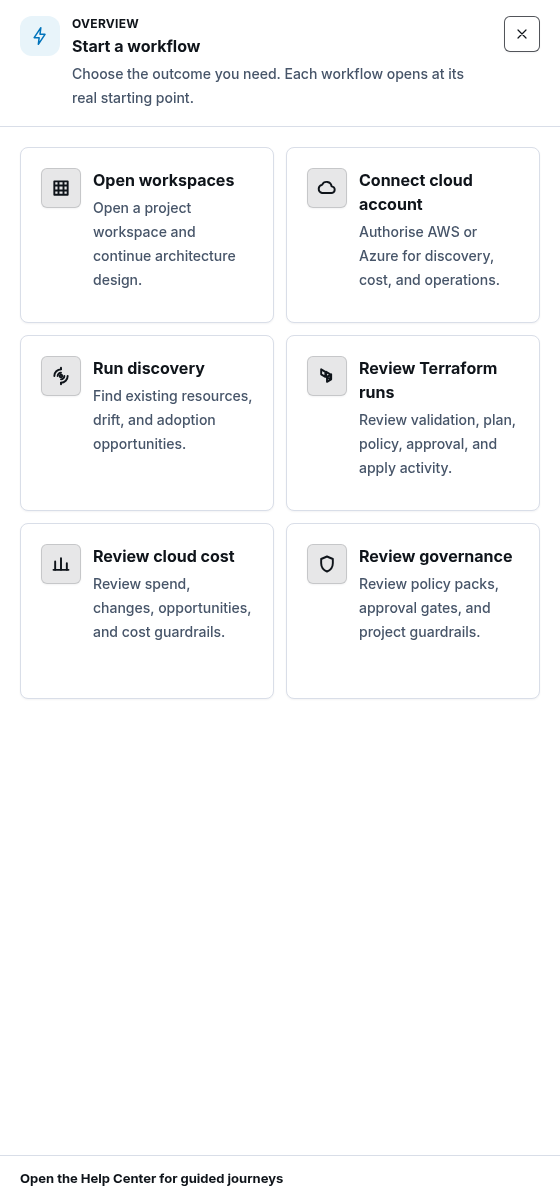
Section titled “Step 8: Use guided journeys and follow up through the approved channel”From Overview, choose Start workflow to see the available product journeys and the Open the Help Center for guided journeys link. If you contact support through your organization’s approved channel, keep one clear external conversation and include only the new safe context from a later attempt. ScrinCloud does not currently display that external conversation in the product.
- State what changed since the previous message.
- Include the new time and browser-visible reference when one is available.
- Confirm whether the original item is still active.
- Report cleanup when the problem is resolved.
- Do not paste the entire previous request into a new conversation.
What a resolved support request should record
Section titled “What a resolved support request should record”A final note should state:
- the user-visible cause or prerequisite;
- the action that corrected it;
- the successful or intentionally blocked final status;
- whether affected access was reviewed;
- whether temporary items were removed; and
- whether any follow-up owner remains.
Do not claim deployment or runtime success from documentation, configuration, or a screenshot alone. Report only what the authorized product workflow actually confirmed.