
Cloud Cost operations
The Configuration tab owns workspace-level Cloud Cost alerting and budget operations. Changes stay scoped to the selected workspace and its linked provider account.
- Typical time
- 20–35 minutes
- You need
- Cloud Cost configuration access and backend-reported alerting entitlements
- Outcome
- A saved, plan-compliant monitoring configuration
Step 1: Review effective plan limits
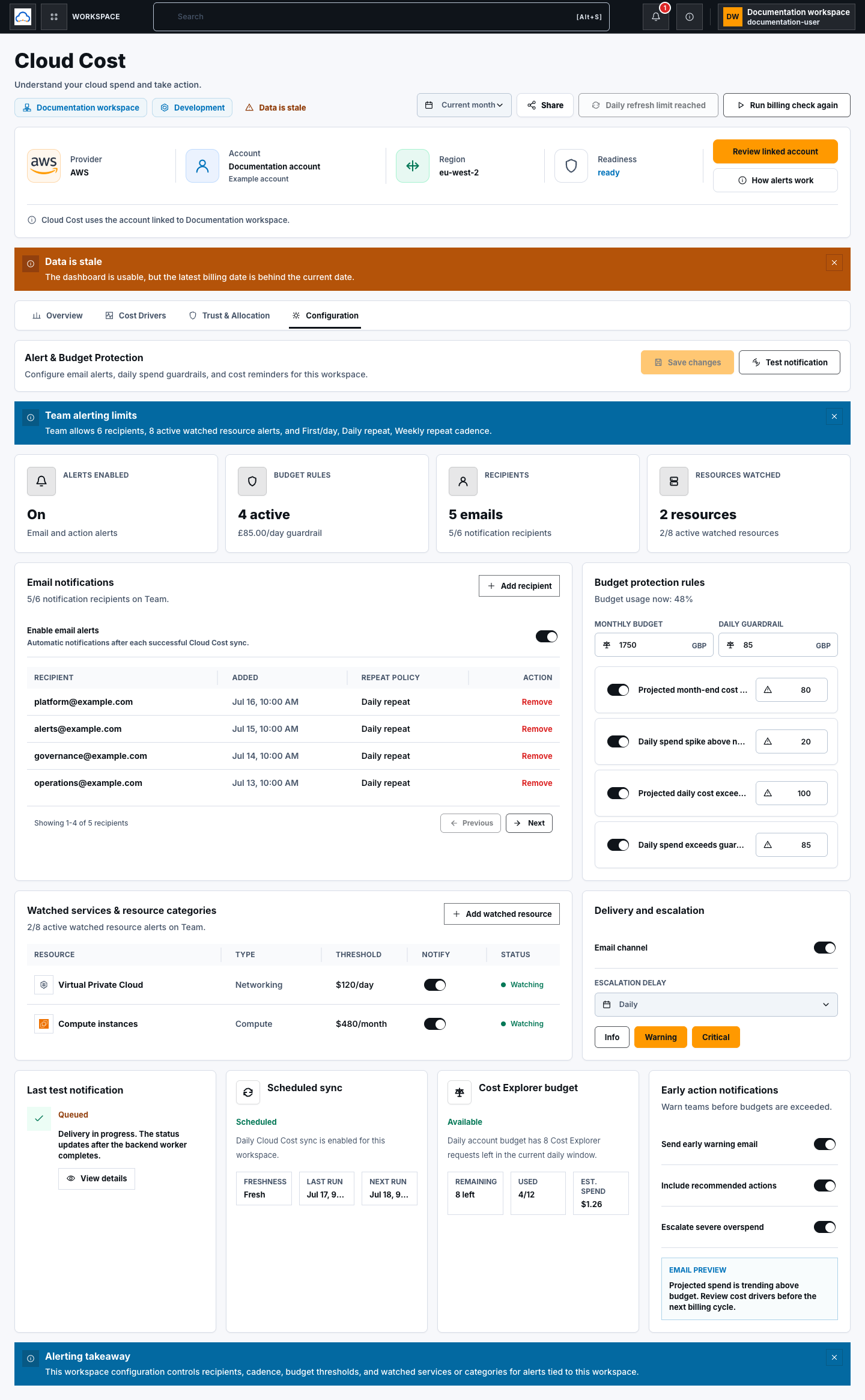
Section titled “Step 1: Review effective plan limits”Open Cloud Cost → Configuration. Read the plan-limit banner before editing. It shows allowed recipients, notification cadence, watched-resource capacity, and whether resource-level alerts are enabled.
If Plan limits unavailable appears, existing values remain visible but new recipients and watched resources are disabled. Backend-effective alerting limits applied means stored configuration was preserved while the backend reduced what is active for the current plan.
Never remove governance or security controls to work around a plan limit. Reduce the over-plan setting or use the approved billing path.
Step 2: Enable alerts and add a recipient
Section titled “Step 2: Enable alerts and add a recipient”In Email notifications, turn on Enable email alerts and select Add recipient. Enter a valid email and choose the workspace Repeat policy: First/day, Daily repeat, or Weekly repeat, as allowed by the plan. Select Add recipient in the drawer.
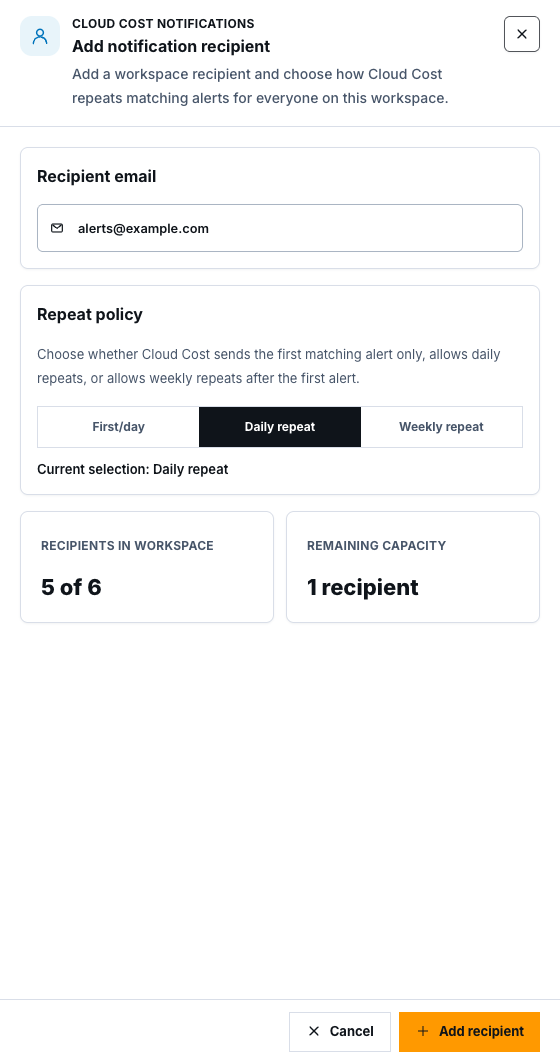
The repeat policy is shared by all workspace recipients. Adding the recipient changes the local configuration; select Save changes before relying on it.
Step 3: Remove or replace a recipient
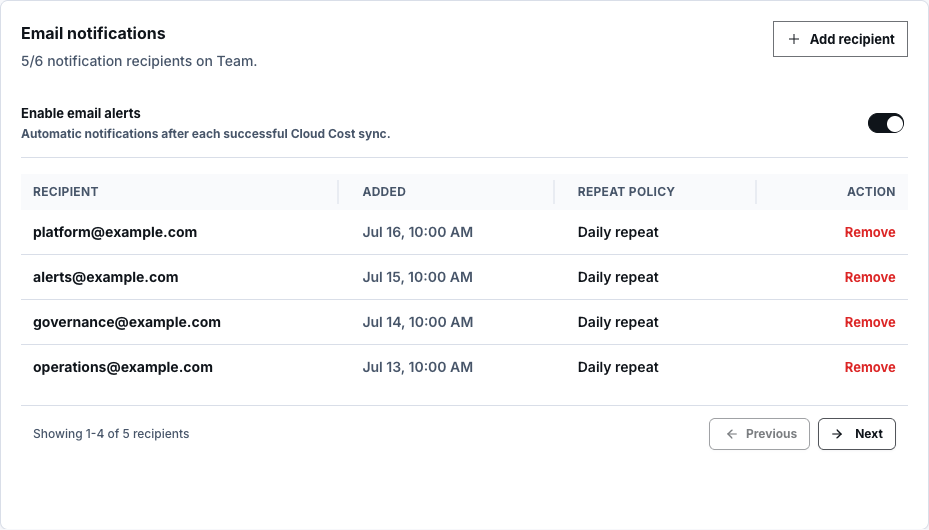
Section titled “Step 3: Remove or replace a recipient”Use recipient Previous and Next for the local four-row pages. Select Remove beside an address, review the unsaved-change notice, then select Save changes.
The current public table has no recipient Edit action. To correct an address, remove it and add the replacement before saving. To change cadence, use the repeat-policy selection when adding a recipient; it updates the shared workspace cadence.
Step 4: Configure budget protection
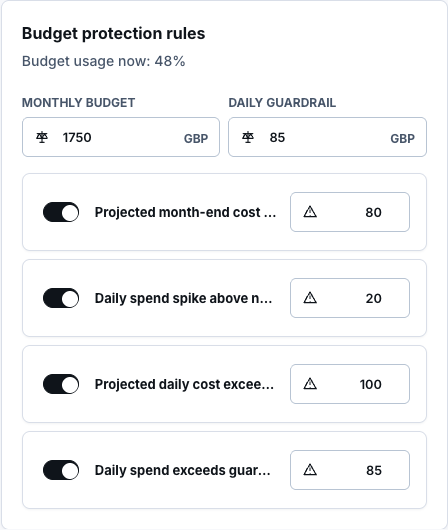
Section titled “Step 4: Configure budget protection”In Budget protection rules, enter the Monthly budget and Daily guardrail. Enable or disable each rule and set its threshold. The daily guardrail also updates the linked usage-overrun amount rule.
Use the displayed workspace currency and treat the usage percentage as snapshot-based evidence. It may lag current provider activity.
Step 5: Configure delivery and early action
Section titled “Step 5: Configure delivery and early action”In Delivery and escalation, enable Email channel, choose an Escalation delay, and select at least one severity: info, warning, or critical. In Early action notifications, configure:
- Send early warning email;
- Include recommended actions;
- Escalate severe overspend.
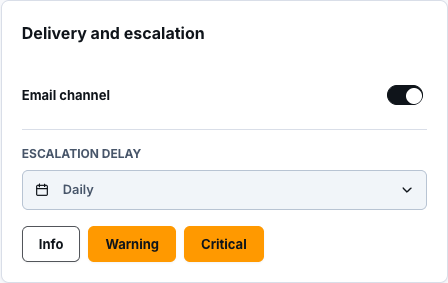
Recommendations in email are advisory. Billing facts and rules decide whether a notification is eligible.
Step 6: Add a watched resource
Section titled “Step 6: Add a watched resource”Select Add watched resource. Search the approved AWS or Azure catalog, choose a service or resource category, enter a positive Notification threshold, choose Per day or Per month, and select Add watched resource.
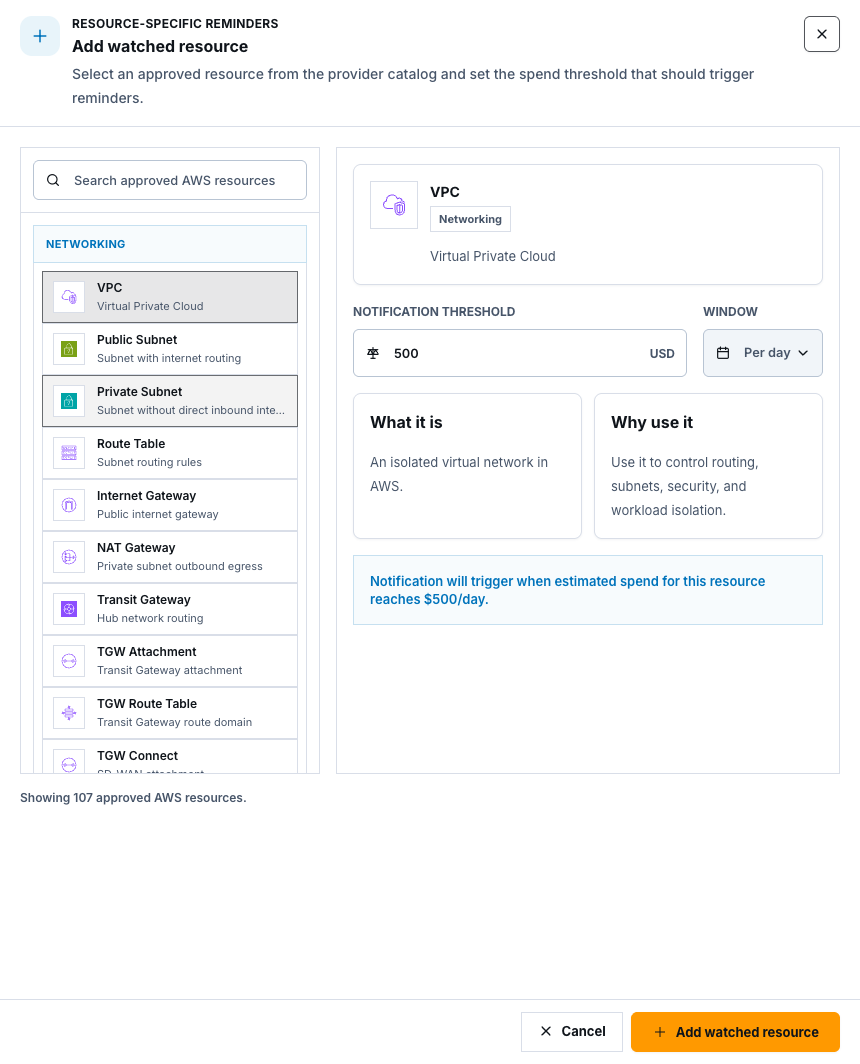
Adding a watched resource persists immediately. Some providers report cost only at service or category level, so the reminder may not identify one resource instance.
Step 7: Pause, inspect, or delete a watched resource
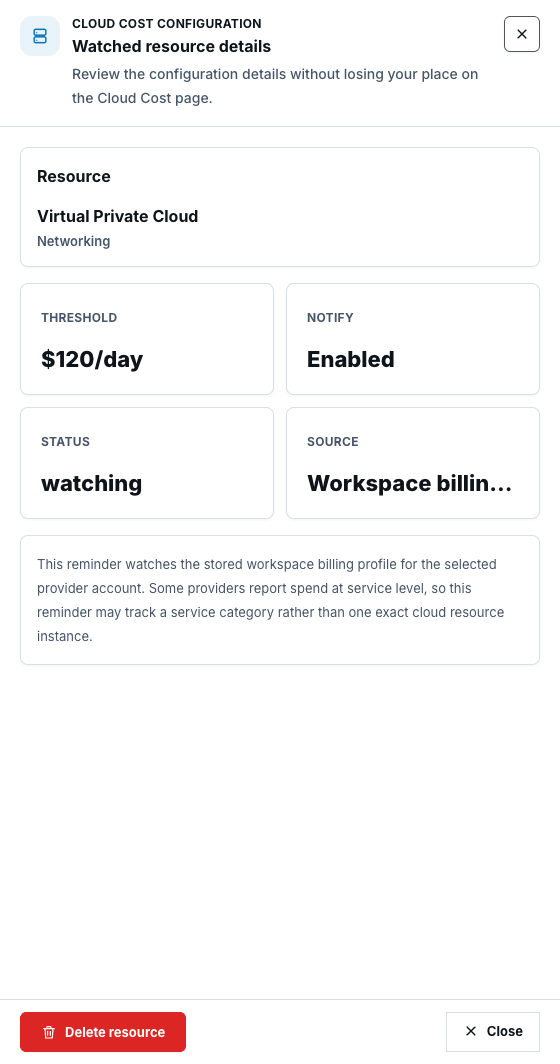
Section titled “Step 7: Pause, inspect, or delete a watched resource”Use the Notify switch to pause or resume a resource, then select Save changes. Select Details to review threshold, status, and source. Select Delete resource to remove it immediately.
The current details drawer has no threshold Edit action. To change its threshold or window, delete the watched resource and add it again with the reviewed value.
Step 8: Save local configuration changes
Section titled “Step 8: Save local configuration changes”After recipient, budget, delivery, rule, early-action, or Notify changes, review Unsaved workspace changes and select Save changes. The unsaved notice means the local workspace configuration has changed but is not yet persisted.
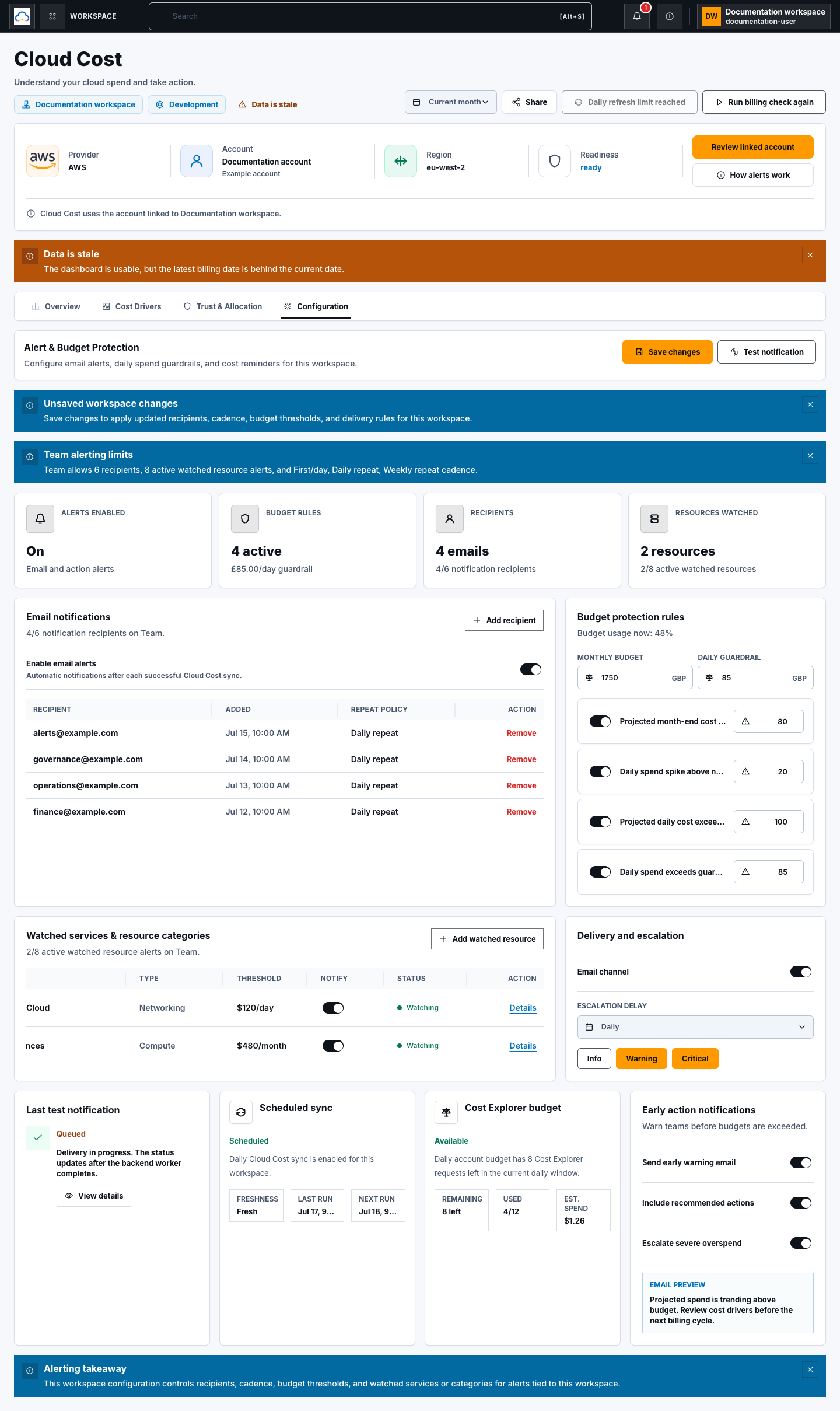
Refresh the page and confirm the values before treating the change as durable.
Step 9: Send and verify a test notification
Section titled “Step 9: Send and verify a test notification”Save recipient and delivery changes first. Select Test notification. This queues a real email using persisted recipients and channels. Open Last test notification → View details to see not sent, queued, success, or failed state; use Send test again only after reviewing the result.
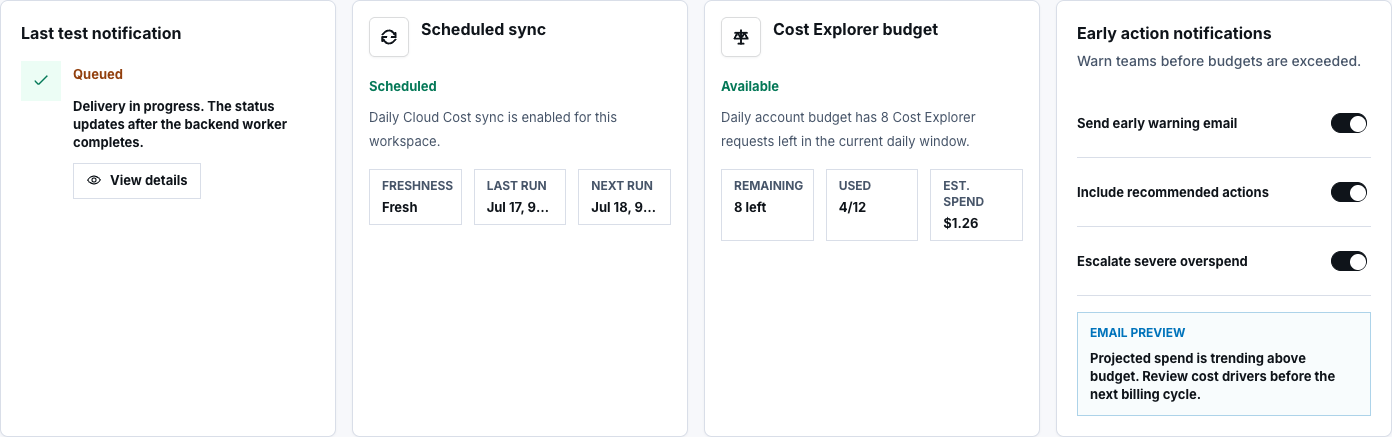
A queued response is not delivery proof. Depend on the notification only after the backend reports success and the approved recipient confirms receipt.
Step 10: Review sync and provider budget status
Section titled “Step 10: Review sync and provider budget status”Review Scheduled sync for freshness, last run, next run, and states such as manual only, paused by plan, plan check unavailable, syncing, stale, or failed. For AWS, also review Cost Explorer budget remaining calls, used calls, and estimated spend.
These panels are status displays. The current Configuration tab does not expose a sync-frequency editor or recent sync-history action.
Check your result
Section titled “Check your result”Saved settings reload correctly, active recipients and watched resources fit the backend-reported plan, and any test notification has an explicit final delivery state.
Common blockers
Section titled “Common blockers”- Plan limits unavailable: wait for backend-owned entitlements; do not guess capacity.
- Recipient or watched-resource limit reached: reduce active configuration or follow the approved billing path.
- Test notification disabled: add and save a recipient, enable email delivery, and confirm runtime email readiness.
- Scheduled sync stale or failed: review linked-account readiness and the visible safe status before manual refresh.
Source configuration and deployment wiring do not prove scheduled execution or email delivery. Never call those operations successful without live runtime evidence.