
Open Security settings
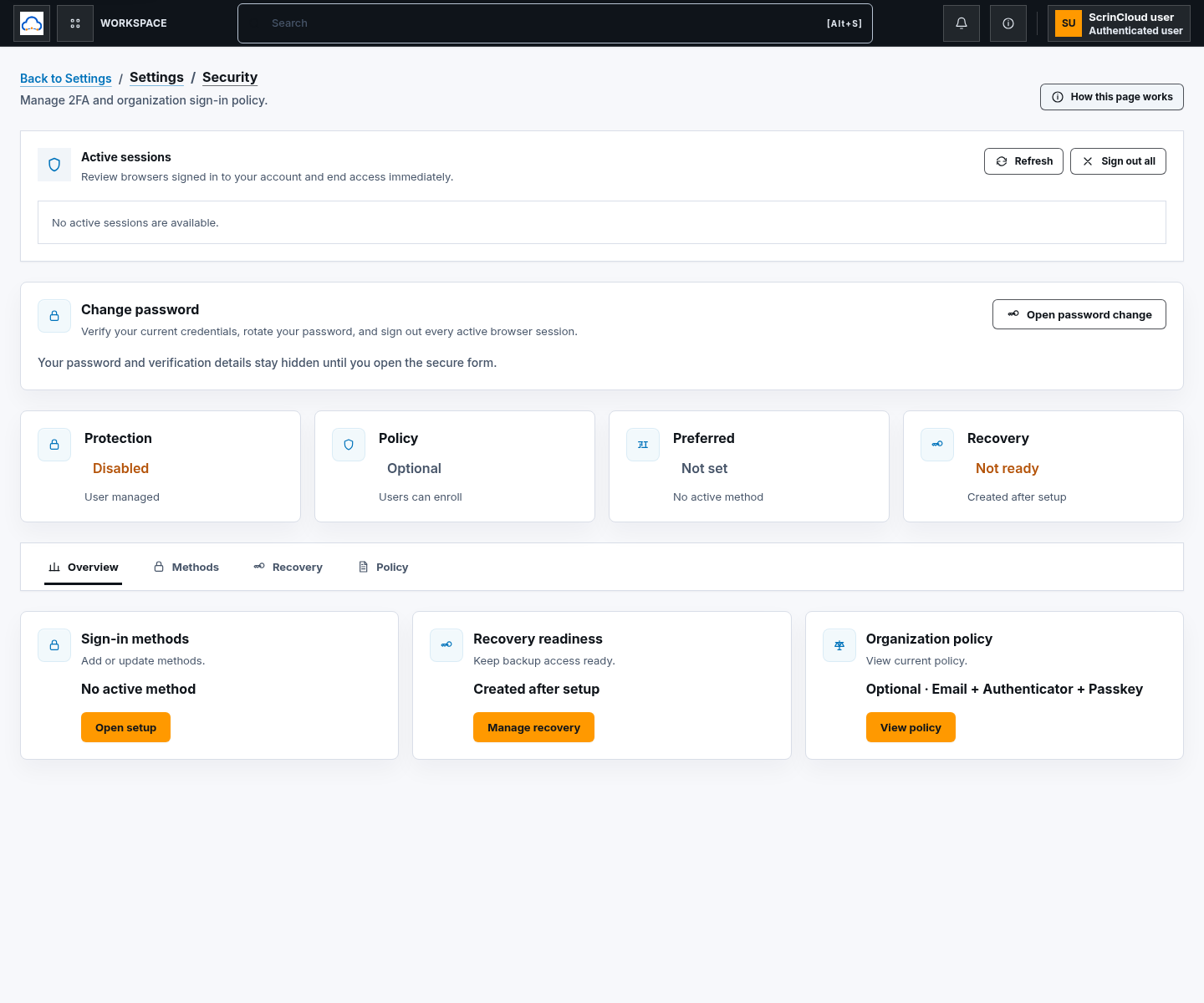
Settings → Security is the public account-protection workspace. It brings together your two-factor methods, recovery options, passkeys, and authorized organization sign-in policy. Sensitive changes can require your current password and an active second factor.
- Typical time
- 2–10 minutes
- You need
- Your own account and current verification method
- Outcome
- The correct security workflow
Step 1: Open the Security destination
Section titled “Step 1: Open the Security destination”Open Settings → Security. Confirm the page title is Security and review the current account-protection summary before starting a change.
Step 2: Choose the matching workflow
Section titled “Step 2: Choose the matching workflow”Use the account security guides for the complete steps:
- Account security overview
- Sign in with two-factor authentication
- Change password and manage sessions
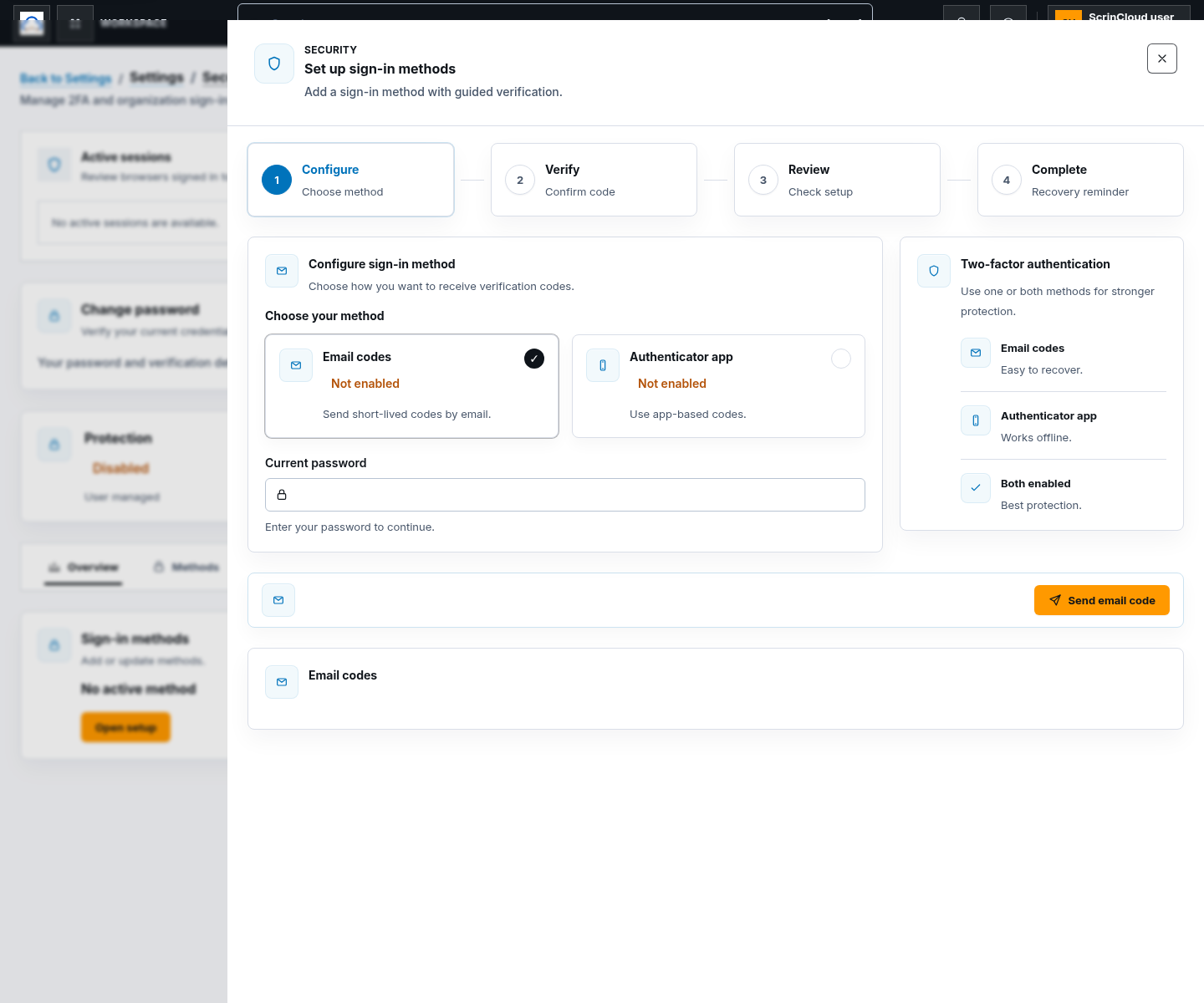
- Manage two-factor methods and passkeys
Use the focused account guides when they are listed in the public sidebar. They cover enrollment, preference changes, recovery-code regeneration, passkey add/rename/revoke, session revocation, and other account actions without copying sensitive values into documentation.
Step 3: Verify a sensitive change
Section titled “Step 3: Verify a sensitive change”For a protected action:
- start the action from your own Security page;
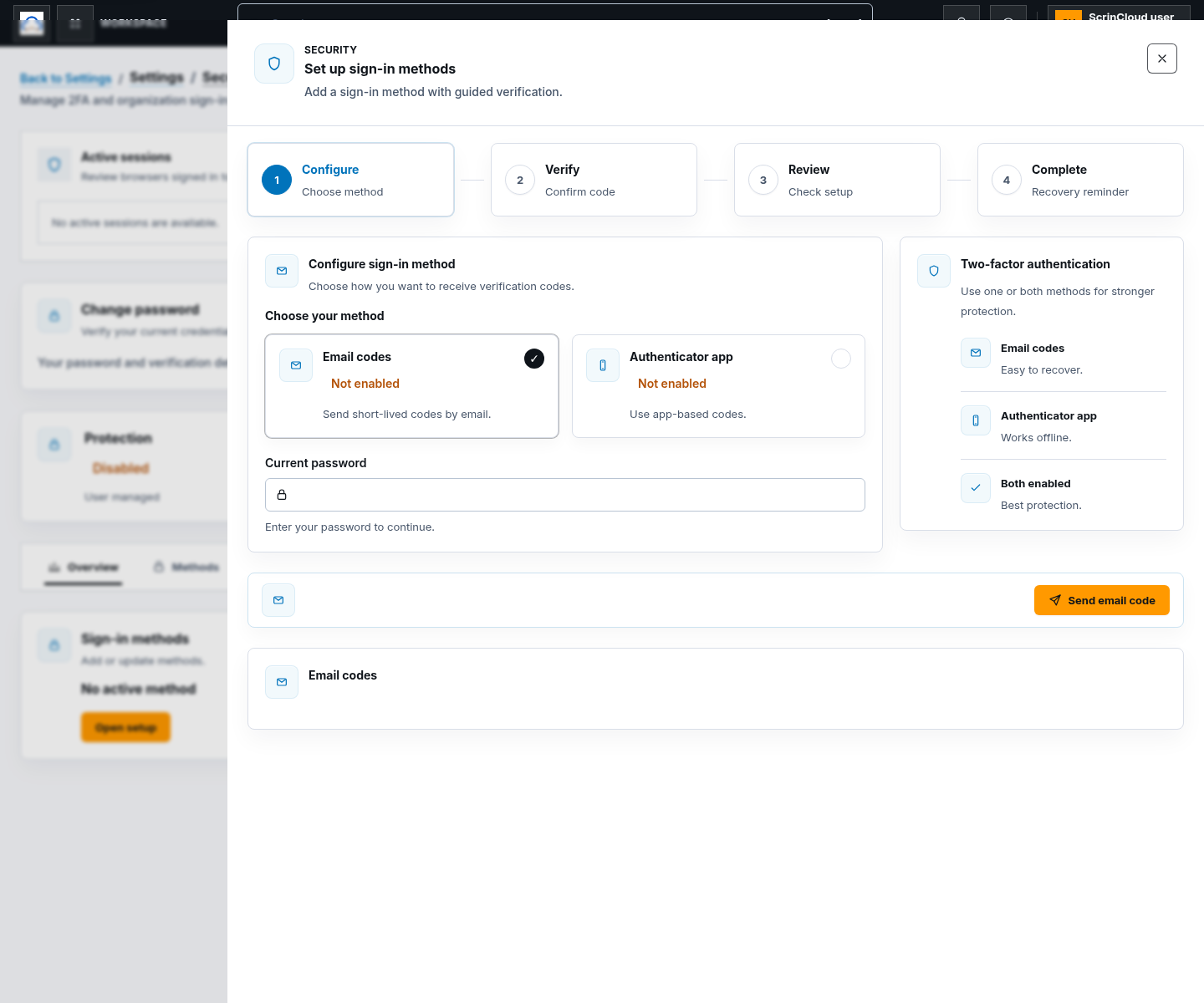
- enter your current password only in the protected verification form;
- complete the requested second-factor method;
- confirm the success message; and
- reload the relevant status.
Organization sign-in policy changes require the matching organization authority. Your personal security controls do not grant authority over another user’s account.
Check your result
Section titled “Check your result”Confirm the intended method, policy, session, or passkey status changed after the backend success response. Never treat a locally selected option as proof of a completed security mutation.
Common blockers
Section titled “Common blockers”Verification is unavailable
Section titled “Verification is unavailable”Enable an eligible second factor on your own account, then retry the protected action.
A code is rejected
Section titled “A code is rejected”Use the newest code, check device time for authenticator codes, or use an eligible saved recovery method. Do not paste codes into support requests.
You cannot change organization policy
Section titled “You cannot change organization policy”Personal account protection and organization sign-in policy have different permissions. Ask an authorized organization owner to review the policy.