
Cloud account connections
Cloud account connections give approved ScrinCloud workflows access to a specific AWS account or Azure subscription. The connection belongs to the organization, can be linked to eligible workspaces, and stays bounded by its permission level, regions, and services.
- Typical time
- 15–30 minutes
- You need
- Organization admin access
- Next step
- Test and activate
Choose the right connection
Section titled “Choose the right connection”| Provider | Identity used by ScrinCloud | Start here |
|---|---|---|
| AWS | An organization-owned IAM role assumed with a generated External ID | Connect AWS |
| Azure | Workload identity federation or an approved service principal | Connect Azure |
Only organization owners and admins can add, update, test, activate, suspend, revoke, rotate, or remove cloud accounts. A connection should never use a person’s access key, password, or everyday administrator identity.
The four setup steps
Section titled “The four setup steps”1. Account details
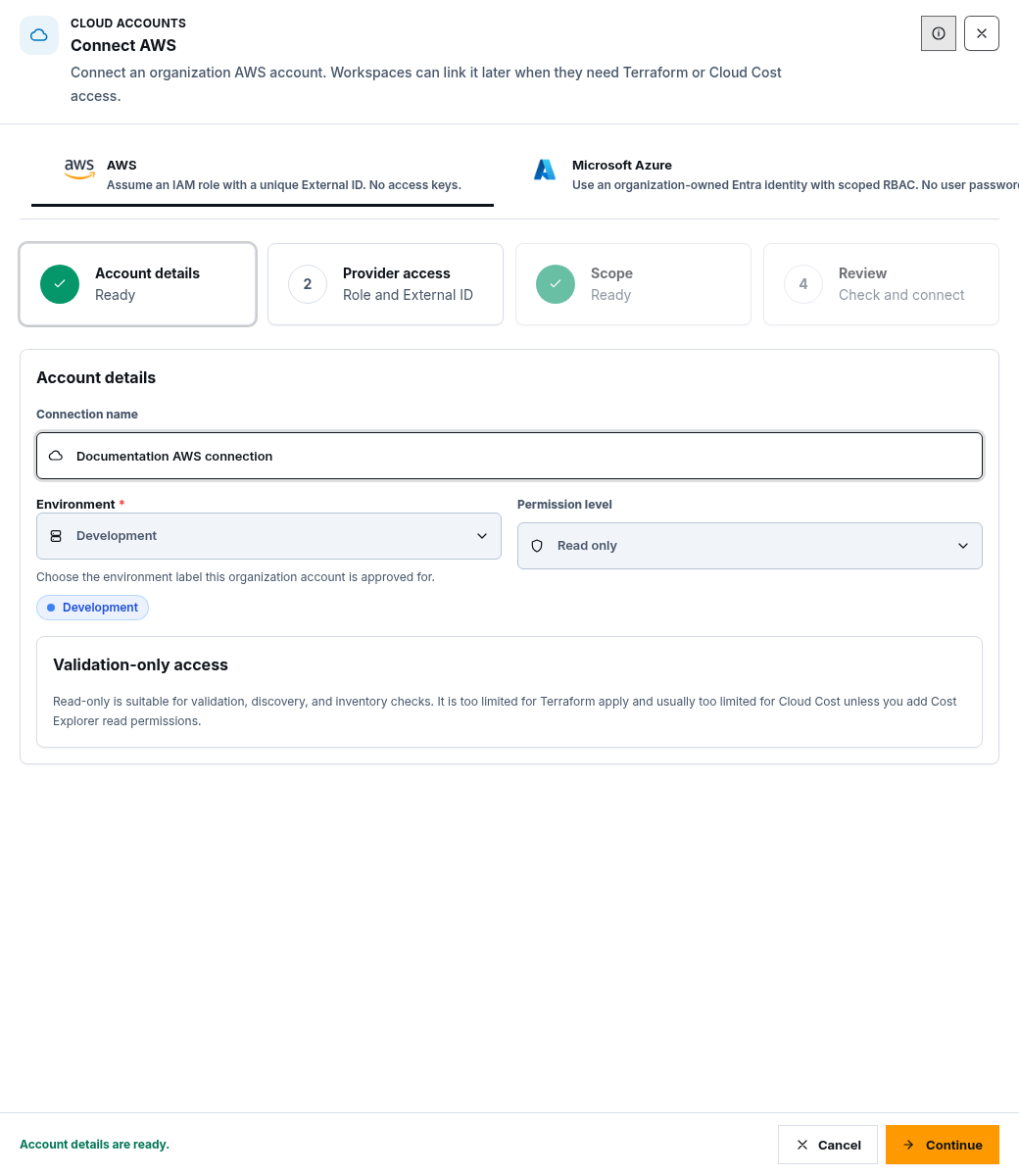
Section titled “1. Account details”Open Cloud Accounts, choose Connect AWS or Connect Azure, then set:
- Connection name: a recognizable organization label;
- Environment: the approved environment boundary; and
- Permission level: Read only, Plan only, or Plan + apply.
Choose the lowest permission level that supports the intended work. Selecting Plan + apply does not bypass workspace approvals or governance.
2. Provider access
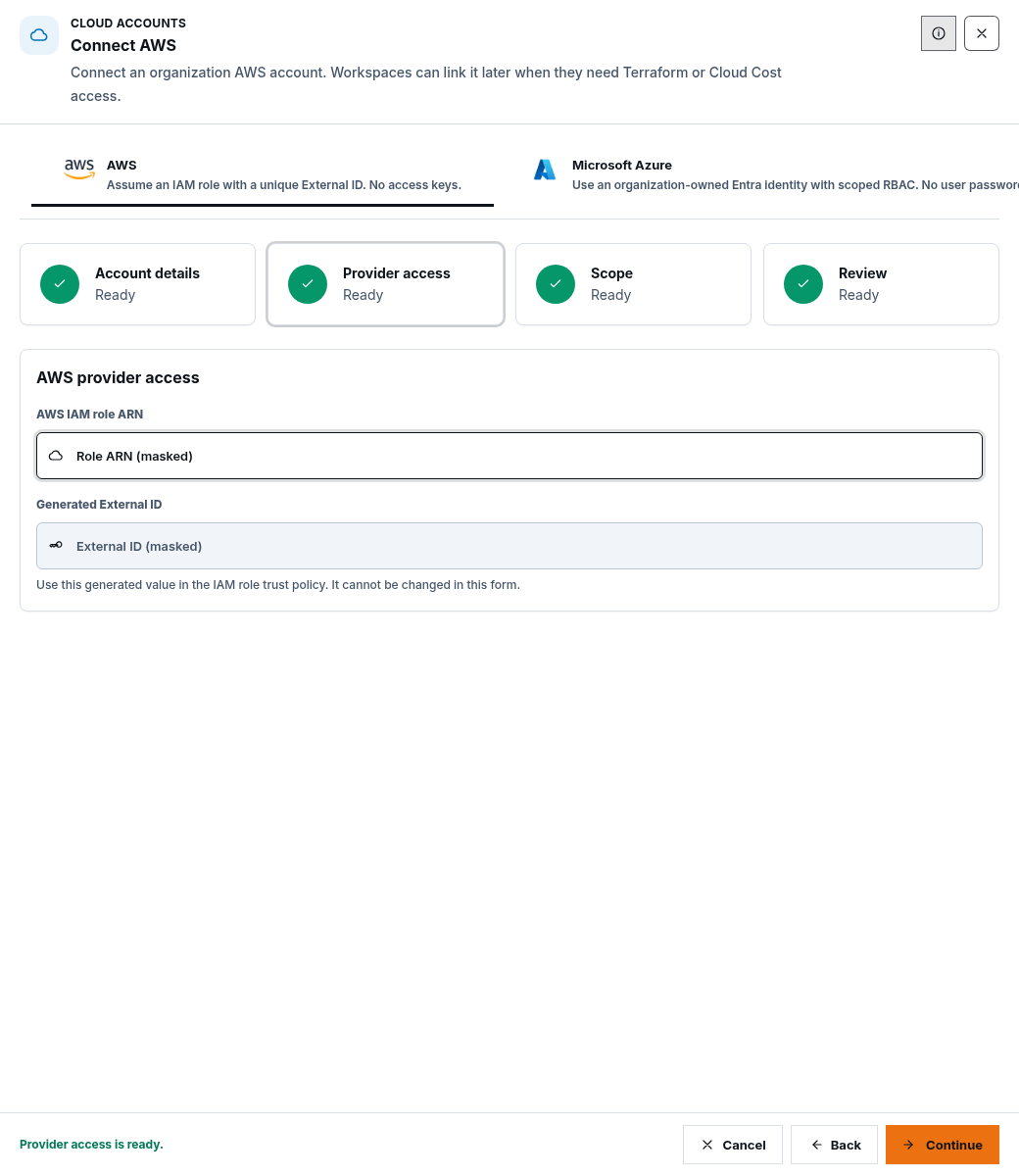
Section titled “2. Provider access”Provide the organization-owned identity requested for the selected provider:
- AWS asks for the AWS IAM role ARN and shows a Generated External ID.
- Azure asks for an Azure identity method, application identity, tenant, subscription, and resource scope.
Use the setup guide in the drawer to configure provider-side trust. Never place a client secret, access key, token, OAuth code, or reusable identity value in a support message or screenshot.
3. Scope
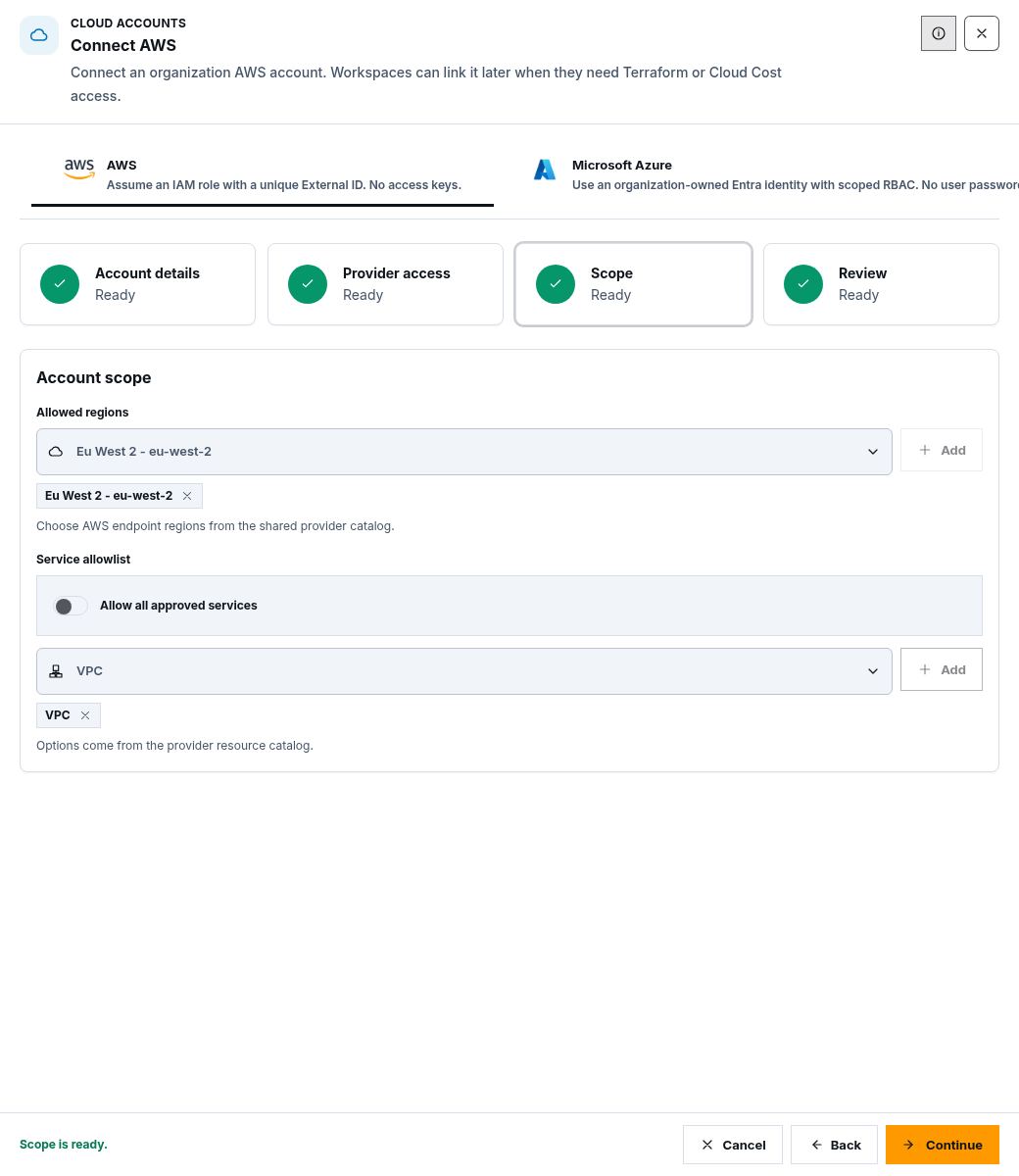
Section titled “3. Scope”Choose at least one approved region. Then either allow all supported services within the approved identity boundary or select the exact services this connection should use.
The ScrinCloud scope does not grant provider permissions by itself. It narrows which approved regions and services product workflows may request.
4. Review, save, test, and activate
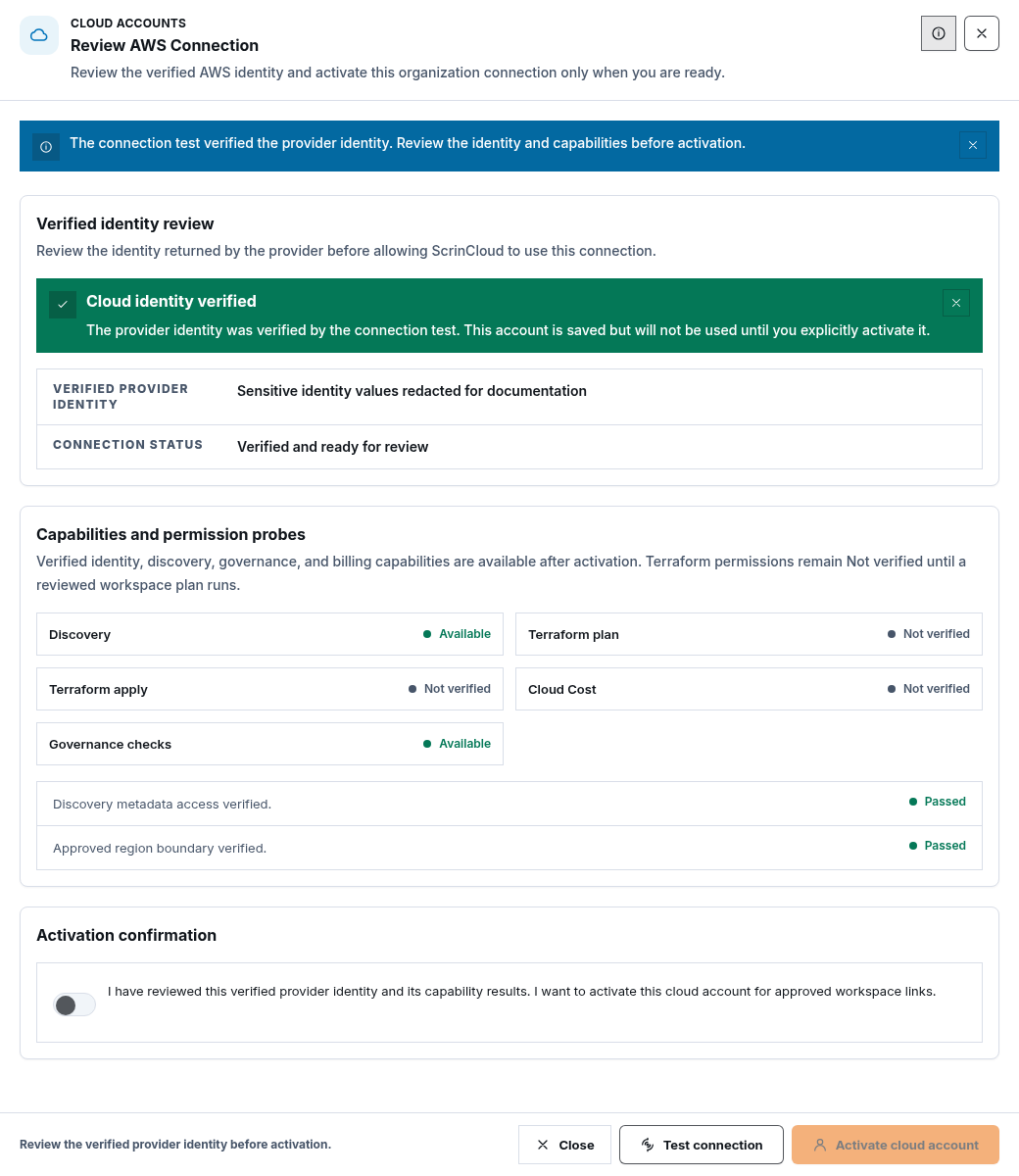
Section titled “4. Review, save, test, and activate”Review the provider, environment, permission level, identity method, regions, and service scope. Saving creates a connection record, but a saved connection is not automatically active.
Next:
- choose Test connection;
- review Verified identity review and permission probes;
- acknowledge the returned provider identity; and
- choose Activate connection only when the identity and requested access are correct.
Terraform plan and apply capability can remain unverified until a reviewed workspace plan exercises those permissions.
Connection states
Section titled “Connection states”- Pending verification / pending activation: saved but not ready for use.
- Active: verified, acknowledged, and available to eligible workspaces.
- Action required / degraded: a test, permission, or credential needs review.
- Suspended: temporarily unavailable until an administrator reactivates it.
- Revoked: access was intentionally revoked and must not be used.
See Test and manage cloud accounts for lifecycle actions, workspace links, credential rotation, and removal.
Check your result
Section titled “Check your result”A cloud account is ready when the intended provider identity is verified, the required probes pass, the connection is Active, and its region and service scope match the workspace that will use it.
Common blockers
Section titled “Common blockers”You cannot see the connect actions
Section titled “You cannot see the connect actions”Ask an organization owner or admin to manage the connection. Project access alone does not grant organization-level connection administration.
The identity test fails
Section titled “The identity test fails”Review the exact failed probe, provider trust, identity, and scoped permission. Do not solve a narrow failure by granting administrator access.
The connection is saved but unavailable
Section titled “The connection is saved but unavailable”Open View details or Review and activate, run Test connection, review the returned identity, acknowledge it, and activate it.
Is this live in my environment?
Section titled “Is this live in my environment?”The product source, backend routes, Terraform route wiring, and Lambda deployment matrices include Cloud Accounts. That is deployment wiring, not proof that a specific environment has valid provider credentials or a healthy live connection. Confirm availability with an approved runtime test.