
Prepare Terraform code
Terraform Runs use a saved workspace revision. Unsaved editor changes are not a safe delivery boundary.
- Typical time
- 10–30 minutes
- You need
- A project workspace and reviewed source
- Next step
- Create non-apply runs
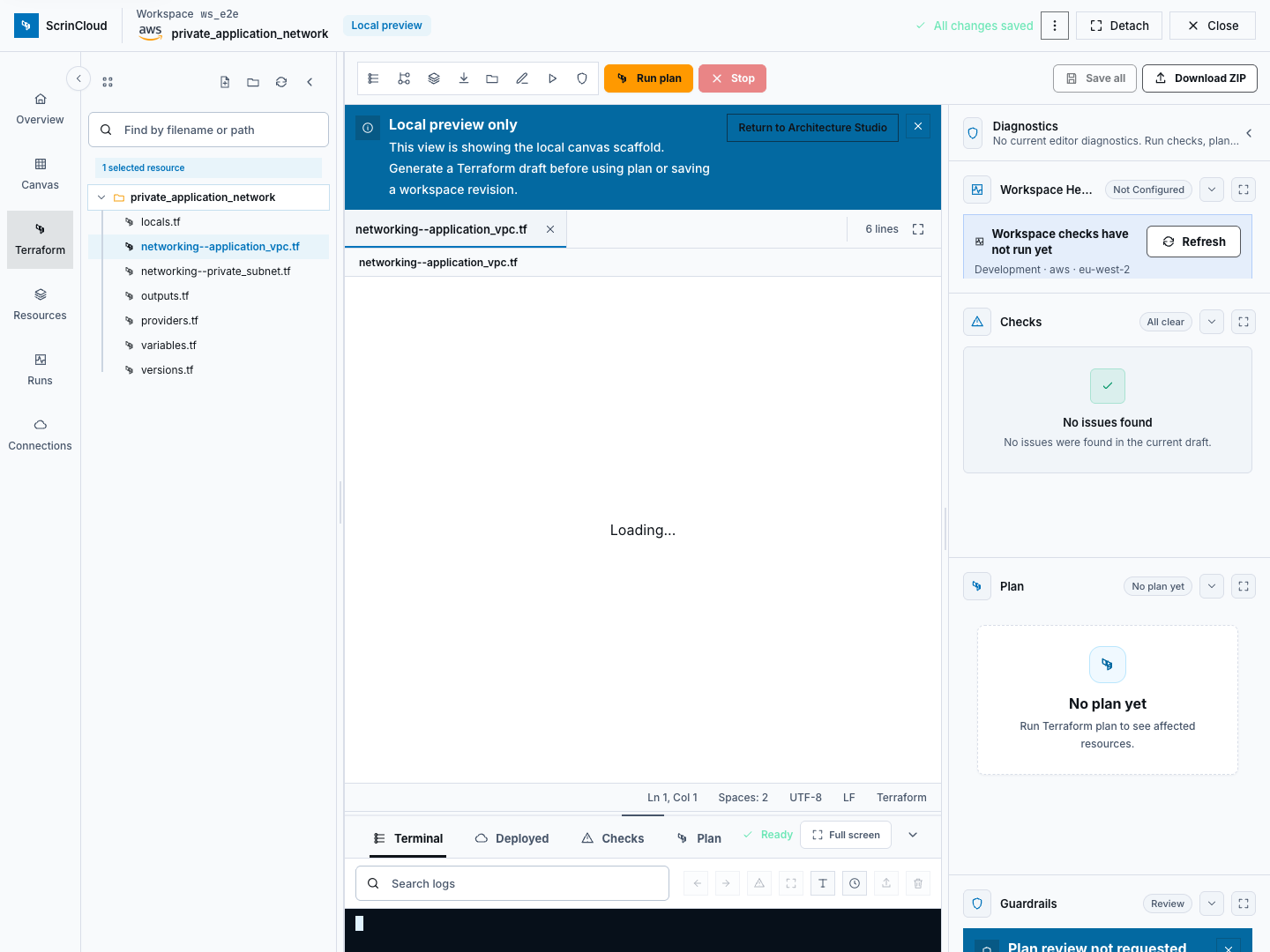
Step 1: Open the correct workspace
Section titled “Step 1: Open the correct workspace”Confirm the organization, project, workspace, environment, provider, region, cloud-account link, repository settings, and execution mode. Open the Terraform editor from that workspace.
Step 2: Generate or import deliberately
Section titled “Step 2: Generate or import deliberately”Use one approved source path:
- Generate Draft creates a reviewable Terraform draft from the saved architecture; or
- Import Terraform loads reviewed Terraform source.
Generation and import do not prove the code is valid, safe, complete, or approved. Review all files and reconcile unexpected resources.
Step 3: Review files and diagnostics
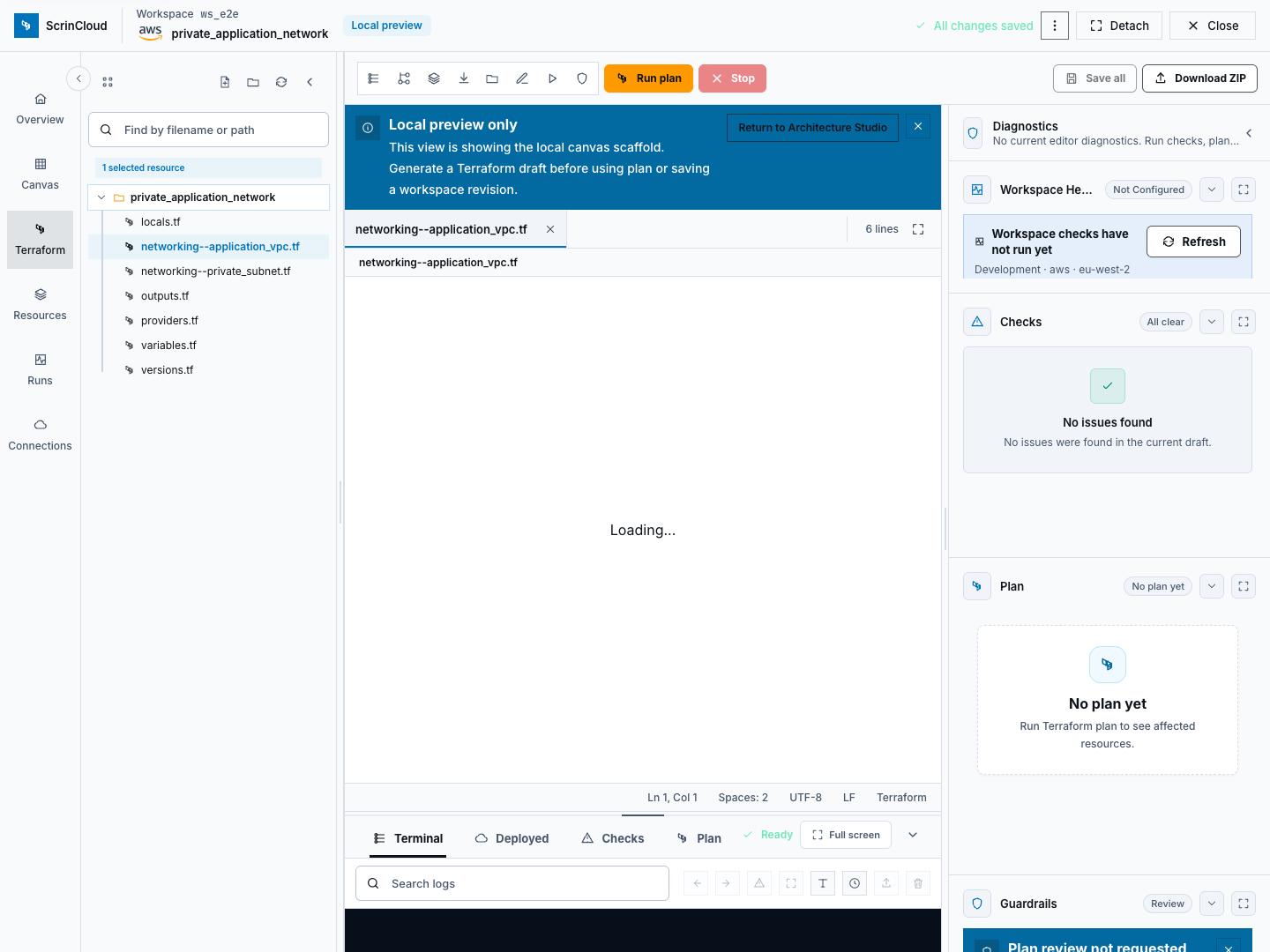
Section titled “Step 3: Review files and diagnostics”Inspect the file tree and editor:
- review provider and required-version constraints;
- review variables, outputs, resources, modules, and data sources;
- confirm environment-specific values are variables, not embedded secrets;
- resolve syntax and editor diagnostics;
- inspect architecture/code sync differences where applicable; and
- remove state, plan, archive, log, key, credential, and environment files.
Step 4: Save the revision
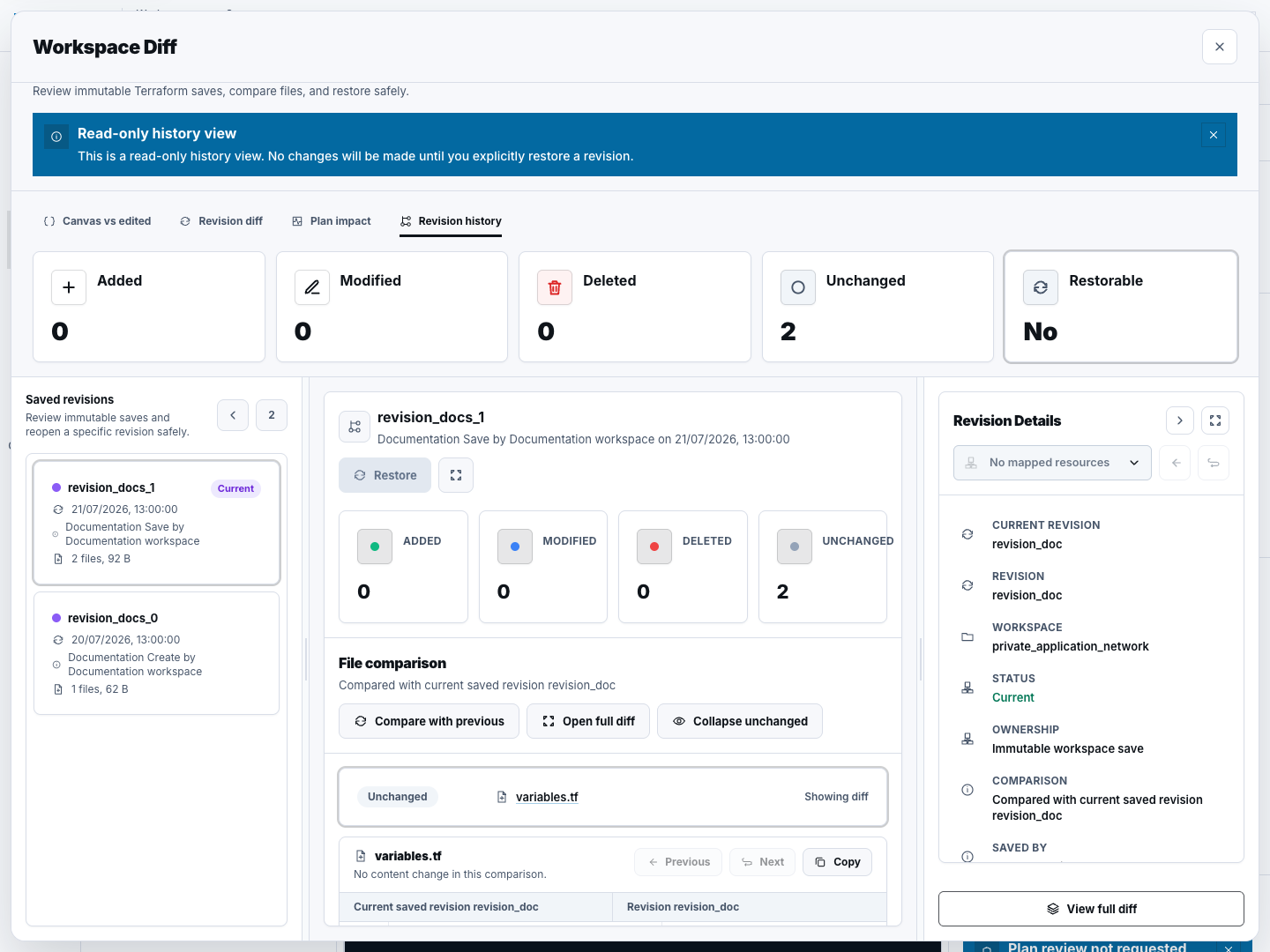
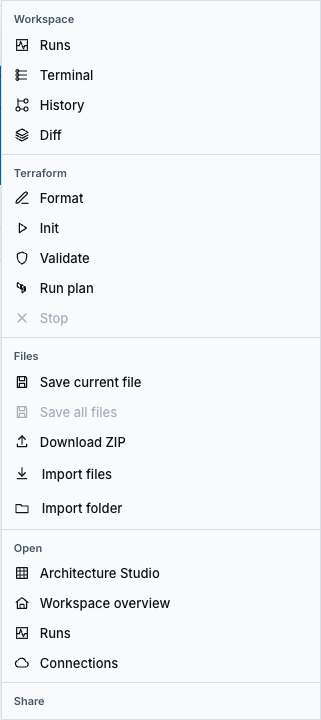
Section titled “Step 4: Save the revision”Choose Save All only after the file set is reviewed. Confirm the editor no longer reports unsaved changes and that revision history shows the new saved revision.
The revision is the source identity used by later runs. Editing after a plan creates a different source state and requires a new plan and approval.
Step 5: Run preparation checks
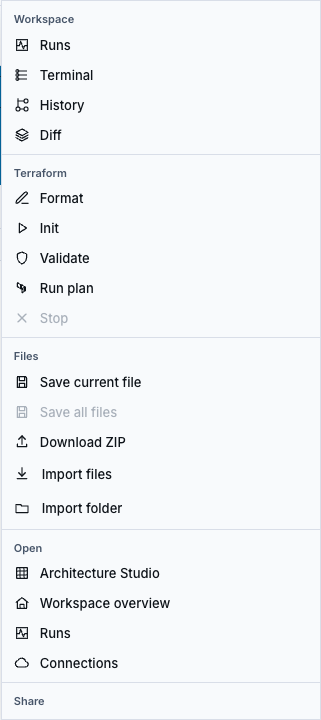
Section titled “Step 5: Run preparation checks”From the editor, Init prepares the approved runner context; Run plan starts a real runner-backed plan. From Runs, New run can start Format, Validate, Plan, or Policy check against the saved revision.
There is no separate Policy check button in the editor toolbar; use the Runs workflow when that action is required.
Check your result
Section titled “Check your result”You are ready to create runs when the intended files are saved in a latest workspace revision, diagnostics are understood, sensitive artifacts are absent, and the project/workspace/provider context is correct.
Common blockers
Section titled “Common blockers”Save a Terraform workspace revision
Section titled “Save a Terraform workspace revision”The Runs page cannot start an action without latest_revision_id. Return to
the editor, review changes, and choose Save All.
Generated code differs from the architecture
Section titled “Generated code differs from the architecture”Use the code/canvas comparison and review unsupported or code-managed resources. Do not overwrite either side until the intended source of truth is clear.
Init or plan fails
Section titled “Init or plan fails”Review the safe error and runner logs. Check workspace configuration, provider connection, variables, module access, and plan limits without exposing secrets.
For every editor, file, terminal, diff, health, code-sync, and inventory control, see Use the Terraform editor.