
Test and manage cloud accounts
Creating a cloud account is only the first boundary. Administrators must test the provider identity, review capability probes, explicitly activate it, and keep its health and workspace links current.
- Typical time
- 5–15 minutes
- You need
- An existing cloud connection
- Outcome
- A reviewed lifecycle state
Step 1: Find the account
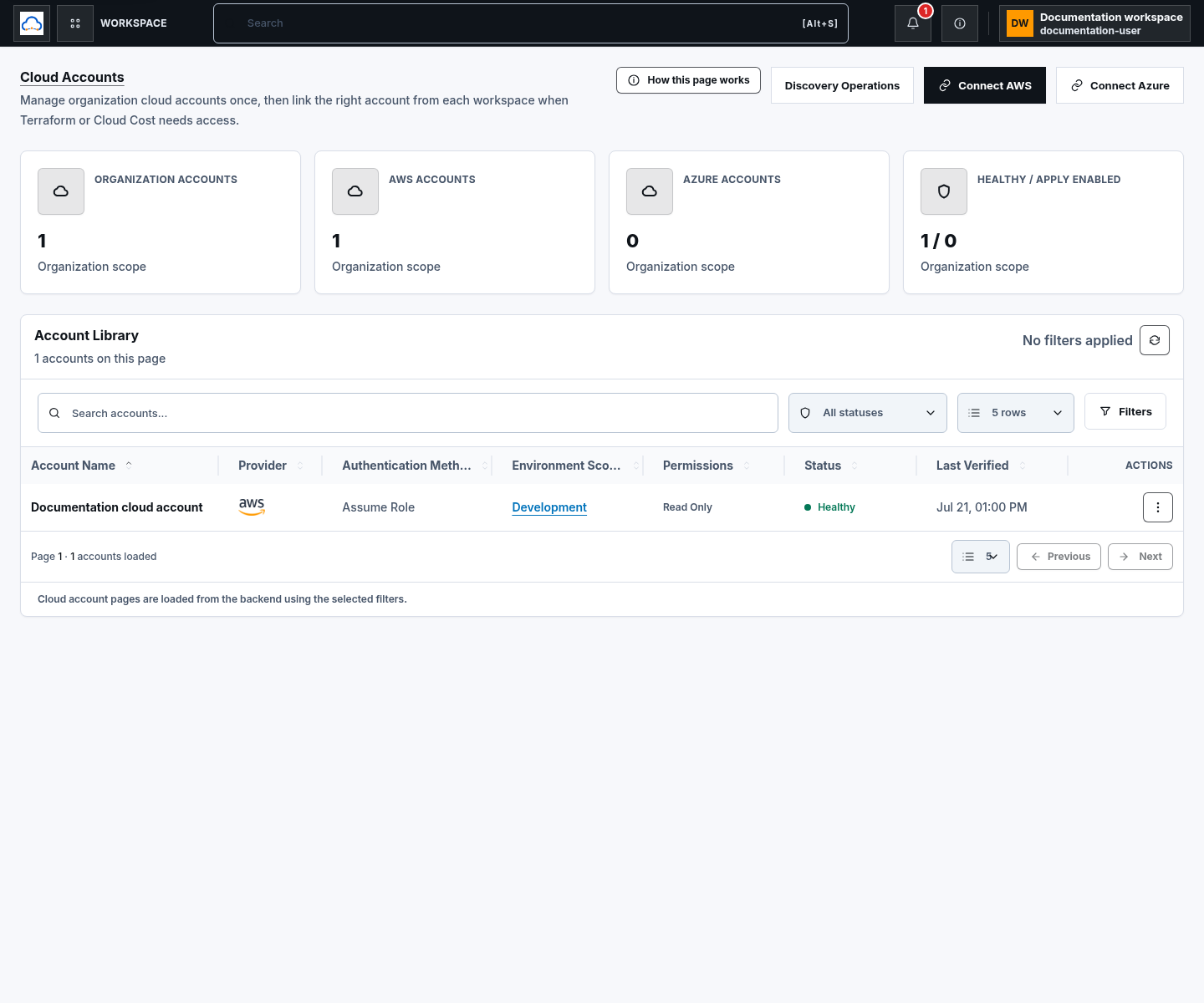
Section titled “Step 1: Find the account”Open Cloud Accounts and use Account Library search, provider, status, page size, and backend-owned Previous/Next controls. Choose Refresh cloud accounts when you need current backend state, then open the row action menu and choose View details.
Step 2: Test and review identity
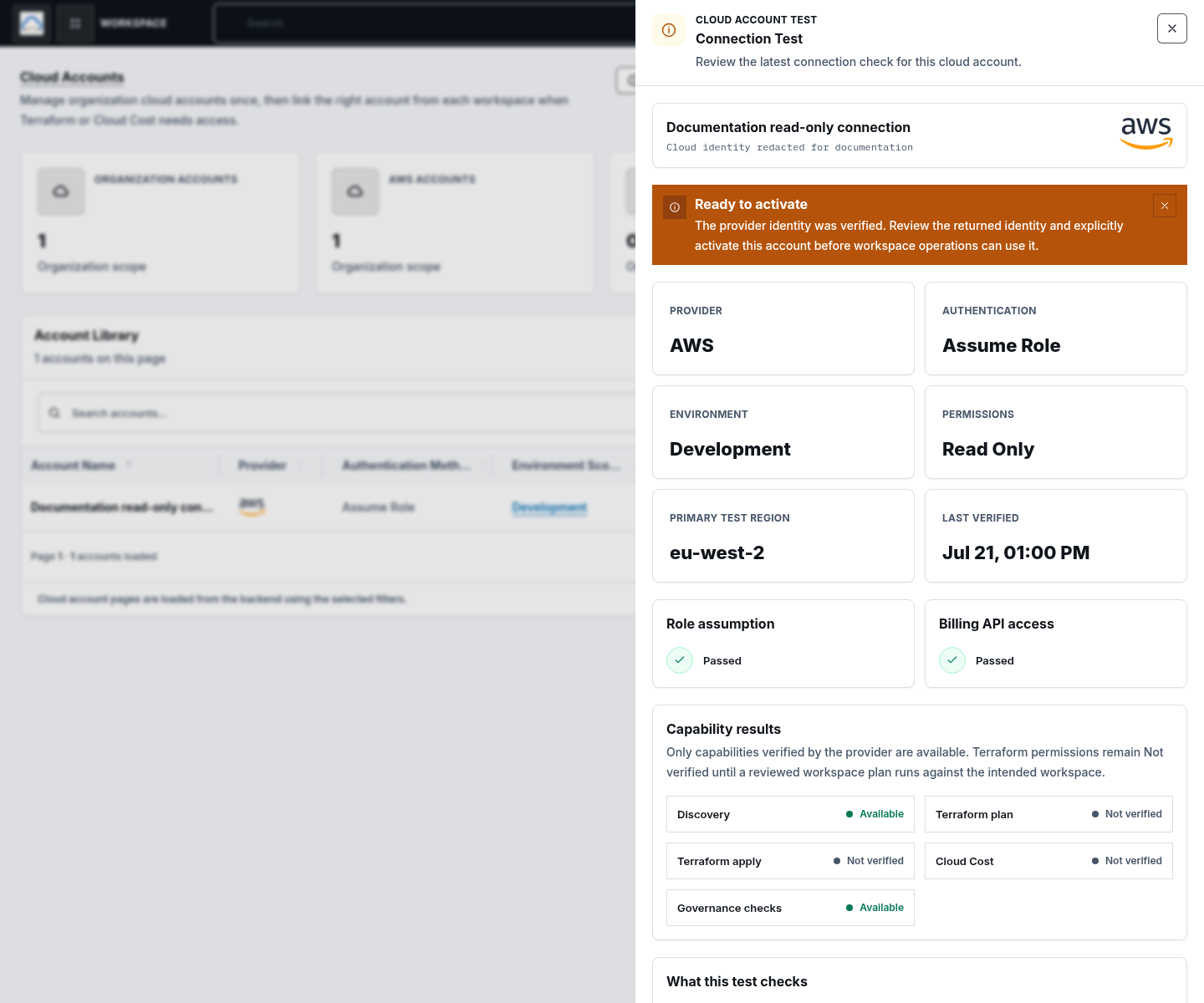
Section titled “Step 2: Test and review identity”Choose Test connection. Review:
- Verified account and authentication method;
- Last tested, Last healthy, and connection health;
- Capabilities and permission probes; and
- the requested permission level.
A partially passed test needs review. Terraform plan or apply can remain unverified until a reviewed workspace plan exercises those permissions.
Step 3: Activate and link safely
Section titled “Step 3: Activate and link safely”For a pending connection:
- choose Review and activate;
- confirm the returned provider identity;
- select the activation acknowledgement; and
- choose Activate connection.
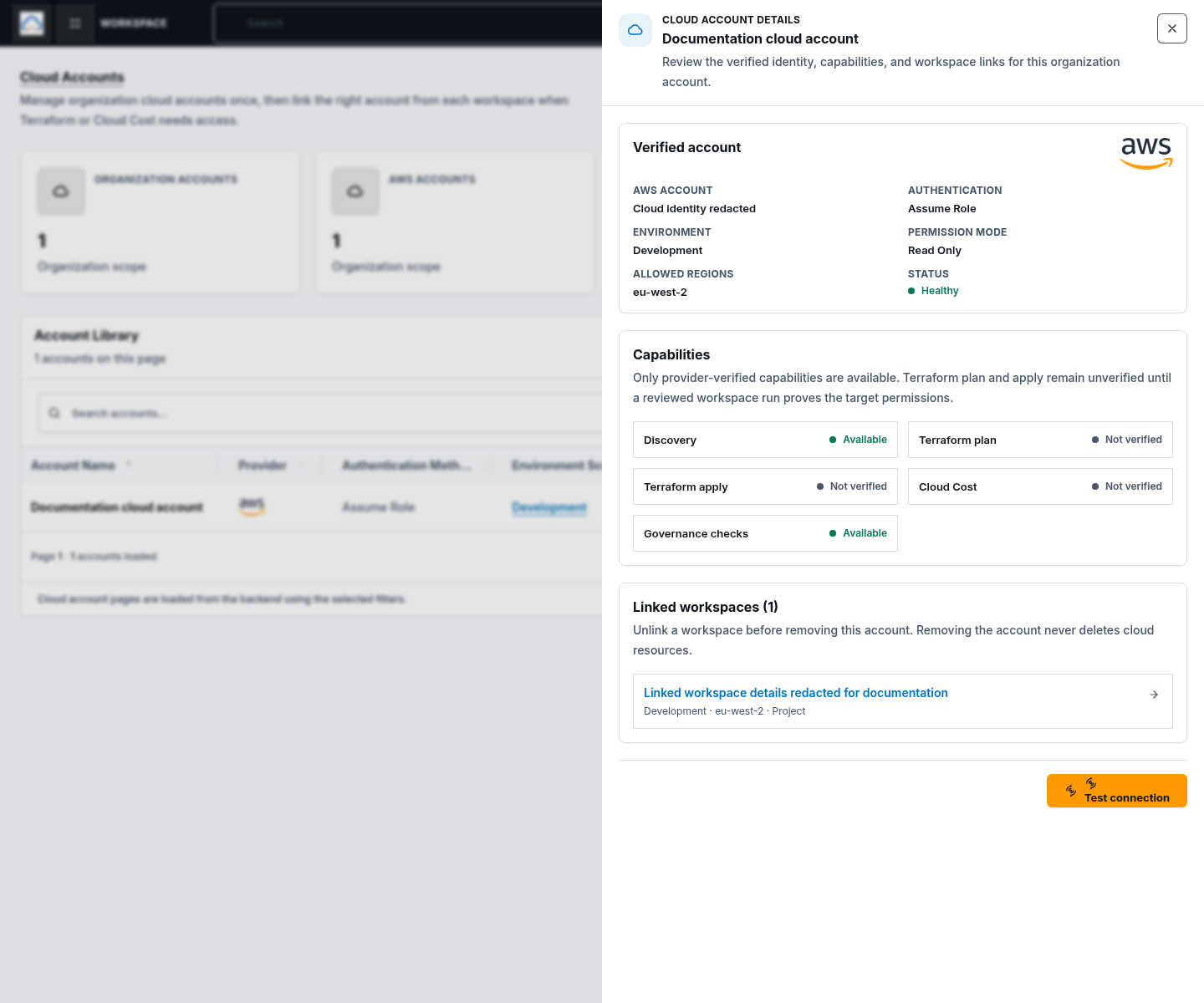
An active account can be selected when an eligible workspace is linked. The details drawer shows Linked workspaces; activation does not automatically link every workspace.
Step 4: Use the correct lifecycle action
Section titled “Step 4: Use the correct lifecycle action”The row menu can expose these administrator actions:
- Edit settings: change the safe display, environment, permission, region, or service scope, then retest.
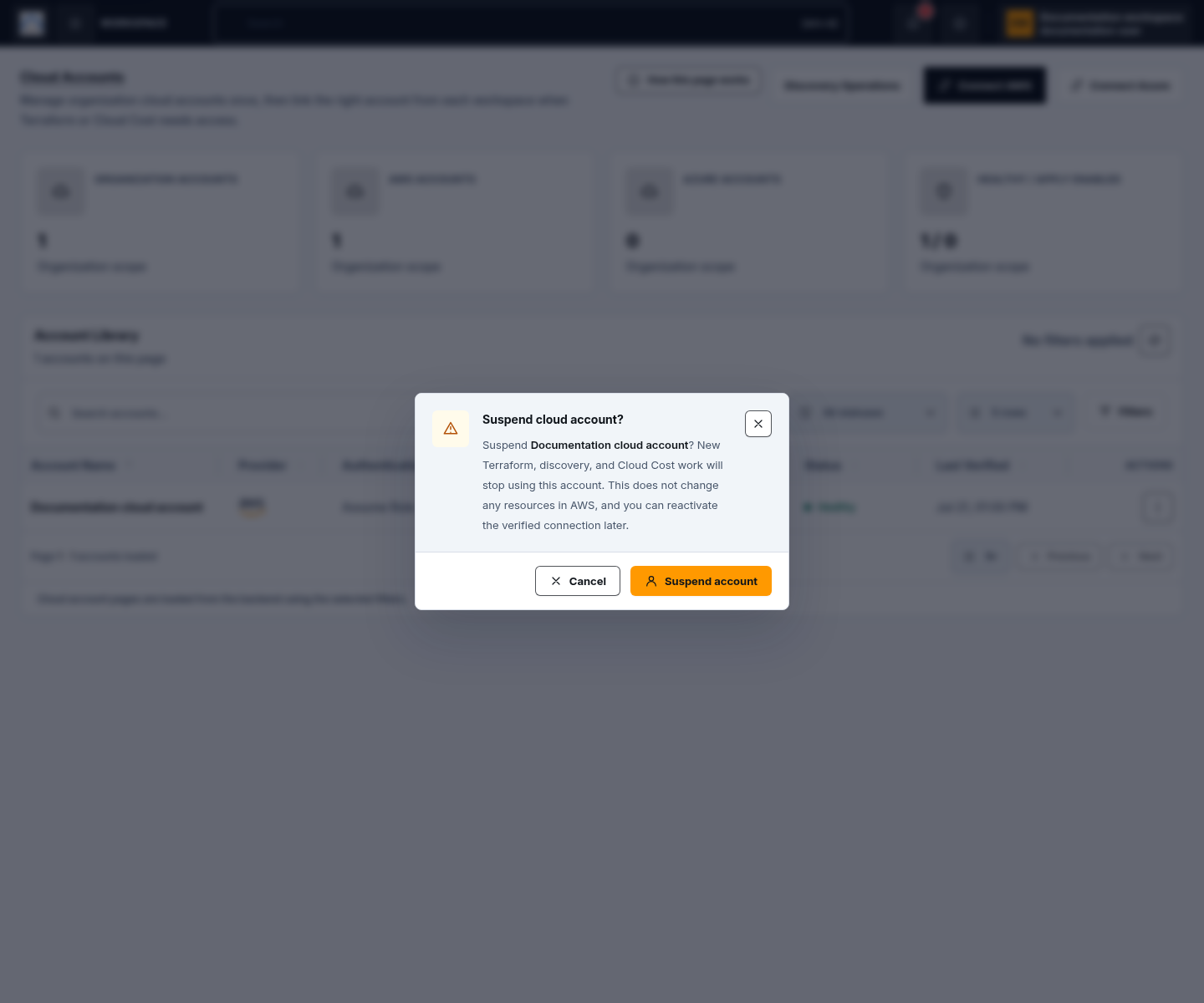
- Suspend account: temporarily block use without deleting the record.
- Reactivate account: return a suspended account to reviewed use.
- Revoke account: intentionally revoke ScrinCloud access.
- Rotate credential: replace an Azure service-principal secret and expiry.
- Remove account: delete the ScrinCloud connection record. This never deletes cloud resources.
Edit settings can update account name, environment, permission level, allowed regions, and service scope. Provider identity fields are read-only in this drawer; reconnect when the AWS role, External ID, Azure identity, tenant, subscription, or stored credential identity must change.
Each high-impact action uses a confirmation. Rotate credential is available only for an Azure service-principal connection and requires Test and replace credential. Re-test after identity, role, credential, or scope changes.
Check your result
Section titled “Check your result”Confirm the connection has the intended lifecycle state, health, version, permission and scope, and only the expected linked workspaces. Record the approved operational evidence without copying provider credentials or raw customer metadata.
Common blockers
Section titled “Common blockers”Activation is disabled
Section titled “Activation is disabled”Run Test connection, confirm identity verification succeeded, review the required probes, and select the acknowledgement.
The connection changed while you were reviewing it
Section titled “The connection changed while you were reviewing it”Refresh the connection and review the new version before retrying. Lifecycle updates use version checks to prevent stale changes.
A workspace cannot select the account
Section titled “A workspace cannot select the account”Confirm the account is active, uses the same provider, includes the workspace region, and is eligible for that organization and project.
Removing a connection
Section titled “Removing a connection”Removal deletes the ScrinCloud connection record, not AWS or Azure resources. Also remove or revoke provider-side trust when your organization policy requires it.