
Navigate and use notifications
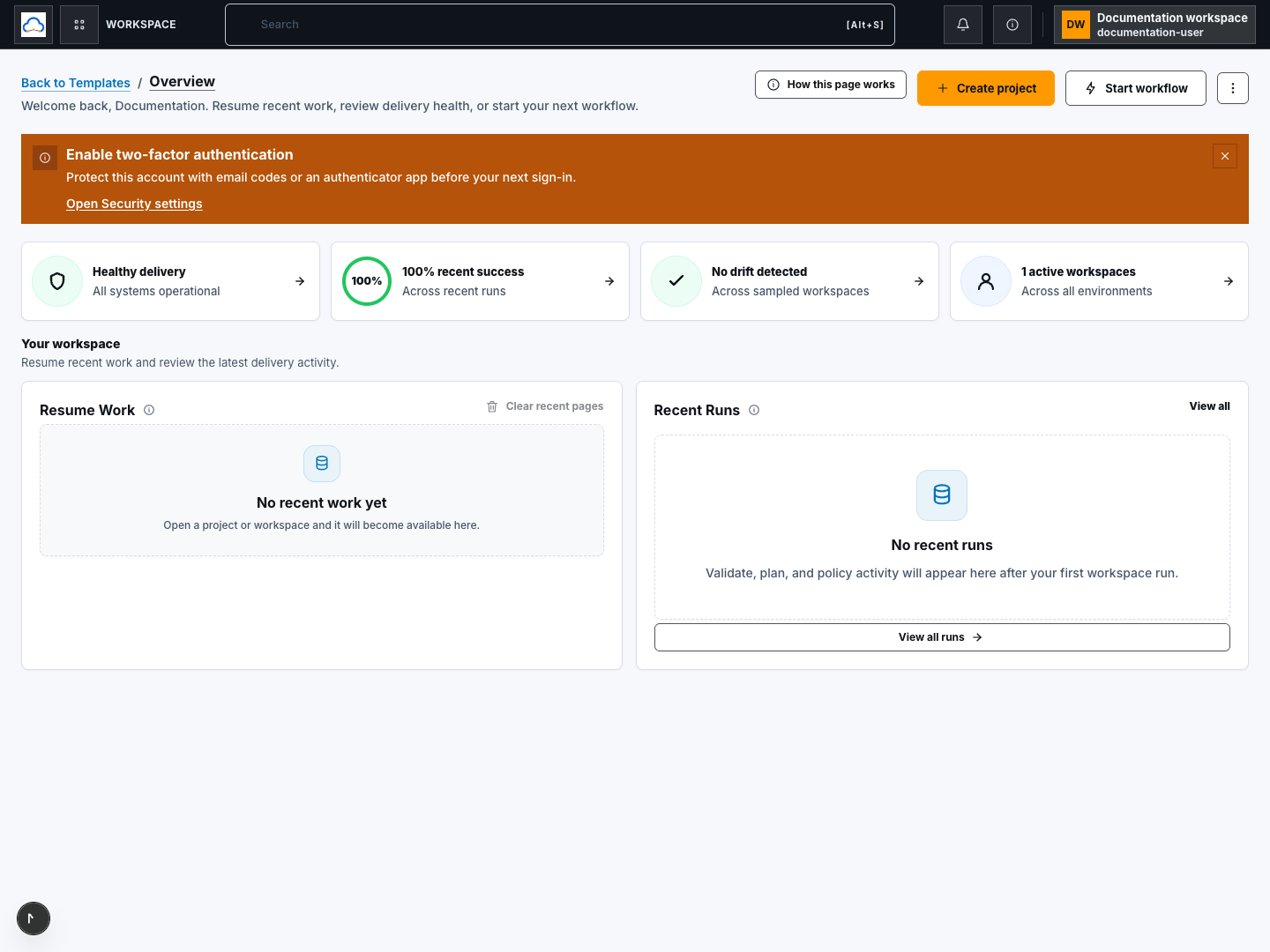
The top bar provides public product navigation, local destination search, notifications, help, and your account menu. It does not expose internal operations.
- Typical time
- 3–5 minutes
- You need
- A signed-in ScrinCloud session
- Outcome
- The intended public page or review
Open product navigation
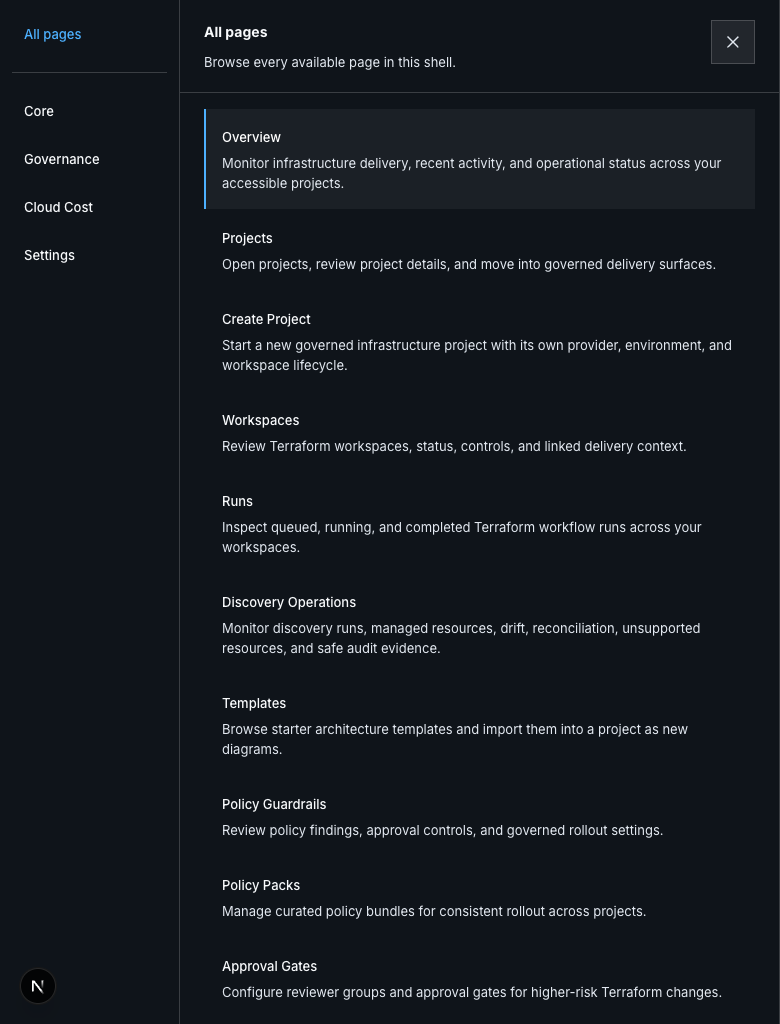
Section titled “Open product navigation”- Choose Open navigation in the top bar.
- Choose Recently visited, Favorites, or All pages when available.
- Select a public section to narrow the destination list.
- Choose a page name to navigate.
- Choose Close navigation or press Escape to leave without moving.
Opening, filtering, closing, and selecting navigation entries are local display or routing actions. They do not change product data.
Check your result
Section titled “Check your result”The selected page title and breadcrumb match the destination you chose.
Search pages
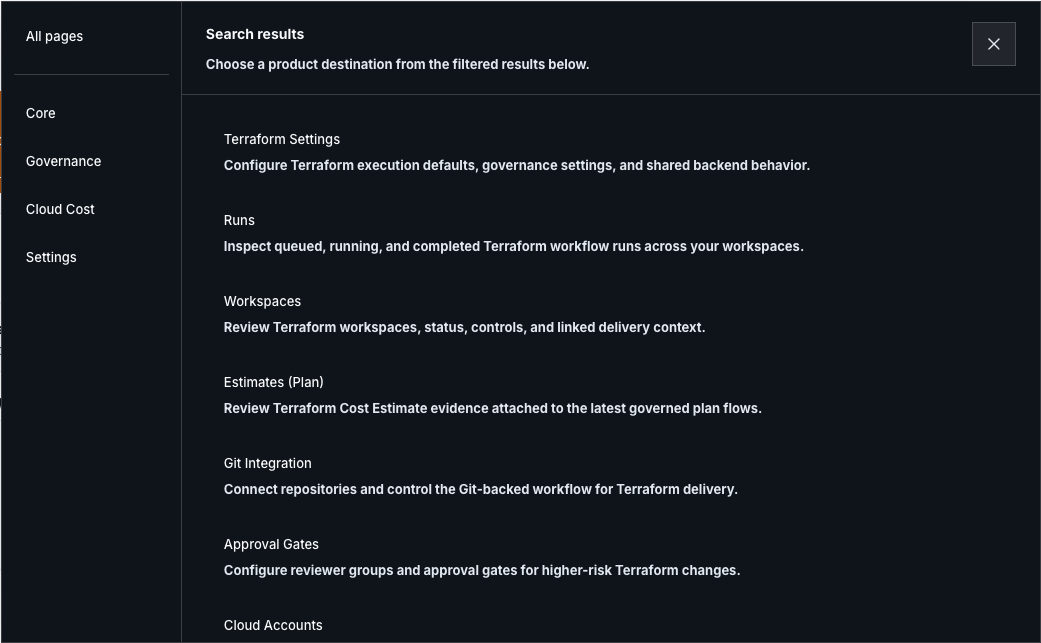
Section titled “Search pages”- Focus the top-bar field labeled Search pages with placeholder Search.
- Enter a page name or supported alias.
- Review Search results.
- Use Arrow Up and Arrow Down to change the highlighted result.
- Press Enter or choose a result.
- Press Escape to close the results without navigating.
Destination search filters the navigation registry in the browser. It does not send project or customer content to a search service.
Check your result
Section titled “Check your result”The chosen result opens the expected public page. A query with no match shows No matching pages found.
Open notifications
Section titled “Open notifications”- Choose Notifications in the top bar.
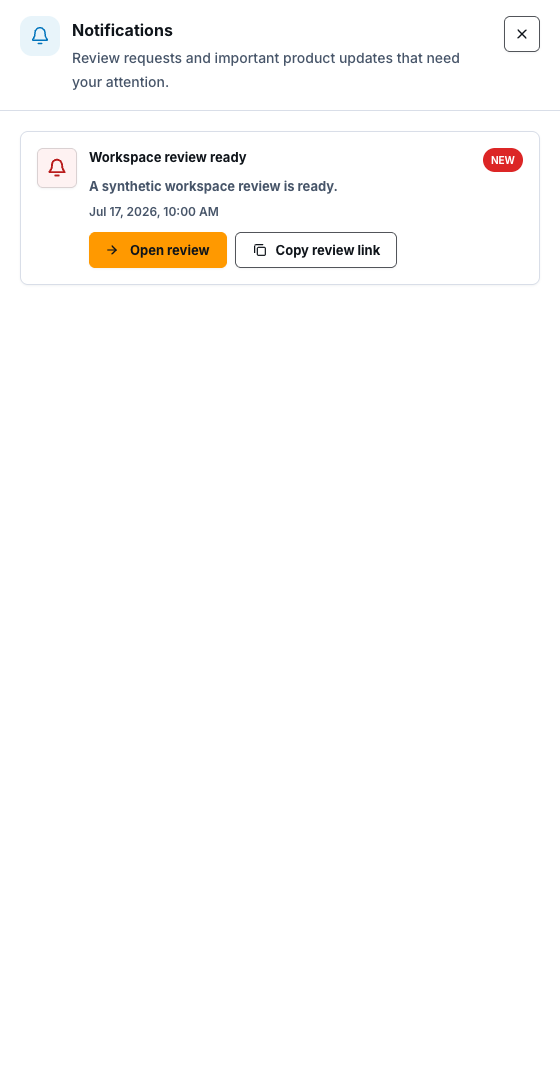
- Review the unread count and items marked New.
- Choose Load more when older items are available.
- Choose Open review to mark an unread item as read and open its safe destination.
- Choose Copy review link only when an authorized reviewer needs the link.
- Close the drawer when finished.
Opening the drawer and loading pages are read actions. Open review sends a mark-read request for an unread item before navigation. There is no public Mark all as read action. Copy review link writes a validated link to your local clipboard and does not grant the recipient access.
Check your result
Section titled “Check your result”The opened item no longer contributes to the unread count, and its destination opens only if your current account is authorized.
Understand safe links and access
Section titled “Understand safe links and access”ScrinCloud accepts same-origin product links and external HTTPS links without embedded credentials. Protocol-relative, non-HTTP, credential-bearing, and invalid destinations are rejected. A copied link is not an authorization token: the recipient must sign in and independently have access.
Common blockers
Section titled “Common blockers”A public page does not appear
Section titled “A public page does not appear”Clear the search and inspect All pages. Availability may depend on your role, plan, project context, or feature configuration.
Search is not visible on a small screen
Section titled “Search is not visible on a small screen”Use Open navigation. The full navigation flyout remains the primary compact screen path.
Notifications do not load
Section titled “Notifications do not load”Keep the drawer open long enough for the request to finish. Check your session and connection, then close and reopen once.
A notification has no safe destination
Section titled “A notification has no safe destination”Do not copy or reconstruct the raw link. The item may be stale or malformed; report the visible error with the notification title only.
A copied link does not open for another person
Section titled “A copied link does not open for another person”Confirm the person signed in with the intended account and has project access. Sharing a URL never bypasses tenant or project authorization.